

SMTP Error 552 5.3.4 means your email bounced because its total size, message body plus attachments, exceeded the limit set by your mail server or the recipient’s server. The fix is almost always the same: compress or remove the oversized attachment, switch to a cloud-storage link, then resend. The sections below explain exactly why this happens on Gmail, Outlook, and Yahoo, and how to fix each case.
Email works through transmission via the Simple Mail Transfer Protocol and here’s a quick overview of how it works:
- When one sends an email, the sender’s email client attempts to establish a connection with the SMTP server responsible for handling outgoing emails.
- When the connection is established, the sender’s email client communicates with with the SMTP server using specific commands.
- Examples of these commands include identifying the sender and recipient, providing the email content, and requesting the server to deliver the email.
- The SMTP server proceeds to process the email, conducts various checks, and attempts to deliver it to the recipient’s mail server.
Unfortunately, errors can occur from time to time. One such error is SMTP Error 552 5.3.4.
It results from interface limits breached with too large an attachment or an infraction-type message sent, like spam.
Furthermore, SMTP Email Error 552 5.3.4 may be connected to a more extensive email server failure – whether it’s a configuration error or a policy enhancement that might change other configurations which allow sending in the first place. Therefore, it’s critical to assess what’s wrong with this error.
Demystifying SMTP Error 552 5.3.4
SMTP Error 552 5.3.4 is one of those error messages that comes in various forms across different email clients and email servers, yet the meaning is consistent: Your email failed to send because it was too large.
- If you’re using Microsoft Outlook, you might see this: “552 5.3.4 Message size exceeds fixed limit.”
- If you’re using Gmail, you’ll get this message: “Message rejected. Size exceeds maximum permitted.”
Such error codes are relatively straightforward, letting you know your email did not go through.
Don’t confuse it with similar-looking codes: SMTP Error 552 5.1.1 points to a bad recipient address, and SMTP Error 552 5.7.0 signals a policy rejection, both of which need different fixes than the size issue covered here.
Implications of SMTP Error 552 5.3.4 on email sending
Disruption of communication. This error prevents the email from being delivered, which can interrupt timely communication, especially in professional or urgent contexts.
Need for content adjustment. Senders are then required to modify the email content before trying again, typically by reducing the size of attachments or splitting the content into multiple messages, in order to comply with server limitations.
Server policy awareness. This error underscores the importance of being aware of and adhering to specific mail server policies regarding email size, which can vary widely between different email providers or organizational email servers.
Potential for data loss. In scenarios where large files need to be shared, this error could lead to challenges in data transfer, pushing users to find alternative methods to share large files.
🔖 Related Reading: SMTP Email Error 552 – How to Resolve [SOLVED]
Exploring the reasons behind SMTP 552 5.3.4
Exceeding size limits
Most email servers limit the total size an email can be – content and attachments – and an SMTP Error 552 5.3.4 message is returned to the sender if the email exceeds the limit. These limits are in place for resource management and the effectiveness of the system as a whole.
Large attachments
An email with a large attachment is the primary reason for going over the limit due to significant attachment sizes.
For instance, high-quality photos, large documents, or videos will make it impractical to comply with limits set by email servers.
Embedded content in the email
In addition to attachments, embedding images or other media in the email will increase its size. More specifically, emails that are well-formatted with HTML with extensive inline styling or embedded media are more prone to being rejected.
Q: What are HTML emails?
A: HTML emails are emails formatted using HTML (HyperText Markup Language). This means emails have rich content – including images, colors, links, and custom layouts. Compared to plain text emails, HTML emails are more visually appealing, but may not be necessarily better for email deliverability.
🔖 Related Reading: Plain text or HTML in cold email?
Server configuration
This issue may also be caused by the particular setup and rules of an email server. The size limitations of servers may differ depending on their specifications and the rules set forth by the hosting company or service.
Data accumulation
An email’s size may occasionally grow unexpectedly due to the accumulation of header data from several forwarding instances or additional metadata.
Tired of chasing size errors one email at a time? Before you work through the fixes below, it’s worth checking whether recurring bounces are actually a broader deliverability problem. Start a free Warmy.io trial to monitor your sender reputation and catch problems before they turn into bounced messages.
Detailed solutions for resolving SMTP Error 552 5.3.4
Instructions for Gmail users
Check email size. It should not exceed 25 MB in total, including attached files. This is Gmail’s maximum allowable email size limit.
Compress the attached files. To do this, you will need to create a ZIP archive for the file that you intend to attach to the email.
Use Google Drive. If the attached file is more than 25 MB, it would be better to upload the file to Google Drive and send the link in the email.
Pro Tip: Attachments are Base64-encoded before transmission, which inflates their size by roughly a third. This overhead is defined in the SMTP Message Size Declaration extension (RFC 1870), so a 20 MB file can become roughly 27 MB on the wire. Keep real attachment content under 18 MB to stay safely inside Gmail’s cap.
For Outlook users
Verify attachment limits. Make sure the size of the email file does not exceed 20 MB if you use Outlook.
Compress larger files. For larger documents or pictures, it is recommended to compress them before attaching them to the email.
Finally, adjust Outlook settings. A user can also change the default server timeout in Outlook so the attached file can be sent as the longer timeout means less possibility of error.
Pro Tip: If you’re on a business account, the 20 MB figure above is only the Outlook.com default. Microsoft 365 and Exchange Online ship with a 35 MB default and admins can raise it up to 150 MB, so check with IT before assuming you’re capped at 20 MB.
For Yahoo Mail users
- Limit email size. Ensure email size is no more than 25 MB, including attachments to fit Yahoo email limits.
- Compress files. Use file compression software to minimize the size of the attachments you are intending to email.
- Break down large emails. Split the attachments into smaller parts if they are too large and email each one in different messages as needed.
Pro Tip: If you send large files regularly, don’t wait for the bounce. Default to a cloud-storage link for anything over 10 MB so you never have to troubleshoot this error mid-send.
General tips
- Remember to always verify the recipient’s email capabilities as well, since certain email systems may have more stringent attachment size limits.
- When data security and secrecy are critical, think about using secure file transfer services or other alternate means when exchanging huge files.
Optimizing email management with Warmy.io
SMTP errors, while inconvenient, are not the end of the world. Additionally, aside from implementing the tips above to avoid SMTP Error 552 5.3.4, senders can leverage the power of tools like Warmy.io to maximize their email deliverability potential.
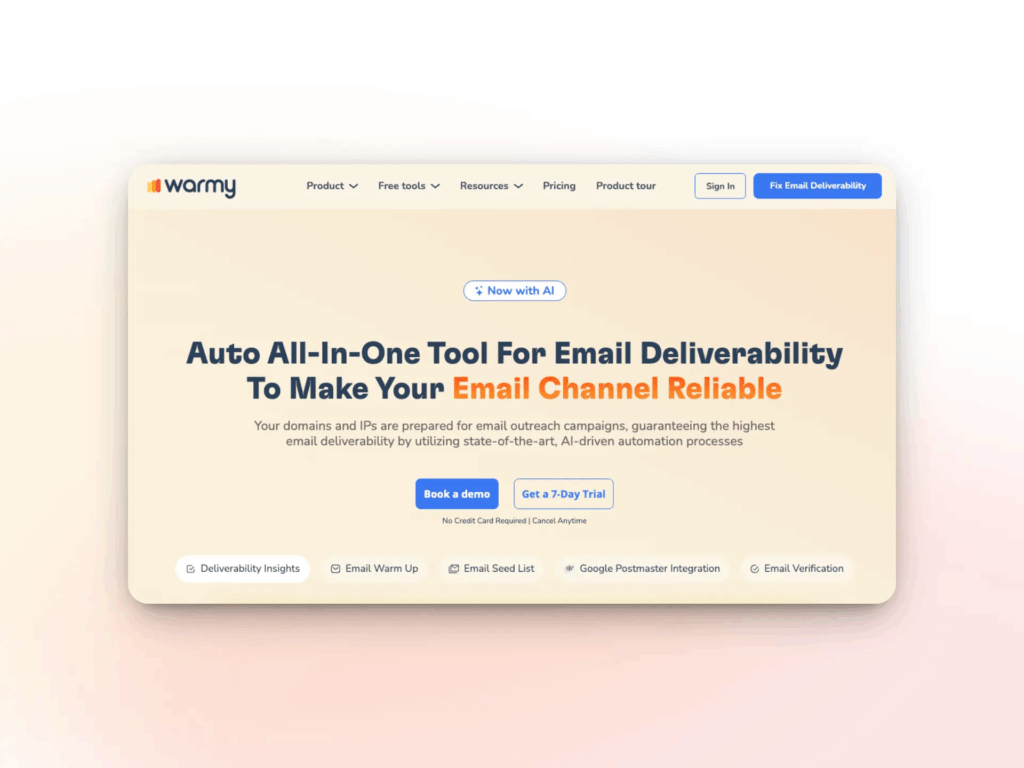
Warmup process that’s automated yet done right
Warmy helps senders build a reputable sender reputation by gradually sending lots of emails. You will be positioned as a trustworthy sender who will not have their emails denied merely because they’re too big.
Warmy’s email warmup works by:
- Automatically yet gradually increasing sending volume to build trust with mailbox providers.
- Simulating real human-like interactions – emails are opened, replied to, and marked as important, boosting deliverability.
- Working across 30+ languages so your emails look natural and relevant for global audiences.
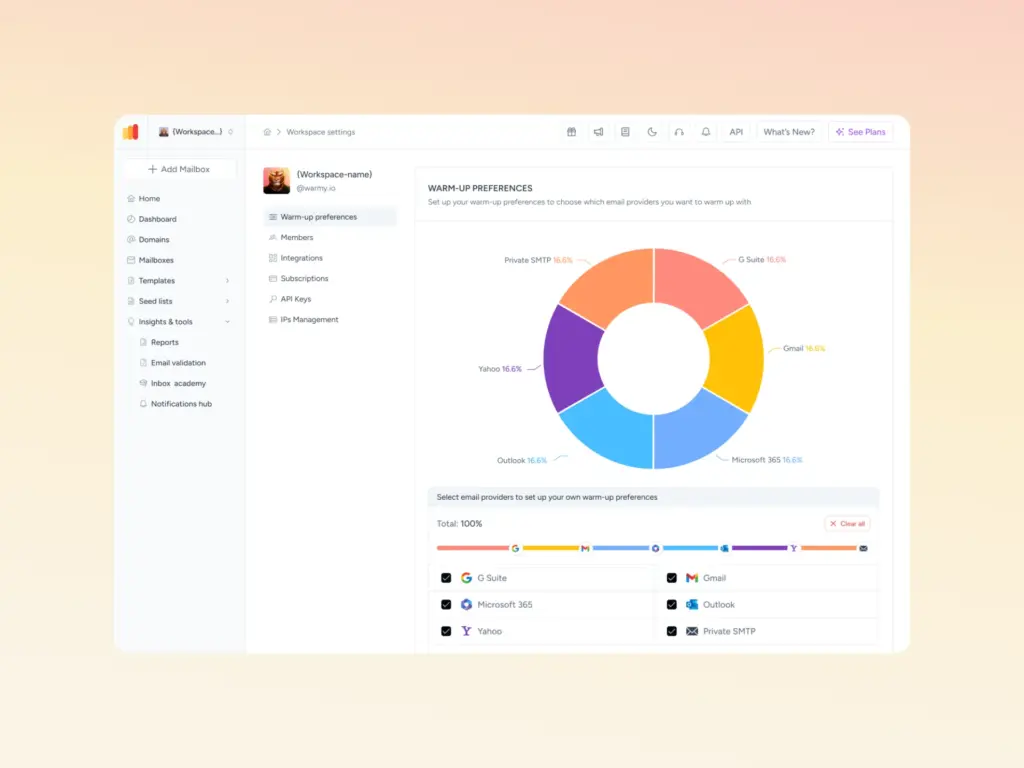
Customized warmup via Warmup Preferences feature
This feature is designed to make your email warmup process even smarter by allowing senders to tailor certain preferences, such as:
- Warmup distribution across GSuite, Gmail, M365, Outlook, Yahoo, and even Private SMTP.
- Engagement patterns. Choose between B2B or B2C customers.
- Define percentage of emails that will be sent to each provider
You can also set warmup settings for all your mailboxes at once – or even one by one, whichever you prefer. Plus, all settings can be changed directly within Warmy’s system, so there’s no need to contact support and wait
Advanced seed lists for better inbox placement
Some warmup tools use fake email addresses, which do nothing for your reputation. Warmy.io’s advanced seed lists contain genuine email addresses which provide authentic email interactions (opens, scrolls, clicks, replies, archives). If an email lands in spam, it is removed and marked as important
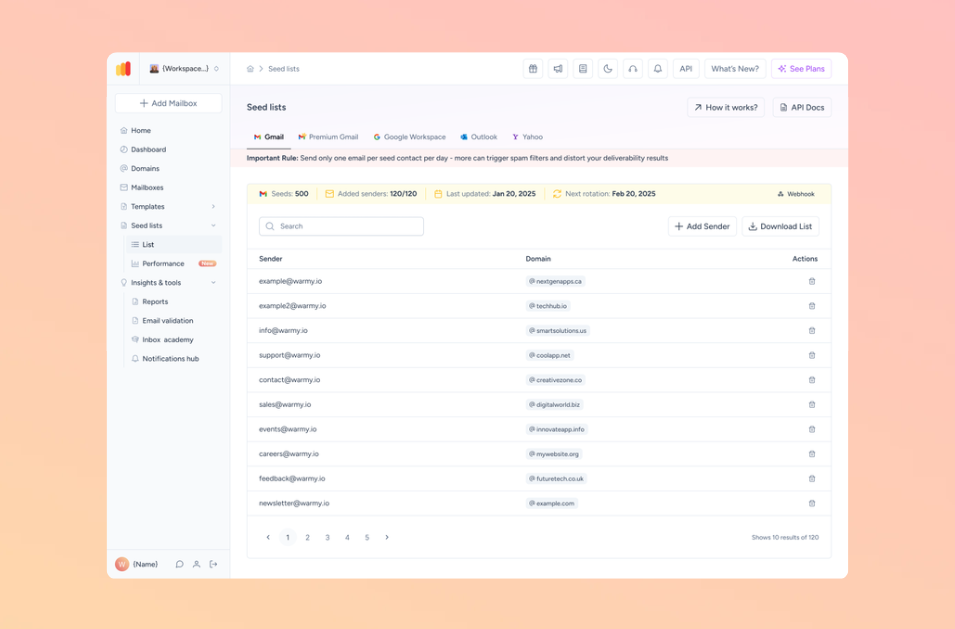
Other details about Warmy’s seed lists:
- Better recognition by ISPs like Google, Microsoft, and Yahoo
- Improved sender score and reputation
- Available for Gmail, Outlook, and Yahoo.
- Ability to warm up using any provider that previously cannot be warmed up – Mailchimp, Shopify, Omnisend, and Klaviyo, etc.
Learn more about Warmy’s seed lists here. You can also get a more in-depth look at how Warmy’s seed lists work by checking out these resources:
- Email Warmup Alternatives: When Traditional Warmup Isn’t Enough
- Email Engagement How Seed List Helps Improve Open & Click Rates
Free email deliverability test for a clear direction
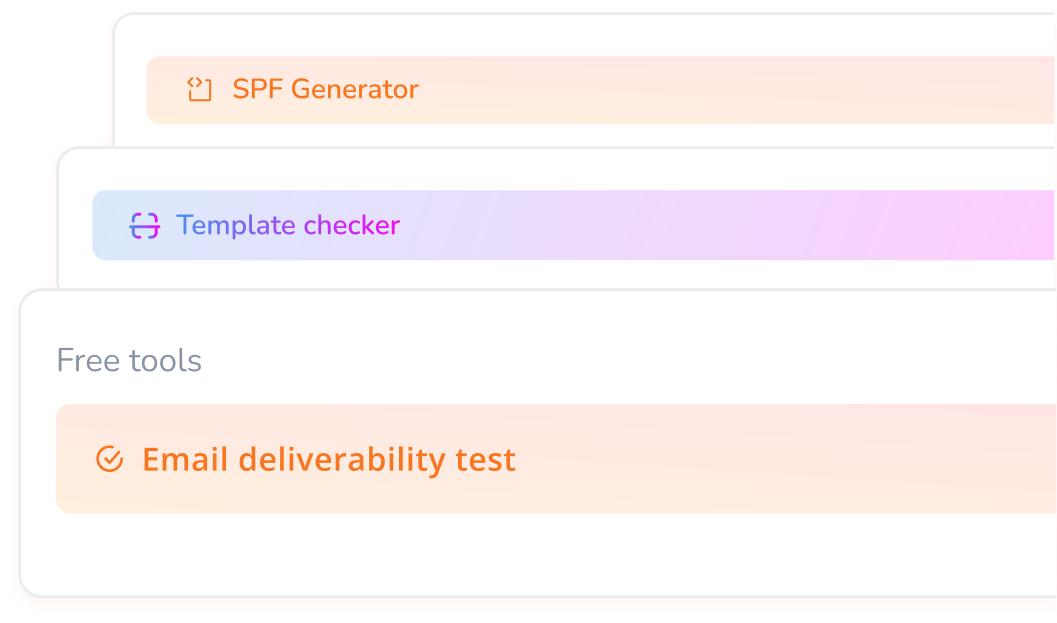
On top of all the features mentioned above,Warmy offers a free email deliverability test which provides information on your current standing.
It helps users get data on the following:
- Know where your emails land (Inbox, Spam, Promotions tab) across major providers like Gmail, Outlook, and Yahoo! and what percentage lands in which folder.
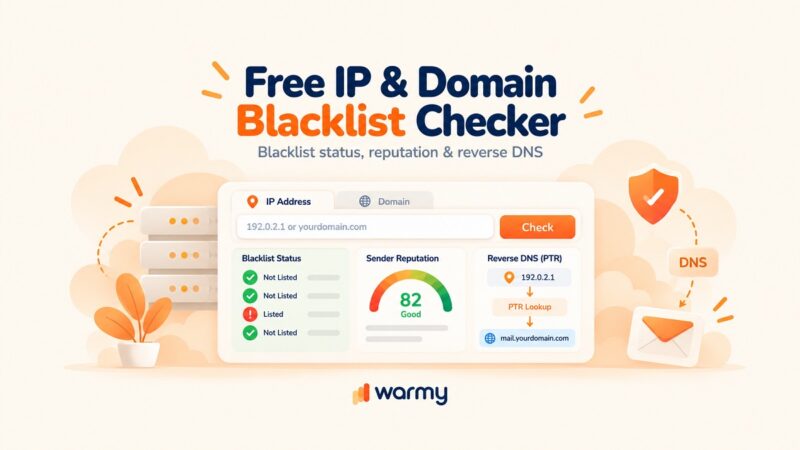
- Know if your sending IP or domain is blacklisted, as this could also trigger SMTP errors and delivery failures. In the event you are indeed listed, follow these steps to delist.
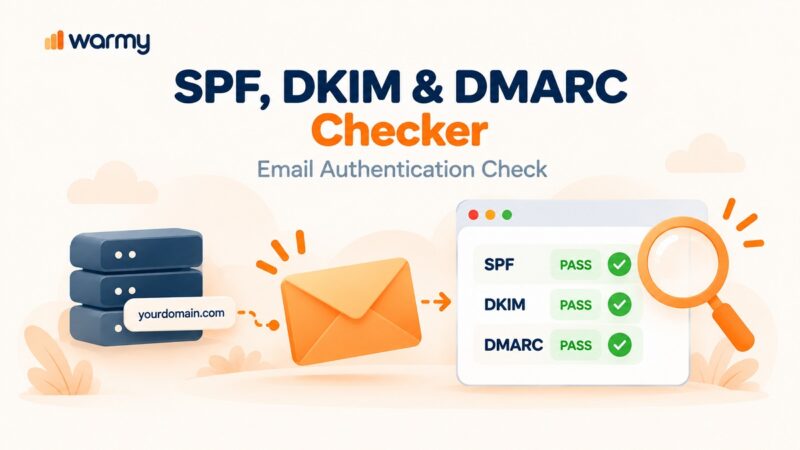
- SPF, DKIM, DMARC verification: Ensure proper authentication to reduce deferrals and enhance sender credibility.
Watch this video to give you an idea of how the email deliverability test is conducted:
Conclusion
Ultimately, keep in mind that troubleshooting SMTP Error 552 5.3.4 and similar errors is all part of the process to maintain your email deliverability reputation.
These errors may cause setbacks that affect your business, your outreach with customers, and more. Thus, it’s important, over time, to ensure that such things don’t happen.
This means that you should always keep an eye on your sender reputation, ESP configurations, etc.
Warmy.io gives you the tools to maximize email as a communication channel and avoid any setbacks for your own business.
Sign up for a free trial today, or book a demo where an expert will walk you through how Warmy can transform your email strategy.