



 HubSpotListed on the HubSpot App Marketplace
Warmy Keeps HubSpot Emails Out Of Spam And Promotions
HubSpot tells you an email was delivered. Warmy shows you where it actually landed. Test inbox placement for your HubSpot campaigns and sequences across Gmail, Outlook and Yahoo, warm up the domain and mailboxes you send from, and monitor SPF, DKIM, DMARC and blocklists — before your next send.
Free test · No credit card required · Works with Marketing Hub and Sales Hub
★ 4.9 on the HubSpot App Marketplace (55 reviews) · 300+ HubSpot installs · 35,000+ senders
HubSpot Email Deliverability In 30 Seconds
HubSpot email deliverability is the share of your HubSpot emails that reach the recipient's inbox instead of spam or Promotions. HubSpot is a full email marketing and sales platform, but where an email lands is decided by Gmail, Outlook and Yahoo. They look at four things: an authenticated sending domain (SPF, DKIM, DMARC), the reputation of your domain and sending IP, recipient engagement, and list quality. HubSpot reports when an email is delivered, not where it lands, so you need an external inbox placement test to see the real result.
- Marketing Hub
- emails (campaigns, newsletters, workflows) go out through HubSpot's sending network. Protect your domain reputation and test placement with a seed list.
- Sales Hub
- emails (sequences, one-to-one emails) go out through your connected Gmail or Outlook mailbox. Warm up that mailbox before you scale.
- Warmy
- covers both paths and monitors authentication and blocklists in one dashboard.
Trusted By 35,000+ Ecommerce And B2B Senders
Rated 4.9 out of 5 by HubSpot users on the HubSpot App Marketplace · 4.9 on G2











HubSpot Shows "Delivered". It Can't Show The Inbox.
When HubSpot sends a marketing email, the recipient's mailbox provider decides what happens next. Once Gmail, Outlook or Yahoo accepts the message, HubSpot marks it as delivered — and that is where HubSpot's visibility ends. HubSpot's own documentation says providers don't always report inbox placement back to senders, so HubSpot can't report it either.
That is why a HubSpot campaign can show a high delivery rate while a large share of it sits in spam or Promotions. HubSpot Email Health helps: it grades opens, clicks, bounces, unsubscribes and spam complaints for your marketing email. But it is built on engagement data, it can't tell you which provider filtered which message, and it doesn't cover sequences sent through connected inboxes.
Open rates need care too. Privacy features such as Apple Mail Privacy Protection load images automatically, so opens can look healthy while the emails sit in spam elsewhere. A low open rate isn't proof of spam, and a high one isn't proof of inbox placement.
| What HubSpot shows you | What Warmy adds |
|---|---|
Delivered, bounced, not sent | Inbox, Promotions or spam — for each provider |
Email Health grade for the last 30 days | Domain reputation trend, Google Postmaster Tools data, blocklist status |
Results after the campaign is sent | A placement test before you send |
Authentication status in Domains & URLs | Continuous SPF, DKIM, DMARC and DNS checks with alerts |
What Warmy Fixes For HubSpot Senders
HubSpot sends the campaign. Warmy helps it reach the inbox.
Warm up your HubSpot sending domain
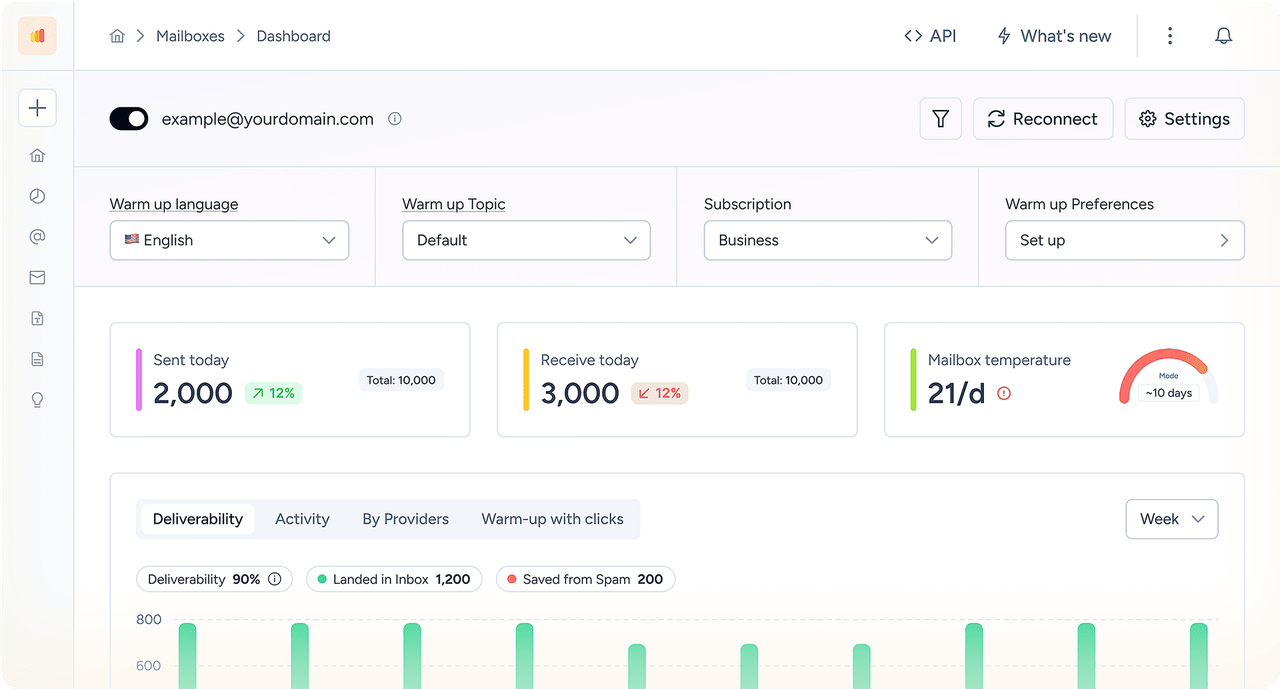
Warmy runs a HubSpot email warm-up from mailboxes on your sending domain: human-like conversations that Gmail, Outlook and Yahoo learn to trust before your next campaign. Adeline, Warmy's AI engine, sets daily volume by your domain's history. Emails that land in spam are moved to the inbox and marked important. You can warm up your real HubSpot templates, imported straight from your account.
Test HubSpot inbox placement before you send
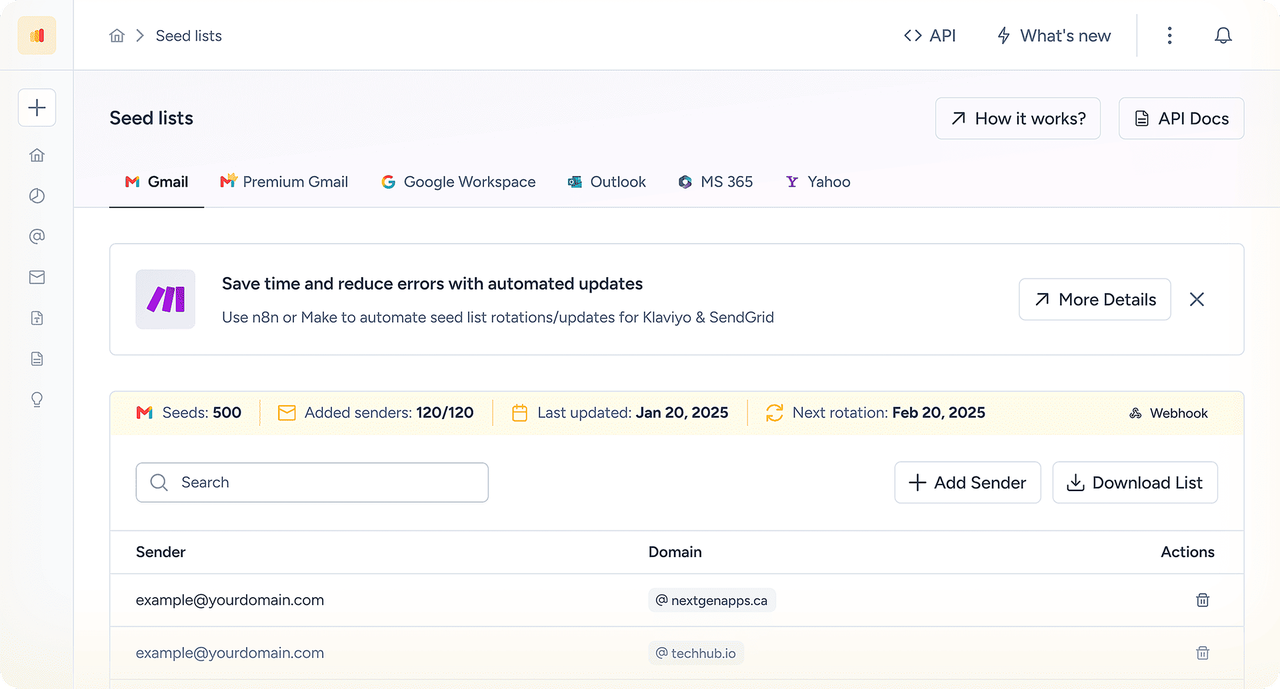
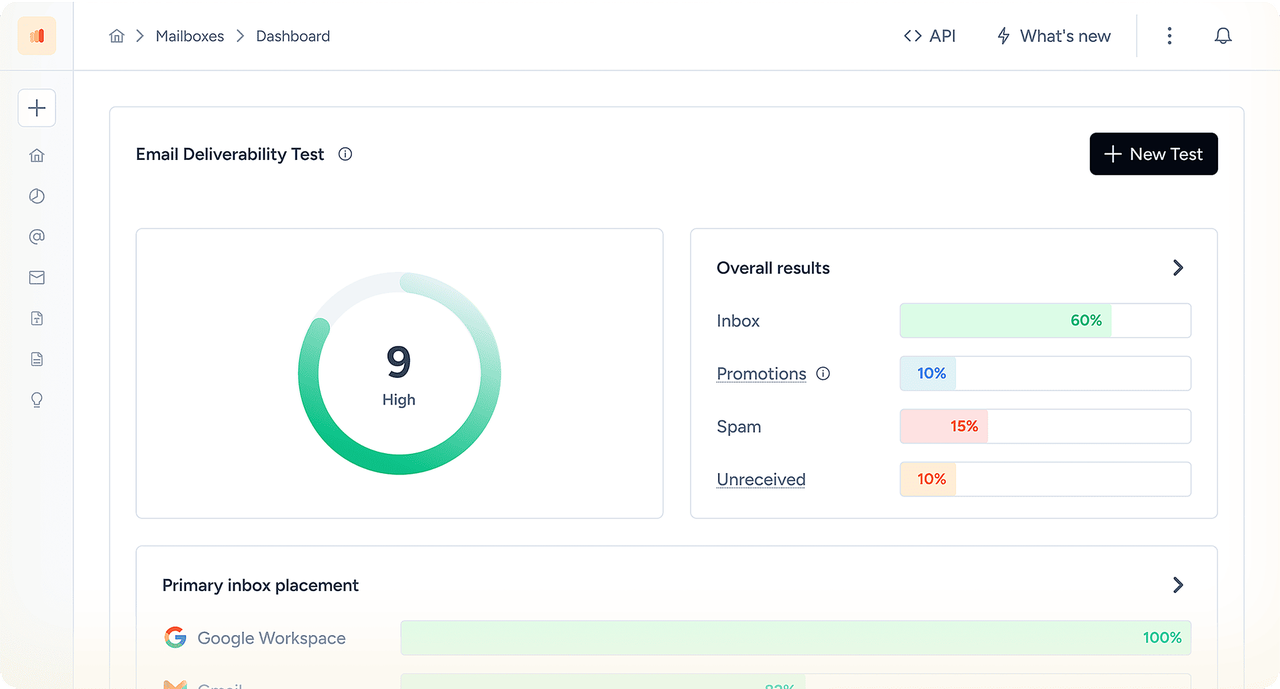
Think of it as a HubSpot spam checker that uses real mailboxes instead of a content score. Seed-list tests place your HubSpot template in live mailboxes at Gmail, Outlook, Yahoo, Google Workspace and Microsoft 365, then show inbox, Promotions or spam for each provider. Change one thing, retest, and send only when placement holds.
Monitor reputation and authentication
Continuous checks on SPF, DKIM, DMARC, rDNS, MX and blocklists, plus Google Postmaster Tools data, which HubSpot doesn't connect to natively. You get an alert the moment your HubSpot domain starts slipping.
Connect HubSpot To Warmy In Three Steps
No code, no migration, no change to how your team works in HubSpot. Setup takes a few minutes.
Add your sending mailbox.
Connect a Google Workspace, Microsoft 365 or SMTP mailbox on the domain HubSpot sends from. Warmy checks SPF, DKIM and DMARC right away.
Connect HubSpot.
Open Integrations, click Connect on the HubSpot tile and sign in. Warmy imports your marketing email templates. It reads templates only and doesn't edit your campaigns.
Start warm-up and testing.
Choose the mailboxes that will warm each template, run your first placement test, and monitoring starts the same day.
Prefer to start inside HubSpot? Install Warmy from the HubSpot App Marketplace.
What HubSpot Users Say About Warmy
"It helped us tackle the problem of emails landing in spam and being blacklisted. We initially used it for one domain, and now we're warming up several more."
"Warmy fit into our existing process without requiring changes to how we plan or send emails."
How Warmy Improves Email Deliverability In HubSpot — For Both Sending Paths
HubSpot sends email two different ways, and each way builds a different reputation. Fixing the wrong one is the most common reason HubSpot deliverability doesn't improve.
| HubSpot email | How it's sent | Whose reputation counts | What Warmy does |
|---|---|---|---|
Marketing emails, newsletters, workflow emails (Marketing Hub) | HubSpot's sending network: shared IPs by default, or a dedicated IP add-on | Your sending domain + HubSpot's IP pool, or your dedicated IP | Seed-list placement tests, template warm-up on your domain, authentication and blocklist monitoring |
Transactional emails (Transactional Email add-on) | A dedicated IP from HubSpot | Your domain + your dedicated IP | Placement tests before high-impact sends, DNS monitoring |
Sequences and one-to-one sales emails (Sales Hub) | Your connected Gmail or Outlook mailbox | Your mailbox and domain | Full mailbox warm-up, placement tests for sequence templates |
Conversations inbox | Your connected mailbox (a HubSpot-hosted inbox uses HubSpot's network) | Your mailbox, or HubSpot's network | Mailbox warm-up and monitoring |
Using both? Test each path separately. A healthy marketing campaign doesn't prove your sequences reach the inbox, and the reverse is also true.
A quick way to find the problem: send the same message from your mailbox and through HubSpot to a Warmy seed list. Inbox from the mailbox but spam through HubSpot points to the HubSpot path. Spam in both points to your domain reputation or content.
See where your next HubSpot campaign lands.
No credit card required
Why HubSpot Emails Go To Spam Or Promotions
Authentication only proves who sent the message. Placement depends on reputation, engagement and list quality, and most HubSpot email deliverability issues fit one of these patterns.
| Symptom | Likely cause | How to check | Fix |
|---|---|---|---|
Spam right after moving to HubSpot | New sending domain or IP with no history | Placement test for each provider | Warm up the domain; send to engaged contacts first |
Gmail puts campaigns in Promotions | Image-heavy, discount-heavy template, many links | Template Checker + test of a lighter version | Less HTML, fewer links, more text |
Spam only at Outlook or Microsoft 365 | Corporate filtering, link tracking, low engagement | Seed test with Microsoft 365 mailboxes | Test with and without tracking; plain-text version for sequences |
Sequences in spam, marketing emails fine | Cold or over-sending connected mailbox | Mailbox warm-up status in Warmy | Warm up the mailbox; raise daily volume gradually |
HubSpot DMARC fail, or From shows a HubSpot address | Sending domain not connected or DKIM missing | Email Sending tab status; Warmy DNS check | Connect the domain and publish every record |
High bounces or a suspension warning | Old, imported or purchased contacts | HubSpot bounce report; Warmy email verification | Verify lists before import; suppress invalid contacts |
Sudden drop at every provider | Blocklist listing or complaint spike | Warmy blocklist monitor | Pause, remove the source, request delisting |
Three HubSpot-specific traps:
One domain for the website and email.
HubSpot can't authenticate a domain that already hosts content, so use a separate subdomain such as news.example.com.
Graymail suppression is off.
HubSpot can exclude contacts who keep ignoring your emails, but you have to turn the setting on.
Marketing emails disguised as one-to-one messages.
HubSpot warns these are more likely to be flagged as spam.
How To Warm Up A New HubSpot Sending Domain
A domain with no sending history has no reputation, and mailbox providers filter unknown senders hard. HubSpot recommends moving volume to a new domain slowly and starting with your most engaged contacts. On shared IPs, HubSpot manages the IP reputation; the domain reputation is yours to build.
Authenticate first. Connect the domain in HubSpot and wait for Authenticated status.
Start the HubSpot email warm-up before the first large send — typically several weeks ahead — on mailboxes that share the sending domain, using your imported HubSpot templates.
Send real campaigns to engaged segments first, such as contacts who opened or clicked in the last 30–90 days, then widen the audience.
Run a placement test before each volume step. Increase volume only if inbox placement holds at Gmail, Outlook and Yahoo.
Marketing Hub: fix the audience before you scale volume
Most Marketing Hub problems start before the send button: a large list import, a broad workflow enrollment or a sudden jump in frequency. Check each segment's signup source, subscription type and last engagement. Suppress contacts who no longer expect your email. After a migration from another ESP, don't email the whole database on day one. Your domain's reputation moves with you, but your old ESP's IP history doesn't.
Sales Hub: start with the connected inbox
A sequence sent through a connected mailbox inherits that mailbox's limits and history. A new mailbox, a sudden volume jump or repeated emails to people who never reply will push sequences into spam even when HubSpot is set up correctly. Warm up new or long-idle mailboxes, keep daily volume steady, and test sequence templates from the actual connected mailbox.
How long it takes: typically several weeks of steady warm-up before full volume. Domains with existing damage take longer.
HubSpot Email Authentication: SPF, DKIM And DMARC
Gmail, Yahoo and Microsoft require bulk senders to authenticate their mail. In HubSpot, you can't send from your own domain until DKIM is connected. Without it, HubSpot rewrites the From address to a HubSpot-managed domain, such as user=yourcompany.com@hs-domain.com.
How to connect your email sending domain in HubSpot
You need Super Admin or Domain settings permissions and access to your DNS provider.
In HubSpot, open Settings → Content → Domains & URLs → Email Sending.
Click Connect sending domain and enter an address you send marketing email from.
Use a subdomain that doesn't host your website, such as news.example.com. This is HubSpot's recommended setup.
Sign in with your DNS provider, or choose to set the records up manually.
Copy every record HubSpot generates — MX, two DKIM CNAME records, an SPF TXT record and a DMARC TXT record — exactly as shown. On Cloudflare, turn off CNAME flattening and proxying.
Wait 10–70 minutes (up to 48 hours), then check the status: Not authenticated, Partially authenticated or Authenticated.
If the domain already has an SPF record, add HubSpot's include to it. Never publish a second SPF record.
Send a test and confirm
spf=pass,dkim=passanddmarc=pass— or let Warmy check all three for you.
| Record | DNS type | What it verifies | HubSpot specifics |
|---|---|---|---|
HubSpot SPF record | TXT | Servers allowed to send for the domain | Account-specific include, e.g. include:123456.spf03.hubspotemail.net; one SPF record per hostname, max 10 DNS lookups |
HubSpot DKIM | 2 × CNAME | The message signature | HubSpot DKIM setup uses two CNAME records that point to keys HubSpot hosts |
HubSpot DMARC | TXT at _dmarc | Alignment and failure policy | Start with p=none, then quarantine or reject; a subdomain inherits the root domain's DMARC |
MX | MX | Generated during connection | Copy exactly as shown |
HubSpot SPF alignment
On HubSpot's shared network, the return-path domain is managed by HubSpot and can't be customized, so DMARC usually passes through DKIM alignment rather than SPF. A custom return-path domain is available with the Dedicated IP or Transactional Email add-on.Full walkthrough with screenshots: How to set up SPF, DKIM and DMARC with HubSpot.
Shared IP vs Dedicated IP In HubSpot
By default, Marketing Hub sends from HubSpot's shared IPs, so part of your reputation is pooled with other senders. A HubSpot dedicated IP is an add-on for Marketing Hub Professional and Enterprise.
| Shared IP (default) | Dedicated IP add-on | |
|---|---|---|
Reputation | Shared with other HubSpot senders | Yours alone |
IP warm-up | Not needed for the IP | Automated 40-day warm-up by HubSpot; pauses if you stop sending for more than 7 days |
Return-path domain | Managed by HubSpot | Can be customized |
Sending limits | Plan limits apply | No sending limits on the dedicated IP |
Fits | Most senders, irregular volume | Consistent high volume to clean, engaged lists |
HubSpot IP warming vs domain warm-up
HubSpot IP warming builds the reputation of the IP. It doesn't warm your domain or your Sales Hub mailboxes, and HubSpot recommends warming a never-used domain alongside the IP. Warmy covers the domain side and measures placement at every stage of the 40 days. One caution: a dedicated IP in HubSpot concentrates every complaint and bounce on your IP, so fix list quality before you move.
HubSpot Sending Limits That Pause Your Email
HubSpot's deliverability protection system can suspend marketing email for the whole account, including workflow emails, when these limits are crossed.
| Signal | HubSpot limit | Usual cause | Prevent it |
|---|---|---|---|
Hard bounces | 5% | Old, imported or purchased contacts | Verify lists with Warmy email verification before import |
Spam reports | 0.1% (1 in 1,000 emails) | Unexpected or unwanted email | Placement test and template check before large sends |
Unsubscribes | 3% | Irrelevant content or too-frequent sends | Subscription types and frequency settings in HubSpot |
A suspension stops every marketing send until HubSpot reviews your appeal, and no external warm-up tool can lift it. The cheapest fix is the one you make before the campaign goes out.
HubSpot Deliverability Checklist
HubSpot email deliverability best practices, in the order to fix them:
0/12 ready
Three HubSpot Scenarios Warmy Is Built For
New sending subdomain.
You've connected news.example.com and the first campaign is weeks away. Authenticate, warm up the subdomain with imported HubSpot templates, and test placement before each volume step.
Migration to HubSpot.
Open rates dropped after the switch from Mailchimp, Klaviyo or Salesforce Marketing Cloud. Run a baseline test, warm up the new setup, and send to engaged segments first while you watch placement by provider.
Sales sequences in spam.
Replies fall and Outlook recipients find your sequences in junk. Warm up the connected mailboxes, test templates with and without tracking, and keep daily volume steady.
How we test HubSpot inbox placement
We send the same HubSpot template to Warmy seed mailboxes at Gmail, Outlook, Yahoo, Google Workspace and Microsoft 365 and record the folder for each provider: inbox, Promotions, spam or missing. We change one variable at a time — domain, template, tracking or volume — and retest. A seed test is a diagnostic sample of how providers treat your email, not a promise that every recipient sees the same result.
HubSpot Deliverability Frequently Asked Questions
Yes. Warmy is listed on the HubSpot App Marketplace, rated 4.9 by HubSpot users with 300+ installs. Connect HubSpot from Warmy's Integrations page, sign in, and import your marketing email templates. Warmy then warms those templates up from mailboxes on your sending domain, tests their inbox placement, and monitors the domain's authentication and blocklist status.
The usual causes are a new or cold sending domain, missing DKIM or DMARC alignment, old or purchased contacts, low engagement and heavy templates. Sales Hub sequences add a separate risk: they send from your own mailbox, so a cold or over-sending mailbox lands in spam even when marketing emails don't. A seed-list test shows which provider filters you.
Connect and authenticate a separate sending subdomain, turn on graymail suppression, and verify lists before import. Warm up any new domain or mailbox before full volume, then run an inbox placement test before every major campaign. Monitor blocklists and Google Postmaster Tools data so you catch a drop before HubSpot's suspension limits do.
Only the IP, and only with the Dedicated IP add-on, which includes an automated 40-day IP warm-up. On shared IPs, HubSpot manages IP reputation, but your domain and your connected Sales Hub mailboxes still need their own warm-up. HubSpot recommends ramping a new domain slowly from your most engaged contacts; Warmy automates that part.
Copy the include value HubSpot generates for your account in Settings → Content → Domains & URLs → Email Sending. Your HubSpot SPF record entry looks like include:123456.spf03.hubspotemail.net. If the domain already has an SPF record, add the include to it instead of creating a second one, and stay under 10 DNS lookups.
A HubSpot DMARC fail usually means the From domain isn't connected as an email sending domain, the DKIM records are missing or broken, or you send from a subdomain with no DMARC record and no root-domain record to inherit. For Sales Hub emails, check the connected mailbox's own SPF and DKIM in Google Workspace or Microsoft 365.
No. HubSpot Email Health grades your marketing email's opens, clicks, bounces, unsubscribes and spam complaints over the last 30 days. It can't see which folder an email reached, because mailbox providers don't report placement back to HubSpot. To see inbox, Promotions and spam by provider, you need a seed-list placement test.
No. Warmy reads your marketing email templates and works alongside HubSpot. Your campaigns, workflows, sequences and contact records stay as they are, and warm-up traffic runs through Warmy's network rather than your CRM. Warmy only improves and monitors the reputation of the domain and mailboxes you send from.
For sales emails, tracking works only when your inbox is connected or the HubSpot extension is installed, and tracking is turned on. Some recipients block images, so opens aren't recorded, while Apple Mail Privacy Protection records opens that never happened. In Outlook and Gmail, check that the HubSpot add-in or extension is installed and signed in. Strict corporate filters can also treat HubSpot email tracking pixels as suspicious, so test sensitive sequences with tracking on and off.
No email service guarantees the inbox. Placement depends mostly on your domain reputation, authentication, list quality and engagement, and those move with you between platforms. HubSpot polices its shared network with strict bounce and complaint limits, which helps careful senders. The way to find the best deliverability for your program is to test real emails by provider.
Authentication fixes work as soon as DNS updates, usually within 10–70 minutes. Reputation takes longer: new domains typically need several weeks of steady warm-up, and domains with existing damage take longer. Run a placement test at the start so you can measure the change instead of guessing.
It helps by separating them. The add-on sends receipts, password resets and other transactional email from a dedicated IP, away from your marketing reputation, so a weak newsletter doesn't drag your order emails down. It doesn't warm your domain or show where messages land: the IP still needs warm-up, and transactional templates are worth testing on their own.
Yes. Run Warmy's free email deliverability test with your real HubSpot email. It shows inbox placement by provider, SPF, DKIM and DMARC status, and blocklist standing, with no credit card required.