

TL;DR: An animated GIF in an email is a multi-frame image file that plays automatically in most clients. To use one safely, host it externally, keep it under one megabyte, design the first frame to carry the message on its own, add descriptive alt text, and stop the loop within a few seconds.
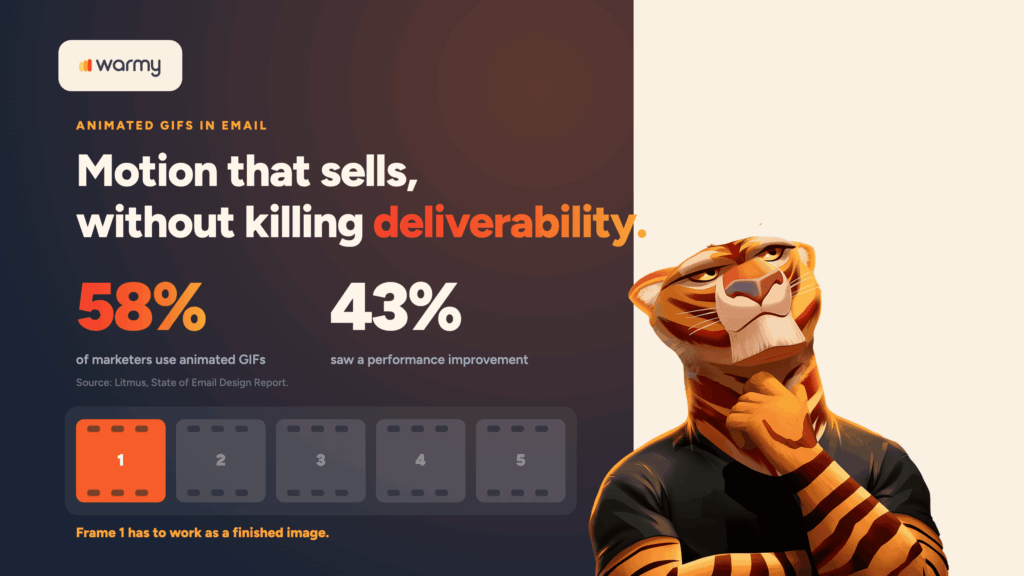
Motion works, at least commercially. In Litmus’s State of Email Design Report, 58% of marketers said they were using animated GIFs, and 43% saw some performance improvement. That’s why animated GIFs in email marketing turn up in product launches, countdown promos, and just about every retail newsletter you open in December.
Most guides explain how to add a GIF to an email and stop there, as if the file lands the same way everywhere. A GIF is an image, and it inherits every rendering and deliverability constraint that images already carry. This guide covers the consequences too, from client support to file weight to the moment a recipient decides your email with GIF content is worth a complaint.
Why marketers use animated GIFs in email
Marketers use animated GIFs in email because movement pulls the eye toward a single element, which makes an email marketing GIF useful for pointing at a call to action, demonstrating a product mid-use, or showing several items without stacking three static images on top of each other.
In fact, Nielsen Norman Group tested 14 real retail emails against static versions built from one frame of each GIF. Respondents chose more negative words and fewer positive ones for the animated versions (significant at p below 0.005) and rated the static versions slightly more trustworthy. Small sample, e-commerce only.
How animated GIFs affect email deliverability
Animated GIFs affect email deliverability indirectly rather than by format, since no mailbox provider filters a message for containing one. The important thing to evaluate is how recipients react and how long the message takes to load.
Google’s sender guidelines state that a user-reported spam rate at or above 0.3% makes a bulk sender ineligible for delivery mitigation until it stays below that line for seven consecutive days. Set that next to the NN/g reaction data, where “annoying” and “distracting” sat near the top of the list for animated email, and the connection makes itself.
Weight is the second path, and it’s widely misunderstood. A GIF is hosted externally, which keeps its file size out of the roughly 102KB of code Mailchimp documents as Gmail’s clipping threshold, since that limit counts HTML, inline CSS, and tracking code.
What a heavy GIF does affect is how long your message takes to look finished on a phone, and that pause is where impatience turns into a deletion. While you’re auditing, check which words and elements trigger spam filters in the copy around it.
How to add a GIF to your email
You add a GIF to an email the same way you add any other image: host the file somewhere public, then reference its URL in an img tag with an explicit width, alt text, and display block. No special markup exists for animation, and none is needed.
- Export or compress the animation as a .gif file.
- Upload it to your ESP media library or your own image server.
- Reference the hosted URL in an img tag, wrapped in a link if the animation is clickable.
- Send a test to yourself and open it in more than one client before you queue the campaign.
<a href="https://yourdomain.com/launch">
  <img src="https://yourdomain.com/images/launch-loop.gif"
       alt="Three new dashboard views cycling through in sequence"
       width="600"
       style="display:block; width:100%; max-width:600px;
              height:auto; border:0;">
</a>
Never attach the file or paste it in from your desktop. Attachments inflate message size, inline embedding gets handled inconsistently from one client to the next, and hosted images remain the only predictable approach.
Email client support: Where GIFs work, and where they don’t
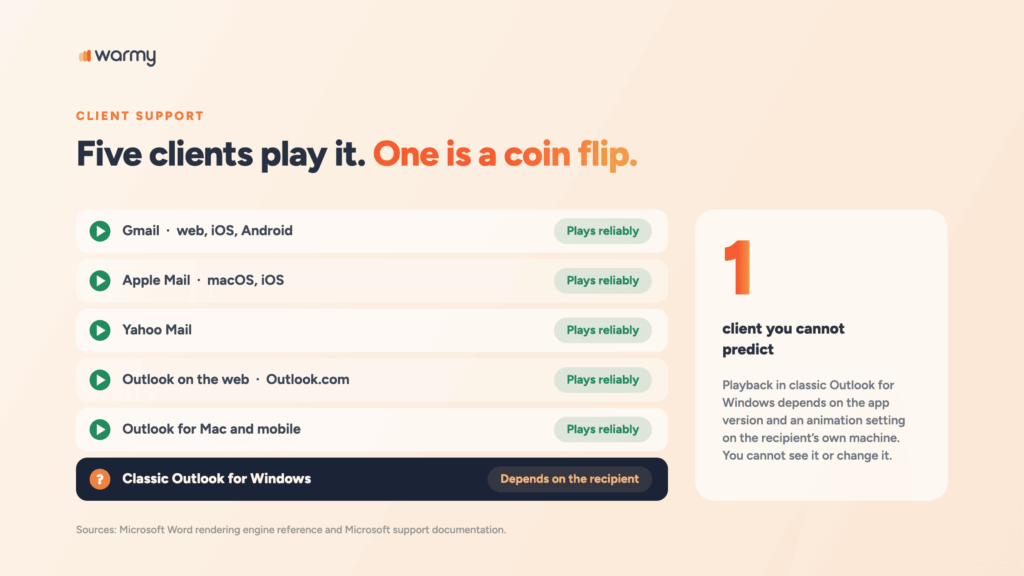
Support for GIFs in email is broad, with one exception that happens to live in corporate inboxes. Gmail, Apple Mail, Yahoo Mail, Outlook on the web, and Outlook for Mac all animate GIFs without any special handling on your side.
Outlook GIFs in email are more nuanced than most guides admit. Microsoft’s reference for the Word rendering engine behind classic Outlook lists animated GIFs as showing only a static representation, while Microsoft’s current support page says animation plays by default in Outlook 2016 and later, and that a first-frame-only display means it’s been switched off, either in the app on older builds or in the Windows animation setting on newer ones.
| Client | Animation behavior | What to plan for |
|---|---|---|
| Gmail (web, iOS, Android) | Plays reliably | Nothing extra |
| Apple Mail and iOS Mail | Plays reliably | Nothing extra |
| Yahoo Mail | Plays reliably | Nothing extra |
| Outlook on the web, Outlook.com | Plays reliably | Nothing extra |
| Outlook for Mac and mobile | Plays reliably | Nothing extra |
| Classic Outlook for Windows | Depends on version and the recipient’s animation setting | A first frame that works alone, or a conditional static swap |
Keeping GIF file size under control
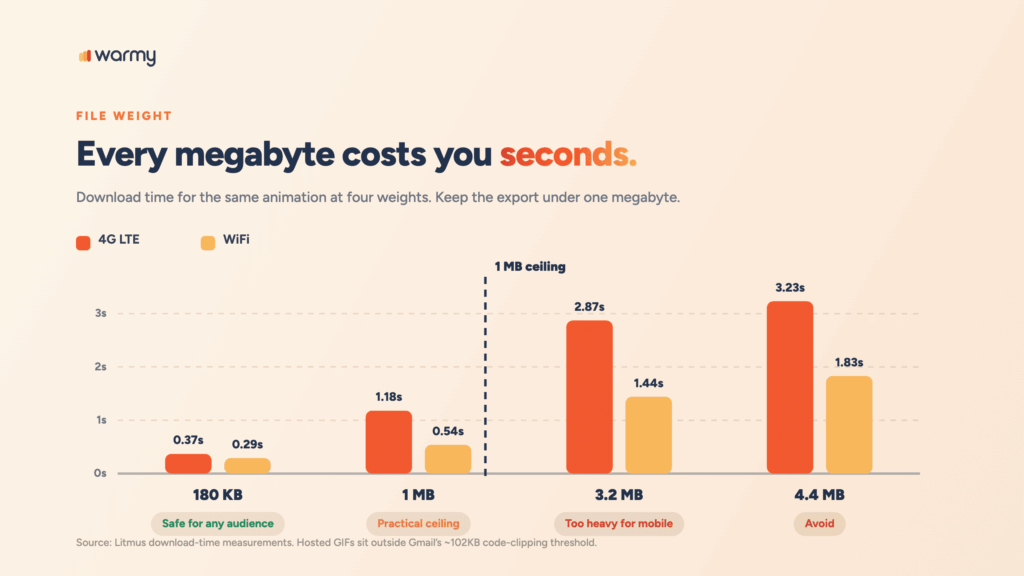
Keep the exported GIF under one megabyte. Litmus measures download times for the same animation at different weights, and the jump from a lean file to a heavy one costs far more on mobile data than on a wired connection. Mobile is where most people open email.
| GIF file size | 4G LTE | WiFi | Verdict |
|---|---|---|---|
| 180 KB | 0.37 s | 0.29 s | Safe for any audience |
| 1 MB | 1.18 s | 0.54 s | Practical ceiling |
| 3.2 MB | 2.87 s | 1.44 s | Too heavy for mobile |
| 4.4 MB | 3.23 s | 1.83 s | Avoid |
Three levers control GIF size for email. Cut frames, because every frame adds weight and a short loop reads better anyway. Favor flat color over photography, since the format holds a maximum of 256 colors per frame. Then run the export through a dedicated optimizer instead of trusting whatever your design tool does on the way out.
While you’re trimming, check the file-size limits for your whole template and don’t let the GIF become the only thing you optimize.
The Outlook fallback problem, and how to fix it
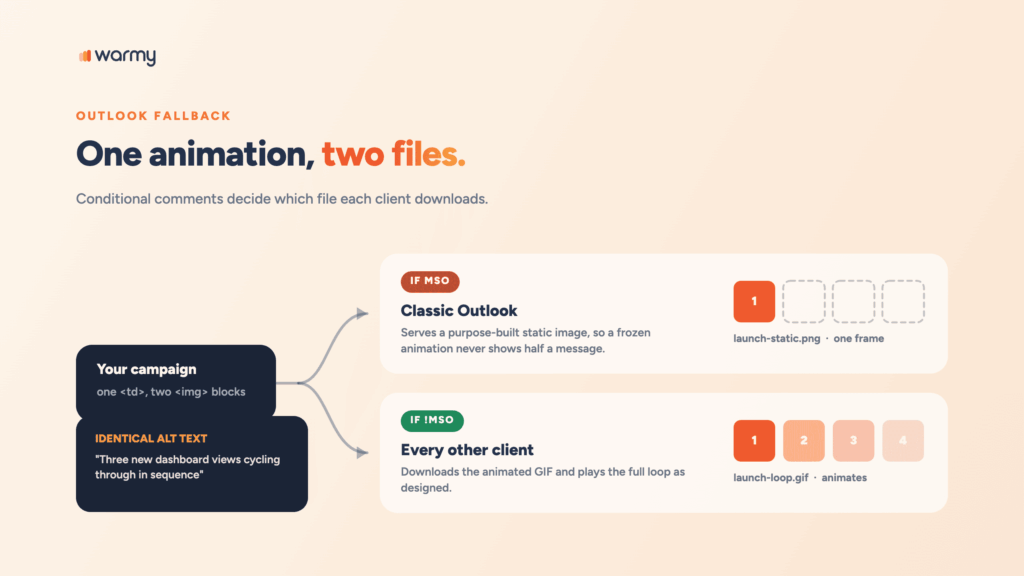
Fix the Outlook fallback by designing frame one as a finished image, and where that isn’t possible, by serving a purpose-built static file to Outlook through conditional comments.
When animation doesn’t play, the recipient sees frame one and nothing else, which is survivable when that frame carries the offer and embarrassing when it’s a blank stage or half a sentence.
<!--[if mso]>
<img src="https://yourdomain.com/images/launch-static.png"
     alt="Three new dashboard views cycling through in sequence"
     width="600" style="display:block; border:0;">
<![endif]-->

<!--[if !mso]><!-- -->
<img src="https://yourdomain.com/images/launch-loop.gif"
     alt="Three new dashboard views cycling through in sequence"
     width="600" style="display:block; border:0;">
<!--<![endif]-->
Outlook desktop reads the first block and skips the second. Every other client does the reverse. Give both images identical alt text, because a reader with images blocked shouldn’t be able to tell which version they were sent.
Accessibility considerations for animated GIFs
Accessible animation in email comes down to four rules: stop the loop within five seconds, stay under three flashes per second, write alt text that describes what the animation communicates, and give readers enough time to read anything that appears on screen. The properties that make a GIF risky for a screen reader user make it risky for your complaint rate too.
- Stop the loop. WCAG 2.2 requires a way to pause, stop, or hide moving content that starts automatically and runs for more than five seconds alongside other content. Email has no pause button, which is why the W3C technique is to end the animation after a set number of cycles within those five seconds.
- Stay below the flash threshold. Content must not flash more than three times in any one second. Rapid cuts between high-contrast frames can trigger seizures in people with photosensitive epilepsy.
- Write real alt text. Screen readers announce the alt attribute and nothing else. “launch-loop-final.gif” tells a reader precisely nothing.
- Give readers time. Text that appears in one frame and vanishes in the next is unreadable for anyone who reads slowly, and invisible to anyone whose client froze the file on frame one.
The safer habit is to keep the words that matter out of the animation altogether:
<td style="font-family:Arial, Helvetica, sans-serif; font-size:16px;
           line-height:24px; color:#1a1a1a;">

  <img src="https://yourdomain.com/images/launch-loop.gif"
       alt="Three new dashboard views cycling through in sequence"
       width="600" style="display:block; border:0;">

  <p style="margin:16px 0 0;">
    <strong>30% off through Sunday.</strong> The offer lives in live text,
    not inside the animation.
  </p>

</td>
Common mistakes that hurt deliverability
The same handful of errors accounts for most GIF campaigns that underperform, and not one of them is exotic.
- Shipping a multi-megabyte file because it looked fine on office WiFi.
- Putting the offer in frame six, where Outlook readers will never see it.
- Leaving alt text empty, which turns a blocked image into blank space.
- Looping forever, which means the movement never resolves and the reader looks away.
- Setting critical text inside the animation instead of in live HTML text.
- Cutting between frames fast enough to read as flashing.
- Sending a heavier, flashier campaign from a domain with no warmup behind it.
Pre-send testing checklist
Run this before any campaign carrying an animation.
- Open the email in Gmail, Apple Mail, and classic Outlook for Windows.
- View it with images disabled and confirm the alt text still conveys the offer.
- Screenshot frame one on its own and ask whether it works as a finished image.
- Confirm the exported file is under one megabyte and the loop resolves quickly.
- Scan the surrounding copy for spam triggers before you queue the send.
That last step has a tool attached. You can test your GIF-heavy email before you hit send with Warmy’s free Template Checker, which flags spam trigger words and formatting problems in seconds.
Conclusion
An animated GIF earns its place in an email when the motion explains something a still image can’t. Keep it under a megabyte, make frame one a complete message, write real alt text, let the loop end, and test in the clients your audience actually uses.
If the animation is solid and the campaign still lands badly, the problem sits underneath the design rather than in it. Book a demo and see how Warmy builds and protects the sender reputation your campaigns run on.