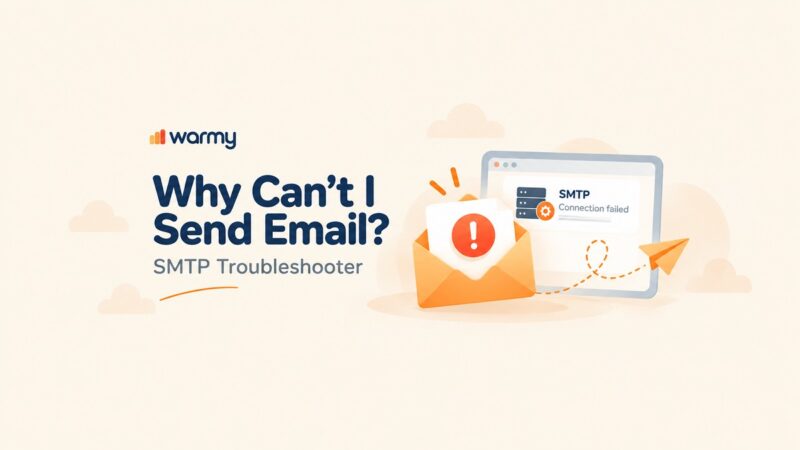


The 550 “Please Turn On SMTP Authentication in Your Mail Client” error means your mail server is rejecting outgoing emails because your email client has not presented valid login credentials. To fix it, open your email client settings, locate the outgoing (SMTP) server configuration, and enable the “My outgoing server requires authentication” option. In most clients this takes under two minutes. Common causes include disabled SMTP AUTH, wrong credentials, incorrect SSL/TLS settings, or firewall interference.
When your email client tries to send a message without logging into the outgoing mail server first, the server returns a 550 error and blocks the send. This is not a bug it is a deliberate security gate. SMTP authentication (SMTP AUTH) is the handshake that proves you own the account before the server agrees to relay your message. Without it, mail servers would be open relays that anyone could exploit to send spam.
Most email clients have SMTP authentication available but may not enable it by default, especially after a fresh install or migration. The fix is straightforward: find the outgoing server settings in your email client and turn the authentication option on. The step-by-step instructions for Microsoft Outlook, Gmail, Apple Mail, and Mozilla Thunderbird are below.
Understanding SMTP authentication
Simple Mail Transfer Protocol (SMTP) is the default mechanism to deliver emails on the internet.SMTP AUTH, defined in RFC 4954, extends SMTP with a mandatory credential exchange. Before the server accepts any outgoing message, it challenges the client to supply a valid username and password. Only after a successful login does the server allow the message to proceed.
The importance of SMTP authentication cannot be guessed as it secures your email account and allows a seamless email environment. If you do not have SMTP authentication enabled, spammers can exploit your mail server to send spam, making most blacklist your server from sending any emails at all. SMTP authentication provides an extra layer of security, protecting your email account from abuse by unauthorized users.
How to fix the issue – 550 Please Turn On SMTP authentication in your mail client
To resolve issue “550 Please Turn On SMTP Authentication in Your Mail Client” and start sending emails successfully, you need to enable SMTP authentication in your mail client. Here’s a step-by-step guide on how to do it in some popular email clients:
Turning on SMTP Authentication in Microsoft Outlook
1. Open Microsoft Outlook and go to “File.”
2. Select “Account Settings” and choose your email account.
3. Click “Change” and then “More Settings.”
4. Navigate to the “Outgoing Server” tab.
5. Check the box “My outgoing server (SMTP) requires authentication.”
6. Choose “Use same settings as my incoming mail server” and click “OK.”
7. Finally, click “Next” and then “Finish” to save the changes.
Related – Outlook SMTP Settings: A Step-by-Step Guide to Configuring Your Outlook SMTP
Turning on SMTP Authentication in Gmail
1. Log in to your Gmail account and click on the gear icon.
2. Select “See all settings” and go to the “Accounts and Import” tab.
3. In the “Send mail as” section, click “Add another email address.”
4. Enter the email address you want to send from and click “Next Step.”
5. Choose “Send through Gmail” and click “Next Step.”
6. Enter the SMTP server provided by your email provider, your full email address, and your email account password.
7. Select “Secured connection using TLS” and click “Add Account.”
Related – Gmail SMTP Settings: A Step-by-Step Guide to Configuring Your Gmail SMTP
Turning on SMTP Authentication in Apple Mail
1. Open Apple Mail and go to “Mail” in the top menu.
2. Choose “Preferences” and click on the “Accounts” tab.
3. Select your email account from the list on the left.
4. Click the “Outgoing Mail Server (SMTP)” dropdown menu and choose “Edit SMTP Server List.”
5. Check the box “Use Authentication” and enter your email address and password.
6. Click “OK” to save the changes.
Related – Yahoo SMTP Settings: A Step-by-Step Guide to Configuring Your Yahoo SMTP
Turning on SMTP Authentication in Mozilla Thunderbird
1. Launch Mozilla Thunderbird and click on the three horizontal lines in the top-right corner.
2. Go to “Options” and select “Account Settings.”
3. Choose your email account from the left pane.
4. Under “Outgoing Server (SMTP),” select the server and click “Edit.”
5. Set the “Authentication method” to “Normal password.”
6. Enter your email address and password, then click “OK.”
Common causes of the error – 550 Please Turn On SMTP authentication in your mail client
Incorrect Login Credentials
One of the most common issues with SMTP authentication is incorrect login credentials. Ensure that you have entered the correct email address and password for your account.
SSL/TLS Settings
Improper SSL/TLS settings can also cause SMTP authentication problems. Double-check that you have selected the appropriate secured connection option (TLS/SSL) based on your email provider’s recommendations.
Firewall and Antivirus Interference
Firewalls or antivirus software on your computer might interfere with the SMTP authentication process. Temporarily disable them to see if it resolves the issue. If disabling them resolves the error, add an exception for your email client in the firewall or antivirus settings rather than leaving protection fully off.
Port Blocking by Your Internet Service Provider
Some Internet Service Providers (ISPs) block outbound traffic on port 25 to reduce spam from residential connections. If your email client is configured to send on port 25, switch to port 587 (STARTTLS) or port 465 (SSL/TLS). These ports are designed for authenticated mail submission and are not typically blocked by ISPs. See Google’s recommended SMTP port guidance for reference.
Benefits of using SMTP authentication
Enhanced Security – SMTP authentication ensures that only authorized users can send emails, reducing the risk of unauthorized access and spamming.
Avoiding Blacklisting – By preventing misuse of your email server, you decrease the chances of it being blacklisted by email service providers.
Professional Reputation – With SMTP authentication, recipients can trust that the emails they receive are genuinely from you, improving your professional reputation.
Related – Top 10 IP Address Blacklist Removal Tools [Cons & Pros]
Fix SMTP Authentication Errors with Warmy.io
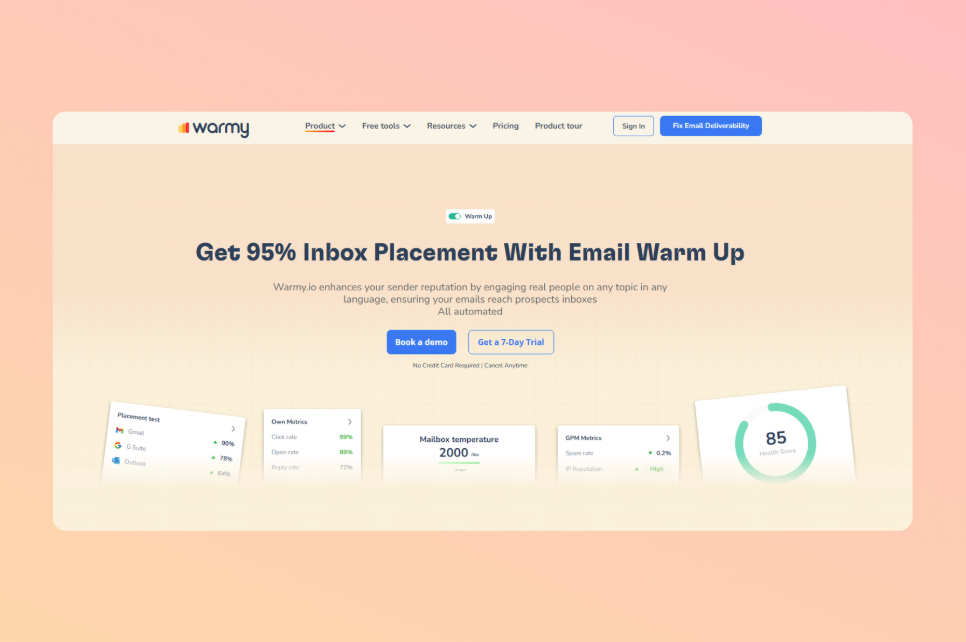
To address the 550 “Please Turn On SMTP Authentication in Your Mail Client” error and enhance your overall email deliverability, it’s crucial to establish a positive sending reputation. One of the most effective ways to do this is by using an email warm-up tool like Warmy.io. Warmy gradually increases your email sending volume and reputation, helping you bypass spam filters and ensure consistent inbox placement. By automatically warming up your email domain, Warmy builds trust with email providers, which can also prevent common errors like SMTP authentication issues.
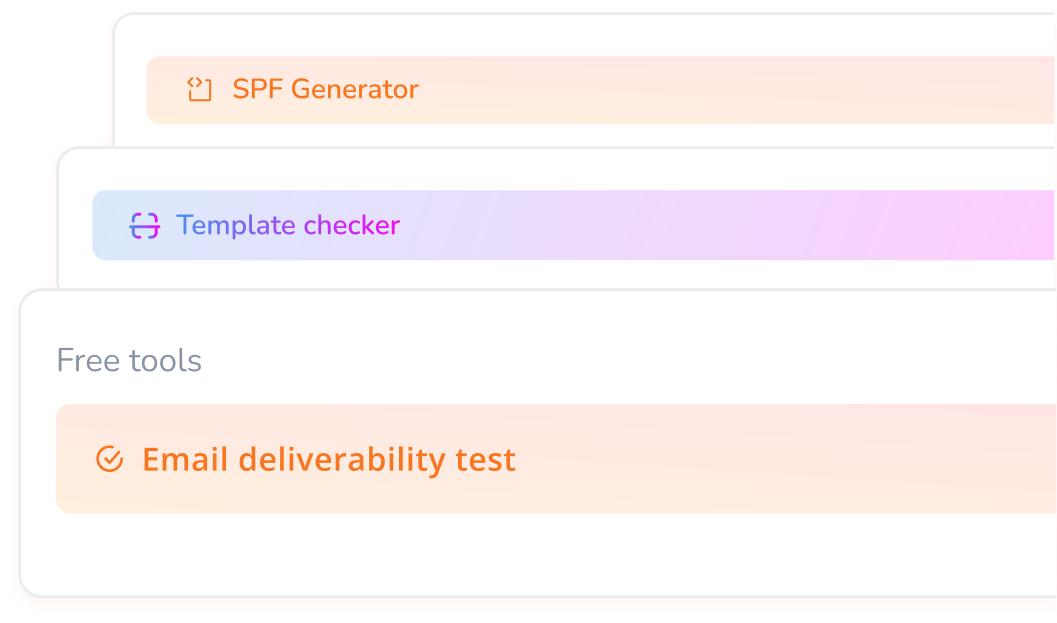
Warmy also offers several free tools that give you valuable insights and improve your email strategy:
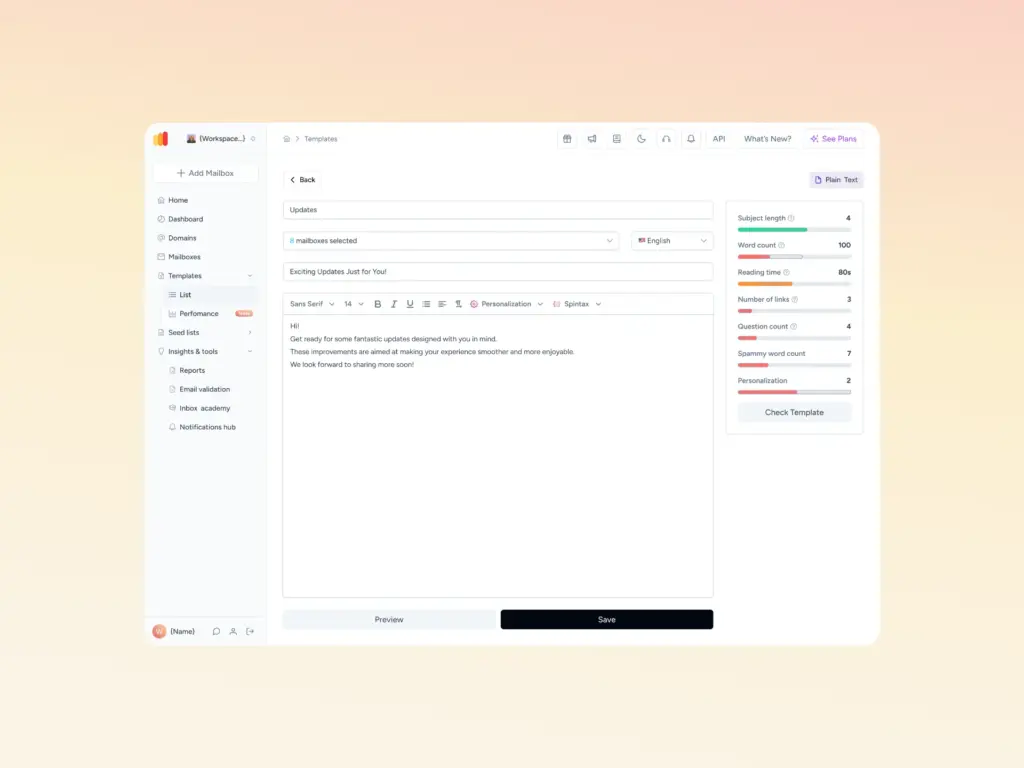
Free Spam Checker (Template Checker)
Before you send, Warmy’s Template Checker scans your email content and subject line for spam trigger words, problematic formatting, and structural issues that filters target, then returns a spam score with specific fixes. The Chrome Extension version brings the same check directly into your Gmail compose window so you catch issues before you hit Send.
Free Email Deliverability Test
Warmy’s email deliverability test assesses your current email deliverability status. It provides essential details on where your emails are landing (spam, inbox, or promotional folders), checks if your IP or domain is blacklisted, and identifies areas for improvement. This data helps you make informed adjustments to your email campaigns and fix deliverability issues before they escalate.
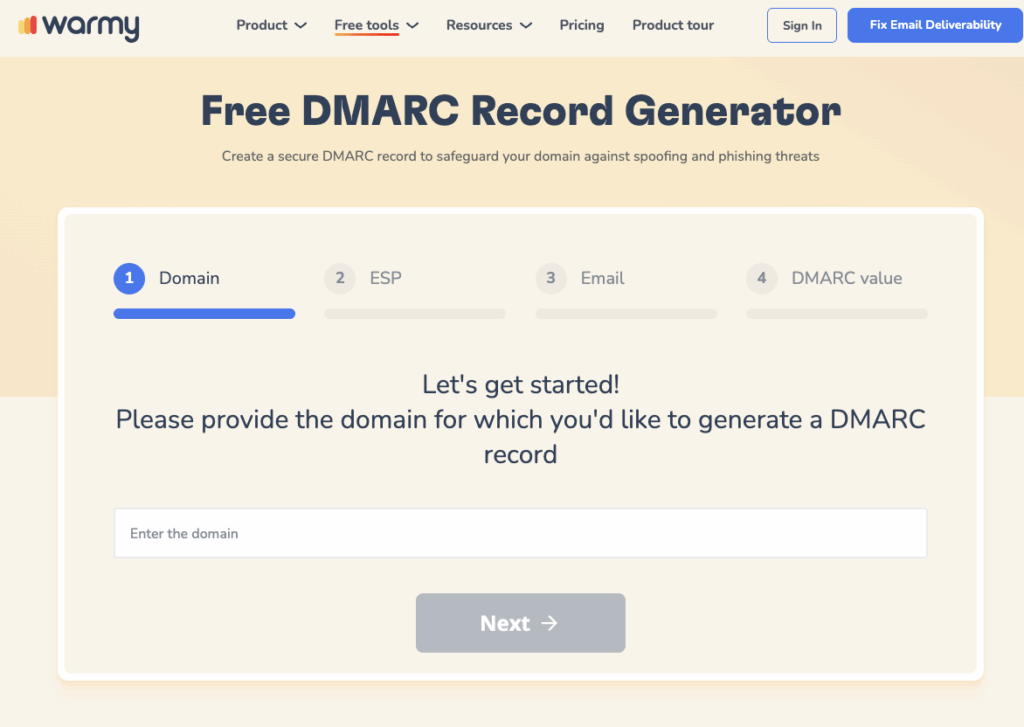
Free SPF and DMARC Record Generator
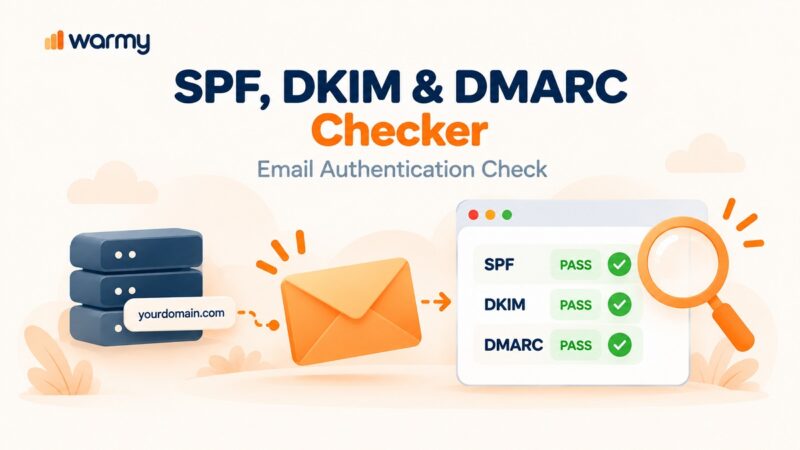
Ensuring proper SPF (Sender Policy Framework) and DMARC (Domain-based Message Authentication, Reporting, and Conformance) configurations is essential for email authentication, which reduces the likelihood of your emails being marked as spam. Warmy’s SPF and DMARC Record Generator lets you easily create these records, helping you establish authentication for your email domain and boosting deliverability.
Conclusion
The error message “550 Please Turn On SMTP Authentication in Your Mail Client” serves as a crucial reminder of the importance of securing our email accounts against potential threats and unauthorized access.
SMTP authentication is an impenetrable firewall protecting your email server from undesirable abuse from malicious users. This security provision, by confirming if the sender is genuine, ensures that only authentic users transact via mail server for sending the emails externally. So, turning on SMTP authentication helps to secure your email account from being used to send spam or other mayhem, keeping you and the people you send email to safe.
Throughout this blog post, we’ve explored the significance of SMTP authentication and provided step-by-step instructions to enable it in popular mail clients. Taking this simple yet impactful step not only resolves the “550” error but also contributes to a safer and more secure email ecosystem for all users.
With Warmy.io’s 7-day free trial, deliverability test, and free SPF and DMARC tools, you have everything you need to solve SMTP issues, build a strong sender reputation, and achieve reliable inbox placement.