

Yahoo Mail SMTP server: smtp.mail.yahoo.com | Port: 465 (SSL) or 587 (STARTTLS) | Authentication: Required — use your full Yahoo email address and an App Password. IMAP server: imap.mail.yahoo.com, port 993 (SSL). POP3 server: pop.mail.yahoo.com, port 995 (SSL). Read on for step-by-step setup, troubleshooting, and deliverability tips.
If you are here because your Yahoo Mail is not connecting to Outlook, Thunderbird, or another client, the answer is almost always one of three things: wrong port, IMAP not enabled in your Yahoo account settings, or a missing App Password. This guide gives you the exact settings, walks you through setup for each protocol, and explains how to fix every common error — including what to do when your emails connect but still miss the inbox.
Quick-reference settings
| Protocol | Server | Port | Encryption |
|---|---|---|---|
| SMTP (outgoing) | smtp.mail.yahoo.com | 465 (SSL) or 587 (STARTTLS) | Required |
| IMAP (incoming, recommended) | imap.mail.yahoo.com | 993 | SSL/TLS required |
| POP3 (incoming, offline) | pop.mail.yahoo.com | 995 | SSL/TLS required |
Authentication for all three: your full Yahoo email address + App Password (required if two-step verification is enabled, which is the default for new accounts).
What is SMTP?
Simple Mail Transfer Protocol—SMTP is the international standard protocol used to send email across the Internet. SMTP is like a virtual post office for your email; it takes the message from your email application and delivers it to the destination—another user’s inbox.
SMTP is responsible for a huge chunk of the entire process of sending an email. When you hit “send,” various SMTP servers figure out how to get the message to its destination, verifying it exists, validating it to be sent, and determining where it will go. Without such technology, there would be no possibility of getting any messages to their intended location.
Yahoo SMTP settings
Step 1: Access Yahoo Mail account settings
Sign into your Yahoo Mail account. Click on your profile picture or the gear icon in the top-right corner, then select More Settings.
Step 2: Enable IMAP access
Inside More Settings, go to Mailboxes and confirm that IMAP access is turned on. This is a commonly missed step — Yahoo requires you to enable IMAP manually before any third-party client can connect. Skipping this is the second most common reason setups fail after the App Password issue.
Step 3: Generate an App Password (if you use two-step verification)
Yahoo’s two-step verification is enabled by default on new accounts. When it is active, your regular Yahoo password will be rejected by all third-party email clients. You need to generate an App Password:
- Go to your Yahoo Account Security page.
- Scroll down to Manage app passwords.
- Select Mail or the specific device you are configuring.
- Copy the 16-character code and paste it into the password field of your email client.
💡 Pro Tip: App passwords are single-use credentials tied to one app. If you revoke one or generate a replacement, you must update the password in your email client too. Keep a note of which App Password belongs to which client to avoid lockouts.
Step 4: Enter SMTP server details
Navigate to the Outgoing Mail section of your email client and enter the following:
- SMTP Server: smtp.mail.yahoo.com
- Port: 465 (SSL) — encrypts from the first byte of connection; or 587 (STARTTLS) — begins as plain text and upgrades to encryption after the initial handshake. Port 587 with STARTTLS is the modern recommended choice.
- SSL/TLS: Enabled
- Authentication: Required
- Username: Your full Yahoo email address (e.g., yourname@yahoo.com)
- Password: Your App Password (or regular password if two-step verification is off)
Troubleshooting SMTP сonfiguration
Several typical problems that may prevent you from sending emails effectively can arise when establishing Yahoo SMTP settings. Here’s how to check if your SMTP setup is right and troubleshoot these issues.
Common issues
- Connection timed out. Your network may block the SMTP port or the SMTP server address or port is wrong.
- Authentication errors. Yahoo’s security criteria may not be met by settings or by using incorrect login credentials.
- SSL/TLS errors. These appear if the email client does not support the necessary encryption or if the incorrect encryption mechanism is chosen.
- Server not responding. This error may be brought on by network problems or sporadic server downtime and prohibit access to Yahoo’s SMTP server.
Tips for resolving issues
Verify SMTP settings. Double-check that you have entered the correct SMTP server details:
- SMTP server: smtp.mail.yahoo.com
- Port: 465 (with SSL) or 587 (with TLS)
- Authentication: Ensure it’s turned on and you are using your full Yahoo email address and password.
Check network connection. Ensure that your internet connection is stable and that ports 465 or 587 are not blocked by your firewall or ISP.
Update email client. Make sure that your email client is up-to-date to support the latest security protocols and settings.
Use app password. If you have enabled two-factor authentication on your Yahoo account, generate a specific app password to use in your email client instead of your regular password.
Contact ISP or network administrator. If you suspect that SMTP ports are being blocked, contact your ISP or network administrator for help.
Verify correct SMTP configuration
- To check that the SMTP settings are correct, send a test email to yourself or another account.
- Look through the server logs, if they are accessible, for any error messages that might offer insight into what might be wrong.
- Use SMTP Diagnostic Tools. By replicating the sending process and reporting any mistakes, there are online tools accessible to assist troubleshoot SMTP connection problems.
- Should everything else fail, Yahoo Support can offer advice depending on the particular problems you’re having.
What are the Yahoo POP3 settings?
POP3 (Post Office Protocol version 3) is the default/generic way to access mail from a remote server to a local email client on a local machine. It is used to retrieve, download, and read messages so they can be accessed locally offline from one’s computer.
The most interesting thing about POP3 is that it does not sync client mail to server mail and vice versa; anything done in the mail client will not be reflected on the server mail.
Step-by-step guide to configuring Yahoo POP3 settings
Configuring your email client to receive emails via Yahoo’s POP3 service involves setting up the right server and authentication settings. Here is a detailed guide on how to do this:
Access your email client’s settings. Open the settings or accounts section of your email client.
Add a new email account. Choose to add a new email account and select the manual setup or additional server types if prompted.
Select POP3 for your account type. When asked for the account type, select POP3
Enter the POP3 server details:
- POP3 Server:
pop.mail.yahoo.com - Port: 995
- SSL/TLS: Required, make sure SSL/TLS encryption is enabled.
- Authentication: Required, ensure that the authentication method is set to password.
- POP3 Server:
Enter your login credentials:
- Username: Your full Yahoo email address (including ‘@yahoo.com’)
- Password: Your Yahoo email password. If you have two-step verification enabled, you might need to use an app-specific password.
Adjust incoming server settings:
- Leave a copy of the message on the server. This option is crucial if you want to access your emails from another device or webmail. Enabling this setting will leave a copy of each email on the Yahoo server after it’s been downloaded to your local client.
Save and test your settings:
- After entering all details, save your settings. Most email clients provide a “Test Account Settings” button. Use this to check that everything is set up correctly. You should receive a confirmation that the connection to the POP3 server is successful.
What are the Yahoo IMAP settings?
Accessing email messages kept on a mail server is made possible by the Internet Message Access Protocol (IMAP).
Emails can be viewed as though they were hosted on the server with IMAP, unlike POP3, which downloads emails for local storage. Actions you make on your email client directly affect the server because IMAP keeps the two devices in constant sync.
IMAP is therefore perfect for obtaining your messages on several devices because it guarantees that your inbox, sent items, and all other folders are the same on every device.
Step-by-step guide to configuring Yahoo IMAP settings
Open your email client’s settings. Launch the email client you use and go to its account settings or preferences.
Add or modify an email account. If you’re setting up a new account, select the option to add a new account. If you’re modifying an existing Yahoo account, navigate to the existing settings.
Choose account type:
- Select IMAP as your incoming mail server type.
Configure IMAP server settings:
- IMAP Server:
imap.mail.yahoo.com - Port: 993
- This port requires an encrypted connection (SSL/TLS), so ensure that SSL/TLS encryption is enabled.
- IMAP Server:
Set up authentication:
- Authentication: Required. Authentication typically uses your email password.
- Username: Enter your full Yahoo email address, including ‘@yahoo.com’.
- Password: Enter your Yahoo email password. If you use two-factor authentication, you may need to generate and use an app-specific password.
Confirm and save your settings:
- Save the settings and, if available, click on “Test Account Settings” or “Validate Settings” to ensure everything is correctly configured.
- The email client will attempt to connect to Yahoo’s IMAP server using the specified settings. If everything is correct, the test should successfully connect to the server, indicating that your IMAP settings are set up correctly.
Advanced settings (optional):
- Depending on your email client, you may have options for syncing frequency, folder management, and other IMAP-specific features. Configure these according to your preferences to optimize how your email client interacts with Yahoo’s servers.
💡 Pro Tip: If IMAP connects successfully for reading but your outgoing mail still fails, the problem is almost always on the SMTP side — not the IMAP configuration. Go back and verify the SMTP port and App Password separately.
IMAP vs. POP3: Which Should You Use for Yahoo Mail?
Feature IMAP POP3 Syncs across devices Yes No Keeps mail on server Yes Downloads and removes (unless configured otherwise) Best for Multiple devices, shared inboxes Single-device, offline access 2026 recommendation ✅ Preferred Legacy use only
IMAP keeps your inbox, sent items, and all folders identical on every device. If you delete a message on your phone, it disappears from your laptop too. POP3 is a one-way street — useful for archiving emails locally on a single machine, but not practical for modern multi-device workflows. For the vast majority of users, IMAP is the right choice.
Advantages of using Yahoo IMAP over POP3
Comparison between IMAP and POP3
Messages get downloaded from a server through POP3 (Post Office Protocol version 3) and IMAP (Internet Message Access Protocol), but they do so and operate quite differently, to say the least:
- IMAP allows the email client to have a connection to the server. Thus, if a person reads a message and deletes or moves it in the email client, it deletes or moves on the server and other connected devices at the same time.
- Conversely, POP3 downloads the messages to the email client and deletes them off the server—unless prompted to keep them on the server—which means that if the user deletes or moves a message in the email client, it does NOT delete it from the server’s email.
Enhancing Yahoo email campaign deliverabiliy with Warmy.io
AI-powered email warmup to build a strong sender reputation
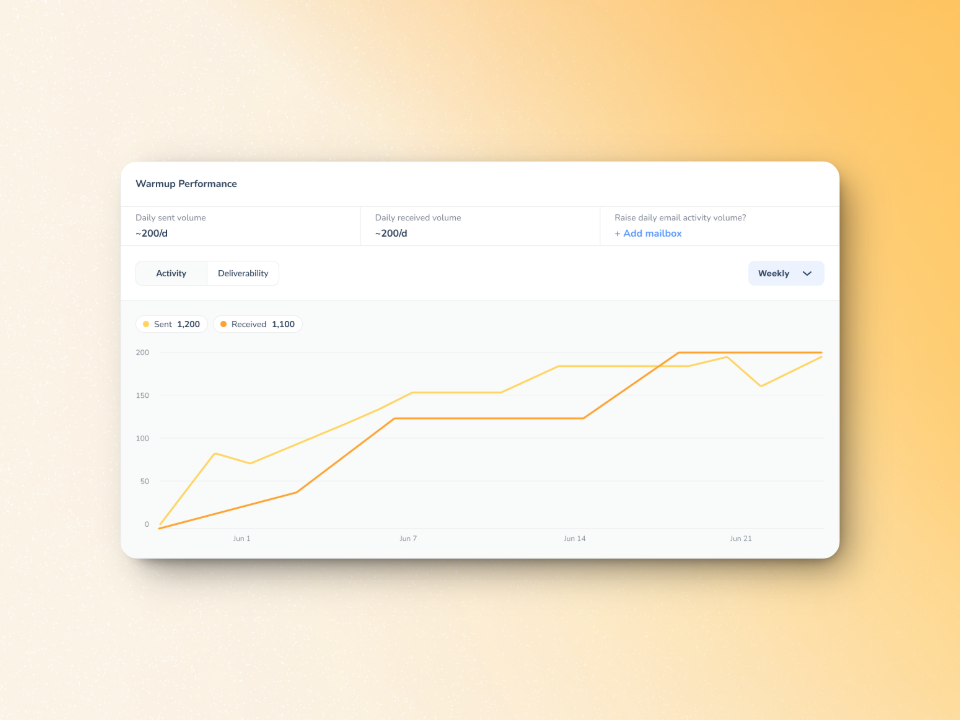
A poor sender reputation can still cause emails to land in spam. There are many factors that contribute to your sender reputation and that’s why email warmup is essential.
Warmy.io increases the likelihood that your emails will land in recipients’ inboxes instead of spam folders.
Here’s how Warmy does it:
- Gradually increasing email volume to prevent sudden spikes that could trigger mail server rejections.
- Simulating human-like interactions to ensures emails are opened, replied to, and marked as important.
- Monitoring email reputation to identify potential issues before they impact campaigns.
- Works across 30+ languages so your emails look natural and relevant for global audiences.
New Warmup Preferences feature for warmup customization
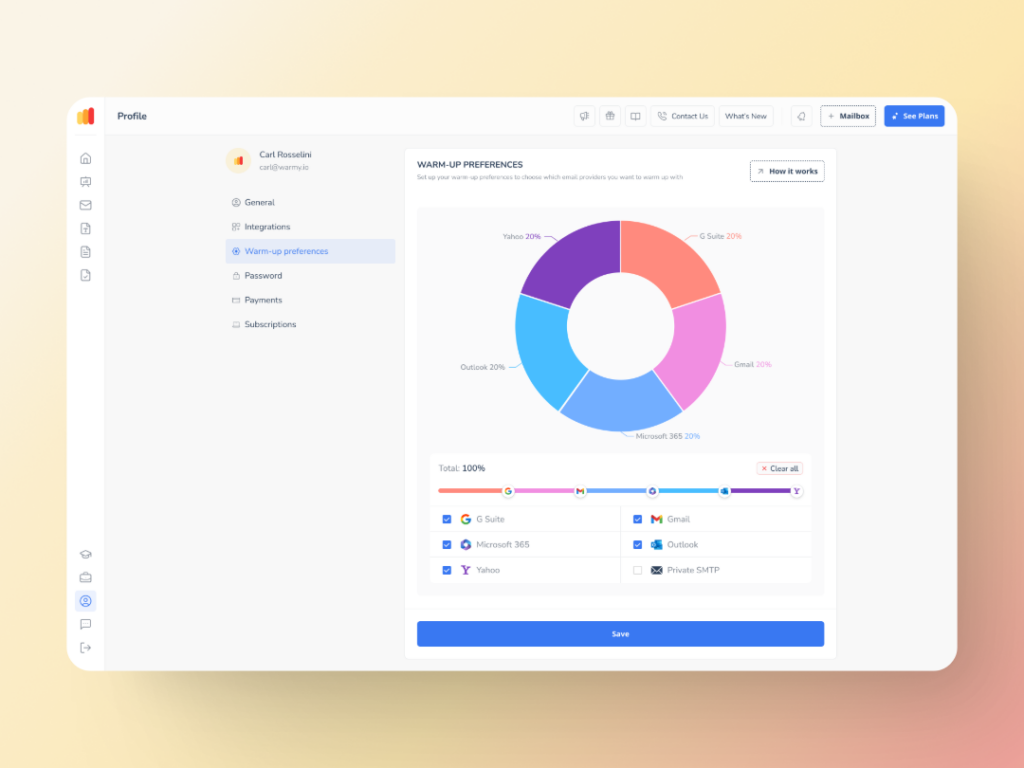
Warmup Preferences gives senders the ability to control the warmup process from the Sender and User side. For example:
Senders are now able to tailor the warmup distribution for a range of different providers.
They can also choose between B2B or B2C customer engagement patterns, which helps them customize the behavior and insights as per their business requirement.
The Warmy system also allows users to customize all these settings right inside the platform.
Moving beyond traditional warmup with advanced seed lists
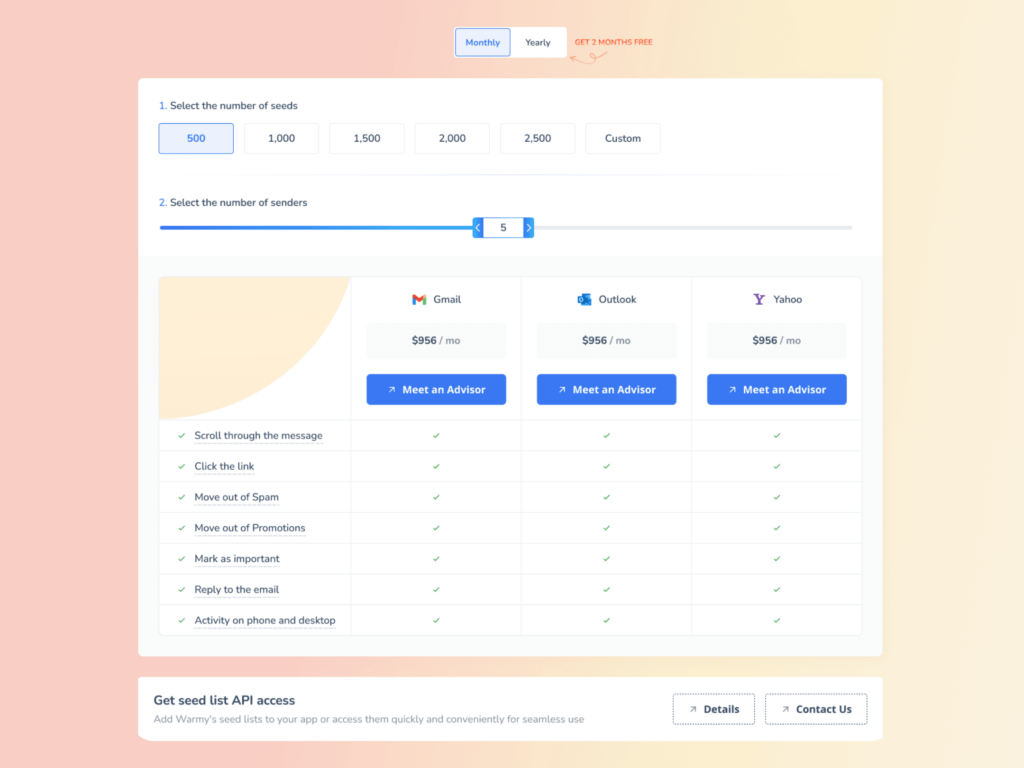
Warmy’s Email Seed List helps train email providers that your emails are wanted and you are to be trusted. The seed list is comprised of real, live email addresses from Google, Outlook, and Yahoo, and the lists are updated weekly to guarantee real engagement.
Unlike static seed lists where recipients are simply sent messages, Warmy’s system is dynamic and simulates real recipient behavior:
Emails are opened and scrolled through, powered by AI and mimics true engagement.
Embedded links are clicked to send signals to email providers that your emails are authentic, enhancing sender reputation.
If any emails land in the spam box, they are retrieved and marked them important
The latest update (API Endpoint for Established Seed Lists) allows you to effortlessly retrieve, manage, and configure your seed list.
Free email deliverability test to keep your emails in top shape
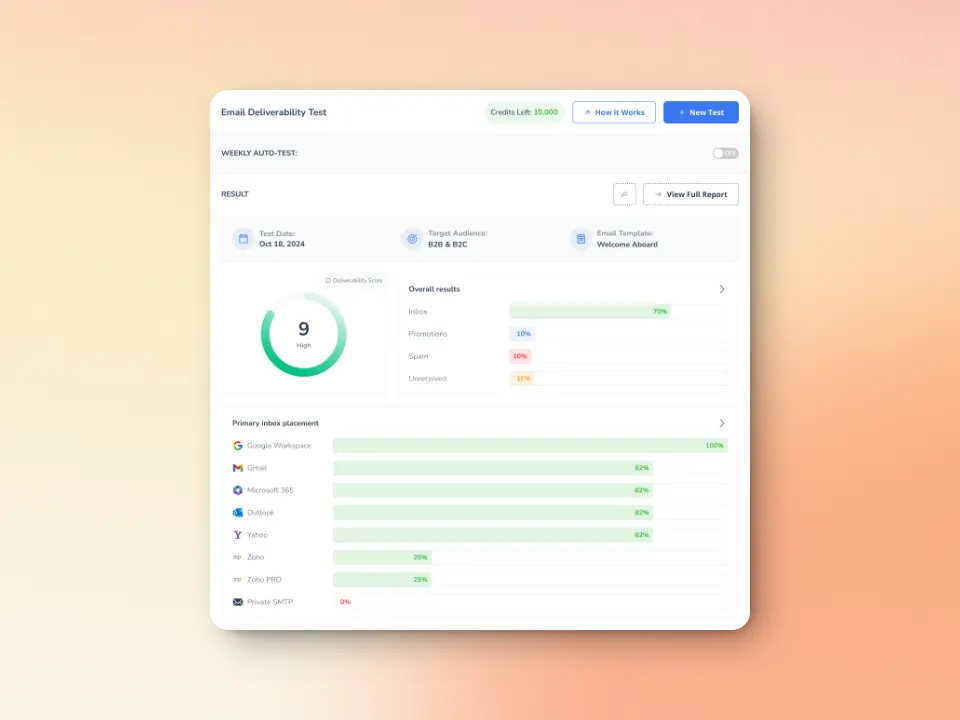
Warmy.io offers a free email deliverability test to identify potential problems before your emails get rejected.
Inbox Placement Testing: Are your emails landing in Inbox, Spam, or Promotions tabs? And what is the percentage of each one?
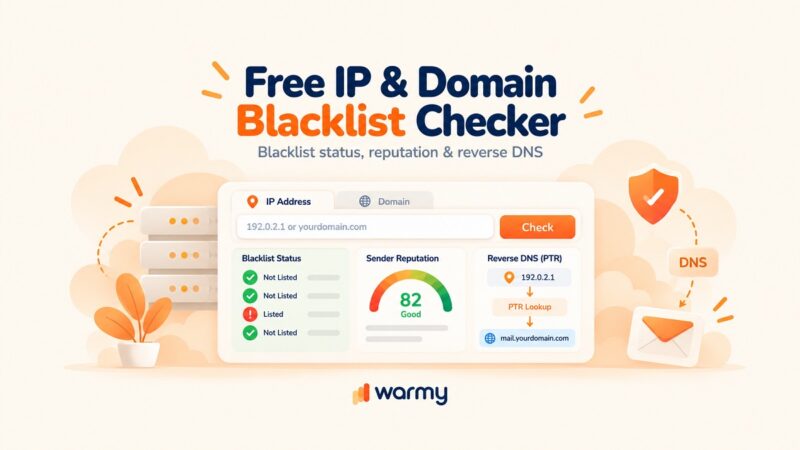
Blacklist monitoring detects if your domain or IP is on a spam blacklist, a common reason for SMTP errors.
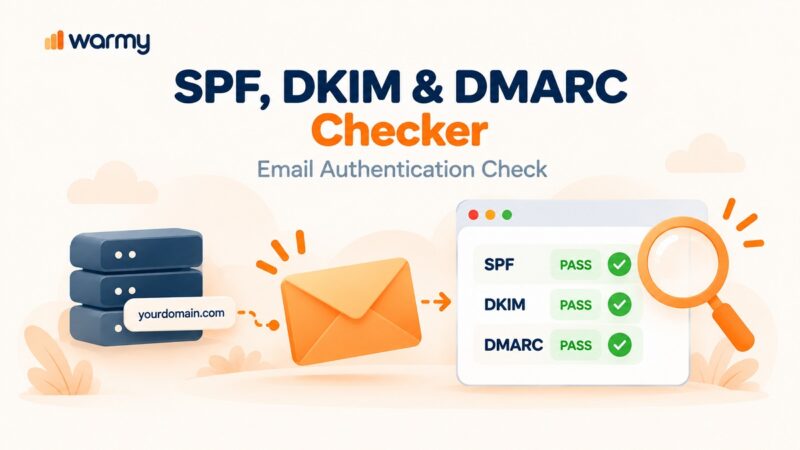
SPF, DKIM, and DMARC verification to ensure authentication records are configured correctly to reduce deferrals.
Experience what Warmy cando for your business
To properly use your email—and to use it throughout the day—you need to set your Yahoo SMTP, POP3, and IMAP settings. These are the fundamentals of your emailing capabilities because without them set up, you’re using a fractured version of sending and receiving.
Want to increase your email deliverability with one more step to ensure sending them lands in your ideal clients’ inbox? Use an email warmup service.
With properly set up SMTP settings and Warmy, you guarantee your email settings are configured for success and deliverability.