

TL;DR: Outlook filters mail by the reputation of your sending IP, so a domain that reaches Gmail without trouble can still miss the Outlook inbox. SNDS is where you read that IP reputation, and JMRP is where you see the complaints behind it. If you send more than 5,000 messages a day to Microsoft mailboxes, you also have to pass SPF, DKIM, and DMARC, or your mail gets rejected with a 550 5.7.515 error. This guide covers how to set up both tools, how to read the data (including what changed in Microsoft’s 2026 update), how to clear the authentication bar, and how to keep your reputation steady with warm-up and monitoring.
Microsoft SNDS (Smart Network Data Services) is a free service that reports how Outlook rates the reputation of your sending IP addresses. To use it, sign in with a Microsoft account, request access to your IPs, verify that you own them, then review your reputation color, complaint rate, and message volume to find what is pushing your mail to the junk folder.
Why your emails keep landing in the Outlook junk folder
Outlook deliverability rarely fails with a clear warning. One week, your replies come in at a normal pace. The next week they go quiet, and your team starts blaming the subject line, the offer, or the sending tool. More often, the real cause is simpler: Microsoft is filtering your messages to junk, or blocking them outright, before anyone reads them.
Gmail gets most of the attention in deliverability guides, yet Outlook still represents a large share of most B2B and consumer lists. Microsoft also evaluates senders differently from Google, which is why a domain that sails into Gmail can still struggle at Outlook. The good news is that Microsoft gives you a direct window into its view of your mail, and a clear set of rules to follow.
Warmy is an AI-driven email deliverability platform that helps you diagnose and repair exactly this kind of Outlook problem, from IP reputation to authentication. Before you change anything, run your domain through the free Email Deliverability Test to see where your messages actually land across Outlook, Gmail, and Yahoo.
What Microsoft SNDS is
Smart Network Data Services is Microsoft’s free reputation portal for senders. It shows how Outlook.com treats the traffic coming from your sending IP addresses. Where Google Postmaster Tools reports on your domain, Microsoft focuses on the IP, so SNDS is the closest equivalent Microsoft offers to a postmaster dashboard.
The data covers the signals Microsoft weighs most heavily: an IP reputation status, your spam complaint rate, the volume of mail you sent, and how that mail was filtered. Reputation at Outlook is the sender’s responsibility, and SNDS is where you confirm whether Microsoft currently trusts you.
SNDS vs JMRP, the two Microsoft sender tools
SNDS has a companion program, and the two work together. SNDS is the reputation view. The Junk Email Reporting Program, or JMRP, is the complaint feedback loop. When an Outlook user marks one of your messages as junk, JMRP forwards a report so you can identify the complaint and suppress that recipient. You enroll in JMRP from the same portal as SNDS.
The distinction matters in practice. SNDS tells you that your reputation is slipping. JMRP helps you find who is complaining and what they received, so you can act on the cause instead of guessing.
Why Outlook and Microsoft 365 need their own playbook
SNDS reports on Microsoft’s consumer mailboxes, meaning outlook.com, hotmail.com, live.com, and msn.com. Microsoft 365 business filtering runs through a separate system, so SNDS will not show enterprise inbox decisions directly, though the reputation signals it surfaces still correlate with how your mail performs at M365 tenants. For a broader set of Microsoft-specific tactics, the Warmy guide on how to improve Outlook and Hotmail deliverability covers the full picture.
How to set up Microsoft SNDS
Setup is free and takes only a few steps, though the data needs a day or two to populate.
1. Sign in. Go to the Microsoft SNDS portal and log in with any Microsoft account. It does not need to match your sending domain.
2. Request access. Choose Request Access and enter the individual IP addresses or the IP range you send from, for example a single address or a full block in CIDR notation.
3. Verify ownership. Microsoft sends a validation message to the abuse contact listed in the WHOIS record for those IPs. Make sure that abuse@ or postmaster@ address is live and can receive mail, then approve the request.
4. Wait for data. Once your IPs are verified, reports begin to appear within roughly 24 to 48 hours. You also need real volume to Microsoft mailboxes, around 100 messages a day per IP, before the dashboard shows meaningful numbers.
5. Enroll in JMRP. From the same portal, open the Junk Email Reporting Program and set a dedicated complaint address that your team, or your system, actually monitors.
Pro Tip: Point your JMRP complaint feed at a mailbox your platform can parse automatically, not a shared inbox nobody reads. A small rise in complaints hurts Outlook placement quickly, so the value of JMRP is acting on each report within hours, not discovering a batch of them weeks later.
How to read your SNDS data
Once data flows in, three areas tell you almost everything you need.
IP reputation status. SNDS uses a color to summarize each IP: green for healthy, yellow for a warning, and red for a serious problem. A yellow or red status is your signal to investigate before Microsoft starts filtering or blocking in earnest.
Complaint rate and volume. The dashboard shows how much mail each IP sent and the share of recipients who complained. Watch broad trends rather than single-day spikes. A sudden jump in volume, or a climbing complaint rate, usually traces back to a new list source or a change in how your mail is routed.
Filter result. SNDS indicates how your traffic was handled, which helps you connect a reputation drop to real filtering behavior.
What changed in the 2026 SNDS and JMRP update
Most older guides describe a version of SNDS that no longer exists. Microsoft relaunched the SNDS portal in 2026 with new access controls, and the automated data-access links from the old address were deprecated, so anyone pulling SNDS data through automation needs to refresh those links under the new portal.
As of the portal’s July 2026 notice, spam trap hit counts are being removed from the Data Report, and any values shown during the transition should not be read as exact.
JMRP changed too. Microsoft moved to a standardized, redacted feedback format that strips the message body and hides the recipient address. If your suppression process relied on reading the recipient straight out of the report, it needs to switch to matching on message headers instead. Plan for a short gap in complaint data around the cutover, and remember that no complaints arriving is not the same as no complaints happening.
SNDS vs Google Postmaster Tools
| Factor | Microsoft SNDS | Google Postmaster Tools |
|---|---|---|
| Reputation level | Per sending IP address | Per sending domain |
| Mailboxes covered | Outlook.com, Hotmail, Live, MSN | Gmail and Google Workspace |
| Complaint feedback | JMRP forwards junk reports | Aggregated spam rate, no per-message loop |
| Best for | Senders on dedicated IPs to Microsoft | Domain reputation across Gmail |
| Cost | Free | Free |
Neither tool replaces the other. If your audience includes both Microsoft and Gmail recipients, set up both and read them side by side.
How to fix Outlook deliverability
SNDS shows you the symptom. Fixing it comes down to authentication, complaints, and reputation history.
Meet Microsoft’s bulk-sender requirements
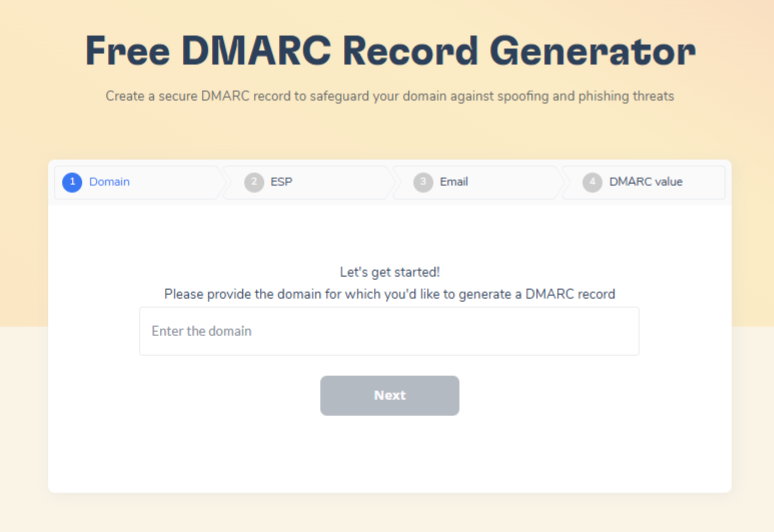
Following Gmail and Yahoo, Microsoft introduced authentication rules for high-volume senders that took effect on May 5, 2025. If you send more than 5,000 messages a day to Outlook.com, Hotmail.com, or Live.com, Microsoft’s official announcement requires all three of the following:
- SPF must be configured and pass for your sending domain.
- DKIM must be configured and pass to prove the message was not altered.
- DMARC must be published at a minimum policy of p=none and must align with SPF or DKIM, ideally both.
Microsoft also recommends practices it has not yet made mandatory: a valid, reply-capable From or Reply-To address, and a functional one-click unsubscribe that follows the RFC 8058 standard. These apply even when a third-party platform sends on your behalf, because authentication is tied to your domain, not to the tool.
If you need to build these records, Warmy’s free SPF Record Generator and DMARC Record Generator produce valid records and help you avoid the lookup-limit mistakes that quietly break hand-written SPF. For the Microsoft-specific walkthroughs, see how to set up a Microsoft 365 SPF record and how to configure DMARC for Office 365.
Decode the 550 5.7.515 rejection
When mail fails Microsoft’s authentication bar, the bounce reads 550 5.7.515 Access denied; sending domain does not meet the required authentication level. That code is a direct instruction: your SPF, DKIM, or DMARC is not passing or not aligned for the domain in your From address.
Check the Authentication-Results header on a message that reached a healthy mailbox, confirm all three pass, and fix the record that fails. A steady stream of these rejections also drags your bounce rate up, so the per-message fix will not hold until the underlying authentication is repaired.
Fix a yellow or red SNDS reputation
A yellow or red IP status calls for a short, ordered response. Clean your list and remove hard bounces and unengaged contacts. Confirm SPF, DKIM, and DMARC all pass. Use your JMRP feed to suppress everyone who complained. Then check whether the IP has been listed on a blocklist, and if it has, follow the steps to remove your IP from the Outlook and Hotmail blacklist.
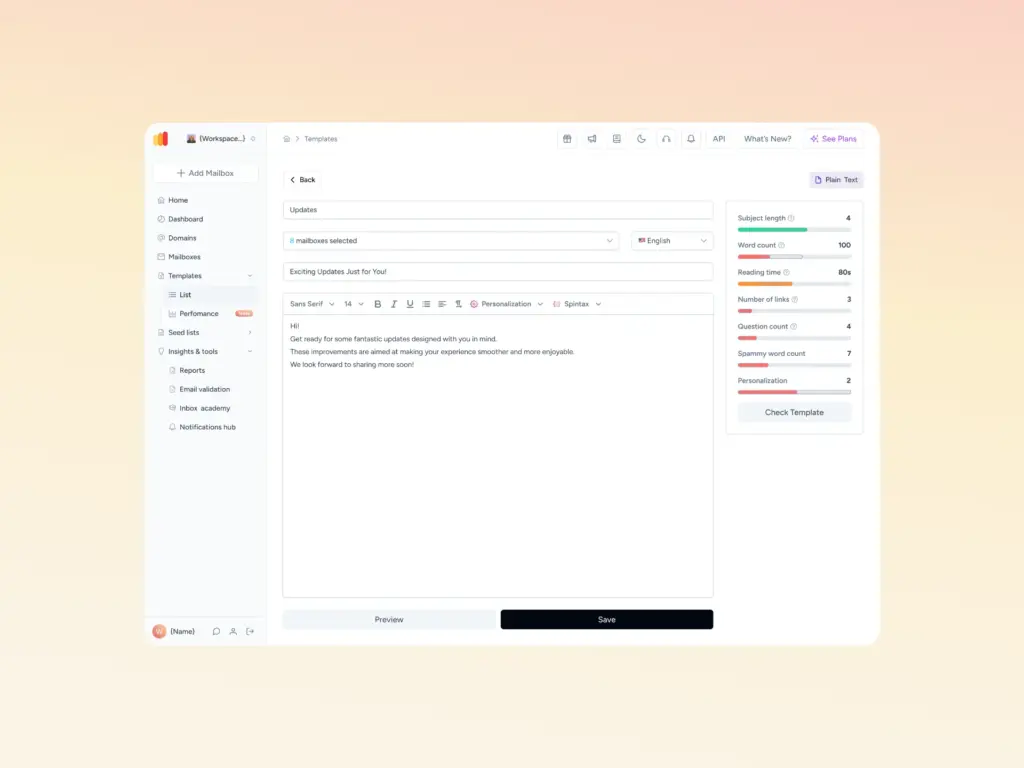
Content quality is a sender-side factor too, so run your message through Warmy’s free Template Checker to catch spam triggers before the next send.
Outlook and Microsoft 365-specific gotchas
Two details trip up otherwise careful senders. First, SPF has a hard limit of ten DNS lookups, and exceeding it makes SPF fail silently, which then breaks DMARC alignment. Second, Microsoft weighs reverse DNS heavily, so your sending IP should resolve to a valid PTR record. Keep in mind that SNDS reflects consumer mailboxes, so a clean SNDS status improves your standing at M365 tenants indirectly rather than guaranteeing it.
Monitor Outlook reputation with Warmy
Passing the checks once is not the finish line, because reputation drifts with every campaign. This is where continuous monitoring and warm-up close the loop.
Continuous monitoring and alerts
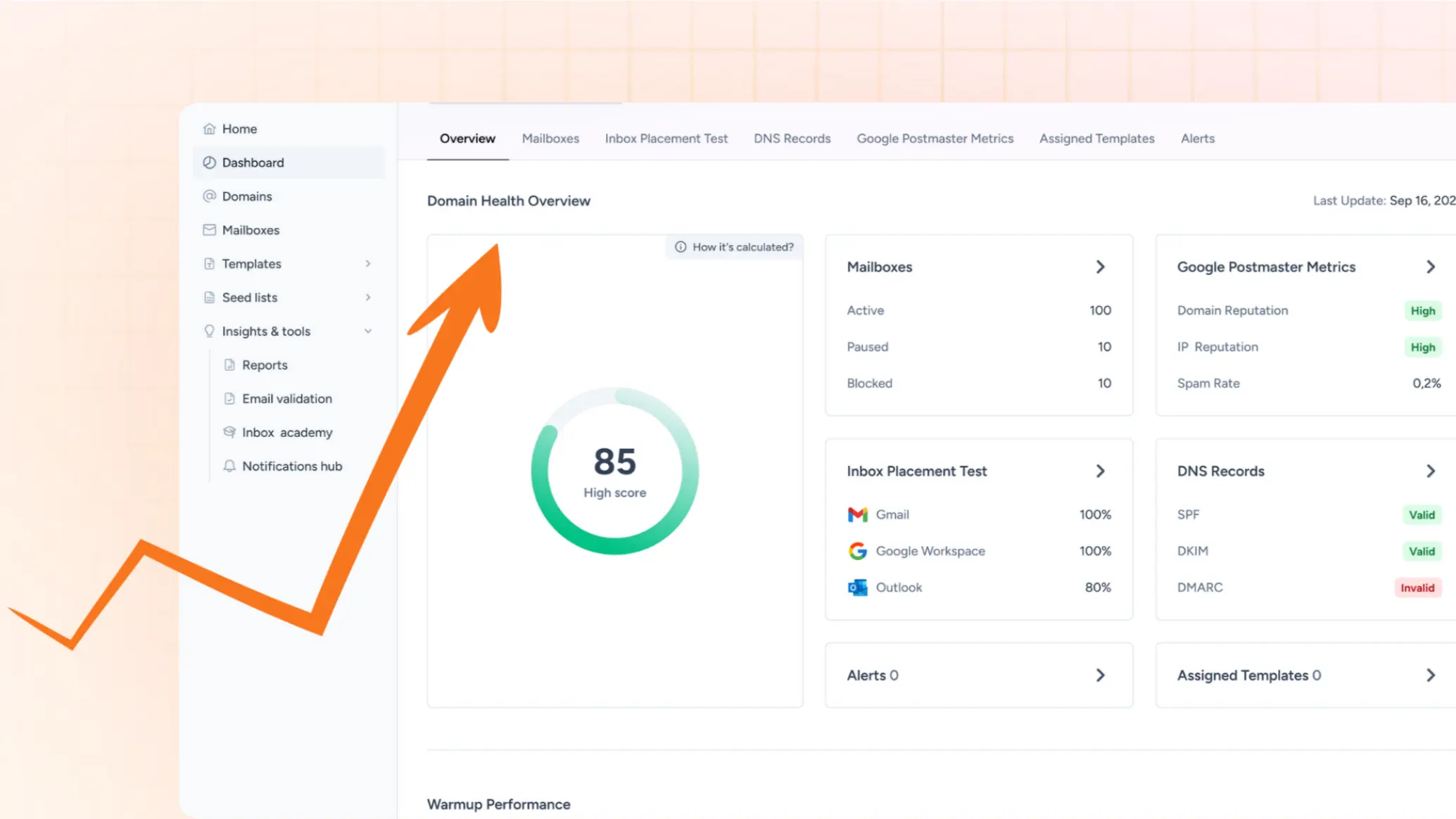
Warmy’s deliverability monitoring dashboard tracks your domain and IP health over time, scoring inbox placement, authentication records, and blacklist status in one place. Instead of logging into SNDS to eyeball a color, you get a running view of whether your Microsoft reputation is holding or slipping, so you can react before a send goes out rather than after it fails.
Warm-up Outlook and Microsoft 365 mailboxes the right way
Reputation is built through sending history and genuine engagement, which is exactly what warm-up creates. Warmy’s email warm-up gradually increases your volume while real inboxes open, reply to, and rescue your messages from spam, which teaches Microsoft that your IP is credible. Its Warmup Preferences let you weight that activity toward Outlook and M365 when that is where your recipients live. To confirm placement before you mail real prospects, Warmy’s seed list and its Microsoft 365 seed list test how Microsoft mailboxes actually treat your mail.
Conclusion
Outlook deliverability stops being a mystery once you can see what Microsoft sees. SNDS gives you the reputation view, JMRP tells you who is complaining, and the bulk-sender rules define the authentication bar you have to clear. Set up both programs, fix any SPF, DKIM, or DMARC gaps, suppress your complainers, and warm your mailboxes so your sending history works in your favor.
From there, the goal is to keep that reputation steady rather than repairing it after each stumble. Warmy handles the monitoring and the warm-up so your Outlook and Microsoft 365 mail keeps reaching the inbox. Book a demo and see how Warmy protects your inbox placement.