

An email header analyzer is usually treated as a security tool for investigating suspicious messages. At the same time, it can be useful if you want to understand how a test email was processed before a campaign begins. Thus, you can review your own header and see the version of the email that reached the receiving provider instead of spotting signs of spoofing someone else’s projects.
When you analyze email header data from a test message, its authentication results and routing history show whether the sending setup worked as intended or needs additional checks before the full mailing goes out. A header does show you technical records, but it doesn’t mean it is the only metric the system checks. This article shows you how to spot different problems.
Key Takeaways
- A header analyzer shows how the receiving provider handled your test email after it left the ESP.
- By reading the Received lines, you can reconstruct its route and locate likely delays between servers.
- SPF, DKIM, and DMARC results appear in the Authentication-Results field.
- DMARC passes when SPF or DKIM passes its check and aligns with the visible From domain.
- Clean results rule out some authentication and routing problems, but they do not guarantee inbox placement.
What Is an Email Header? An Annotated Example
Every email header records its sender, route, and authentication data. For definitions beyond this example, read our full breakdown of what an email header is and how to view it. Sample email headers vary, but what is an email header, and what does it look like in real use? The main deliverability fields are always recognizable:
From: Warmy Test <test@example.com>
Return-Path: <bounce@example.com>
Received: from mail.example.com
  (mail.example.com [203.0.113.10])
  by mx.google.com;
  Tue, 22 Sep 2026 12:05:03 -0700
Authentication-Results: mx.google.com;
  spf=pass smtp.mailfrom=example.com;
  dkim=pass header.d=example.com;
  dmarc=pass header.from=example.com
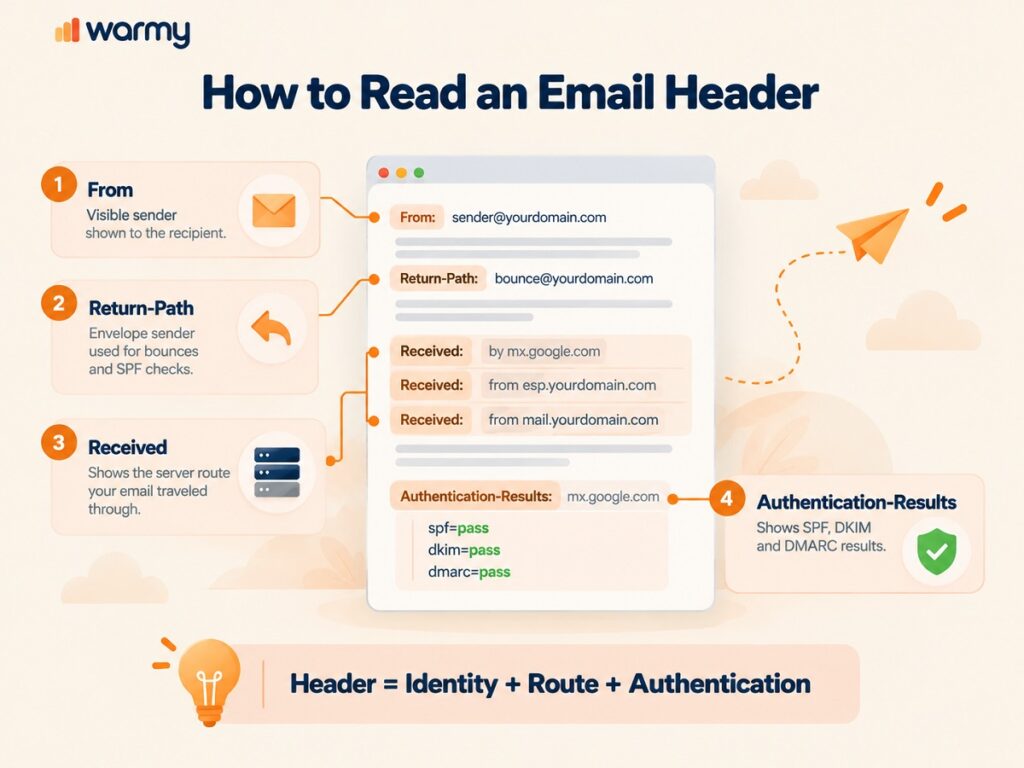
From shows the sender visible to the recipient, while Return-Path records the envelope sender for bounces and the domain checked by SPF. The Received entry captures one handoff to Google’s server; later servers add new entries above it.
In Authentication-Results, smtp.mailfrom identifies the SPF domain, header.d names the DKIM signing domain, and header.from shows the visible domain used for DMARC alignment. Here, all checks pass, and both authenticated domains align with From.
How to Get Your Own Email’s Header (Gmail, Outlook, Apple Mail)
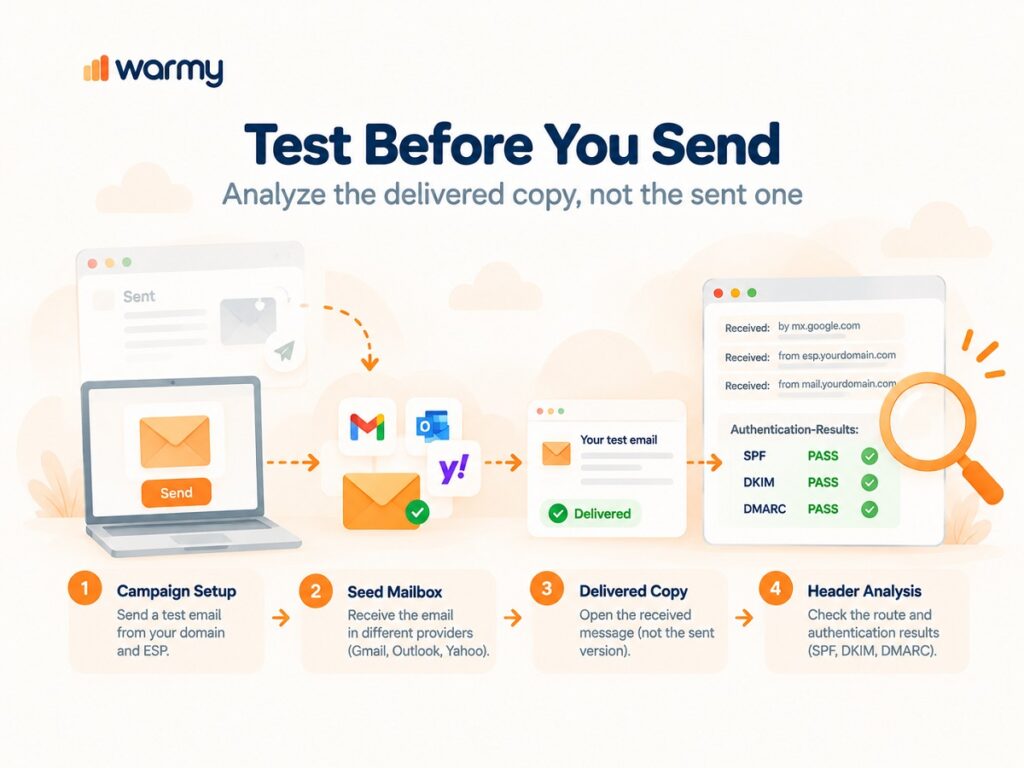
Send the test through your campaign domain and ESP, then open the delivered copy rather than the version in Sent. The receiving provider adds routing and authentication fields during delivery, so the sent copy may not contain the evidence you need.
- Gmail: Open the message in a desktop browser, click the three-dot More menu beside Reply, and choose Show original. Gmail opens the complete source in a new tab, where you can select Copy to clipboard.
- Outlook: In new Outlook, Outlook.com, or Outlook on the web, open More actions and choose View > View message details. In classic Outlook for Windows, double-click the message, then open File > Properties and copy the contents of the Internet headers box.
- Apple Mail: Select the received message on your Mac and choose View > Message > Raw Source. Copy the header block at the top, stopping at the blank line before the message body.
Reading the Received Chain: How Many Hops Is Too Many?
A Received chain reads backward on the page because every SMTP server places a fresh trace above the entries already there. When you read these lines from the bottom to the top, it helps you restore the whole timeline of the mail. That means that you can see where the process was stopped. This is an important step when you diagnose the whole system.
Do hop counts work as a good diagnostic strategy? They can, but rarely do: legitimate routes expand whenever an ESP or receiving provider inserts another relay or filter. Build your baseline from earlier tests sent through the same domain and ESP to the same mailbox provider, then notice where the current route departs from it.
A newly added server that appears consistently without slowing delivery may simply belong to the updated route; when you see the same hop delay across several messages, its hostname and adjacent timestamps give you something concrete to investigate.
SPF, DKIM, and DMARC in the Header: What Pass/Fail Actually Means
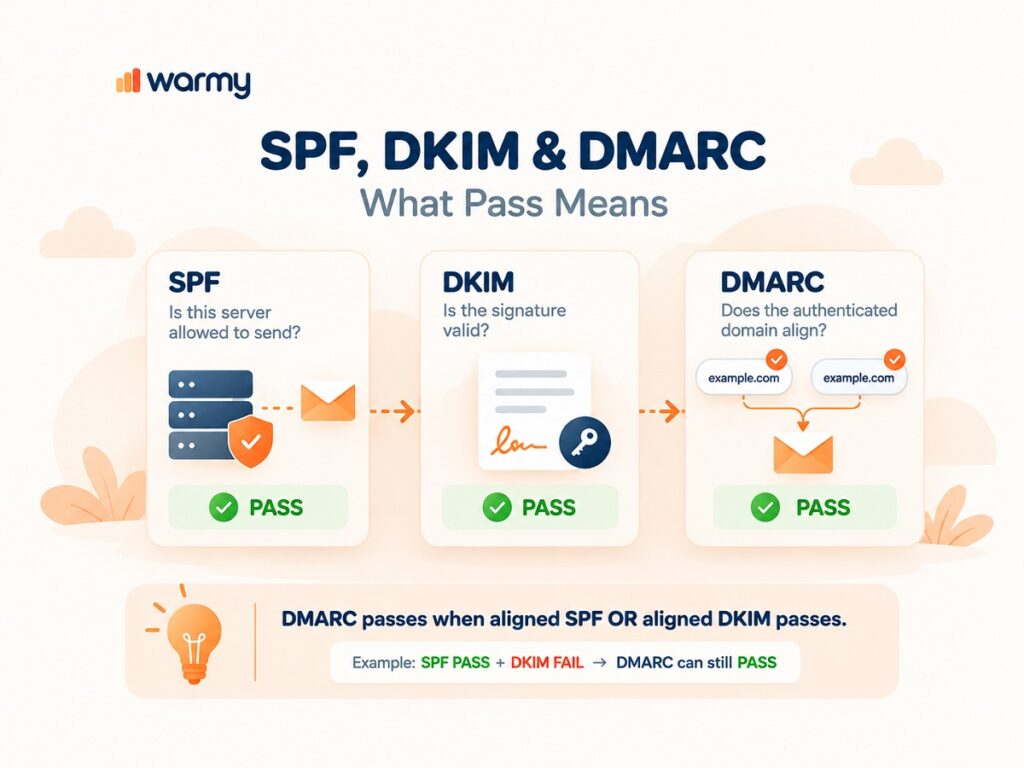
When you analyze email headers, you need to use all the metrics as separate answers: think of the message as a commercial delivery carrying two credentials. SPF covers the vehicle’s authorization, DKIM protects the signed inventory sheet, and DMARC then compares the company named on at least one valid credential with the brand printed on the package. According to these results, you can get a clearer meaning:
| Result | What it means | What to check next |
|---|---|---|
| All three pass | Authentication succeeded, and at least one domain aligns with <from> | Placement tests |
| SPF pass, DKIM fail, DMARC pass | Aligned SPF preserved the DMARC pass | DKIM selector, DNS key, and post-signing changes |
| SPF pass, DMARC fail | No aligned DKIM signature passed | <return-path>, <from>, and d= domains |
| SPF fail or softfail | Weakly authorized IP or not authorized at all | SPF record |
Diagnosing Your Own Deliverability Before You Send
Deliverability diagnosis compares the sender identity and route you want to use with the data recorded by the receiving provider. Before you send the real mail, send the test one from the same domain and settings. Thus, you will get the real picture, because another mailbox would test a different system. You can test with a seed address and see exactly what the header reveals after delivery.
Open that copy and analyze header data in two passes. Compare header.from with smtp.mailfrom and header.d to find an aligned SPF or DKIM identity, then follow the Received chain upward against the expected route.
To trace email source IP, use the earliest trustworthy handoff, although it normally identifies an ESP relay rather than the sender’s device. Some messages also include an X-Originating-IP field, but it is optional and may be absent or added by the sender’s own system, so do not treat it as proof of the sender’s location.
After the test, you will be able to understand where the problem is. If the authenticated domains do not align with the visible From address, review the SPF, DKIM, DMARC, and ESP domain settings. At the same time, if you see that authentication passes but the route contains an unfamiliar relay or the same handoff repeatedly takes too long, check the delivery path first. Try changing one setting at a time to see where exactly the problem is: just resend the same mail and the header will show you if your change solves the problem.
Using a Header Analyzer to Catch Phishing: The Other Use Case
As we have already mentioned, the header analyser can tell you where exactly the problem is, and this scheme can also answer the question: does the technical identity support the sender shown in <from>? The header analyzer arranges the raw fields, and you can easily compare the address with the domains authenticated through SPF and DKIM, along with the route recorded during delivery.
If you see any contradictions, this is your sign to stop and double-check the request. It doesn’t mean it’s phishing by default, because legitimate forwarding may alter parts of the record. Leave links and attachments unopened, contact the supposed sender through a channel you already trust, and see the security-focused side of the header analysis and its work for the full investigation process.
Common Header Red Flags
An email header works as a pattern, not just a collection of independent signals or verdicts. These signs are the most common reasons for you to look closely:
- A dmarc=fail result shows that no successful authentication method aligned with the visible <from>.
- With spf=fail or softfail, the sending source lacks clear authorization; perm=error instead points to an invalid policy.
- dkim=fail appears when the signature cannot be verified, often after the signed content changes or the DNS key becomes unavailable.
- The identities in <from>, <return-path>, and d= lead to unrelated organizations with no expected ESP connection.
- Replies are redirected to an unfamiliar address, particularly when the message asks for credentials, payment, or another sensitive action.
- Compared with earlier tests, the Received chain introduces a new relay, circles through the same host, or loses an unusual amount of time at one handoff.
Pre-Send Testing Checklist
Let’s add final touches before you are ready to send. This small test will make this action more confident:
- Keep the production domain, ESP, From, Return-Path, and DKIM setup.
- Send the unchanged campaign to seed mailboxes at the providers being tested.
- Open the delivered copies and save their full headers outside the Sent folder.
- Check that SPF and DKIM pass and at least one identity aligns for DMARC.
- Compare each Received chain with the baseline, noting new relays or delays.
- Record placement, change one setting, and repeat the test before launch.
Run the check with Warmy’s Seed List to see how the campaign reaches different test mailboxes before it reaches your audience.
FAQ
What information does an email header actually contain?
It records recipient fields, message identifiers, authentication results, return address, timestamps, and the servers involved in delivery.
How do I find the header of an email I sent myself?
Send the mail to the address you own or control. Open the delivered copy, but don’t open it in the Sent section. To do this, use “Show original” in Gmail, “View message details” in new Outlook, or “Raw Source” in Apple Mail.
What does it mean if SPF passes but DKIM fails?
That means the sending IP was authorized for the SPF domain, but the DKIM signature could not be verified. DMARC may still pass if the successful SPF identity aligns with the visible From domain.
How many “hops” should a normal email header show?
There is no go-to answer to this question: ESPs, relays, gateways, and recipient filters create different routes. You can compare the chain with earlier tests that were sent through the same setup to the same provider.
Can I use a header analyzer on my own outbound test emails?
Yes. Send a test through the actual campaign setup, extract the header from the delivered copy, and review authentication, alignment, routing, and delays before launch.
Why does Gmail hide the sender’s real IP address?
Because Gmail’s web interface protects users’ privacy. If you use SMTP infrastructure, it can leave its own server addresses in the route.
What’s the difference between From: and Return-Path:?
From is the sender identity displayed to the recipient. Return-Path records the envelope sender and normally supplies the domain evaluated by SPF.
Does a clean header guarantee good deliverability?
It helps with authentication and routing problems, but there is no guarantee. It also depends on reputation, message content, recipient behavior, and provider filtering.
How do I read an email header’s Received chain?
The right way is to read it from the bottom to the top – each SMTP server adds its record above the previous ones. Compare the hostnames and timestamps at each handoff.
Is a header analyzer useful before sending a campaign, or only after?
It is useful in both ways, exposing authentication and routing problems in a seed test before launch, and helping investigate delays, filtering, spoofing, or phishing after delivery.
Wrapping Up
An email header analyzer turns every delivered test into a record of authentication and routing. Review that evidence before launch, then monitor authentication and routing issues automatically with Warmy.