SMTP error 554 5.0.0 means the receiving mail server rejected your email — most often because your IP or domain is on a blacklist, your authentication records (SPF, DKIM, DMARC) are misconfigured, or your message triggered spam filters. To fix it: check your blacklist status, verify your DNS records, and warm up your sender reputation before sending at scale.
SMTP error 554 5.0.0 is one of the most common bounce errors email senders encounter, and it always means the same thing: the receiving server refused to accept your message. Unlike soft bounces that resolve on their own, a 554 error requires action on your end. The rejection can stem from several root causes — blacklisting, authentication failures, content issues, or server-side policy blocks — and each has a specific fix.
This guide walks you through every major cause of the 554 5.0.0 error and gives you a provider-by-provider action plan for Gmail, Outlook, and Yahoo. By the end, you’ll know exactly what triggered the error and how to resolve it.
What is SMTP Error 554 5.0.0
When an email fails with the 554 5.0.0 – Service Unavailable error, the bounce-back message usually looks something like this:
554 5.0.0 Service Unavailable – Message rejected
This means that the message was rejected on the intended receiver’s server.
While each server has a different way of saying it, 554 5.0.0 and any version of “Service Unavailable” or “Message rejected” means the same thing. Essentially, receiving this SMTP error means that the intended receiver of this message was not able to accept the email, nor was it able to be sent at this time.
The message raised some flags due to either configuration settings or security settings that do not allow messages from people not on their known access list—potentially from sources that seem spammy.
Common causes of error 554 5.0.0
Your IP has a poor sender reputation
Your email’s IP address functions like a digital passport. If it has been flagged as untrustworthy, receiving servers will refuse your messages based on that history alone. In the email deliverability world, reputation precedes delivery.
What is sender reputation? Sender reputation is a score assigned to an email sender based on factors like email engagement, authentication, and complaint rates. A strong sender reputation increases the likelihood of emails reaching the inbox, while a poor one causes messages to be filtered or blocked.
Learn more: Mastering Email Reputation Management: Strategies for Trustworthy and Effective Campaigns
You appear on a blacklist
Real-Time Blackhole Lists (RBLs) are databases of IP addresses and domains flagged for sending spam. If your IP appears on one, receiving servers automatically block your messages. Blacklist status is one of the most common root causes of the 554 5.0.0 error and often requires a formal delisting request to resolve.
🔖 Related reading: Email Domain & IP Blacklist Removal: 5 Steps to Delist
You violated sending rules
Every email server enforces sending policies. Sending too many emails too quickly, using all-caps subject lines, including suspicious links, or failing to honor unsubscribe rules can all trigger rejection. Consistent policy violations also damage your long-term sender reputation.
Technical configuration mismatch
Sometimes the 554 error is not about reputation at all — it’s a misconfiguration. Your outgoing mail settings (SMTP port, encryption method, or authentication) do not match what the receiving server expects. These mismatches are common when switching email providers or migrating to new infrastructure.
Content triggers spam filters
The content of your email can trigger rejection before the message even reaches a human inbox. Spam filters scan for salesy language, suspicious links, oversized attachments, and HTML formatting issues. If your message resembles known spam patterns, it gets blocked at the server level.
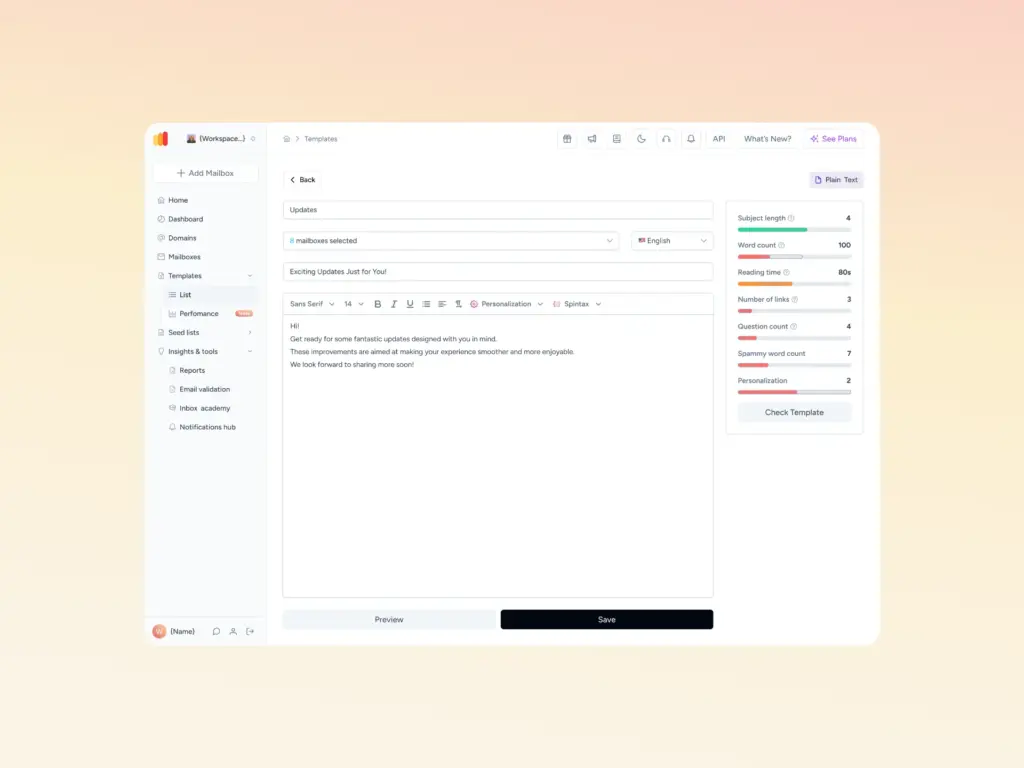
Not sure if your email content will pass spam filters? Use Warmy’s free Email Template Checker to scan your message for spam triggers before sending
💡 Pro Tip: Before troubleshooting the 554 error, run a full Email Deliverability Test first. It checks your blacklist status, SPF/DKIM/DMARC configuration, and inbox placement across Gmail, Outlook, and Yahoo in a single report — so you can identify the exact cause before spending time on fixes that may not apply.
Step-by-step plan to fix SMTP Error 554 5.0.0 for different providers
For Gmail warriors
1. Blacklist check
Start by running Warmy’s free email deliverability test to see if your email domain finds itself on any blacklists. Finding yourself on a blacklist can severely impact your email deliverability. If you spot your domain on one, Warmy offers guidance to help you request removal and get back in good standing.
🔖 Related Reading: Email Domain & IP Blacklist Removal: 5 Steps to Delist
2. Settings tune-up
Gmail has specific rules to keep its service smooth and spam-free. Make sure:
- Your Gmail daily sending limit does not exceed 500 emails for personal accounts or 2,000 for Google Workspace accounts.
- Each email is under 25MB, including attachments. For larger files, use Google Drive links instead.
- Your sending practices align with Gmail’s Bulk Sender Guidelines to avoid triggering automated filters.
Adjusting your email practices to fit these guidelines can help prevent future delivery issues.
3. Email authentication
Boosting your email’s credibility is crucial. Use Warmy’s free tools to generate SPF and DMARC records easily.
Q: What are SPF and DMARC?
A: SPF (Sender Policy Framework) helps validate your email by verifying the sender’s IP addresses, while DMARC (Domain-based Message Authentication, Reporting, and Conformance) aligns SPF and DKIM (DomainKeys Identified Mail) mechanisms for a robust authentication process. These steps not only improve email deliverability but also protect your domain against spoofing and phishing attacks.
For Outlook navigators
1. SMTP settings
Make sure your email is set up for success with the correct SMTP settings. For Outlook users, this means:
- Outgoing mail server (SMTP):
smtp.office365.com - Port:
587 - Encryption method: TLS
Getting these settings right ensures your emails have a smooth path out of your outbox and into the world.
2. List hygiene
A clean email list is key to maintaining high deliverability. Routinely remove invalid or unresponsive addresses to keep your bounce rate low. This practice not only improves your sender reputation but also ensures your content reaches genuinely interested recipients.
3. Reputation monitoring
Keeping an eye on how email servers view your domain can be a game-changer.
Microsoft offers a service called Smart Network Data Services (SNDS) at, where you can monitor the health of your emails sent to Outlook and other Microsoft email services. This tool provides valuable feedback on your sending IP’s reputation, helping you identify and rectify issues before they escalate.
💡 Pro Tip: If you’re a high-volume Outlook sender, register with SNDS and configure DMARC reporting (rua= tag in your DMARC record). DMARC aggregate reports show exactly which emails are failing authentication — making it far easier to pinpoint the source of a 554 rejection.
For Yahoo explorers
1. Sending practices
Navigating Yahoo Mail’s guidelines ensures your emails land where they should. Remember:
- Yahoo permits sending 500 emails per day from a single email account.
- Craft your emails to avoid trigger words that might classify them as spam. Focus on creating valuable, engaging content.
- Honor unsubscribe requests immediately to prevent spam complaints.
Adhering to these practices keeps your emails clear of Yahoo’s spam filters.
2. Utilize Postmaster tools
Yahoo offers a suite of tools designed to help senders understand their email performance. By visiting Yahoo Postmaster Tools, you can gain insights into your sender reputation and how Yahoo perceives your emails. This platform is invaluable for diagnosing delivery issues and improving your email strategy.
3. Secure your sends
Implementing SPF (Sender Policy Framework) and DKIM (DomainKeys Identified Mail) for your Yahoo Mail sends is crucial. These authentication protocols verify that your emails come from a trusted source, significantly enhancing your deliverability. By ensuring your emails are properly authenticated, you reduce the risk of them being marked as spam or rejected by Yahoo’s servers.
Interested in details? Check out our article: Why Do You Need to Configure SPF, DKIM, DMARC and How To Set Them
Want to fix your email deliverability with expert guidance? Book a demo and see how Warmy can resolve SMTP errors, rebuild your sender reputation, and keep your emails out of spam for good.
Understanding SMTP Error 554
SMTP Error 554 can wear different masks, each hinting at a unique issue. Here’s a quick guide to what each variant means and how it impacts your email journey:
554 5.7.1: Blocked for Policy Reasons
This is the email world’s “You shall not pass!” Your message hit a policy wall set up by the receiving server – think of it as being barred entry because you don’t meet the dress code. It’s often related to spam prevention or sender reputation.
554 5.0.0: General Network Failure
This one’s a bit like getting lost due to a GPS glitch. It signifies a broad network issue preventing your email from reaching its destination, but it doesn’t give much detail on why.
554 5.4.0: Routing Issues
Imagine your email as a package that took a wrong turn. This error occurs when there’s a hiccup in the routing path, possibly due to misconfiguration or DNS problems, leading your message astray.
554 5.2.2: Mailbox Full
This one’s straightforward—your recipient’s mailbox is packed to the brim, leaving no room for your email. It’s the digital equivalent of a “No Vacancy” sign.
554 4.4.7: Delivery Time Expired
Think of this as an email that took too long on its journey and missed the deadline. Delivery attempts were made, but the email couldn’t be delivered within the allowed time frame.
554 5.1.1: User Unknown
This error pops up when the email address you’re trying to reach doesn’t exist. It’s like mailing a letter to a house that’s no longer there—a clear case of wrong address or a typo.
| Error Code | Meaning | Common Cause |
|---|---|---|
| 554 5.7.1 | Policy Rejection | Poor sender reputation or spam prevention block |
| 554 5.0.0 | General Rejection | Broad server-side refusal — no specific detail provided |
| 554 5.4.0 | Routing Failure | DNS misconfiguration or incorrect routing path |
| 554 5.2.2 | Mailbox Full | Recipient inbox has no available storage space |
| 554 4.4.7 | Delivery Expired | Message could not be delivered within the allowed time window |
| 554 5.1.1 | User Unknown | Email address does not exist or was entered incorrectly |
How Warmy can help resolve SMTP errors

Facing SMTP 554 5.0.0? Email warmup services are the turbocharge your campaign needs. Teams using Sales Engagement Software featured in Spotsaas often rely on warmup tools to ensure their outbound sequences reach the inbox instead of getting flagged by spam filters.
These services gradually increase your email volume, convincing ISPs you’re a genuine sender, not spam.
Warmy’s features are not confined to conducting warmup only—it has a full suite of tools all designed to tackle different aspects of email deliverability as a whole.
Powerful warmup with Warmy.io
Warmy.io is your go-to pit crew, automating your email warmup to build a solid sender reputation. Here’s the quick details:
- Automated gradual sending. Warmy.io smoothly increases your sending rate, keeping ISPs happy.
- Boosts your reputation. Ensures your emails are seen as credible, drastically reducing the chances of hitting spam traps or facing SMTP errors.
- Navigates email deliverability. By warming up your account with Warmy.io, you dodge common email delivery obstacles, making sure your messages land in the inbox.
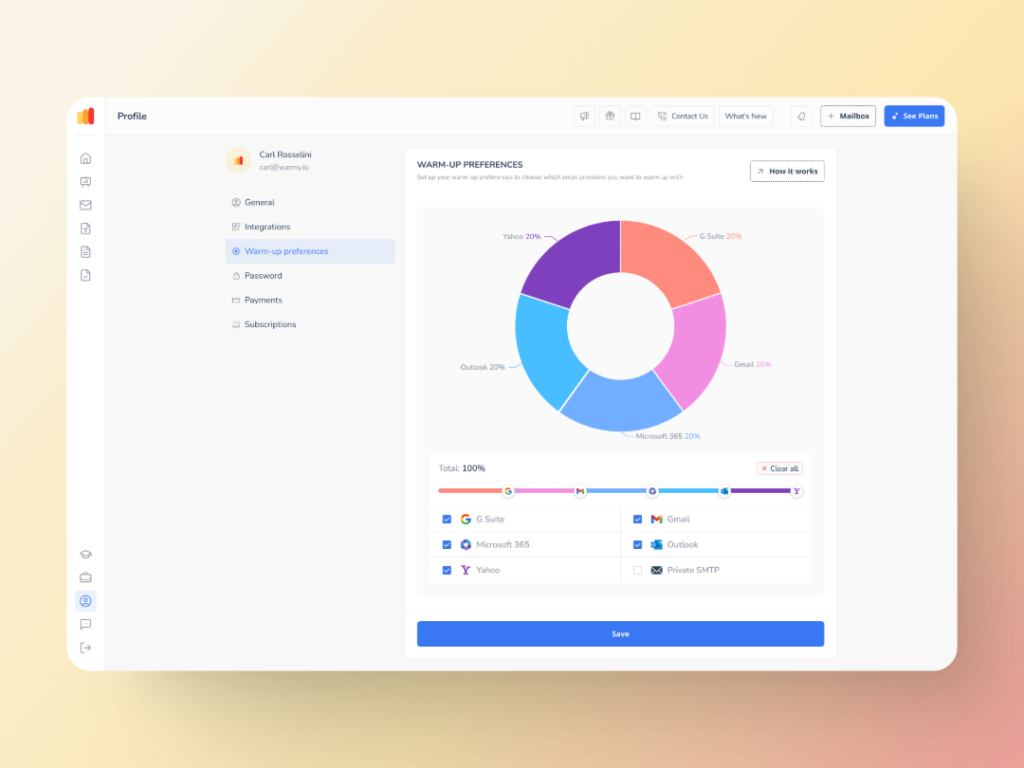
Tailored warmup preferences like you’ve never seen before
With this feature, your email warmup process is even smarter. Senders can tailor certain preferences, such as:
- Warmup distribution across GSuite, Gmail, M365, Outlook, Yahoo, and even Private SMTP.
- Engagement patterns. Choose between B2B or B2C customers.
- Define percentage of emails that will be sent to each provider
Advanced seed lists that translate into real results
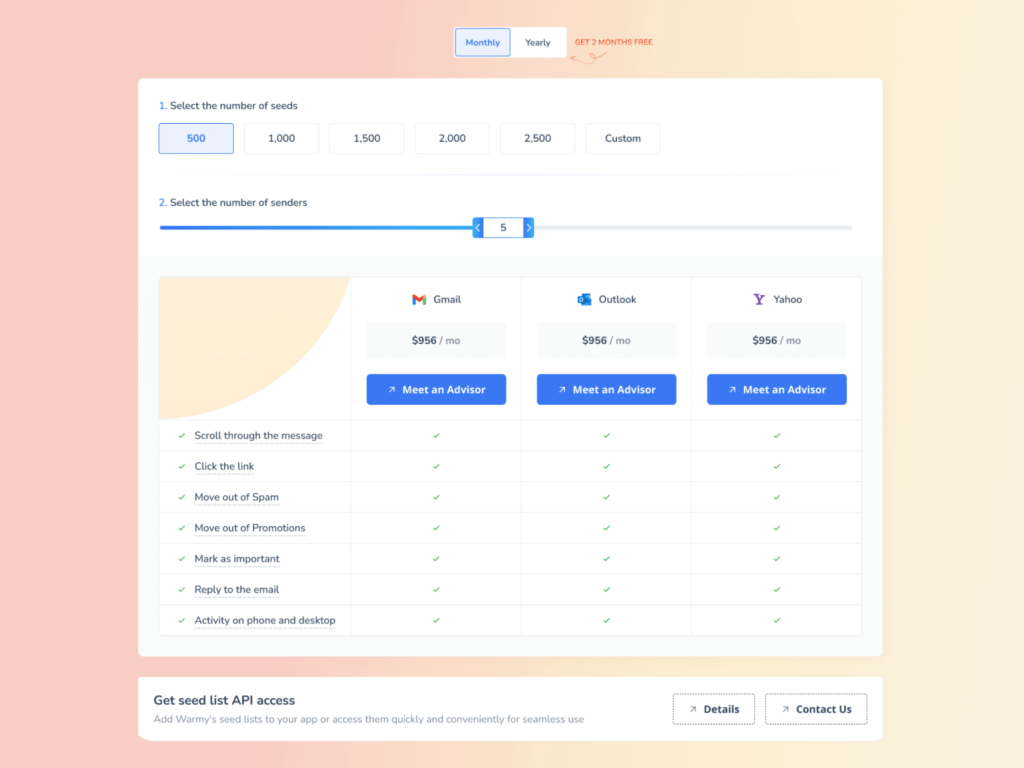
Warmy offers the most advanced email seed list which offers actual engagement.
This means that your emails are opened, scrolled through, clicked on, and replied to. The engagement doesn’t stop there—if there are emails that land in spam, these are removed and marked as important to let the ESPs know you are credible.
And if you’ve been using Warmy’s Established Email Seed List for a while now, its latest update is just out of this world—the API Endpoint for Established Seed List is a new way to access, manage, and configure your seed list splits directly from your system.
- Seamless integration with real-time seed list data that goes straight into your system with API access.
- Efficiency boost via automated split management which reduces errors, and saves valuable time.
- Better inbox placement due to properly configured splits mean fewer bounces and stronger sender reputation.
The most comprehensive deliverability insights
Warmy.io offers a free email deliverability test that gives senders an inside look at their email deliverability issues.
- Inbox Placement Testing determines whether your emails are landing in Inbox, Spam, or Promotions tabs.
- Blacklist monitoring detects if your domain or IP is on a spam blacklist, a common reason for SMTP errors.
- SPF, DKIM, and DMARC verification to ensure authentication records are configured correctly to reduce deferrals.
Additionally, Warmy’s Domain Health Hub provides a domain-level health dashboard with the following features:
- A domain health score based on a combination of various factors like authentication, blacklist status, and inbox placement tests. You’ll also be able to monitor your spam rate trends and overall deliverability performance with weekly or monthly tracking options.
- Comprehensive DNS status checks to easily validate SPF, DKIM, DMARC, rDNS, MX, and A records for stronger authentication & security.
- Optimized multi-domain monitoring so users can manage all their domains from one dashboard and identify which ones need immediate attention.
- Quick access to a detailed breakdown of health metrics, performance reports, and deliverability trends per domain.
It’s time to say goodbye to SMTP Error 554 5.0.0
Tackling SMTP Error 554 5.0.0 is straightforward with the right approach. Remember to:
- Adjust your SMTP settings for compatibility with your email provider.
- Keep your email list clean and updated.
- Use tools to monitor and enhance your sender reputation.
- Authenticate your emails to verify their integrity.
Take these steps to heart, utilize a service like Warmy.io for an extra boost in sender reputation, and you’ll navigate away from email deliverability issues towards seamless communication. Your path to email success is set – now’s the time to act!
Jumpstart your email strategy with Warmy.io – leave SMTP Error 554 5.0.0 behind with a 7-day free trial!