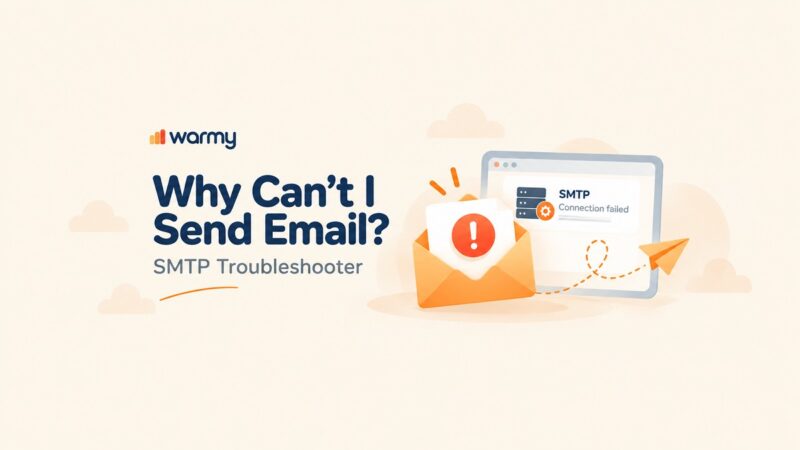


SMTP Error 554 means the receiving mail server has permanently rejected your email. The rejection is final — the message will not be delivered without direct intervention on your end. The most common triggers are a blacklisted sender IP, failed SPF/DKIM/DMARC authentication, spam-flagged content, or a policy violation on the recipient’s server. Each trigger maps to a specific 554 sub-code (5.7.1, 5.0.0, 5.4.0, 5.2.2, 4.4.7, 5.1.1), which tells you exactly where to start troubleshooting.
Email is regulated by something known as SMTP or Simple Mail Transfer Protocol. Essentially, it’s a punch list—a menu-driven process that guarantees an email arrives at its specified location.
Every once in a while though, an email does not arrive at its target location. This can happen for a number of reasons, and one common speed bump along the way is the SMTP 554 error. Senders might be surprised when they go through an email deliverability test and find out that this error may be a symptom of a deeper issue.
This frequent user error indicates the email did not go through. The target recipient did not receive the email, and communication suffers as a result.
Thus, understanding what SMTP Error 554 is and what causes it is key to tackling this error.
Understanding SMTP Error 554
An SMTP 554 response means your email was rejected by the receiving server.
Unfortunately, this error is actually a permanent failure notice—meaning the message was already rejected and it will no longer be delivered.
This can happen for a number of reasons, and we’ll go over them one by one.
Сommon causes of SMTP 554
SMTP Error 554 emerges due to a range of issues that hinder emails from reaching their intended recipients
Challenges with the recipient’s server
Occasionally, the destination server might reject an email if it fails to align with specific security protocols or settings, reflecting the server’s stringent measures to safeguard its domain.
Spam-related content flags
Even legitimate emails can be mistakenly identified and blocked as spam, preventing their delivery. This happens if these emails contain elements typically associated with spam, such as certain phrases, an abundance of links, or specific types of attachments, might be
🔖 Related Reading: Why are My Emails Going to Spam or Junk? [Solved]
Sender IP reputation concerns
The sender’s IP address must be trusted by email service providers. If the IP address has been known to send spam or engage in other illicit activities, it’s bound to be blacklisted eventually.
Q: What is a blacklist?
A: A blacklist is a list of email addresses, IP addresses, or domains that have been flagged for sending spam or malicious content. Emails from blacklisted sources are often blocked or sent to the spam folder by email providers. Therefore, being part of any blacklist inhibits any correspondence with recipients’ email servers.
🔖 Related Reading: How to check IP reputation? IP blacklists
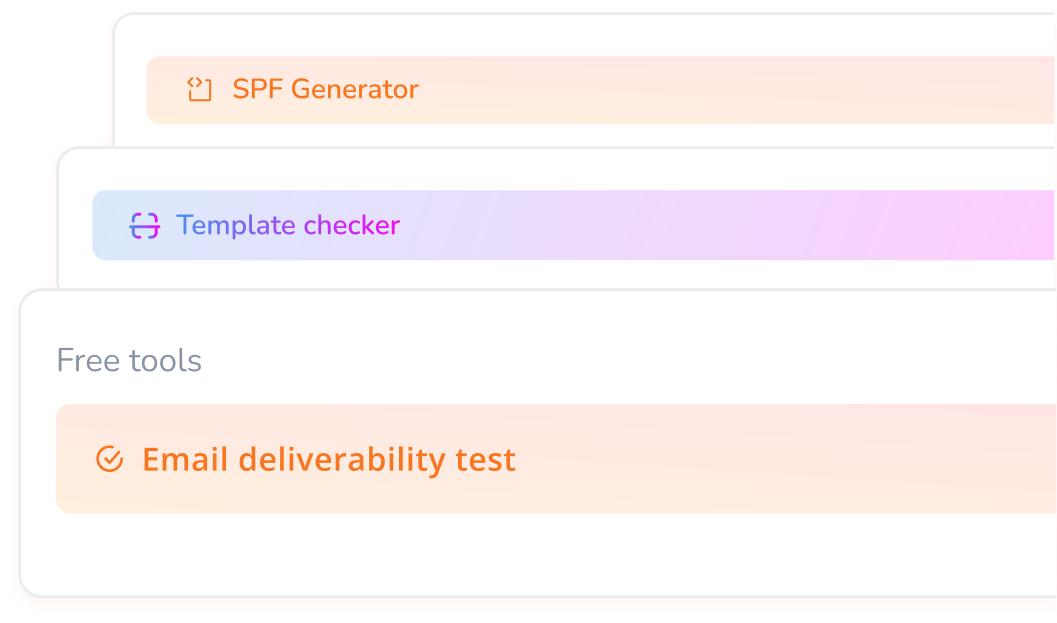
💡 Pro Tip: Before you dig into settings, run a free Email Deliverability Test to see exactly where your emails are failing — inbox, spam, or blocked entirely. It checks your SPF, DKIM, and DMARC records in one pass and flags any blacklist hits instantly, so you can pinpoint the 554 trigger before spending time troubleshooting the wrong thing.
Step-by-step solutions to resolve SMTP Error 554 based on email provider
Here are some universal solutions and email provider-specific solutions, from the most universal of troubleshooting solutions to resolve the dreaded SMTP Error 554.
Comprehensive troubleshooting strategies
Conduct a thorough verification of SMTP server settings
Initiate the resolution process by meticulously confirming that your SMTP server settings align with your email provider’s specified guidelines.
Misconfigurations in server address, port number, or encryption protocols can be primary contributors to Error 554. Precision in these settings is paramount for the successful delivery of emails.
Ensure the integrity of email sender identity
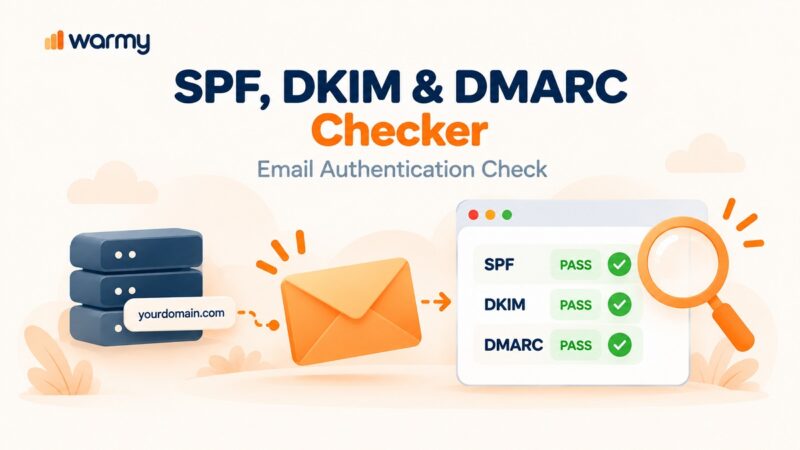
Incorporate and fine-tune SPF, DKIM, and DMARC authentication standards to validate the integrity of your email communications. By accurately configuring these security protocols, you can strengthen trustworthiness with recipient mail servers and diminish the likelihood of encountering SMTP Error 554, enhancing your email deliverability and protecting your sender reputation.
Interested in details? Check out our article: Why Do You Need to Configure SPF, DKIM, DMARC and How To Set Them
Authentication matters more than ever. According to the EasyDMARC 2025 DMARC Adoption Report, DMARC adoption among top domains surged from 27.2% to 47.7% between 2023 and 2025 — a 75% increase — driven largely by Gmail and Yahoo’s mandatory authentication requirements for bulk senders. Domains that implement full SPF+DKIM+DMARC alignment are 2.7x more likely to reach the inbox than unauthenticated senders.
Warmy has stepped up the game with their latest offering – a free SPF and DMARC Generator! Secure your email domain with ease now.
📊 Not sure where your emails are landing? Run a free Email Deliverability Test and find out instantly — it checks inbox placement, blacklist status, and your SPF, DKIM, and DMARC records in one pass.
In-depth email content analysis
Conduct a detailed examination of your email content to identify and rectify elements potentially triggering spam filters. This examination should encompass the email’s subject line, body, and any attachments, focusing on refining these elements to enhance their trustworthiness and compliance with anti-spam standards.
You can also leverage Warmy’s email template checker before sending out your cold campaigns.
Step-by-step solutions to resolve SMTP Error 554 for Gmail
Where Gmail is concerned, the answer for SMTP Error 554 is a long process of elimination. It includes small adjustments relative to Gmail’s security policies and universal legal requirements for successful delivery. The incremental troubleshooting solution for SMTP 554 relative to the Gmail interface is as follows:
Refine SMTP configuration settings
- Initial step. Verify that your SMTP configurations are set up according to Gmail’s standards, which include using
smtp.gmail.comas the SMTP server, selecting port465for SSL or587for TLS, and ensuring SSL/TLS encryption is activated. Read more here: Gmail SMTP Settings: A Step-by-Step Guide to Configuring Your Gmail SMTP - Further action. Guarantee that your email client or application recognizes your complete Gmail address,
@gmail.comincluded, as the username, accompanied by the accurate password.
Optimize account security settings
- Security check. The “Allow less secure apps” option in Google Account settings has been permanently removed — Google discontinued it for personal Gmail accounts in 2022 and finished the rollout for Workspace accounts in 2025. If your email client was relying on this setting, you must now use an App Password or switch to OAuth 2.0 (Modern Authentication) to authenticate third-party applications.
- Enhanced security measures. Enable 2-Step Verification on your Google Account, then generate an App Password — a 16-digit code specific to your email client or application. Use this App Password in place of your regular Gmail password when configuring SMTP in third-party tools or email clients. This is now the required approach for any client that does not support two-factor authentication via OAuth.
Be vigilant on security alerts
- Alert monitoring. Stay vigilant for any security alerts from Google, which might indicate unusual activities like unfamiliar login attempts, signaling potential security concerns.
- Responsive actions. In the event Google alerts you to blocked sign-in or email sending attempts, promptly follow the provided instructions to authenticate the activity and clear the pathway for your applications or devices.
Step-by-step solutions to resolve SMTP 554 for Outlook
Fixing SMTP Error 554, particularly under the Outlook setting, is a specific procedure designed to identify and solve the issues that bring about this error.
Fine-tune SMTP configuration settings
- Initial assessment. Verify that your SMTP settings are in strict accordance with Outlook’s specified parameters. This typically involves configuring the SMTP server to
smtp-mail.outlook.comand selecting port587for TLS encryption. Go over this guide: Outlook SMTP Settings: A Step-by-Step Guide to Configuring Your Outlook SMTP - Authentication check. Make sure that the email address and password for your Outlook account are accurately entered in your email client to facilitate smooth authentication.
Align email client settings with Outlook
- Security compliance. Modify your email client settings to conform to Outlook’s recommended security and encryption protocols. This includes enabling TLS encryption and ensuring any necessary authentication processes, like Secure Password Authentication (SPA), are correctly in place.
Review and act on account security measures
- Implement two-factor authentication. For accounts with two-factor authentication enabled, you might need to generate a specific app password to use with your email client, which offers a layer of security beyond the standard password mechanism.
- Monitor security notifications. Stay vigilant for any security alerts from Outlook, particularly those that might point to attempts to block your email transmissions. Follow the guidance provided to resolve these issues promptly.
Step-by-step solutions to resolve SMTP Error 554 for Yahoo
Double-check your SMTP settings
- Begin with the fundamentals. Confirm that your SMTP settings align precisely with Yahoo’s specifications. This involves setting the SMTP server to
smtp.mail.yahoo.com, and selecting port465for SSL encryption or587for TLS. Accuracy in these settings is essential for seamless email delivery through Yahoo’s servers. Review this guide: Yahoo SMTP Settings: A Step-by-Step Guide to Configuring Your Yahoo SMTP - Authentication is key. It’s crucial to ensure your Yahoo email address and password are accurately entered in your email client. Yahoo requires authentication to confirm your identity before processing your emails.
Align your email client with Yahoo’s security protocols
- Enhance security measures. Examine your email client’s security configurations to ensure they meet Yahoo’s requirements. Activating SSL/TLS encryption is fundamental for the secure transit of your emails to Yahoo’s servers.
Monitor for security alerts
- Remain alert. Keep an eye out for any security notifications from Yahoo. Addressing unusual activity alerts promptly is important.
- Responsive action. Heed Yahoo’s guidance if you receive an alert. This may involve confirming your recent activities or enhancing your account’s security by updating your password or reviewing recent account actions for irregularities.
💡 Pro Tip: If you’re troubleshooting SMTP 554 across Gmail, Outlook, and Yahoo at the same time, start with the sub-code in the error message before touching provider-specific settings. The sub-code (5.7.1, 5.2.2, 5.4.0, etc.) identifies the exact failure type and will tell you immediately whether the problem is on your side (authentication, IP reputation, content) or the recipient’s side (full mailbox, routing issue). This saves hours of blind troubleshooting.
Types of SMTP 554 errors
SMTP 554 errors can manifest in various forms, each indicating a specific issue with email delivery. Below is a breakdown of different types of SMTP 554 errors and what they typically signify:
For a complete reference of all SMTP error codes and what they mean, see Warmy’s SMTP error codes and messages guide. The 554 variants below are the most common triggers you’ll encounter:
-
554 5.7.1 – This error indicates a rejection due to a policy violation. It could be due to failing SPF or DKIM checks, sending from a blacklisted IP, or not meeting the receiving server’s DMARC policies. Essentially, the email is rejected for not complying with security or policy standards.
554 5.0.0 – This is a generic error code that often points to a fundamental issue with the email delivery system but it doesn’t provide detailed insights. It could stem from server misconfigurations, network problems, or other undiagnosed email transmission errors.
554 5.4.0 – This error suggests a routing issue, where the email couldn’t be delivered due to problems with the mail exchange (MX) records or DNS settings. It indicates that the email system had trouble finding the correct path to the recipient’s server.
554 5.2.2 – This error occurs when the recipient’s mailbox is full. In this case, the email server is operational, but the specific mailbox has exceeded its storage capacity, preventing new emails from being received.
554 4.4.7 – This error typically arises from delivery timeout issues, where the message couldn’t be delivered within a specified timeframe. It can be due to server downtimes, network congestion, or routing problems that prevent the email from reaching its destination promptly.
554 5.1.1 – Similar to the 550 5.1.1 error, this variant indicates that the recipient email address does not exist on the server. It’s often a result of typos, changed email addresses, or outdated contact information.
How Warmy.io can help resolve SMTP error issues
Warmy is an AI-driven email warmup and deliverability platform trusted by 35,000+ businesses, marketers, and agencies worldwide. It automatically builds your sender reputation, improves inbox placement across Gmail, Outlook, and Yahoo, and keeps your emails out of spam — no technical expertise required.
Automated warmup process
Warmy.io’s email warmup feature slowly but surely builds trust with ISPs to help them recognize your emails and your domain are legitimate.
How? It simulates natural email interactions and engagement patterns to train ISPs that your emails are trusted and valuable. Warming up your domain before sending at scale minimizes the chance of SMTP errors and spam reroutes.
The platform handles millions of emails per day, supports custom templates, and operates across 30+ languages to generate natural engagement signals with recipients worldwide.
Customizable and enhanced warmup features
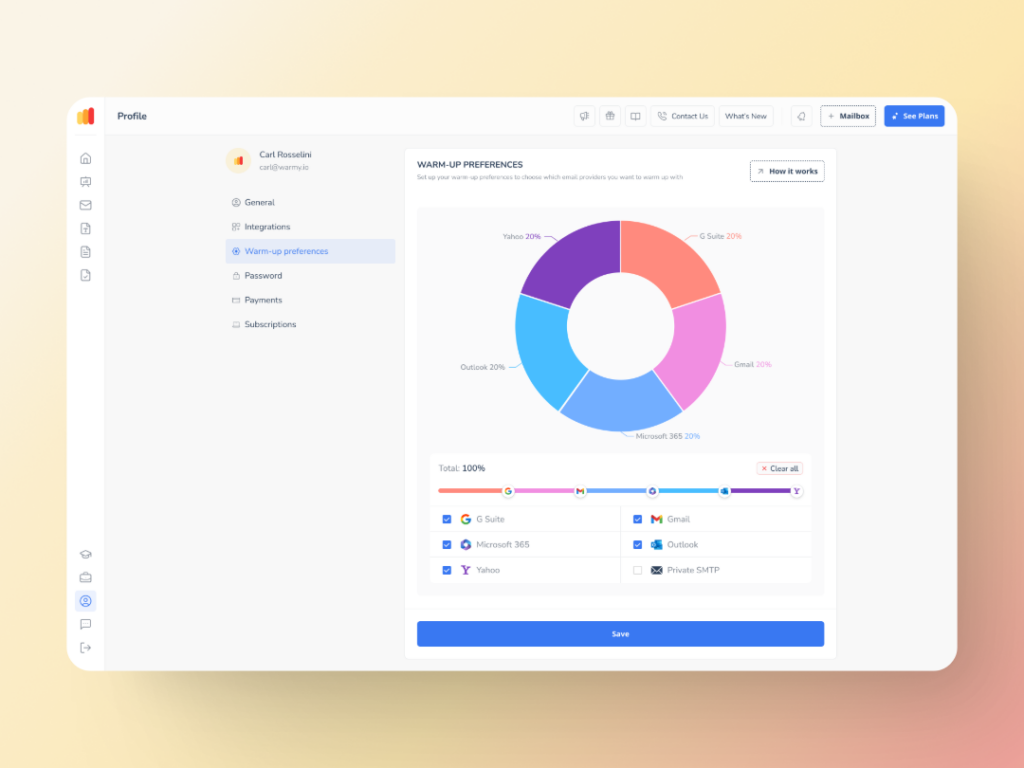
Warmup Preferences is a new feature within the Warmy platform. It gives users even more control over the warmup process from both sender and user levels.
What does this look like? Senders will be able to customize the warmup’s distribution across different providers. They can also choose between B2B or B2C engagement patterns to tailor the behavior and insights to their business type.
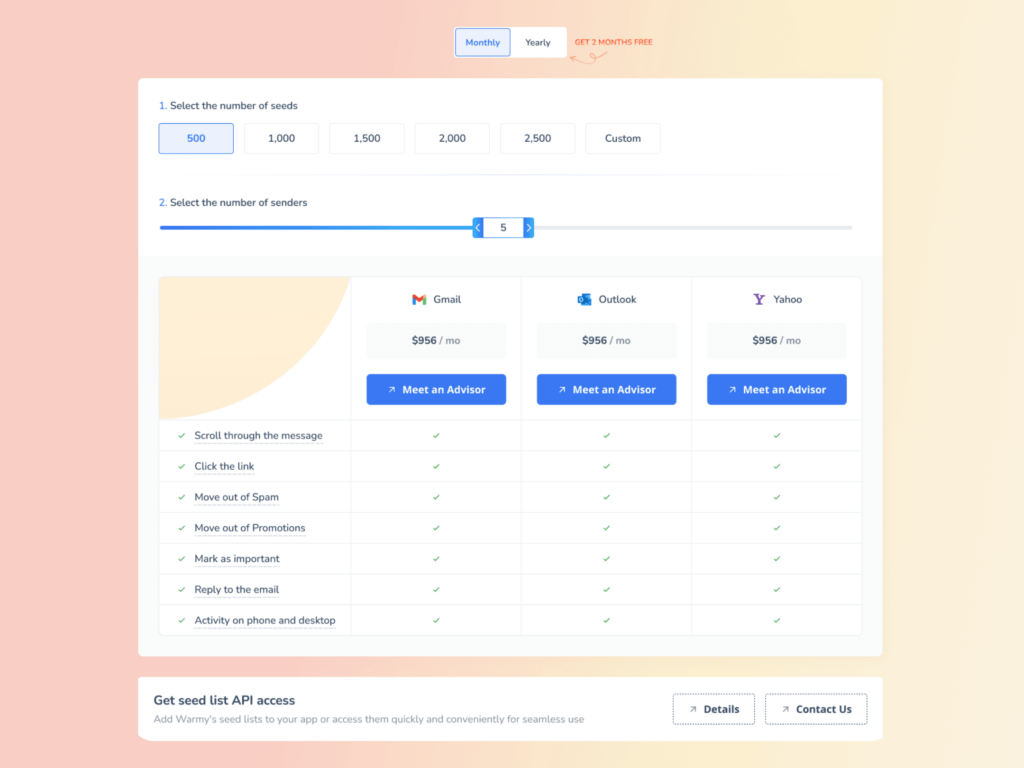
Real mailboxes and real engagement with advanced seed lists
Some warmup tools use fake email addresses. Warmy.io’s advanced seed lists contain only genuine email addresses which enable the genuine interactions. Other details about Warmy’s seed lists:
- Authentic email interactions (opens, scrolls, clicks, replies, archives)
- If an email lands in spam, it is removed and marked as important
- Better recognition by ISPs like Google, Microsoft, and Yahoo
- Improved sender score and reputation
- Currently Warmy has seed lists for Gmail, Outlook, and Yahoo.
- Ability to warm up using any provider that previously cannot be warmed up—Mailchimp, Shopify, Omnisend, and Klaviyo, etc.
Additionally, the API Endpoint for Established Seed List provides a new way to access, manage, and configure seed list splits directly from the system. It essentially saves time and reduces errors.
💡 Pro Tip: If you’re sending internationally — whether to recipients in Europe, Asia, or Latin America — use Warmy’s multi-language warmup (30+ languages) to build engagement signals that look natural to ISPs in each region. Providers like Gmail and Yahoo factor in regional engagement patterns when assessing sender reputation. A warmup that only generates English-language signals can look suspicious when you suddenly start sending to recipients in Germany, Japan, or Brazil.
Whether you’re sending from the US, EU, or anywhere else in the world, the fundamentals are the same: a verified sender identity, a clean IP reputation, and an email-warming strategy that builds ISP trust before you need it. According to B2B deliverability benchmarks, fully authenticated senders are 2.7x more likely to reach the inbox than unauthenticated ones — and that ratio holds across all major markets.
Say goodbye to SMTP Error 554 and hello to your target inboxes
While there are deliverability factors that senders can’t control such as errors or misconfigurations on the receivers’ side, there are other aspects that you can focus on to ensure everything on your end is in tip-top shape.
If SMTP Email Error 554 continues despite implementing the initial solutions, consider the following steps:
- Review your email authentication setup (SPF, DKIM, DMARC) for any inaccuracies or missing information.
- Check if your email server’s IP address has been blacklisted and take steps to remove it from the list.
- Reach out to the recipient’s email service provider for specific feedback on why your emails are being rejected.
- Consult with an email deliverability expert for a detailed analysis of your email practices and further personalized recommendations.
Warmy.io provides tools and empowers senders to turn their email marketing strategy into a well-oiled part of their business.
Try Warmy for free today, or better yet—book a demo with an expert.