


A business email with a custom domain looks more professional than a personal Gmail or Outlook address, but setup is only the first step. After creating your email, configure SPF, DKIM, DMARC, and MX records, then test email deliverability and warm up the mailbox before sending at scale.
What’s a free business email?
A business email is an address you use for work. It usually includes your business name, brand, or website domain.
To set up a professional business email, you usually need two things:
- Domain name: This is what comes after the “@” symbol. For example, in hello@yourbrand.com, the domain is yourbrand.com.
- Email hosting provider: This service gives you an inbox, lets you send and receive emails, stores your messages, and helps you manage users and settings. Examples include Neo Mail, Google Workspace, and Outlook.
The word “free” can be confusing. A free business email doesn’t always mean you get a custom address forever at no cost. Usually, it means one of these options:
- Free business email without domain
This is for people who don’t own a domain yet.
- Maybe you have not bought yourbrand.com.
- Maybe you’re still testing your business name.
- Maybe you don’t want to deal with domain registration, DNS records, and hosting before sending your first professional email.
In this situation, using a domain provided by the email service can help. You can create a more professional email address without having to buy your own domain first.
This is different from owning a regular .com domain, but it looks much more professional than using a personal email for business.
- Business email with custom domain
This is the traditional and long-term choice.
If you already own a domain such as yourbrand.com, you can connect it to an email host and create addresses like:
- info@yourbrand.com.
- support@yourbrand.com.
This option looks more professional because your email address matches your business brand. If you want to build a strong brand, this is usually the best long-term setup.
- Free trial business email
Some business email providers offer a free trial before moving you to a paid plan. That distinction matters because readers searching for free business email don’t want surprises later.
Quick comparison of ways to create a free business email
| Provider | Best for | Is it actually free? | Can you use your own domain? | Can you start without owning a domain? | Deliverability notes | Warmup compatibility |
|---|---|---|---|---|---|---|
| Neo Mail | Small businesses, freelancers, and first-time business email users | Free co.site domain included; mailbox is paid after the 15-day trial | Yes | Yes, with a free co.site domain | Supports SPF, DKIM, DMARC, and proper MX setup for better deliverability | Yes, works with email warmup tools |
| Google Workspace | Gmail-based teams | 14-day free trial, then paid | Yes | Usually no, you need to buy or connect a domain | Strong deliverability infrastructure with SPF, DKIM, DMARC, and domain verification | Yes, compatible with most email warmup tools |
| Outlook | Outlook-based teams | Free trial options may be available; then paid business plans | Yes | Usually works best when you already have or buy a domain | Supports SPF, DKIM, DMARC, and advanced anti-spam protection | Yes, compatible with most email warmup tools |
Note: Features may vary by plan. Check each provider’s latest documentation before choosing.
1. Neo Mail (Best for Creating a Business Email With or Without a Domain)
Neo Mail is best for startups, freelancers, creators, agencies, and small businesses that want a professional email setup without complicated steps.
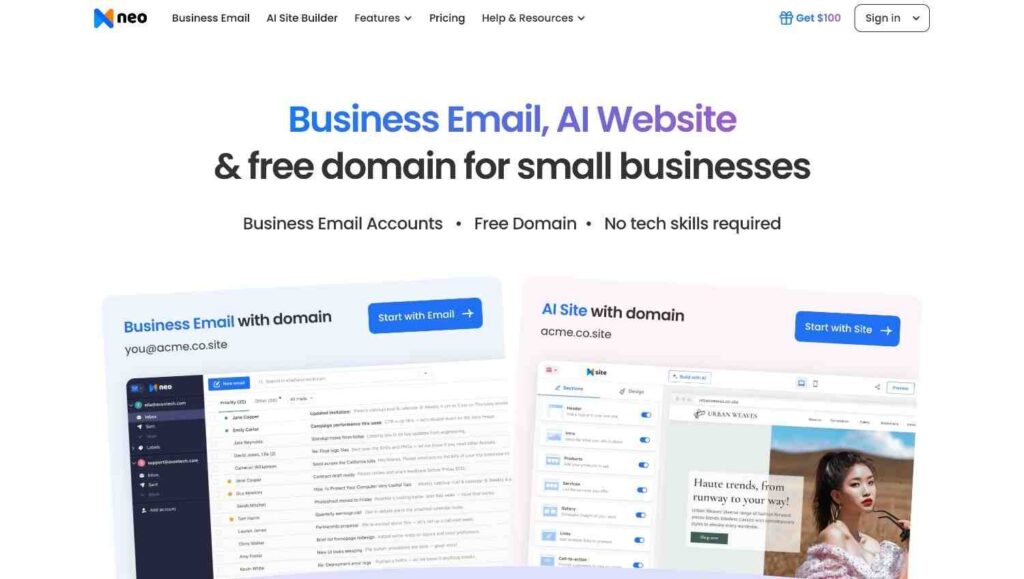
Neo Mail is designed for startups, freelancers, creators, and small businesses that want a professional email setup without complicated steps. A unique feature is that you can create a business email address even if you don’t own a domain yet, which helps new businesses build their brand online. By keeping the basic business tools together, it saves time for smaller teams who don’t want to manage multiple services.
Neo Mail isn’t a permanently free mailbox. Plans start at $1.99 per mailbox per month after a 15-day trial. The free part is the bundled co.site domain, which stays free while your Neo Mail subscription is active.
How to set up a business email without a domain?
If you don’t own a domain yet, the process is fairly simple.
- Go to Neo Mail and choose the option to get a business email with a free domain.
- Search for your business name and pick an available co.site domain.
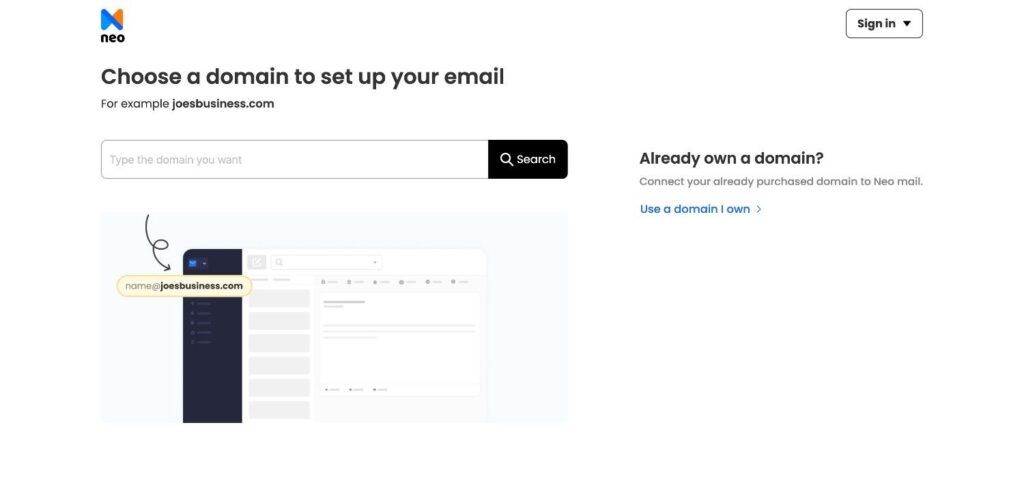
- Create your email address, such as hello@yourbrand.co.site or contact@yourbrand.co.site.
- Add your basic account details and finish the signup.
- Log in to your new inbox.
- Send a test email to make sure everything works.
This path is useful because it removes the biggest blocker for beginners, not owning a domain.
How to set up a business email with your existing domain?
If you already own a domain, Neo Mail can also work with that.
- Choose the option to use an existing domain.
- Enter your domain name.
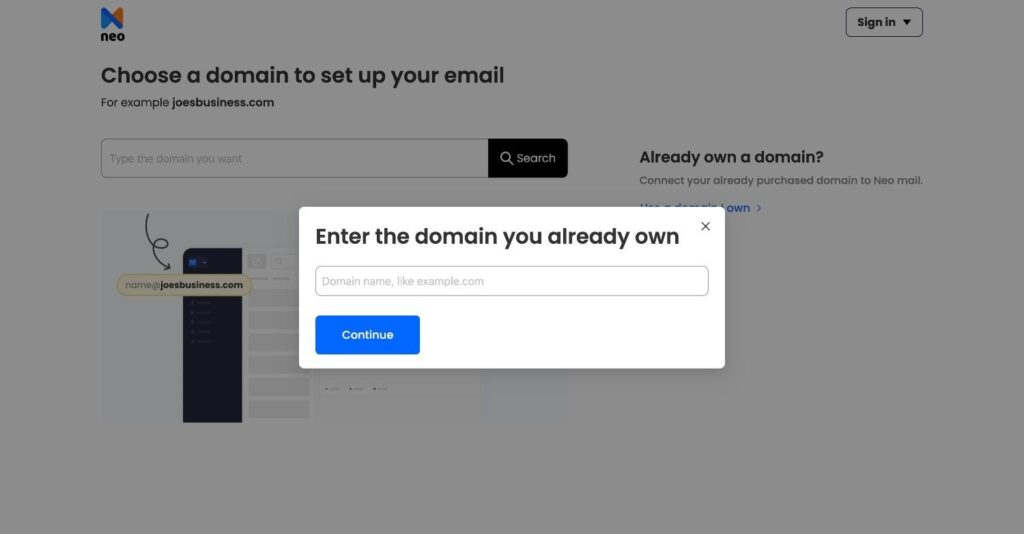
- Create your business email address, such as hello@yourbrand.com.
- Verify that you own the domain.
- Update your DNS records.
- Add the required MX records so emails route to Neo Mail.
- Set up SPF, DKIM, and DMARC.
- Send a few test emails before using the mailbox for real communication.
This setup is a bit more technical because you need to update DNS records, but that’s standard for any business email with a custom domain.
Features
- Create professional email addresses without already owning a domain.
- Free AI website builder for basic online presence setup.
- AI email writing assistance for faster replies and outreach.
- Built-in calendar for scheduling meetings and appointments.
- Simple dashboard that works well for non-technical users.
- Read receipts and email tracking.
Deliverability notes
Neo Mail works well for startups that want to set up a custom domain quickly. Before sending emails, verify your domain and set up SPF, DKIM, and DMARC. If your domain is new, don’t send too many emails at once. Check if your messages reach inboxes before starting campaigns.
Even if setting up feels easy, issues with authentication records can still affect whether your emails reach inboxes. Test your domain before using your mailbox for outreach or campaigns.
Limitations
The mailbox becomes paid after the trial, and the free co.site domain is tied to the active Neo subscription.
2. Google Workspace (Best for Gmail-Based Business Email With a Custom Domain)
Google Workspace is best for Gmail-based teams, startups, agencies, and small businesses that want a professional email address while continuing to use Gmail.
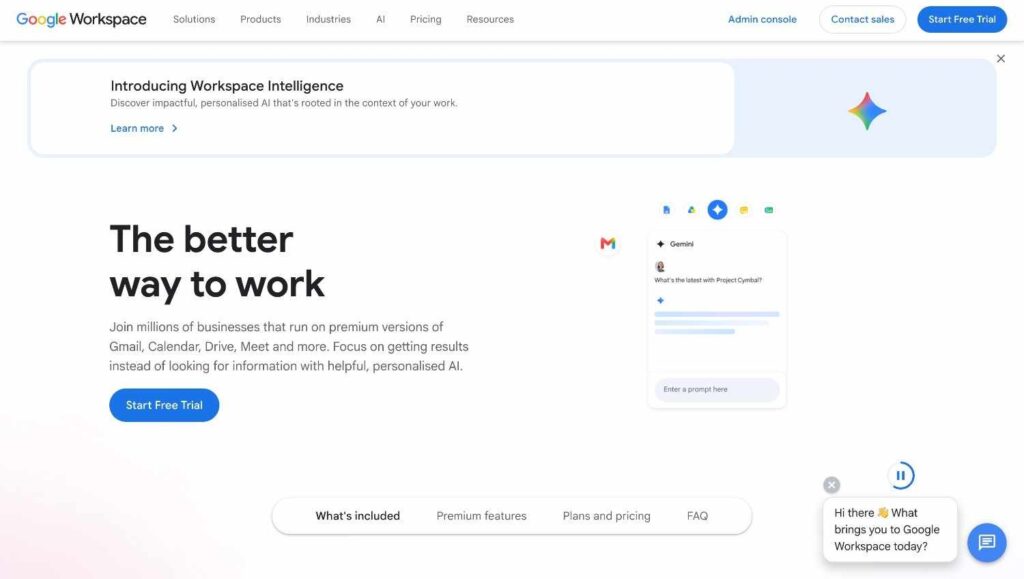
Google Workspace is designed for businesses that want a professional email address while continuing to use the familiar Gmail interface. It works well for teams that already use Google Docs, Google Drive, Google Meet, and Google Calendar for daily work. You can create a business email with your own domain and manage your team’s communication from one admin dashboard.
Google Workspace isn’t permanently free. Google offers a 14-day free trial, and after the trial ends, you need to move to a paid plan to continue using it for business email and workspace tools.
Steps to set up business email
- Go to Google Workspace and start the free trial.
- Enter your business name, team size, and contact details.
- Add your existing domain or choose the option to buy an email domain.
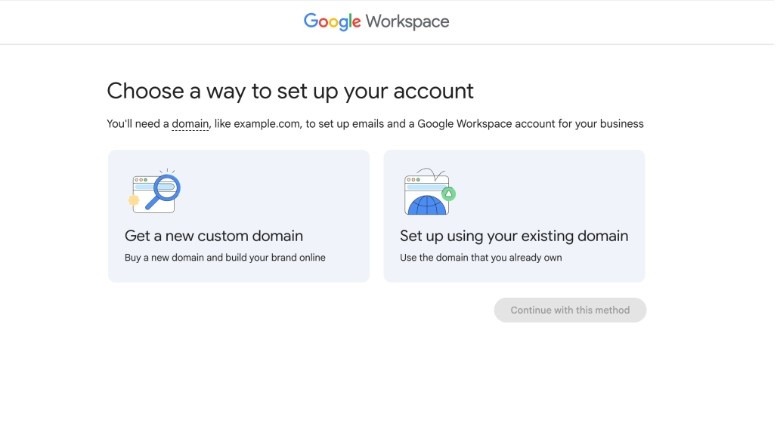
- Create your first business email address, such as hello@yourbusiness.com.
- Verify your domain by following Google’s setup instructions.
- Update your domain’s MX records so emails open in Gmail.
- Set up SPF, DKIM, and DMARC before sending business emails.
For the official setup process, you can also check Google’s guide on setting up MX records for Google Workspace
Features
- Create business email addresses with your own domain.
- Use Gmail’s familiar inbox for professional communication.
- Store and share files through Google Drive.
- Collaborate in real time with Docs, Sheets, and Slides.
- Schedule meetings with Google Calendar and Google Meet.
- Manage users, access, and security from the Admin console.
- Use shared drives to organize company files across the team.
Deliverability notes
Google Workspace gives you strong email infrastructure, but inbox placement still depends on your domain setup and sending behavior. Before sending business emails, verify your domain and set up SPF, DKIM, and DMARC properly.
If you’re using a new domain, warm up your mailbox slowly and avoid sending too many emails too quickly. A new mailbox has no sending history, so building trust gradually is safer than starting with high-volume campaigns right away.
Google also recommends authenticating mail with SPF, DKIM, and DMARC in its email sender guidelines.
Limitations
Google Workspace isn’t a permanently free business email service.
3. Outlook (Best for Outlook-Based Business Email With a Custom Domain)
Outlook is best for Outlook-based teams, traditional businesses, agencies, and growing companies that already use Microsoft tools.
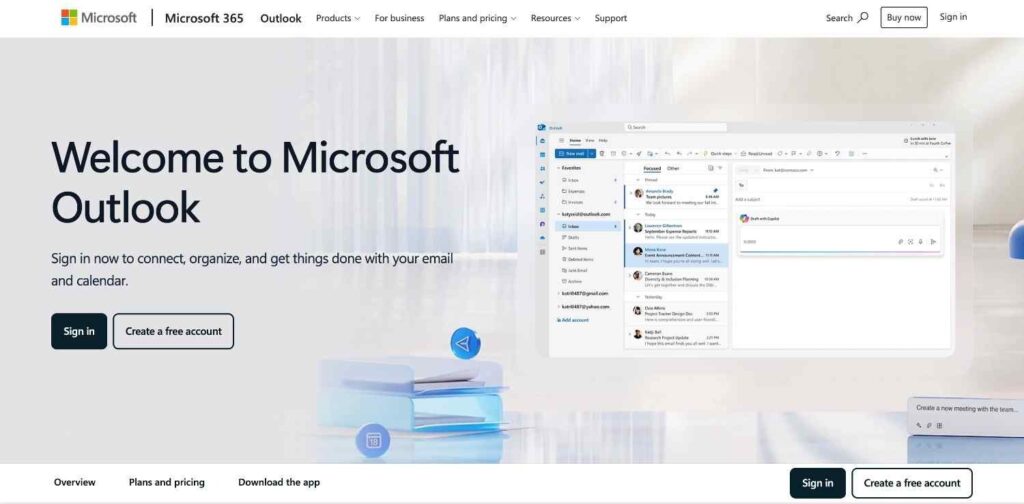
Outlook business email through Microsoft 365 is built for teams that already use Microsoft Word, Excel, PowerPoint, Teams, and OneDrive. It helps businesses create branded email addresses with their own domain while keeping email, documents, meetings, and storage inside the Microsoft ecosystem.
Microsoft 365 business plans are paid services, but Microsoft offers trial options for some plans. After the trial ends, you need to move to a paid plan to continue using business email and Microsoft 365 tools.
Steps to set up Outlook business email
- Go to the Microsoft 365 business plans page and choose a business plan or available free trial.
- Create your Microsoft 365 admin account.
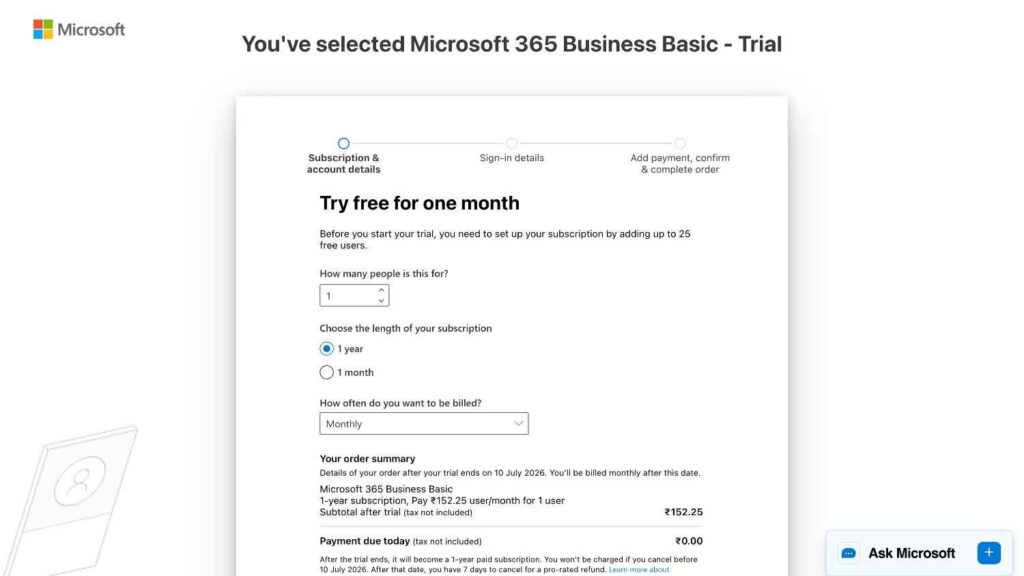
- Add your business domain, such as yourbusiness.com.
- Create your first business email address, such as hello@yourbusiness.com.
- Verify that you own the domain by following Microsoft’s setup instructions.
- Update your domain’s MX records so emails open in Outlook.
- Set up SPF, DKIM, and DMARC to protect your sending domain.
- Send a test email to confirm that sending and receiving work properly.
For the official setup process, Microsoft explains how to connect your domain to Microsoft 365
Features
- Use Outlook for business email communication.
- Microsoft Word, Excel, and PowerPoint for daily work.
- Microsoft Teams for meetings and team communication.
- OneDrive for cloud storage and file sharing.
- Shared calendars and scheduling tools.
- Admin controls for managing users and access.
- Support for aliases and shared mailboxes, depending on the plan.
Deliverability notes
Microsoft 365 gives businesses a reliable email setup, but deliverability still depends on proper domain configuration. Before using Outlook for outreach or campaigns, verify your domain and set up SPF, DKIM, and DMARC. You should also check that your MX records are correct so emails are routed properly.
If your domain or mailbox is new, start with low sending volume and increase slowly. Even with Outlook, sudden high-volume sending can hurt inbox placement.
Limitations
Outlook might be too much for very small teams who just need a basic inbox.
Which option should you choose?
There is no one-size-fits-all free business email. The best choice depends on whether you have a domain, how easy you want the setup to be, and what tools your business already uses.
- Choose Neo Mail for the easiest way to get started, especially if you don’t own a domain yet. It’s a good fit for freelancers, small businesses, and early-stage founders who want a professional business email address without having to buy a separate domain first.
- Choose Google Workspace if your team already uses Gmail, Drive, Docs, Meet, and Calendar. It’s a strong option if you want a business email with a custom domain and the familiar Gmail experience.
- Choose Outlook if your business depends on Word, Excel, PowerPoint, Teams, and OneDrive. It makes the most sense when your team already works inside Microsoft’s ecosystem.
Use a free personal Gmail or Outlook address only for a short time. It is fine for testing an idea, but not as your main business email if you want to appear professional.
Why should you not skip email authentication?
Setting up a business email is only one step. Before you start using your new business email, check these basic things:
- SPF: Shows which services are allowed to send emails from your domain. You can use Warmy’s SPF Generator to create a record more safely.
- DKIM: Adds a security check to prove your email was not changed on the way.
- DMARC: Tells email providers what to do if an email fails security checks. Warmy’s DMARC Generator can help you create the record.
- MX records: Make sure emails are delivered to the right inbox.
- Domain reputation: Helps email providers decide if your domain looks trustworthy.
- Mailbox warm-up: Helps a new email account build trust slowly.
- Deliverability test: Shows whether your emails are going to the inbox or spam.
Just creating a business email isn’t enough. You also need to make sure email providers trust your address.
For example, if you create hello@yourbrand.com and send one test email, it may look like everything is working. But when you start sending emails to clients, leads, or customers, your messages may still land in spam if your setup is weak. That is why SPF, DKIM, and DMARC matter. They help prove that your emails are really coming from your domain. MX records are also important because they tell emails where to go.
If your email or domain is new, don’t send too many emails at once. Start slow and let the mailbox build trust.
Before using your business email for outreach, run Warmy’s Free Email Deliverability Test to check if your emails are landing in the inbox or spam.
A business email should look professional and actually reach the inbox.
From-experience tip: don’t judge a new business email only by whether it can send and receive one test message. That only proves the mailbox works. It doesn’t prove that the domain is trusted, authenticated, or ready for outreach. Before sending to customers or leads, check DNS records, send a few manual emails, warm up the mailbox, and test inbox placement.
Conclusion
A free business email might mean a free trial, a free domain option, or starting with a provider’s domain before switching to your own custom domain later.
If you don’t own a domain yet, Neo Mail is a simple starting point because it lets you create a business email with a free co.site domain option and the free co.site domain stays free while your Neo Mail subscription is active. If you already own a domain and prefer Gmail, Google Workspace is a strong choice. If your team works mostly with Microsoft tools, Outlook makes more sense. A personal Gmail or Outlook address is fine while testing an idea, but once you start talking to clients, vendors, or leads, a professional business email is worth setting up.
Remember, setting up your inbox is just the beginning. Make sure to set up SPF, DKIM, DMARC, and MX records correctly. Test if your emails are delivered, and warm up your mailbox before sending lots of messages. Your business email should look professional and reach the inbox.