

SMTP error 550 5.7.1 means the recipient’s mail server has rejected your message because it could not verify that you are authorized to send it. The rejection happens for one of three reasons: missing or invalid SPF, DKIM, or DMARC authentication records; a sending IP address on a spam blacklist; or misconfigured SMTP settings in your email client. To fix the error, verify your authentication records, check your IP reputation, and confirm your SMTP configuration. Most cases resolve within minutes once the root cause is identified.
When you see this bounce code, it is not a minor inconvenience. It signals that receiving servers do not trust your domain, and every message you send faces the same risk until you correct the underlying issue. This guide walks you through every fix, covering Gmail, Outlook, and Yahoo, and explains how Warmy.io rebuilds the sender reputation that stops the error from recurring.
Understanding SMTP error 550 5.7.1
SMTP error 550 5.7.1 typically indicates that an email could not be delivered due to security or policy-related issues.
This error often arises when the recipient’s email server rejects the message, either because it’s considered spam, lacks proper authentication, or originates from a blacklisted IP address.
When encountering SMTP error 550 5.7.1, the error message typically appears something like this:
550 5.7.1 <recipient@example.com>… Relaying denied
550 5.7.1 Message rejected due to content restrictions
550 5.7.1 Email blocked by policy
This error message often includes additional context such as “Relaying denied” or “Message rejected due to policy.” The exact wording varies by server, but the 550 5.7.1 code always points to an authentication or content policy failure. According to RFC 5321, the 550 code indicates a permanent failure, meaning the receiving server will not accept the message without a change on the sender’s side.
Common causes of SMTP error 550 5.7.1
Diving into the mysterious world of SMTP 550 5.7.1 can feel like deciphering an ancient code. But don’t worry, we’ve got the decoder right here. This error is the digital gatekeeper telling you, “Sorry, you’re not on the list.”
SMTP 550 5.7.1 is the digital equivalent of being turned away at the door. This error pops up when your email can’t strut down the digital runway to the recipient’s inbox.
Here’s a quick summary of how this error impacts both senders and receivers:
- Senders find themselves banging their heads against a virtual wall, with their emails lost in the ether.
- Recipients remain in blissful ignorance, unaware of the attempts to reach them.
Now, let’s spotlight the usual suspects behind this plot:
- Unauthorized sending. Picture trying to send a letter from someone else’s mailbox. Email servers frown upon messages from unauthorized senders, just as the postal service would.
- Misconfigured email settings. This is akin to writing the wrong address on a letter. If your email’s setup isn’t on point, your message is going on a trip to nowhere.
- IP address issues. Think of this as having a “bad rep” in the digital neighborhood. If your IP is flagged for spammy behavior, servers will think twice before letting your emails through.
🔖 Related Reading: Fixing 550 Permanent Failure for One or More Recipients: A Complete Guide
Step-by-step solutions to resolve SMTP 550 5.7.1
For all users
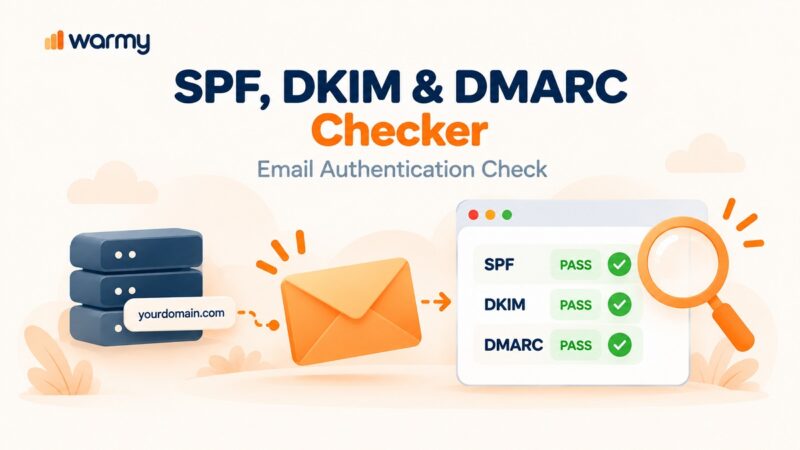
Verify sender authentication
Think of SPF, DKIM, and DMARC records as your email’s passport, visa, and ID, proving its identity and rightful place in the inbox country. Double-check these records to make sure they’re in order and up-to-date.
Q: What is SPF, DKIM, and DMARC and how do they contribute to email deliverability?
A: SPF (Sender Policy Framework), DKIM (DomainKeys Identified Mail), and DMARC (Domain-based Message Authentication, Reporting and Conformance) are email authentication protocols that verify the legitimacy of the sender’s domain. SPF ensures the sender is authorized to send emails for a domain. DKIM adds a cryptographic signature to verify email integrity. DMARC lets domain owners specify how unauthenticated messages should be handled. Together, they prevent spoofing, improve trust with email providers, and are now required by Google and Yahoo for bulk senders.
🔖 Learn more about the authentication trinity here: SPF, DKIM, and DMARC: Boosting Email Security and Deliverability
Ensure the sender’s email address is authorized
This is like having a backstage pass. Make sure the recipient’s server knows your email address is VIP by ensuring it’s recognized and authorized to send emails to them.
Specific solutions for popular email services
Gmail
1. Verify sender authentication records
SPF (Sender Policy Framework). Check your domain’s SPF record. Ensure it includes Gmail’s mail servers. Here is a comprehensive resource on setting up SMTP for Gmail.
Example SPF record: v=spf1 include:_spf.google.com ~all
2. DKIM (DomainKeys Identified Mail).
Ensure your domain has a valid DKIM record. Generate a DKIM key through the Gmail Admin console and add it as a DNS record to your domain.
3. DMARC (Domain-based Message Authentication, Reporting, and Conformance).
Check if you have a DMARC policy set up for your domain in DNS. This policy uses SPF and DKIM to determine the authenticity of an email message.
Example DMARC record: v=DMARC1; p=reject; rua=mailto:postmaster@yourdomain.com
4. Ensure email address authorization
Make sure that the email address you’re sending from is authorized in your Gmail settings under “Accounts and Import” > “Send mail as.” If you’re using a domain alias or sending on behalf of another email, this step is crucial.
5. Correct SMTP settings in email client
If using an email client or application other than the Gmail web interface, verify that the SMTP settings are correctly configured:
-
- SMTP Server: smtp.gmail.com
- Port: 587 (for TLS) or 465 (for SSL)
- Authentication: Yes, using your full Gmail address and password. Note: As of May 2022, Google no longer supports basic password authentication for third-party apps. You must use OAuth 2.0 or an App Password if you have 2-Step Verification enabled. Google’s documentation explains how to generate an App Password.
- Encryption: TLS or SSL, depending on the port used.
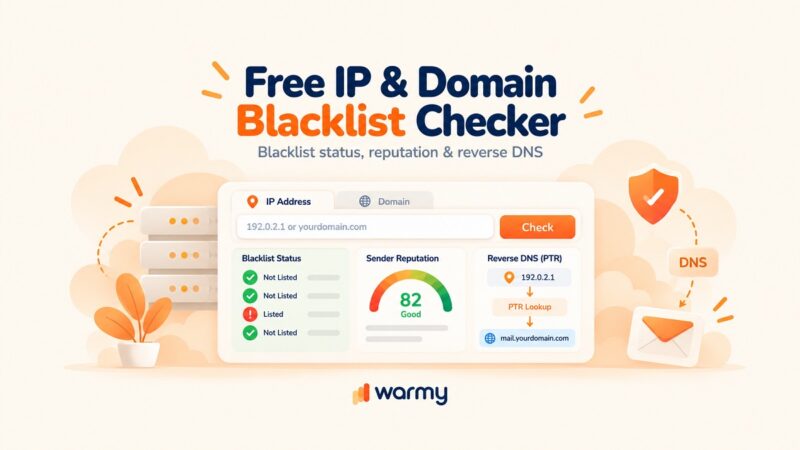
6. Check for IP blacklisting
If your emails are consistently returning a 550 5.7.1 error, your sending IP might be blacklisted.
Use online tools like the free email deliverability test from Warmy to check your IP against common blacklists.
In the event that you find your IP on certain blacklists, you can follow these steps for delisting.
Outlook
1. Review sender authentication methods
Check SPF Record. Verify that your domain’s DNS settings include a Sender Policy Framework (SPF) record that authorizes the IP addresses of your email server to send emails on behalf of your domain.
Example SPF record: v=spf1 include:spf.protection.outlook.com -all
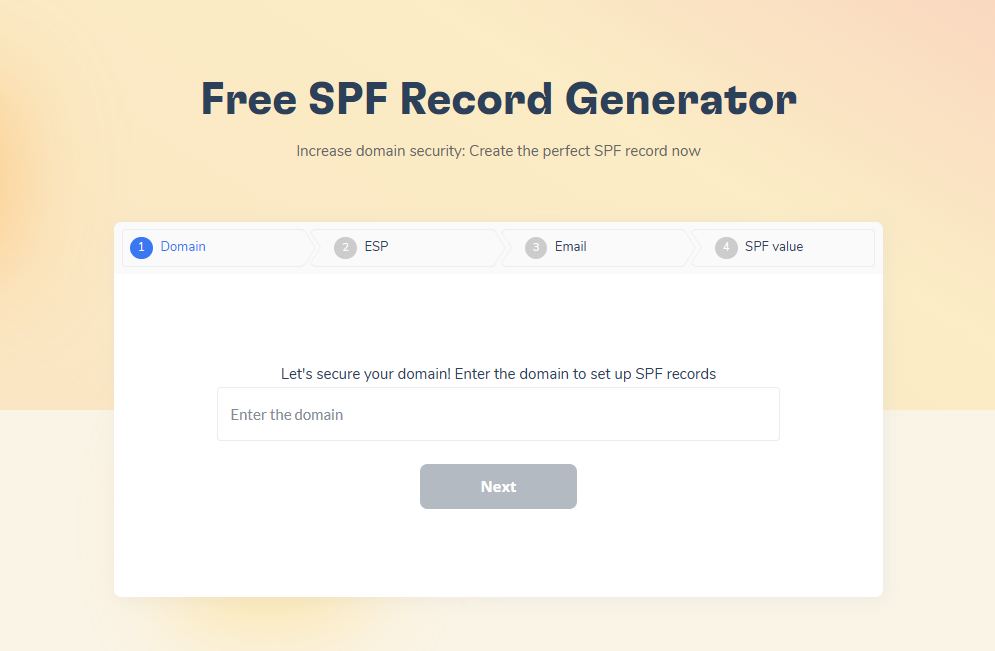
Implement DKIM signing. Ensure DomainKeys Identified Mail (DKIM) is set up for your domain. DKIM provides a digital signature that verifies your domain as the sender of the email, which Outlook can use to authenticate incoming mail.
For Microsoft 365 or Office 365, DKIM signing can be configured through the Exchange admin center.
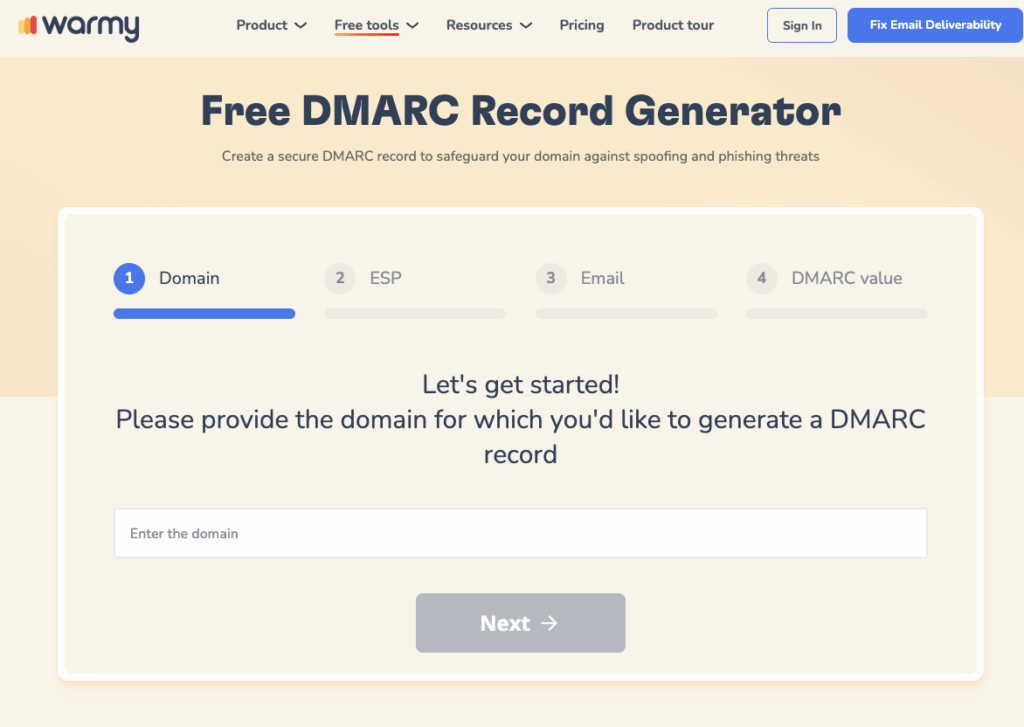
Configure DMARC policy. Establish a Domain-based Message Authentication, Reporting, and Conformance (DMARC) policy in your DNS. DMARC uses SPF and DKIM to prevent email spoofing and phishing attacks.
Example DMARC record: v=DMARC1; p=quarantine; rua=mailto:dmarc_agg@yourdomain.com
2. Ensure email address authorization
In Outlook, make sure that the email address you are using to send messages is properly configured and authorized. If you’re sending on behalf of another user or alias, ensure that delegation or send-as permissions are correctly set up.
3. Correct SMTP settings in email client or application
Verify that your SMTP settings are accurately configured in Outlook or any third-party email client you might be using:
-
- SMTP server: Depending on your service, this could be smtp.office365.com for Office 365 users or your own SMTP server address.
- Port: 587 (recommended for TLS) or 25
- Encryption method: STARTTLS (if available) or TLS
- Authentication: Required, using your full email address and password. Microsoft 365 accounts now require Modern Authentication (OAuth 2.0) by default. Microsoft’s documentation covers the full SMTP AUTH configuration for client submissions.
Yahoo
1. Verify Email Authentication Records
SPF (Sender Policy Framework) Record. Confirm that your domain’s DNS settings have a valid SPF record that includes Yahoo’s mail servers.
Example SPF record: v=spf1 include:_spf.mail.yahoo.com ~all
DKIM (DomainKeys Identified Mail). Ensure your domain is set up with DKIM.
Generate a DKIM selector and record for your domain and add it to your DNS settings.
DMARC (Domain-based Message Authentication, Reporting, and Conformance). Implement a DMARC policy for your domain. DMARC uses SPF and DKIM to enhance email security and prevent spoofing.
Example DMARC record: v=DMARC1; p=none; rua=mailto:postmaster@yourdomain.com
2. Check Yahoo SMTP settings
If you are using a third-party email client to send emails through your Yahoo account, ensure that you have the correct SMTP settings configured:
-
- SMTP Server: smtp.mail.yahoo.com
- Port: 465 (SSL) or 587 (TLS/STARTTLS)
- Authentication Required: Yes, using your full Yahoo email address and password.
- Two-factor authentication (2FA): If 2FA is enabled on your Yahoo account, generate an app-specific password from your Yahoo Account Security settings. Standard passwords will not work with third-party clients when 2FA is active.
🔖 Related Reading: Yahoo SMTP Settings: A Step-by-Step Guide to Configuring Your Yahoo SMTP
3. Authorize your email address
Make sure that the email address you’re sending from is correctly set up in Yahoo Mail and authorized to send emails. If you’re using an email alias or a different sender address, it must be properly configured within your Yahoo Mail settings under “Account Info” > “Account Security.”
4. Inspect for IP blacklisting
Verify if your IP address has been blacklisted by checking it against common DNS-based blackhole lists (DNSBLs) or real-time blacklist (RBL) services. Being listed can lead to email delivery issues, including the 550 5.7.1 error.
If you find your IP address on the blacklist, follow these steps to understand how to remove your IP from the blacklist.
🔖 Related Reading: 550 Please Turn On SMTP Authentication in Your Mail Client
Fixing SMTP error 550 5.7.1 with Warmy.io
In the world of email outreach, maintaining a strong sender reputation score is crucial for reaching recipients’ inboxes. If you’re encountering SMTP error 550 5.7.1—a block primarily due to poor sender reputation or policy restrictions—email warmup services like Warmy.io can do wonders for rebuilding trust with email service providers (ESPs).
That is the gap Warmy closes. Authentication fixes the policy issue, but it does not repair a damaged sender reputation. Warmy’s Adeline AI engine works at the reputation layer, running a personalized warmup schedule for each mailbox, generating real engagement signals across a network of 1M+ real mailboxes, and making 20 million decisions per day to protect your deliverability.
When you need your inbox placement confirmed before sending at scale, run a free email deliverability test to see exactly where your emails are landing.
Automated warmup due to gradual volume increase
Warmy.io automates warmup by ramping up your sending volume over time. This slow, systematic ramp-up is designed to avoid triggering ESP spam filters and fosters a strong, trusted sending reputation over time.
- Simulated engagement activities. More than just sending emails, Warmy. io mimics what real engagement looks like—opening emails, marking them as important, moving them out of the spam folder and into the inbox. This natural response signals to ESPs that recipients appreciate your emails, impacting inbox placement by a great margin.
- Insightful feedback and analytics. Warmy.io provides detailed reports and analytics, making it easy to check the progress of your email warmup. You can then leverage this insight to make targeted changes, preserving strong sender reputation and mitigating future deliverability problems.
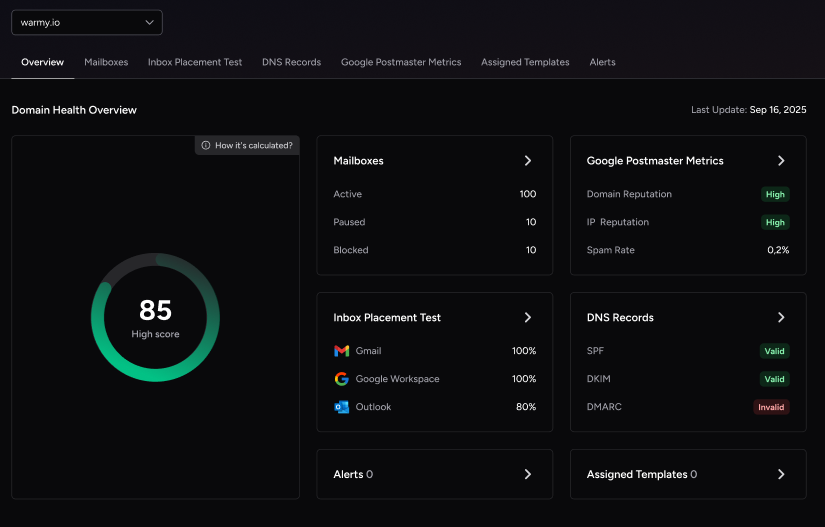
New Warmup Preferences feature to customize warmup further
This feature is designed to make your email warmup process uniquely yours by allowing you to:
- Customize the warmup distribution across providers like GSuite, Gmail, M365, Outlook, Yahoo, and even Private SMTP.
- Tailor engagement patterns by choosing between B2B or B2C customers
- Set warmup settings for all your mailboxes at once—or even one by one
All settings can be changed directly within Warmy’s system, so there’s no need to contact support and wait
Advanced seed lists that keep getting better
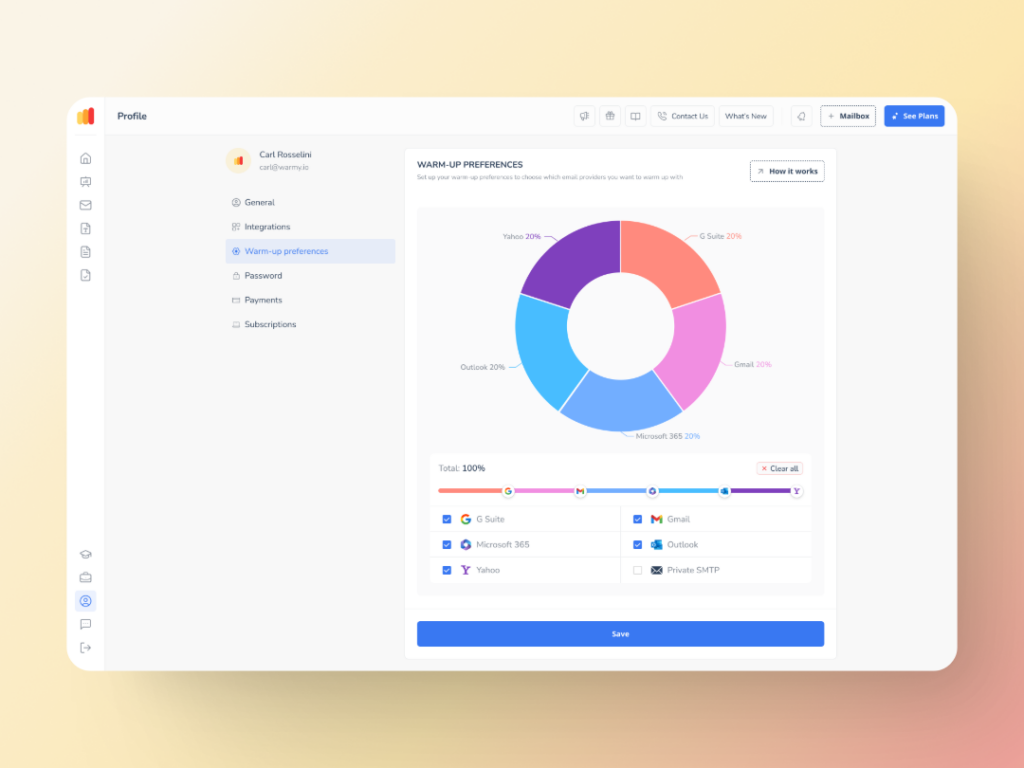
Unlike traditional warmup tools, Warmy.io doesn’t rely solely on automated interactions. While it leverages the power of technology for automated actions, it still puts a premium on the importance of human behavior.
You can read more about seed lists in this article: Email Warmup Alternatives: When Traditional Warmup Isn’t Enough
Other details about Warmy’s seed lists:
- Authentic email interactions from genuine email addresses (opens, clicks, scrolls, replies, etc.)
- Email recovery from spam folder and marked as important to train ESPs that your domain is credible
- Improved sender score and reputation
- Available for Gmail, Yahoo, and Outlook
Now, the latest update comes with the API Endpoint for Established Seed List—a new way to access, manage, and configure your seed list splits directly from your system.
This means there are no more manual updates. Other capabilities include:
- Seamless integration with real-time seed list data that goes straight into your system with API access.
- Efficiency boost via automated split management which reduces errors, and saves valuable time.
- Better inbox placement due to properly configured splits mean fewer bounces and stronger sender reputation.
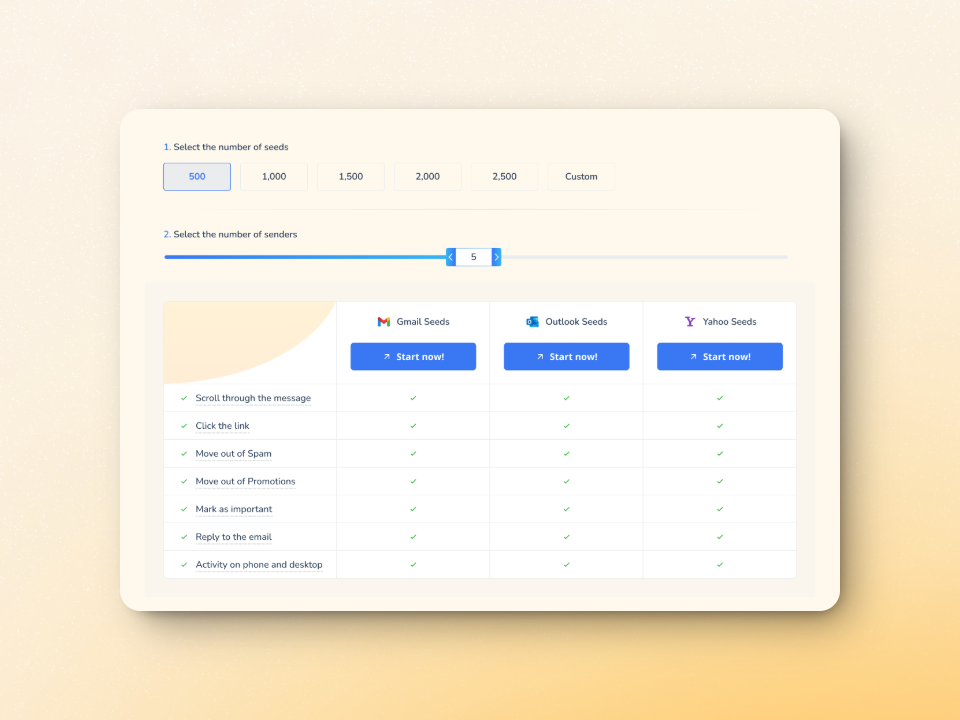
Deliverability that goes beyond fixing and preventing SMTP errors
This is what Warmy.io offers.
Now, you are probably feeling more empowered to understand that this SMTP errors—although intimidating—are not unbeatable. And all you need are the right solutions and resource access at your fingertips to overcome this challenge.
We hope that with this article you have discovered some new ways to fix issues related to emails and learned why using an email warmup service like Warmy.io is necessary for boosting your sender’s reputation and making sure your emails are consistently delivered.
Don’t waste any more time and try Warmy.io for free today. Or better yet, book a demo with an expert for a more tailored walkthrough.
📜 Related articles:
- SMTP Email Error 550 5.1.0 – How to Resolve [SOLVED]
- SMTP Email Error 550 5.1.1 – How to Resolve [SOLVED]
- Email Error 550: High Probability of Spam – Causes and Solutions