SMTP Error 535 5.7.3 means your email server rejected the outgoing message because it could not verify your identity. The fix is almost always one of three things: wrong credentials, misconfigured SMTP settings, or a security policy change on your email provider’s end. In most cases, updating your password in the email client, using the correct SMTP port (587 with STARTTLS), and switching to an App Password or OAuth token resolves the issue within minutes.
This error is one of the most common SMTP authentication failures affecting Gmail, Outlook, Yahoo, and custom SMTP setups alike. It blocks outgoing email entirely—disrupting campaigns, client communication, and automated workflows. Left unresolved, it can also damage your sender reputation over time.
This guide walks you through every root cause and the exact steps to fix SMTP Error 535 5.7.3 for Gmail, Outlook, Yahoo, and other providers—plus what to do after the fix to protect your deliverability long-term.
What is SMTP 535 5.7.3?
While email functions over many general protocols, the vast majority of sending and receiving email across servers falls under the Simple Mail Transfer Protocol (SMTP).
SMTP Error 535 5.7.3 means your email wasn’t sent because the server can’t authenticate the sender.
While the error notification message differs from program to program, the general message is similar to “Invalid Authentication Credential” or “Authentication Failed.”
- For example, Microsoft Outlook says “Error 535 5.7.3 Authentication unsuccessful,”
- Apple Mail says, “Cannot send mail. The username or password for [SMTP server] is incorrect.”
Q: What is authentication?
A: Authentication is a form of security verification that guarantees a user has permission to send through the specific mail server. So when the email program on the host machine creates these necessary credentials for authentication and the server denies them, an error is generated.
🔖 Related Reading: Understanding and Fixing the SMTP 535 Error: Incorrect Authentication Data
Identifying causes of SMTP error 535 5.7.3
Primarily, SMTP Error 535 5.7.3 occurs when there are issues with the authentication process of the server required to send emails.
Below are some possible causes that could lead to error 535 5.7.3.
Using invalid or outdated credentials
This implies that there is something wrong with the password and ID. Possible causes include:
- Some sort of typographical error
- A password change has not propagated yet through the email client
- The email user used to have access but does not have access anymore
- The old credentials do not comply with the new server security settings
Misconfiguration of server-port configurations
Another reason for server authentication errors is misconfiguration. For instance, what the email client configured doesn’t match what’s really valid.
Since the SMTP server needs proper authentication, this fails because the server-port configurations are wrong.
Publisher security update
This means something changed on the publisher/email service provider’s end in terms of security settings or the authentication it offers.
Should the email recipient fail to follow what’s been published—meaning, if it stays at a less secure authentication when the more secure authentication is now required—this is the response it receives for noncompliance.
Account lockout phenomenon
The email host server might lock the accounts if it registers suspicious activities or when a breach has occurred.
Software condlicts
The email client installed uses outdated software that no longer complies with the server’s required settings.
A step-by-step guide to resolving SMTP email error 535 5.7.3
For Gmail users
- Verify password and username. Verify that the username and password in your email client are current and accurate. Update your Gmail password in your email client as well, if you’ve changed it recently.
- Use an App Password or OAuth 2.0. Google permanently removed the “Less Secure Apps” option in 2025. If you use 2-Step Verification (which Google now requires), you must generate a 16-character App Password at myaccount.google.com/apppasswords and enter it in place of your regular password. Alternatively, use an email client that supports OAuth 2.0 to avoid this issue entirely.
- Verify SMTP settings:
- SMTP Server: smtp.gmail.com
- Port: 587 for TLS/SSL
- Authentication required: Yes
- Username: Your full Gmail address
- Password: Your Gmail password
For Outlook users
- Update password. Ensure your password is correct, especially if you have recently changed it.
- Check SMTP Settings:
- SMTP Server: smtp-mail.outlook.com
- Port: 587
- Encryption Method: STARTTLS
- Authentication Required: Yes
- Username: Your full Outlook email address
- Password: Your Outlook password
For Yahoo Mail users
- Password verification. Confirm that the password and username are correctly entered in your email client.
- Adjust SMTP settings:
- SMTP Server: smtp.mail.yahoo.com
- Port: 587
- Encryption Method: STARTTLS
- Authentication Required: Yes
- Username: Your full Yahoo email address
- Password: Your Yahoo password
For other email services
- Confirm authentication details. Double-check your username and password. Reset your password if unsure and update the new password in the email client.
- Correct SMTP settings. Refer to your email provider’s help documentation for the correct SMTP server settings, including server address, port, and encryption method.
- Contact support. If you continue to have issues, contact your email provider’s technical support for guidance on specific settings.
Pro Tips: Prevent SMTP 535 5.7.3 From Coming Back
💡 Pro Tip #1: Always use App Passwords for third-party tools
If you connect your Gmail or Outlook to a CRM, email automation tool, or warmup platform, never use your main account password. Generate a dedicated App Password for each third-party connection. This keeps your primary login secure and prevents authentication errors when you change your main password.
💡 Pro Tip #2: Validate your SPF, DKIM, and DMARC before sending at scale
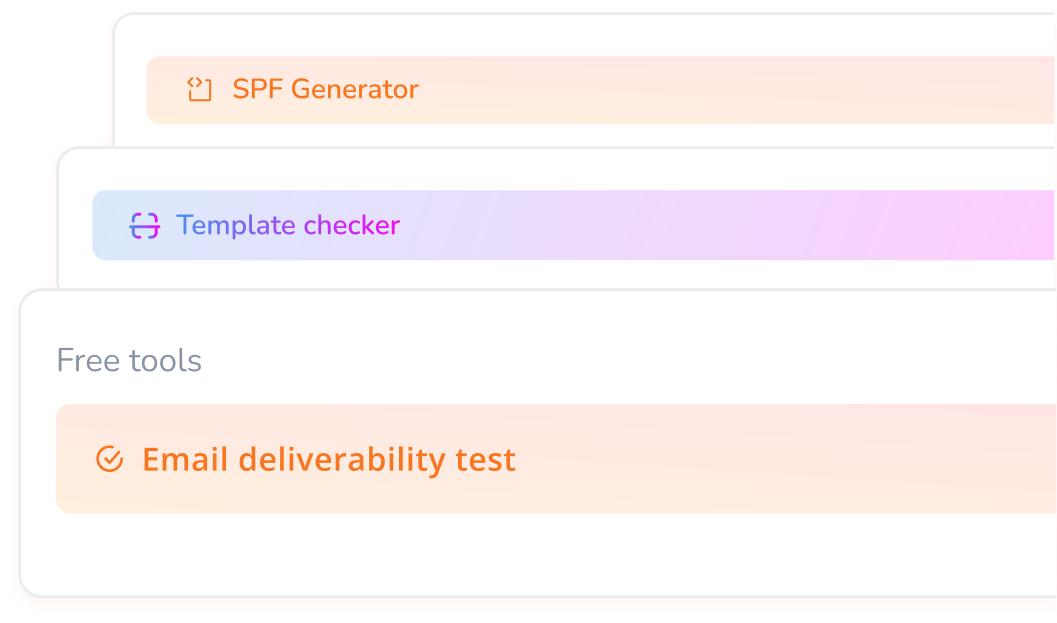
SMTP Error 535 5.7.3 is a login-level error, but it often surfaces alongside deeper deliverability problems. Before scaling your sending volume, verify that your SPF record authorizes your sending server, DKIM signatures are properly configured, and your DMARC policy is set to at least “p=none” to begin monitoring. Warmy.io’s free SPF Record Generator and DMARC Record Generator tools can help you set these up correctly in minutes.
💡 Pro Tip #3: Run a deliverability test after every major configuration change
Whenever you change your SMTP settings, update credentials, or migrate to a new sending infrastructure, send a test through Warmy.io’s free Email Deliverability Test. It checks inbox placement across Gmail, Outlook, and Yahoo simultaneously, verifies your authentication records, and flags blacklist issues—giving you confirmation that the fix actually worked before you resume regular sending.

🚨 Still struggling with SMTP errors or landing in spam? Warmy.io’s dedicated deliverability experts work with you one-on-one to identify what’s blocking your emails and build a lasting fix. Book a free demo and get personalized guidance from an expert today.
Enhancing email deliverability with Warmy.io

SMTP Email Error 535 5.7.3 workarounds may be challenging however, Warmy.io can help.
Fixing SMTP Error 535 5.7.3 resolves the immediate authentication block—but it doesn’t protect you from landing in spam once emails start flowing again. Deliverability depends on sender reputation, authentication records, warmup history, and more. Warmy.io addresses all of these with a suite of tools built specifically for email senders who need reliable inbox placement.
Warmy is the only email warmup platform with a dedicated AI—Adeline AI—built exclusively to optimize your email deliverability. It analyzes your sending patterns, adjusts warmup settings in real time, and helps prevent the kind of reputation damage that causes authentication rejections and spam placement in the first place.
AI-driven email warmup to prevent server rejections and spam flags
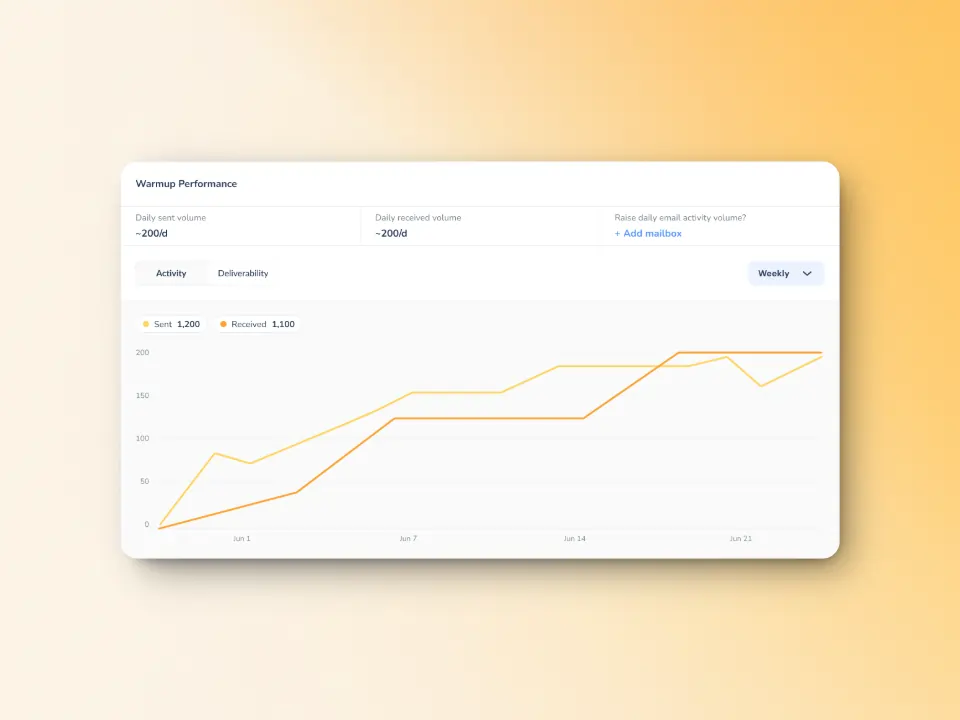
Warmy.io helps improve your sending reputation which is currently based on the performance and history of all emails you’ve ever sent. Essentially, Warmy helps you be seen as a legitimate sender by various email servers so your future emails will land in inboxes—and not the spam folder.
Warmy.io’s AI-powered email warmup helps your deliverability through:
- Gradually increasing email volume to prevent sudden spikes that could trigger mail server rejections.
- Simulating human-like interactions to ensure emails are opened, replied to, and marked as important.
- Monitoring email reputation to identify potential issues before they impact campaigns.
Free email deliverability test for diagnosing issues
Warmy.io’s free Email Deliverability Test helps identify technical and reputation-based issues before they impact your campaigns. The test gives a comprehensive report of the percentage of your emails landing in the inbox, promotions, spam—and even the unreceived ones.
It also reveals if your domain or IP is included in any blacklists—yet another major factor that affects deliverability.
Q: What are blacklists and how do these impact deliverability?
A: Blacklists are databases that track IP addresses or domains known for sending spam or engaging in suspicious email behavior. Being blacklisted can lead to emails being blocked, sent to spam, or throttled.
🔖 Related Reading: Are Blacklists Killing Your Emails? A Deep Dive into How They Influence Email Providers
The test also checks your email authentication settings (SPF, DKIM, and DMARC) if they are properly authenticated.
Additional warmup preferences to maximize inbox placement
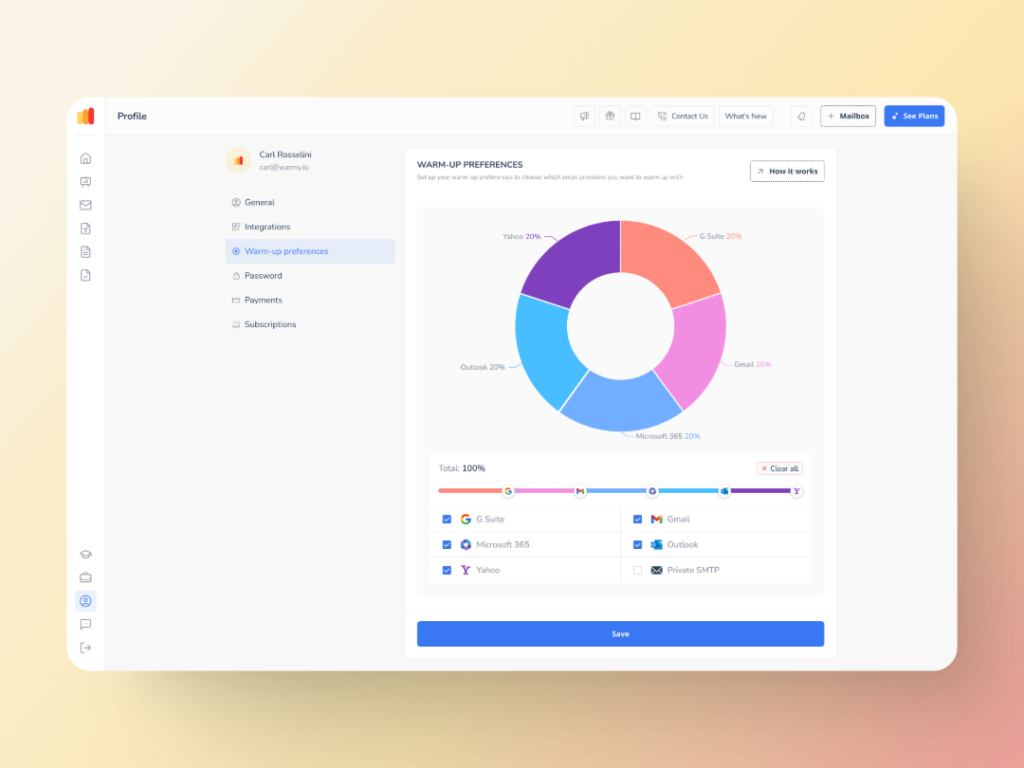
Warmup Preferences helps senders have full control over the warmup process from both sender and user levels.
Warmy offers the most advanced warmup customization on the market. Unlike competitors that only let you control sending schedules, Warmy gives you granular control over:
- Distribution across providers (Gmail, Outlook, Yahoo, and more) so warmup activity matches your actual recipient mix
- Topic selection for warmup emails—a feature most competitors do not offer at all
- Multiple language options for warmup emails—rare among warmup tools
- B2B or B2C engagement pattern selection, spintax on user templates, and temperature settings—giving you the most precise control over how your warmup activity looks to email providers
Advanced seed list ensures strong inbox placement
Other traditional warmup lists can only simulate opening of emails, but Warmy’s advanced seed lists offer actual engagement.
What does this look like? Your emails are opened, scrolled through, clicked on, and replied to. If there are emails that land in spam, these are removed and marked as important to let the ESPs know you are credible.
It can also be integrated into any email client to improve your email performance testing. Warmy will supply genuine email addresses from Google, Outlook, and Yahoo that will act as seeds for testing and improving your email deliverability.
Leverage Warmy.io to transform your email game
The need for troubleshooting SMTP Error 535 5.7.3 is essential.
After all, this error prevents you from being able to send emails—which jeopardizes customer relationships, fails to impress potential business connections, and puts one’s professional reputation at risk.
Therefore, troubleshooting this issue and understanding proper configurations of the email settings is necessary.
However, configurations are just one part of the email deliverability landscape. There are many other factors that impact your deliverability and simply focusing on resolving SMTP Error 535 5.7.3 will not automatically get rid of your deliverability issues.
Thankfully, Warmy provides tools and strategies that can cover deliverability as a whole.
Book a demo with an expert today and see how it can transform your email deliverability and business.
📜 Related articles: