The “SMTP Error: Could Not Authenticate” occurs when your email client cannot verify its identity with the mail server. The most common causes are incorrect credentials, misconfigured server settings (wrong port, SSL/TLS mismatch), firewall blocks, or outdated authentication methods. Fix it by verifying your username and password, confirming SMTP server settings (port 587 with STARTTLS is recommended), checking firewall rules, and ensuring your email client supports modern OAuth 2.0 authentication.
SMTP, or Simple Mail Transfer Protocol, is a standard protocol used for sending and receiving email messages between servers. It is a crucial component of email delivery and is widely used in both personal and professional communication.
When authentication fails, you see the “SMTP Error: Could Not Authenticate” message — a signal that your mail server rejected the connection before a single email could be sent. This error has become more common since major providers like Gmail and Microsoft enforced strict OAuth 2.0 requirements in 2025, eliminating legacy password-based SMTP access. Understanding exactly what triggers it — and how to fix it permanently — is what this guide covers.
Importance of email authentication
Email authentication is increasingly important in today’s digital age, as the frequency of email-based scams and cyber attacks continues to rise. By verifying the identity of the sender, email authentication helps to prevent malicious actors from impersonating legitimate organizations or individuals, or from using phishing tactics to steal sensitive information.
The scale of the threat is significant: according to Verizon’s 2025 Data Breach Investigations Report, phishing appears in 36% of all data breaches, and email remains the primary delivery method. When SMTP authentication is not properly configured, your domain becomes an easy target for spoofing and impersonation.
In addition to protecting users from potentially harmful emails, email authentication also helps to improve the deliverability of legitimate emails. By demonstrating that a message is coming from a trusted source, authentication measures can help to prevent emails from being marked as spam or blocked by email filters.
Proper SPF, DKIM, and DMARC configuration forms the foundation of a healthy sender reputation and directly reduces authentication failures.
Understanding SMTP authentication
SMTP authentication, also known as SMTP AUTH or SMTP-AUTH, is a method used to verify the identity of a user sending an email through the Simple Mail Transfer Protocol (SMTP). It adds an extra layer of security to the email transmission process by requiring users to authenticate themselves before they can send emails.
The purpose of authentication in SMTP is to ensure that only authorized users can send emails through a mail server. Without authentication, anyone could potentially use the mail server to send emails, which can lead to various issues such as unauthorized access, spamming, and email forgery. By implementing SMTP authentication, the mail server can verify the legitimacy of the sender, reducing the risk of abuse and improving the overall security of the email system.
Benefits of using SMTP authentication:
- Prevents unauthorized access.
- Reduces email forgery.
- Protects server reputation.
- Secure transmission.
- Traceability and accountability.
Common causes of “SMTP error: could not authenticate”
When encountering the “SMTP Error: Could Not Authenticate” message, there are several common causes to consider:
1. Incorrect login credentials. One of the most frequent causes is entering incorrect or invalid login credentials. Double-check that the username and password used for SMTP authentication are accurate. Pay attention to capitalization, special characters, and any additional requirements set by the email service provider.
2. Configuration issues. Misconfiguration of the email client or server settings can lead to authentication errors. Ensure that the SMTP server address, port number, and encryption settings (such as SSL or TLS) are correctly specified. Also, verify that the authentication method (e.g., username/password, OAuth) is properly configured according to the email service provider’s instructions.
3. Firewall or security settings. Firewalls or security software on the computer or network can sometimes block the connection to the SMTP server or interfere with the authentication process. Check the firewall settings to ensure that the necessary ports (typically port 25, 465, or 587) are open for SMTP communication. Temporarily disabling any security software can help identify if they are causing the authentication issue.
4. Email client limitations. Some email clients or applications may have limitations or compatibility issues with certain authentication methods. For example, if the client does not support the required authentication method (such as OAuth), the authentication process may fail. In such cases, using a different email client or updating to the latest version may resolve the issue.
5. Outdated authentication method (OAuth 2.0 enforcement). As of 2025, Google and Microsoft have permanently disabled basic password authentication (sometimes called “Less Secure Apps” access) for SMTP, IMAP, and POP. If you are still using a plain username and password without OAuth 2.0 or an App Password, your connection will be rejected. Google completed this enforcement on May 1, 2025 for all Workspace accounts, and Microsoft followed with full enforcement by April 30, 2026. To continue using SMTP with Gmail, you must either switch to an OAuth 2.0-compatible email client or generate a dedicated App Password (requires 2-Step Verification to be enabled). The old “Enable Less Secure Apps” toggle no longer exists and cannot be re-enabled.
For a broader look at SMTP error codes and what each status means, see this SMTP error codes reference guide.
💡 Pro Tip: Port 25 is often blocked by ISPs to prevent spam. If your SMTP connection is failing, try port 587 with STARTTLS encryption as a first step. Port 587 is the standard submission port for authenticated email and is open in almost all network environments. Port 465 with SSL is a valid alternative if 587 is also blocked.
Troubleshooting steps for “SMTP error: could not authenticate”
When encountering the “SMTP Error: Could Not Authenticate,” you can follow these troubleshooting steps to resolve the issue:
Step 1: Verify login credentials
Double-check that you are using the correct login credentials for the email account. Ensure that the username and password are entered accurately, paying attention to capitalization and special characters. Confirm that the credentials are valid and have not expired or been changed.
Step 2: Check SMTP server settings
Review the SMTP server settings in your email client or application. Verify that the server address, port number, and encryption settings (such as SSL or TLS) are correctly configured according to the email service provider’s instructions. Ensure that you have selected the appropriate authentication method (e.g., username/password, OAuth) and that it matches the requirements of your email service provider.
Step 3: Confirm firewall and security settings
Check the firewall and security settings on your computer or network. Temporarily disable any security software or firewalls to see if they are blocking the connection to the SMTP server or interfering with the authentication process. Ensure that the necessary ports (typically port 25, 465, or 587) are open for SMTP communication.
Step 4: Review email client limitations
Some email clients or applications may have limitations or compatibility issues with certain authentication methods. Verify if your email client supports the required authentication method (e.g., OAuth) or if any updates are available. Consider trying a different email client or application to determine if the issue persists.
Step 5: Test SMTP authentication
To further troubleshoot the problem, you can test the SMTP authentication separately. You can use specialized tools or command-line utilities like Telnet or OpenSSL to manually connect to the SMTP server and attempt authentication. This can help determine if the issue lies with the client or the server.
If the problem persists after following these troubleshooting steps, it is advisable to reach out to your email service provider’s support team for further assistance. They can provide specific guidance based on their system configuration and help resolve any underlying issues causing the authentication error.
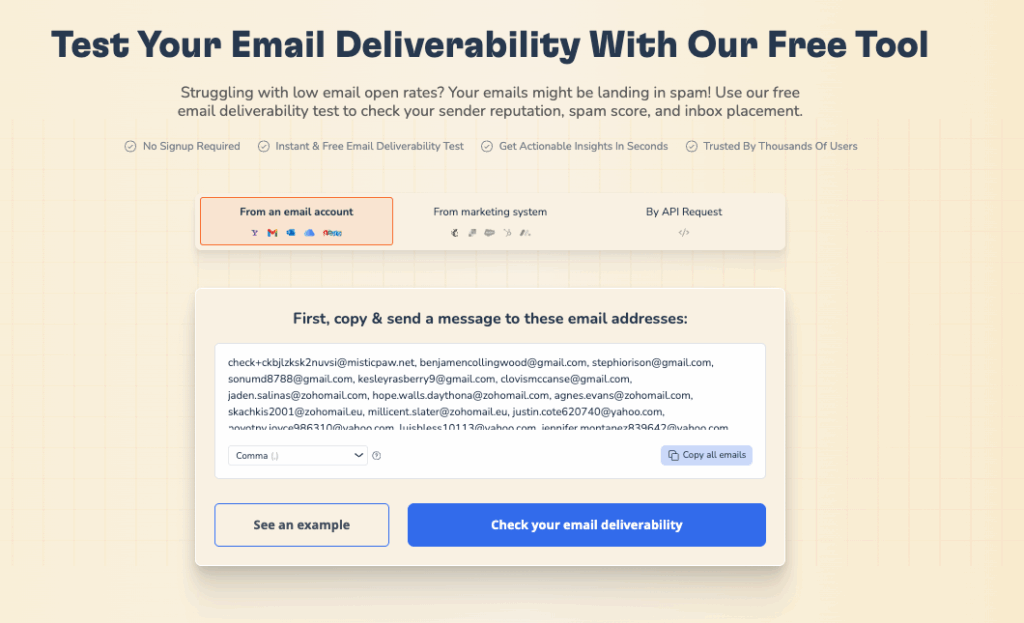
🔍 Not sure if your authentication settings are causing delivery problems? Run Warmy’s free Email Deliverability Test to instantly check your inbox placement, SPF, DKIM, and DMARC status, and blacklist standing. You’ll see exactly what providers see when your emails arrive.
Resolving “SMTP error: could not authenticate” on popular email clients
Email authentication requirements have changed significantly since 2025. The guidance below reflects the current state for each major client. Before diving in, it’s worth noting that properly warming up your sending domain helps prevent authentication-related delivery failures over time — see this comprehensive guide to warming up a new domain for context.
Navigating the complexities of the Spamhaus DROP List and successfully delisting your IP address is a journey that requires understanding, diligence, and proactive measures. Through this guide, “Guide to Delisting Your IP from Spamhaus DROP: A Step-by-Step Approach,” we’ve explored the essential steps from understanding what the DROP List is, to checking your IP status, engaging in the delisting process, and implementing post-delisting actions.
Remember, being listed on the Spamhaus DROP List is not just a technical issue; it impacts your email deliverability, your business communications, and ultimately, your online reputation. Therefore, the importance of regularly monitoring your IP status, adhering to best email practices, and using effective tools like Warmy.io cannot be overstated.
1. Outlook “SMTP Error: Could Not Authenticate”:
Troubleshooting steps:
– Verify login credentials: Double-check the username and password for the email account.
– Check server settings: Go to File > Account Settings > Account Settings. Select the email account and click “Change”. Ensure that the SMTP server settings and authentication method are correct.
– Disable antivirus or firewall: Temporarily disable any antivirus or firewall software and test if the authentication issue persists.
– Use OAuth 2.0 or an App Password: The “Enable Less Secure Apps” option for Gmail is permanently gone as of May 2025. In Outlook, authenticate using OAuth 2.0 (supported in Outlook for Microsoft 365, Outlook 2019+, and Outlook for Windows/Mac). If you run an older standalone Outlook build, generate a Gmail App Password under your Google Account settings and use that in place of your regular password.
Common pitfalls and workarounds:
– App Passwords for legacy Outlook: If your Outlook version does not support OAuth 2.0, enable 2-Step Verification on your Google Account, then create an App Password at myaccount.google.com. Use that App Password as your SMTP password in Outlook.
– Third-party email accounts: For non-Gmail accounts, ensure that the email service provider allows SMTP authentication and that the server settings are correctly configured.
1. Outlook “SMTP Error: Could Not Authenticate”:
Troubleshooting steps
– Verify login credentials: Double-check the username and password for the email account.
– Check server settings: Go to File > Account Settings > Account Settings. Select the email account and click “Change”. Ensure that the SMTP server settings and authentication method are correct.
– Disable antivirus or firewall: Temporarily disable any antivirus or firewall software and test if the authentication issue persists.
– Enable “Less Secure Apps”: If using a Gmail account, enable “Less Secure Apps” in the account settings. Be cautious as this may reduce the account’s security.
Common pitfalls and workarounds
– Two-step verification: If using two-step verification on a Gmail account, create an app password to use for SMTP authentication in Outlook.
– Third-party email accounts: For non-Gmail accounts, ensure that the email service provider allows SMTP authentication and that the server settings are correctly configured.
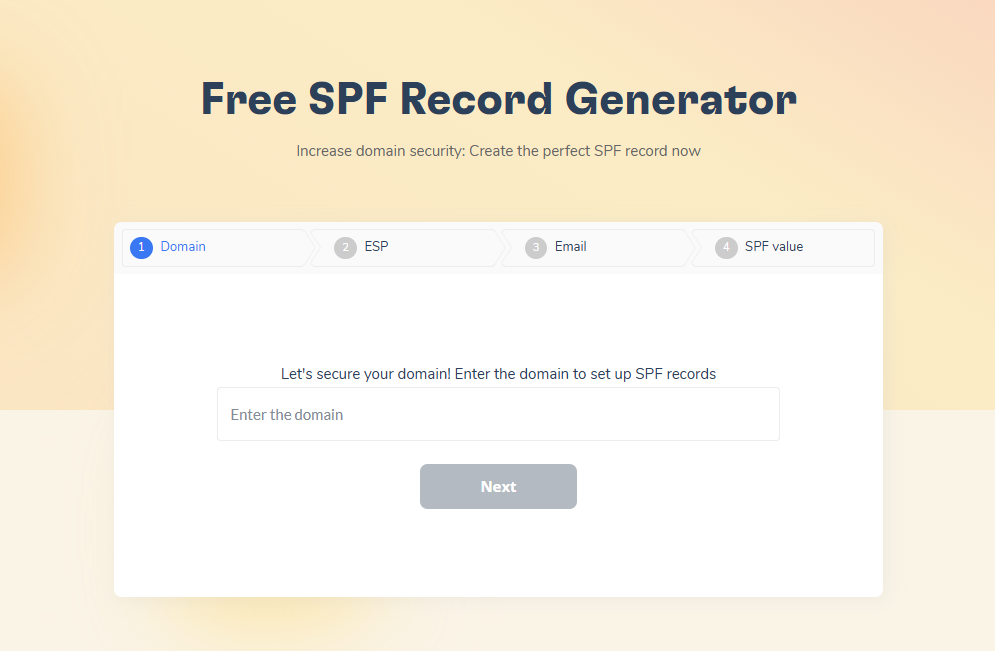
💡 Pro Tip: Before you touch firewall rules or reinstall your email client, run a quick SPF and DMARC check. Misconfigured DNS records are a surprisingly common root cause of authentication failures that appear to be credential errors. You can generate and validate your SPF record with Warmy’s free SPF Generator, and build a correct DMARC policy with the DMARC Generator in minutes without touching code.
2. Gmail “SMTP Error: Could Not Authenticate”
Troubleshooting steps
– Verify login credentials: Ensure that the email address and password entered are correct.
– Enable IMAP/POP access: Go to Gmail settings > Forwarding and POP/IMAP and make sure either POP or IMAP access is enabled.
– Switch to OAuth 2.0 or generate an App Password: Google permanently removed the “Allow Less Secure Apps” setting. Personal Gmail accounts lost it in May 2022; Google Workspace accounts by May 2025. Your only options are: (a) use an email client that supports OAuth 2.0 natively (Gmail app, Thunderbird 145+, Mailbird, Outlook for Microsoft 365), or (b) generate an App Password via Google Account > Security > 2-Step Verification > App Passwords, and use it in your SMTP settings.
Common pitfalls and workarounds
– Two-factor authentication: If two-factor authentication is enabled, generate an app password specifically for the email client and use it for SMTP authentication.
– CAPTCHA requirement: If you receive a “Username and Password not accepted” error and your credentials are definitely correct, visit google.com/accounts/DisplayUnlockCaptcha and follow the steps to unlock access.
3. Apple Mail “SMTP Error: Could Not Authenticate”:
Troubleshooting steps
– Verify login credentials: Confirm that the email address and password are entered correctly.
– Check account settings: Go to Mail > Preferences > Accounts. Select the email account and verify that the SMTP server settings and authentication method are accurate.
– Keychain Access: Open Keychain Access (in the Utilities folder) and search for any saved SMTP server passwords. Delete and re-enter the password if necessary.
Common pitfalls and workarounds
– Keychain issues: If Keychain Access is causing problems, create a new Keychain or reset the Keychain settings.
– Third-party email accounts: For non-iCloud accounts, ensure that the email service provider allows SMTP authentication and that the server settings are correctly configured.
Advanced troubleshooting techniques
1. Using Telnet to test SMTP authentication.
Telnet is a command-line tool that allows you to manually connect to an SMTP server and test the authentication process. Here’s how you can use Telnet to troubleshoot SMTP authentication:
– Open a command prompt or terminal window.
– Type “telnet [SMTP server address] [SMTP port number]” and press Enter. For example, “telnet smtp.example.com 25”.
– If the connection is successful, you will see a response from the server.
– Enter the following commands to initiate the authentication process:
EHLO example.com
AUTH LOGIN
[Base64-encoded username]
[Base64-encoded password]
– Observe the responses from the server. If authentication fails, the server will typically provide an error message indicating the reason for the failure.
– Analyze the responses and error messages to identify any issues with the authentication process.
2. Analyzing SMTP server logs.
SMTP server logs can provide valuable insights into the authentication process and help identify any errors or issues. To analyze SMTP server logs:
– Access the server logs, which are typically located in a specific directory on the server or managed through a server administration interface.
– Look for entries related to SMTP authentication, such as authentication attempts, success, or failure messages.
– Analyze the log entries for any error codes or error messages that indicate authentication failures.
– Pay attention to timestamps, IP addresses, and the specific authentication method used to pinpoint potential issues.
– Cross-reference the log entries with any error messages received on the client-side to correlate the problem and potential causes.
3. Checking DNS settings for email authentication.
Domain Name System (DNS) settings play a crucial role in email authentication, particularly for verifying the sender’s identity and preventing email spoofing. Here are some aspects to consider when checking DNS settings:
– SPF (Sender Policy Framework): Ensure that your domain’s SPF record is correctly configured. SPF allows you to specify which servers are authorized to send emails on behalf of your domain. An incorrect or missing SPF record can result in authentication failures.
– DKIM (DomainKeys Identified Mail): Check if your domain has a DKIM record. DKIM adds a digital signature to outgoing emails, verifying their authenticity. Ensure that the DKIM record is correctly set up, and the associated keys are valid.
– DMARC (Domain-based Message Authentication, Reporting, and Conformance): Implement DMARC to provide further email authentication and reporting. DMARC allows you to specify how email receivers should handle messages from your domain, and it helps prevent email spoofing and phishing attempts.
– Use DNS lookup tools to validate the DNS records associated with your domain and check for any discrepancies or errors.
By using Telnet to test SMTP authentication, analyzing SMTP server logs, and checking DNS settings, you can delve into more advanced troubleshooting techniques to identify and resolve issues related to SMTP authentication.
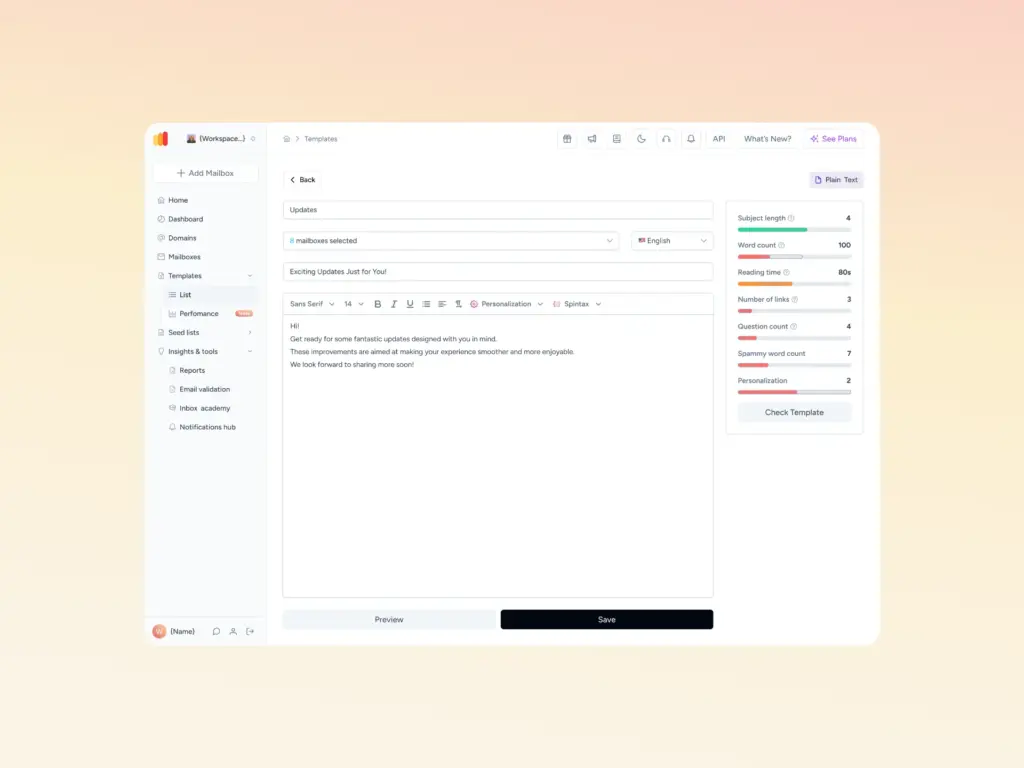
💡 Pro Tip: After fixing your DNS records, use Warmy’s free Template Checker to scan your email content for spam trigger words and formatting issues before sending. Even with perfect authentication, emails with problematic content can still land in spam. The Template Checker analyzes subject lines, body copy, and structure — and flags exactly what needs to change.
Preventing future SMTP authentication errors
Fixing a single authentication failure is not enough if the underlying configuration remains fragile. Here’s how to protect your sending infrastructure going forward:
- Keep authentication protocols current. SPF, DKIM, and DMARC records can drift as you add or change email services. Audit your DNS records every time you add a new sending tool or change providers.
- Migrate to OAuth 2.0 across all clients. Any email client still relying on basic username/password authentication against Gmail or Microsoft will break. Audit your stack and move everything to OAuth-compatible clients or App Passwords now.
- Warm up new sending domains before going live. Sending at scale from a cold domain triggers spam filters and can force ISPs to reject authentication entirely. Warmy is an AI-driven email warmup and deliverability platform that automatically builds sender reputation, improves inbox placement, and keeps your emails out of spam. Tools like Warmy’s automated warmup build the reputation your domain needs before you send in volume.
- Monitor your deliverability proactively. Authentication errors often show up as deliverability drops before you see hard bounces. Regular inbox placement tests catch problems early.
According to IBM’s 2025 Cost of a Data Breach Report, the average cost of a phishing-related breach reached $4.88 million in 2025 — a significant portion of which traces back to authentication failures that allowed unauthorized senders to impersonate legitimate domains. Strong SMTP authentication is not just a technical nicety; it is a core business security requirement.
If you are setting up authentication from scratch or reviewing a problematic configuration, this guide on why and how to configure SPF, DKIM, and DMARC walks through every step in detail.
Conclusion
Troubleshooting “SMTP Error: Could Not Authenticate” can initially seem daunting, especially when email communication is crucial for business operations. However, by understanding the root causes and systematically addressing each potential issue, resolving this SMTP error becomes manageable. Whether it’s updating credentials, ensuring correct port configurations, or verifying encryption settings, each step brings you closer to a seamless email transmission process. Remember, “SMTP Error: Could Not Authenticate” is a common hurdle many face, but with the right knowledge and tools, it’s one that can be quickly overcome. Always keep abreast of the latest updates and best practices to minimize the chances of encountering such errors in the future.
Ready to take control of your email deliverability? Start your free Warmy trial and let Warmy’s AI build your sender reputation automatically — no technical expertise required. Or book a demo to see how Warmy handles warmup and authentication monitoring at scale.