
Summary
If you want your business emails to look professional, the first step is to buy an email domain and create a custom email domain for your brand. A professional email address with domain helps build trust and credibility. The guide walks you through what a professional email address with domain is, why it helps your business look more credible, and what you need before getting started, such as a domain name, email hosting, and basic DNS settings like SPF, DKIM, and DMARC.
You will also learn four common ways to create a business email using providers like Google Workspace, Microsoft Outlook, Neo Mail, Proton Mail and Spacemail. The guide also shares helpful tips on improving email domain deliverability, warming up a new domain, and choosing the right email provider for your business needs. Overall, it gives beginners a clear path to creating a professional business email that supports better communication and brand trust.
Quick Comparison of Custom Email Domain Providers
Before we look at the details, here is a quick comparison of some best email hosting services that let you create a custom email domain for your business.
| Provider | Best for | Key Feature |
|---|---|---|
| Google Workspace | Businesses using Gmail | Gmail and Google tools |
| Microsoft Outlook | Teams using Office apps | Strong Microsoft integration |
| Neo Mail | Small businesses and founders | Simple setup and management |
| Proton Mail | Privacy focused teams | Strong privacy and encrypted email |
| Spacemail | Solopreneurs, freelancers and growing businesses | Clean interface and all-inclusive security |
What Is a Custom Email Domain?
A custom email domain is an email address that uses your business domain name instead of a generic email service.
Example:
- Custom email domain: info@yourbrand.com, support@yourbrand.com
- Free email address: yourbrand@gmail.com, yourbrand@yahoo.com
The difference is simple. A custom domain email shows your brand name every time someone receives your email.
Domain Name vs Email Hosting
Many beginners confuse buying a domain with creating email accounts.
These are two different things.
- Domain name: This is the web address of your business such as yourbusiness.com.
- Email hosting: This is the service that stores and sends emails using your domain.
- Domain registrar: This is the company where you purchase the domain name.
In most cases, you buy the domain from one provider and use another provider for email hosting.
Why Buying an Email Domain Matters for Business?
Using a professional email address with domain is one of the simplest ways to make your business look legitimate.
Here are some key reasons businesses choose a custom email domain.
- Looks More Professional: A branded email address signals that your business is real and established.
- Improves Brand Recall: Every email reinforces your brand name in the customer’s inbox.
- Gives You More Control: You can create and manage multiple accounts for your team.
- Enables Role Based Emails: You can create addresses like support@, sales@, or billing@.
- Improves Email Deliverability: Proper domain configuration helps your emails reach the inbox instead of the spam folder. If you plan to send outreach emails, it can also help to test different cold email subject lines to see what gets better open rates.
Before You Buy: What You Need to Set Up a Custom Email Domain
Setting up a business email is easier when you understand the few things required beforehand.
- A Domain Name
A domain name is the foundation of your business email address. It is the part that appears after the “@” symbol in your email, such as yourbusiness.com. When you buy an email domain, this domain becomes the identity of your brand in every email you send.
If your preferred domain name is already taken, there are a few simple alternatives you can try.
- Try different domain extensions such as .co, .io, or .ai: These domain extensions are commonly used by startups and modern businesses.
- Add words such as mail or get: Adding small words can help you secure a domain that is still related to your brand.
- Include location or industry keywords: Adding your city, service, or niche can make the domain unique and easier to register.
- An Email Hosting Provider
An email hosting provider is the service that actually stores and manages your email accounts. This provider allows you to send, receive, and organize emails using your custom email domain.
Most hosting providers also include helpful features such as spam filtering, mailbox storage, and security tools that improve email domain deliverability. For startups planning to reach out to potential customers, it can also help to understand effective cold email strategies for startup companies that improve response rates.
- DNS Access
To connect your domain with your email hosting provider, you need access to your domain’s DNS settings. DNS records tell the internet how emails from your domain should be handled.
Important records include:
- MX Records: These records tell the internet which server should receive emails sent to your domain.
- SPF Record: This record verifies which servers are allowed to send emails on behalf of your domain.
- DKIM Authentication: This adds a digital signature to emails, helping receiving servers verify that the message is genuine.
- DMARC Policy: This record protects your domain from email spoofing and phishing attacks.
Therefore, Proper DNS setup is important for email deliverability. Today, setting up SPF, DKIM, and DMARC is no longer optional if you want your emails to reach inboxes like Gmail and Yahoo instead of the spam folder. These authentication records help verify that your emails are legitimate, protect your domain from spoofing, and show email providers that your messages can be trusted.
- A Mailbox Name
A mailbox name is the part that appears before the “@” symbol in your email address. It helps identify the person or department sending the email.
Choosing clear and simple mailbox names makes your communication look more professional and organized.
Examples include:
- firstname@yourdomain.com: Often used for individual team members.
- hello@yourdomain.com: A friendly address for general inquiries.
- support@yourdomain.com: Commonly used for customer support emails.
Four Ways to Get a Custom Email Domain for Your Business
There are several ways to create a professional email address with domain. Below are four commonly used options.
Method 1: Google Workspace
Best For
Businesses that want Gmail with their own domain and access to Google tools like Drive and Docs.
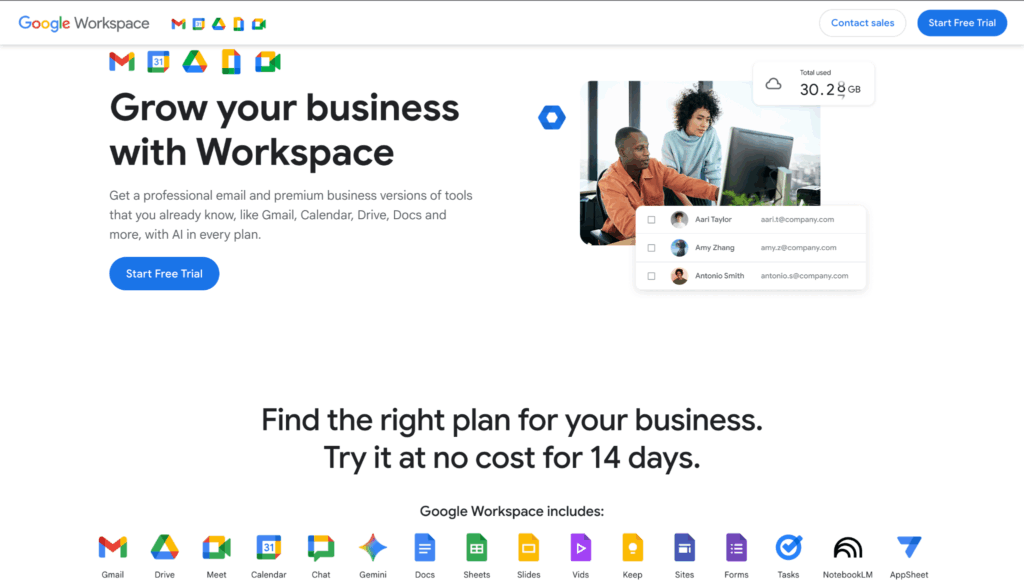
Google Workspace allows businesses to create email addresses using Gmail while using their own domain name.
Steps to Set It Up
The process of setting up a free Gmail for business account is essentially creating a Google Workspace account with a free 14-day trial.
- Visit the Google Workspace Website: Go to the Google Workspace website to begin setting up your business email.
- Click on “Free Trial”: Start the signup process by selecting the free trial option.
- Enter Your Business Information: Provide basic details about your business such as name and number of employees.
- Choose a Domain: Enter the domain you want to use for your business email or buy a new one.
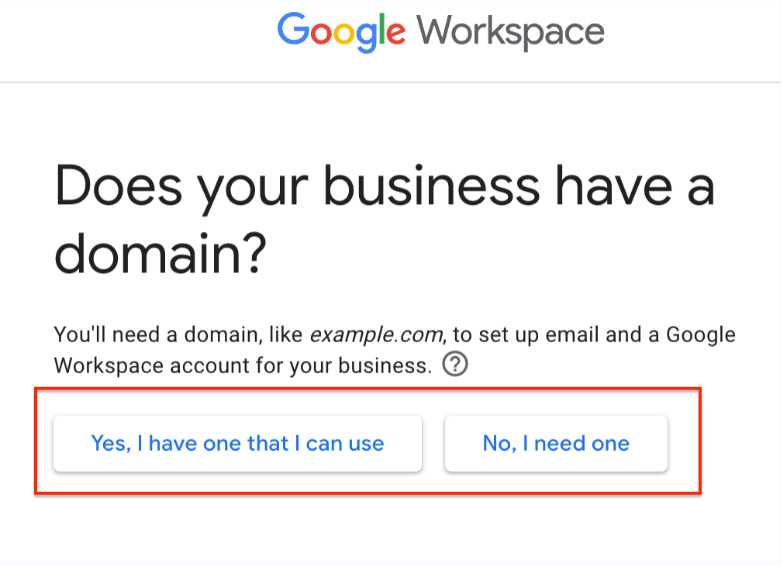
- Set Up User Accounts: Create email accounts for yourself and any team members.
- Verify Your Domain: Confirm that you own the domain by adding a verification record to your DNS settings.
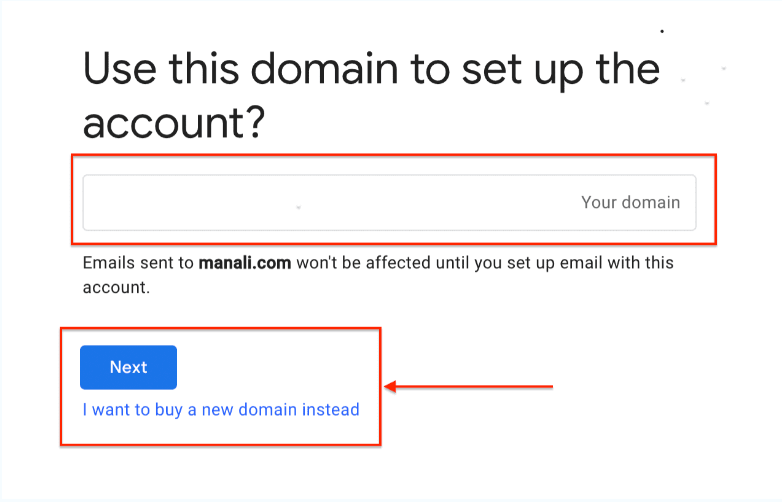
- Select Your Billing Plan: Choose the Google Workspace plan that fits your business needs.
- Review and Complete Sign Up: Check your details and finish the registration process.
- Set Up Your Gmail Account: Once setup is complete, start using Gmail with your custom email domain.
Advantages
- Familiar Gmail interface: Looks just like regular Gmail, so it is easy to use.
- Powerful spam protection: Google does a good job of keeping spam out of your inbox.
- Built in collaboration tools: Includes helpful tools like Docs, Sheets, Meet, and Drive.
Limitations
It can cost a bit more than some other email hosting options.
Method 2: Microsoft Outlook
Best For
Businesses that use Microsoft products such as Excel, Word, and Teams.
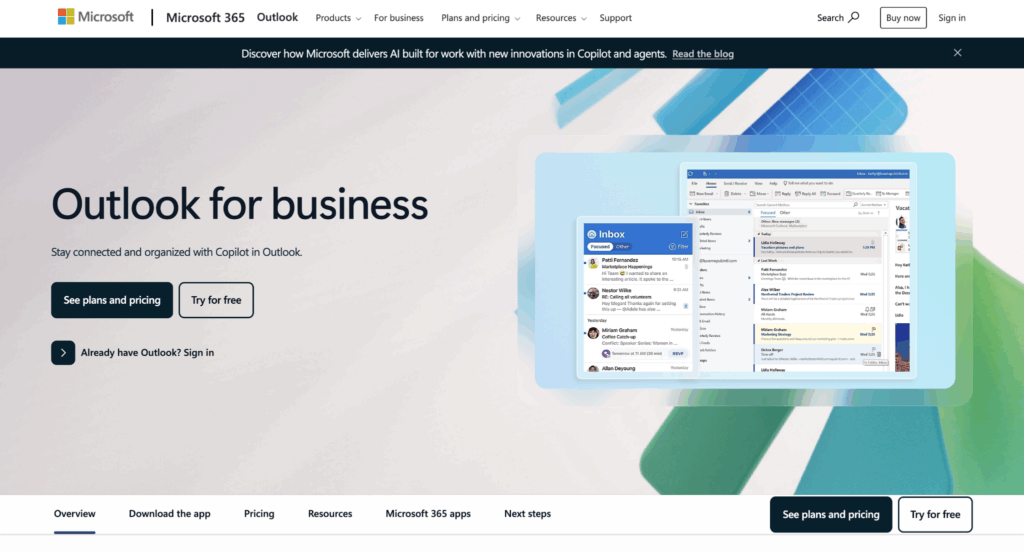
Microsoft 365 allows companies to create branded Outlook email addresses using their own domain.
Steps to Set It Up
- Visit the Outlook for Business Website: Go to the Outlook for Business page where Microsoft offers email plans for companies.
- Click on “Try for Free” or “See Plans and Pricing”: Choose an option to start setting up your business email.
- Select a Microsoft 365 Business Plan: Pick a plan that includes Outlook email and business features.
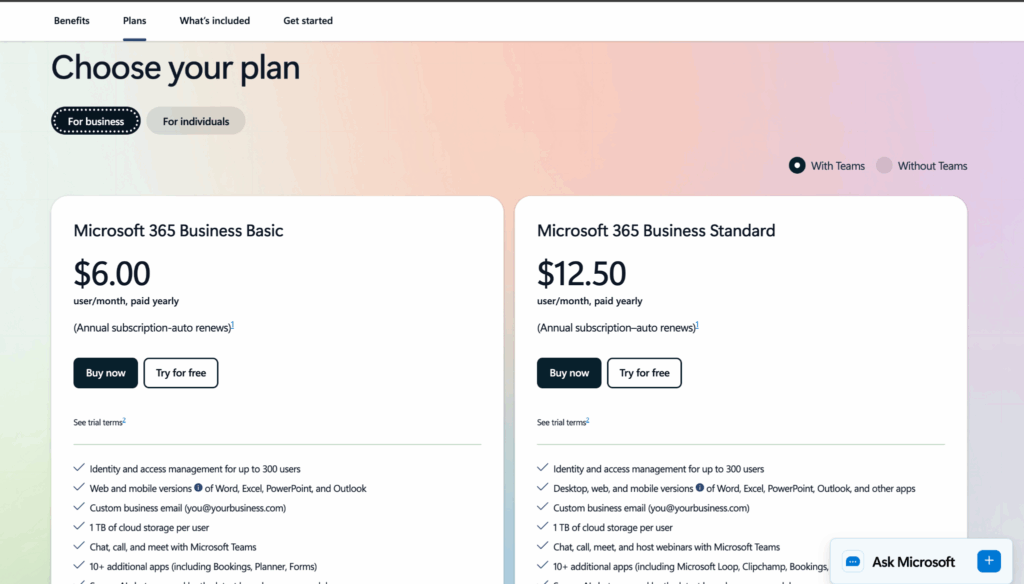
- Create Your Microsoft 365 Account: Enter your name, business details, and contact information to create your account.
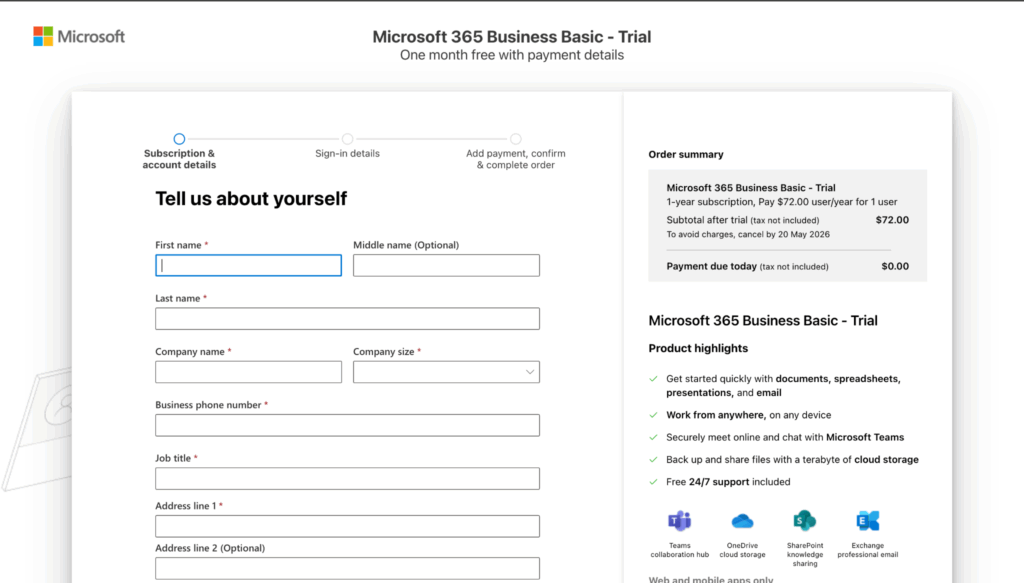
- Add Your Domain Name: Enter the domain you want to use for your business email.
- Verify Your Domain Ownership: Microsoft will ask you to add a verification record in your domain DNS settings.
- Create Your Business Email Address: Set up email accounts such as hello@yourdomain.com or support@yourdomain.com
- Start Using Outlook Email: Once setup is complete, you can send and receive emails using Outlook.
Advantages
- Strong security features: Microsoft includes good protection against spam and threats.
- Works well with Microsoft tools: Connects easily with Word, Excel, and Teams.
- Good for growing teams: Works well for businesses with multiple users.
Limitations
The dashboard may take a little time to understand for beginners.
Method 3: Neo Mail
Best For
Small businesses, founders and entrepreneurs who want a simple setup.

Neo Mail is designed to help small businesses create a professional email address with domain quickly and without complicated setup. It also includes a free domain and a free AI website builder to help businesses get online easily.
Steps to Set It Up
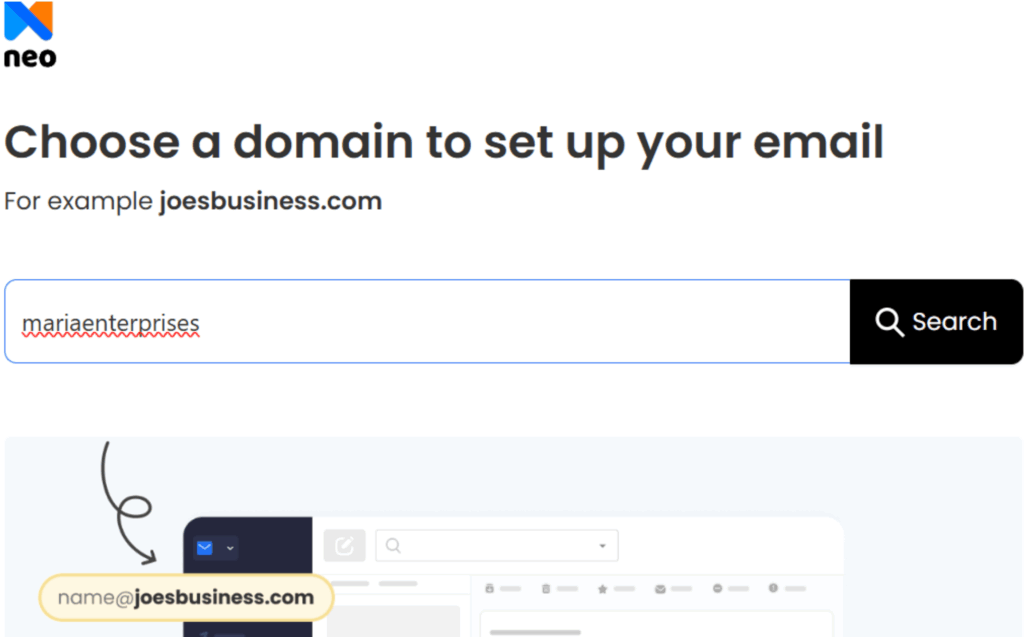
- Sign Up for a Neo Mail Account: Go to the Neo Mail website and create your account by entering basic details like your name and email.
- Add a New Domain or Use One You Already Own: Choose a domain for your business email or connect a domain that you already purchased.
- Set Up Your Main Business Email Address: Create your first email mailbox, which will act as the main account for managing your email service.
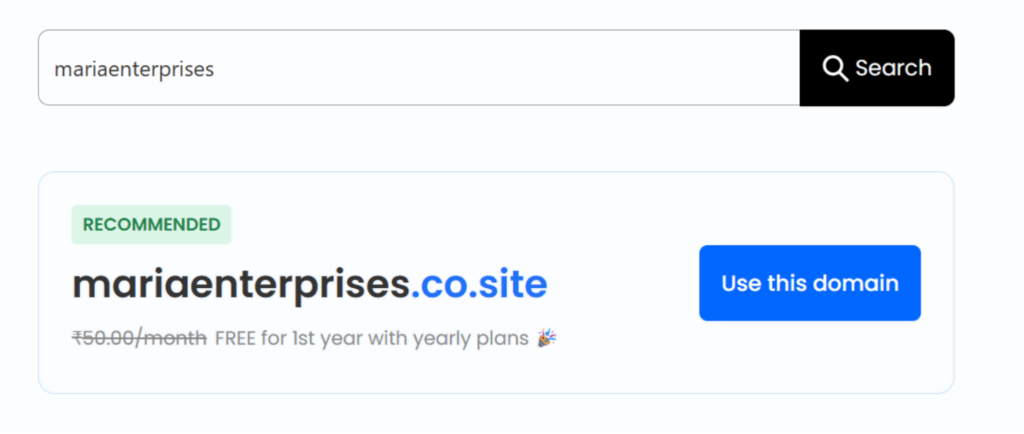
- Add More Mailboxes if Needed: Create additional email addresses for your team or departments like sales or support.
- Select a Plan and Complete Payment: Pick the Neo Mail plan that suits your needs and complete the payment to activate your account.
Advantages
- Very beginner friendly setup: The setup process is simple and easy to follow.
- Affordable plans for small teams: Pricing is suitable for startups and small businesses.
- Clean interface for managing mailboxes: The interface is clear and easy to use.
Limitations
It offers fewer integrations with other apps and tools than bigger email platforms.
Method 4: Proton Mail
Best For
Businesses that prioritize privacy and encrypted communication.
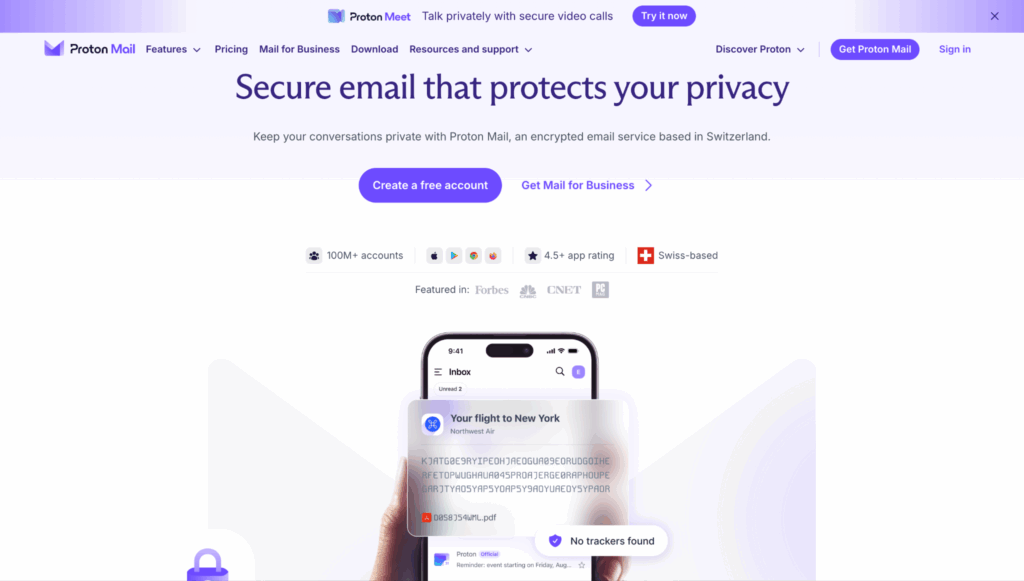
Proton Mail allows companies to connect their own domain and create encrypted email accounts.
Steps to Set It Up
- Visit the Proton Mail Website: Go to the Proton Mail website and open the Proton Mail for Business section.
- Click on “Get Proton Mail for Business”: Start the setup process for creating a business email account.
- Choose a Business Email Plan: Select a plan such as Mail Essentials, Workspace Standard, or Workspace Premium.
- Enter Your Business Information: Fill in details like your company name, your name, your email address, and number of users. If you don’t have a company yet, use Remote People to register one in over 150 countries.
- Create Your Proton Account: Set a username and password that will be used to manage your business email.
- Review the Plan and Complete Payment: Check your plan summary and enter your payment details to activate the account.
- Add Your Domain and Create Email Addresses: Connect your domain and create business email addresses like hello@yourdomain.com.
Advantages
- Strong privacy and encryption: Proton Mail focuses heavily on security and keeps your emails private.
- Protects sensitive communication: Your messages are encrypted, which helps keep important conversations safe.
- Supports multiple domains and users: You can add more domains and create email accounts for your team.
Limitations
It offers fewer built in work tools compared to platforms like Google or Microsoft.
Method 5: Spacemail
Best For
Small teams, freelancers, and growing businesses that want professional, secure email that integrates seamlessly with domain registration.

Spacemail is a modern business email service built by Spaceship, one of the world’s largest domain registrars. It brings domains, email, and security together in one place, so you can get a professional inbox up and running in minutes rather than hours. With its Unboxing tool, connecting your custom domain requires just a few clicks. It’s designed for businesses that want things simple, fast, and affordable, with the flexibility to scale as they grow.
Steps to Set It Up
- Visit the Spaceship Website: Go to spaceship.com and navigate to the Email section under the Products menu.
- Choose a Spacemail Plan: Select a plan based on the number of mailboxes and storage you need. Spacemail offers tiered pricing to suit different business sizes.
- Register or Transfer Your Domain: If you don’t already own a domain, purchase one through Spaceship. If you do, you can transfer it or point it to Spaceship’s nameservers.
- Configure DNS Records: Spacemail automatically configures the necessary DNS records when your domain is registered with Spaceship, minimizing manual setup.
- Create Your Mailboxes: Set up professional email addresses with clear guidance (e.g., hello@yourbusiness.com).
- Access Your Email Anywhere: Log in to Spacemail’s clean webmail interface, connect via IMAP, SMTP, or POP3 to your preferred email client, or download the iOS and Android apps to stay on top of your inbox on the go.
Advantages
- All-in-one platform: Because Spaceship handles domain registration and email hosting together, you can manage everything from a single dashboard without juggling multiple providers.
- No-fuss setup with Unboxing: Connect your custom domain and launch a professional inbox in just a few clicks, with no technical knowledge needed.
- Competitive, transparent pricing: Spacemail offers cost-effective plans, making it especially appealing for startups and small businesses that need professional email without a large budget.
- Privacy-first by design: Spacemail is built with your privacy in mind. Every plan includes encrypted storage, two-factor authentication, and password-protected emails.
- Jellyfish spam protection: Spacemail’s intelligent, machine-learning spam filter blocks spam, phishing attempts, malware, viruses, and spoofing attacks before they reach your inbox, and it gets smarter over time.
- Built-in productivity features: A clean interface, built-in calendar, and AI-powered email drafting make daily communication easier from day one.
- Mobile-ready: Dedicated iOS and Android apps keep your inbox fully synced and easy to manage wherever you are.
- Flexible and scalable: Add new mailboxes, aliases, and storage as your business grows. Pay for what you need, when you need it.
Limitations
Spacemail offers fewer built-in collaboration tools compared to larger platforms like Google Workspace or Microsoft 365.
What to Do After Setting Your Custom Email Domain?
Once your custom email domain is set up, there are a few simple steps that help your emails reach the inbox instead of the spam folder. These steps improve email domain deliverability and help build trust with email providers.
- Set Up SPF, DKIM, and DMARC: These security records help verify your emails and protect your domain from spam or spoofing.
- Warm Up Your New Email Domain: If you want to warm up inboxes at scale, start by sending a small number of emails and slowly increase the volume over time.
- Monitor Your Domain Reputation: It is important to regularly check your sender reputation to make sure your emails are landing in the inbox.
Tools like Google Postmaster Tools allow you to track important signals such as spam complaints, domain reputation and email authentication status. As you monitor these metrics, they help you identify deliverability issues early and maintain a healthy sending reputation for your custom domain. - Use Email Warm Up Tools: Tools like Warmy.io help build trust with email providers and improve your email deliverability.
How to Choose the Best Method for Your Custom Email Domain?
The best option often depends on what your business needs the most. Different providers offer different features, so it helps to think about what matters most to you before choosing one.
- Choose Based on Budget: Some email providers offer more affordable plans that work well for small businesses or startups.
- Choose Based on Ease of Setup: Some services are easier to set up and are better for beginners with little technical knowledge.
- Choose Based on Team Size: If you have a larger team, you may need more storage and the ability to manage multiple users.
- Choose Based on Integrations: Think about whether you need your email to connect with other tools like calendars, apps, or marketing software.
Common Mistakes to Avoid When You Buy an Email Domain
When setting up a business email for the first time, it is easy to overlook a few important details. Avoiding these common mistakes can help you set up your custom email domain properly and improve your email domain deliverability.
- Confusing Domain Registrar With Email Host: Buying a domain name does not automatically give you email hosting services, so you still need an email service provider.
- Choosing Only Based on First Year Price: Some services look cheap at first but may have higher renewal prices later.
- Skipping Security Records: Not setting up SPF, DKIM, and DMARC can make your emails more likely to land in spam.
- Using Weak Mailbox Names: Simple and clear email names make your business look more professional.
- Not Planning for Team Accounts: As your business grows, you may need separate email addresses for different team members or departments.
Best Professional Email Address Formats With a Custom Domain
Choosing the right email format helps keep your communication clear and makes your business look more professional. A well structured professional email address with domain also makes it easier for customers to know who they are contacting.
- Personal Email Examples
- firstname@company.com: A simple and commonly used format for individual team members.
- firstname.lastname@company.com: Useful for companies with larger teams where people may share the same first name.
- Business and Team Email Examples
- hello@company.com: A friendly email address often used for general inquiries.
- support@company.com: Typically used for customer service and support requests.
- sales@company.com: A dedicated email address for handling product or service inquiries.
- billing@company.com: Used for questions related to invoices or payments.
Conclusion
Setting up a custom email domain is a simple way to make your business look more professional and reliable. When your emails come from your own domain instead of a free email service, it helps build trust with customers and partners.
When you buy an email domain, it also improves how your business communicates. It allows you to create organized email addresses for your team and helps your emails reach the inbox more reliably.
Whether you choose Google Workspace, Microsoft Outlook, Neo Mail, Proton Mail or Spacemail, the important part is setting up your domain correctly and adding the right security records. Once everything is set up, a professional email address with domain can strengthen your brand and make communication with customers much smoother.