SPF, DKIM, and DMARC are three DNS-based email authentication protocols that verify sender identity and protect your domain from spoofing. To configure them in Mailgun: add an SPF TXT record authorizing Mailgun’s servers, enable DKIM in your Mailgun dashboard, then publish a DMARC TXT record at _dmarc.yourdomain.com. All three are now mandatory for bulk senders to reach Gmail, Yahoo, and Outlook inboxes.
Warmy is an AI-driven email warmup and deliverability platform that automatically builds your sender reputation, improves inbox placement, and keeps your emails out of spam. Nearly half of all email traffic worldwide is spam (46.8% as of December 2024, per Statista/Securelist), and the three protocols in this guide are your first line of defense against it.
SPF, DKIM, and DMARC are essential email authentication standards, not optional extras. You’ll find step-by-step instructions for setting them up with Mailgun, a breakdown of each protocol’s role in email security, and practical tips for improving your sender reputation and domain standing.
How SPF Works to Authenticate Email Senders
- Email Send Attempt. When an email is sent from your domain, the outbound mail server attempts to deliver it to the recipient’s server.
- SPF Record Lookup. The recipient’s server retrieves the SPF record for your domain from DNS. This record lists all IP addresses authorized to send mail from your domain.
- IP Verification. The recipient server checks whether the sending IP appears on the authorized list in your SPF record.
- Result Interpretation. If the IP matches, the email passes SPF validation. If not, SPF fails and the receiving server handles the message according to your DMARC policy.
Benefits of SPF
- SPF blocks spoofing attempts by verifying the sending IP is authorized, reducing unsolicited email volume.
- Emails that pass SPF checks are less likely to be flagged as spam by ISPs, improving deliverability.
- SPF boosts your domain’s email legitimacy and builds recipient trust.
Limitations of SPF
- Email forwarding strips the original sender IP, which can cause legitimate forwarded emails to fail SPF checks.
- SPF only verifies the “Envelope From” address used during SMTP, not the visible “Header From” address in your recipient’s email client. DKIM and DMARC close this gap.
Steps to Configure SPF in Mailgun
Setting Up Mailgun SPF Records Correctly
- Verify your existing SPF record. Check your DNS for any TXT record starting with v=spf1. You can only have one SPF record per domain. Multiple SPF records cause conflicts and mail rejections.
- Create or modify your SPF record. If you have no existing SPF record, create a new TXT record with Host/Name set to “@” and the value: v=spf1 include:mailgun.org ~all
If you already have an SPF record, merge Mailgun into it without creating a second record. For example, if you also send through Google Workspace: v=spf1 include:_spf.google.com include:mailgun.org ~all
The ~all (softfail) is appropriate during initial setup. Once your sending is stable and no legitimate mail is failing, upgrade to -all (hardfail) for stronger protection. - Save the record. DNS changes take up to 48 hours to propagate.
- Verify the record. Research from DMARCguard scanning 5.5 million domains found that 39% of domains still lack a valid SPF record — confirming errors at this step are common. Use Warmy’s free SPF Record Generator to validate your record is correctly formatted and includes Mailgun’s servers.
Not sure your SPF is set up correctly? Run a free Email Deliverability Test and get an instant check of your SPF, DKIM, and DMARC configuration in one pass.
What Is DKIM and How to Configure It in Mailgun
DomainKeys Identified Mail (DKIM) uses public-key cryptography to sign outgoing emails and verify that the message content has not been altered in transit. Each outgoing email carries a digital signature linked to your domain. Receiving servers retrieve your public key from DNS to validate that signature. DKIM’s primary function is preventing spoofing and preserving message integrity.
Unlike SPF, DKIM signatures survive email forwarding because the signature travels with the message, not the sending IP. This makes DKIM alignment the more reliable authentication method for DMARC, as defined in RFC 6376 (IETF).
Pro Tip: When generating DKIM keys in Mailgun, ensure you use 2048-bit RSA keys (Mailgun’s current default). 1024-bit keys are now considered cryptographically weak and may trigger reduced trust at some receiving servers. If your domain still uses a 1024-bit key, rotate to 2048-bit at your next maintenance window.
Steps to Configure DKIM in Mailgun
Generating DKIM Keys
- Log into your Mailgun account and navigate to Sending, then Domains.
- Select the domain you want to configure.
- In the DNS Records section, locate the DKIM settings. Mailgun automatically generates a 2048-bit public/private key pair.
- Mailgun retains the private key to sign outgoing emails. You’ll add the public key to your DNS in the next step.
Adding the DKIM Record to DNS
- Copy the DKIM TXT record provided by Mailgun in your domain’s DNS Records panel.
- Open your DNS provider’s management console.
- Add a new TXT record with the Host/Name field set to the value Mailgun specifies, typically selector._domainkey.yourdomain.com, where “selector” is a unique identifier for the key.
- Paste the public key value from Mailgun into the record’s value field.
- Save and allow up to 48 hours for propagation.
Validating Your DKIM Setup
- After propagation, return to your Mailgun domain settings and use the built-in verification tool to confirm the DKIM record is detected.
- Confirm your record is live. Industry analysis shows DKIM achieves a 90.9% pass rate among authenticated senders — meaning failures almost always trace back to a misconfigured or unpropagated record. Wait the full 48 hours before concluding there is an issue.
- If validation fails, check for typos in the Host/Name field and confirm DNS propagation is complete before troubleshooting further.
How to Configure DMARC in Mailgun (Step-by-Step)
DMARC stands for Domain-based Message Authentication, Reporting, and Conformance. It builds on SPF and DKIM by adding policy enforcement and reporting. When an email fails either SPF or DKIM, DMARC instructs receiving servers on what to do: monitor it, quarantine it, or reject it outright. DMARC also performs an alignment check, verifying that the authenticated domain matches the visible “From” domain in the email header, making spoofing significantly harder.
Setting Up DMARC Policies with Mailgun
Step 1: Choose your starting policy.
| Policy | What it does |
|---|---|
| p=none | Monitor only. Reports are collected but delivery is unaffected. Start here. |
| p=quarantine | Suspicious emails go to spam/junk. Use after reports confirm no false positives. |
| p=reject | Non-authenticating emails are blocked entirely. The strongest protection. |
Always start at p=none and graduate to p=quarantine then p=reject over 2–4 weeks as DMARC reports confirm your legitimate mail is passing cleanly. Per Google’s email sender guidelines, bulk senders must have at least p=none published as of February 2024.
Step 2: Create the DMARC DNS record.
- Open your DNS management console.
- Create a new TXT record with Host/Name set to _dmarc.yourdomain.com.
- Set the value to: v=DMARC1; p=none; rua=mailto:dmarc-reports@yourdomain.com; (Replace the email address with an active address where you can receive aggregate reports.)
- Save and allow up to 48 hours for DNS propagation.
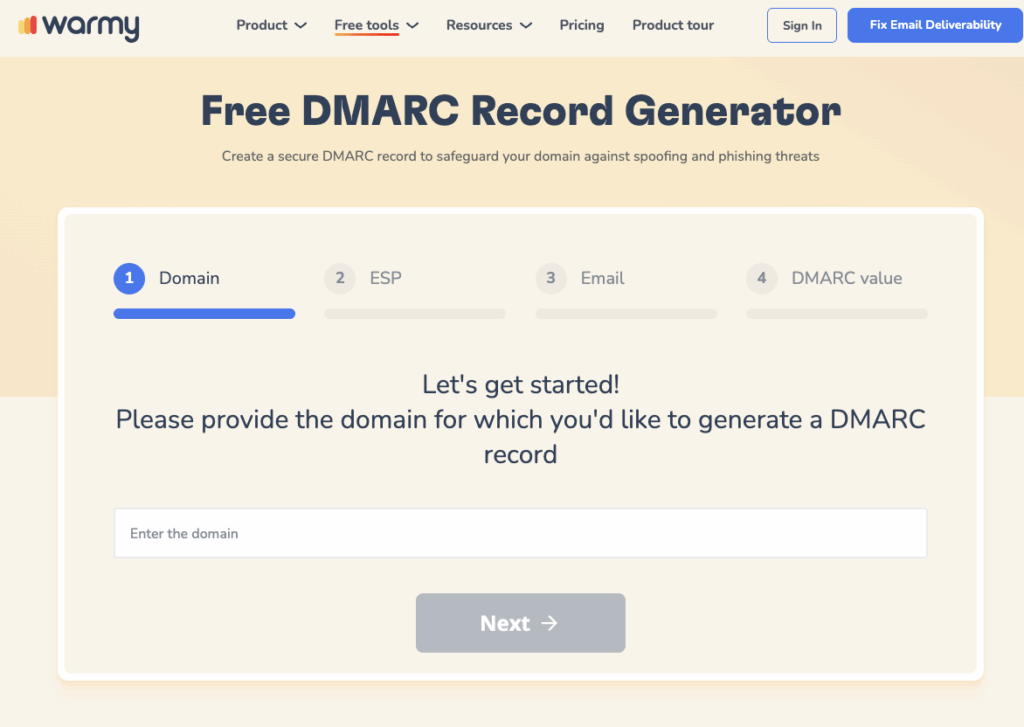
Use Warmy’s free DMARC Generator to build a valid DMARC record for your exact policy needs without manual syntax errors.
Analyzing Mailgun DMARC Reports for Insights
Collecting reports: The rua tag in your DMARC record specifies the address that receives aggregate reports from receiving ISPs. These arrive as XML files summarizing authentication pass/fail rates for your domain.
Note: Many major ISPs, including Gmail, have discontinued sending ruf (forensic/failure) reports. Rely primarily on rua aggregate reports for your ongoing monitoring. LearnDMARC.com parses raw XML reports into a readable dashboard so you can act on them without decoding data manually.
Adjusting your strategy: Review reports weekly during your initial rollout. Once aggregate reports show consistent pass rates with no unexpected failures, advance your policy from p=none to p=quarantine. After another clean monitoring period, move to p=reject for full enforcement.
Google, Yahoo, and Outlook Mandatory Sender Requirements (2024–2025)
Properly configuring SPF, DKIM, and DMARC is no longer optional for anyone sending email at scale. Major inbox providers have made authentication mandatory, and non-compliance now causes hard delivery failures.
Google Gmail (effective February 2024)
- All senders: SPF or DKIM required at minimum.
- Bulk senders (5,000+ emails per day to Gmail): both SPF and DKIM required, plus a DMARC record at minimum p=none.
- Spam complaint rate must stay below 0.3% (aim for under 0.1%).
- One-click unsubscribe via the List-Unsubscribe header is required and must be honored within 48 hours.
- As of November 2025, Gmail enforces these requirements with active rejections for non-compliant bulk senders.
Microsoft Outlook (effective May 5, 2025)
- Applies to senders of 5,000+ emails/day to Outlook.com, Hotmail.com, and Live.com addresses.
- SPF, DKIM, and DMARC (minimum p=none) are all required.
- Non-compliant emails receive a 550 5.7.515 Access denied hard rejection.
Yahoo (effective February 2024)
- Mirrors Gmail’s requirements for bulk senders.
- SPF and DKIM are mandatory; DMARC p=none is required for bulk senders.
If you send at volume through Mailgun, all three protocols are the baseline requirement for reaching these inboxes. Warmy is an AI-driven email warmup and deliverability platform that ensures your domain builds the sender reputation and authentication health needed to stay compliant.
SPF vs DKIM vs DMARC: Comparison Table
| SPF | DKIM | DMARC | |
|---|---|---|---|
| What it checks | Sending IP address | Message signature | Policy enforcement + alignment |
| What it protects | Envelope From | Message integrity | Header From (visible sender) |
| Survives forwarding? | No | Yes | Depends on DKIM alignment |
| DNS record type | TXT at @ | TXT at selector._domainkey | TXT at _dmarc |
| Required by Gmail/Outlook | Yes (bulk senders) | Yes (bulk senders) | Yes (bulk senders, min p=none) |
| Reporting capability | No | No | Yes (via rua tag) |
Use all three together. SPF and DKIM each cover authentication from different angles; DMARC ties them together, adds enforcement, and gives you visibility into who is sending email using your domain.
Test and Monitor Your Mailgun Authentication with Warmy
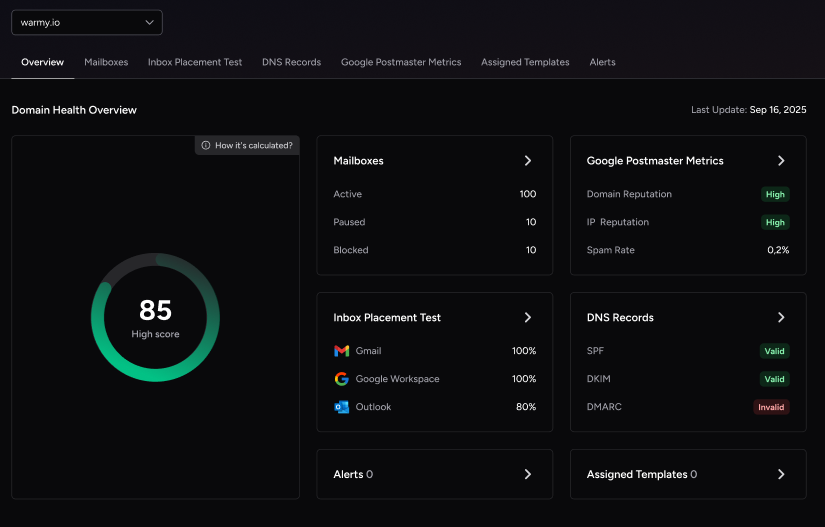
When you need to verify your authentication setup is working end to end, Warmy’s platform gives you everything in one place. The best DMARC monitoring tools for 2026 guide covers your options for ongoing report analysis, but for immediate SPF, DKIM, and DMARC verification across Gmail, Outlook, and Yahoo, Warmy’s free Email Deliverability Test is the fastest starting point.
When you run the test, you receive:
- Authentication verification: Confirms SPF, DKIM, and DMARC are correctly implemented and aligned.
- Inbox placement breakdown: Shows whether your emails land in the inbox, spam, or promotions tab at major providers.
- IP reputation check: Flags whether your sending IP appears on any spam blacklists.
- Overall deliverability score: A single composite metric summarizing your sending health.
Before you send any campaign through Mailgun, run a deliverability test to catch authentication misconfigurations before they become delivery failures.
Use Warmy’s Free SPF and DMARC Generators to Avoid Syntax Errors
Building SPF and DMARC records by hand introduces risk. A single syntax error can silently break authentication across your entire domain.
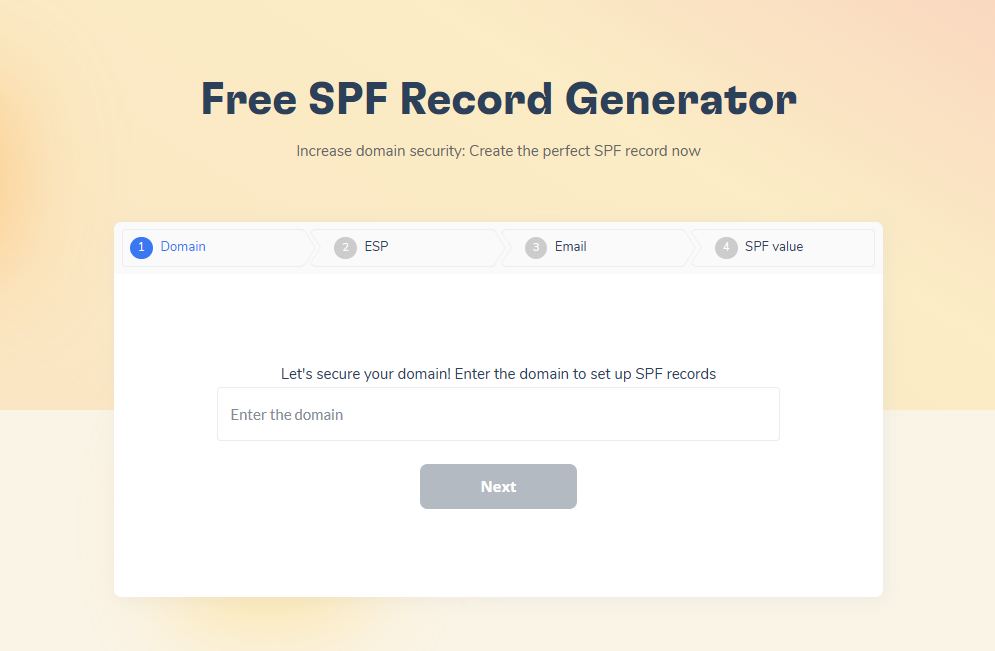
Warmy’s SPF Record Generator walks you through adding your sending services and produces a correctly formatted SPF record. It also validates your existing record structure and warns you if you are approaching the 10 DNS lookup limit, a common SPF failure point.
Warmy’s DMARC Generator creates a valid DMARC policy record based on your selected enforcement level and reporting preferences. It ensures your record syntax is correct and your policy is appropriate for your current stage of rollout.
Advanced Tips: Handling Multiple Domains and Subdomains
When you manage multiple domains and subdomains, implementing SPF, DKIM, and DMARC becomes more complex. A consistent and systematic approach keeps your security posture strong across your entire portfolio.
Centralized Management Strategy
- Consistency across domains: Apply the same SPF, DKIM, and DMARC policies across all your domains and subdomains. Consistency simplifies management and ensures a uniform security standard.
- Subdomain policies: Subdomains inherit the parent domain’s DMARC policy by default, but you should set explicit policies for subdomains with distinct sending patterns. SPF and DKIM records must be configured independently for each subdomain.
- Template-based configuration: Create a base SPF/DKIM/DMARC configuration that applies to most of your domains, then customize for any with unique sending sources. This reduces setup time and error rate.
Technical Configuration Tips
- SPF for multiple domains: Each domain needs its own SPF record reflecting its specific authorized sending sources. Avoid overly broad SPF policies that could inadvertently authorize sending across unrelated domains.
- DKIM with multiple selectors: Use different DKIM selectors for different domains or email streams within the same domain. This provides granular control: if one key is compromised, it does not expose your other domains.
- Centralized DMARC reporting: Enable DMARC reporting (rua tag) across all domains and route reports to a central address or DMARC reporting tool. A consolidated view reveals anomalies across your portfolio that per-domain monitoring would miss.
Automation and Tools
Use automated DNS management tools when updating SPF and DKIM settings across multiple domains. Manual updates at scale introduce human error. Schedule quarterly audits of your SPF, DKIM, and DMARC settings to ensure they stay aligned with your current sending infrastructure and any new services you have added.
Conclusion
SPF, DKIM, and DMARC are the foundation of a secure and deliverable email program. Configuring them correctly in Mailgun protects your domain from spoofing, satisfies the mandatory requirements of Gmail, Yahoo, and Outlook, and ensures your legitimate emails reach the inbox.
Review your authentication setup today, monitor your DMARC reports regularly as you advance from p=none toward full enforcement at p=reject, and use Warmy’s free tools to catch any configuration issues before they impact delivery.
Ready to protect your sender reputation at scale? Book a demo and see Warmy in action.