One of the most widely recognized electronic communication tools is email. It enables thousands of people worldwide to maintain contact networks exchanging personal or work-related messages. The email sender relies on the Simple Mail Transfer Protocol or SMTP for the reliable transmission of emails. SMTP can still fail, and a variety of SMTP protocol error messages can impair its operation, which affects the delivery of emails. SMTP Email error 442 is a common and severe difficulty for users.
SMTP Email error 442 is often generated while sending an email and accompanied by a message stating that the email could not be sent. This interrupt is not the only issue; under the hood, network connection faults or server settings may critically affect it. To ensure emails are delivered without trouble, it is necessary to understand and correct the error. This paper examines SMTP Email error 442, focusing on its nature, frequent symptoms, and error resolution approaches for the three email service platforms detailed below.
What Is SMTP Error 442?
SMTP Error 442 is a temporary failure code that signals the connection between your sending client and the receiving mail server was dropped before the email transmission completed. The Simple Mail Transfer Protocol (SMTP) governs how email moves between servers. When something interrupts that handshake mid-flight, Error 442 is the result.
Unlike permanent SMTP errors (the 5xx range), a 442 is in the 4xx category — which means the problem is transient. The message was not rejected outright. The server is telling you to try again. Senders typically see a bounce notification reading:
442 Connection dropped during transmission.
This message confirms the email was not delivered, but points toward a fixable condition rather than a permanent rejection.
Warmy is an AI-driven email warmup and deliverability platform that automatically builds your sender reputation, monitors your domain health, and keeps your emails out of spam — no technical expertise required.
Common Causes of SMTP Error 442
Understanding what triggered the error is the fastest path to fixing it. The four most frequent causes are:
Network Issues
Network instability between your sending client and the receiving server is the single most common cause of Error 442. If a packet is lost or latency spikes during the SMTP handshake, the server closes the connection before transmission completes. Switching networks, resetting your router, or waiting a few minutes and retrying often resolves this immediately.
Server Overload
When the recipient’s mail server is under heavy load, it may close incoming connections before processing them fully. This is a receiver-side issue outside your direct control. A timed retry is usually sufficient.
Misconfigured Timeouts
Every SMTP client has a configurable timeout value — the window it waits before abandoning a connection attempt. If that value is set too low, the client drops the connection before the server finishes processing the message. Increasing the timeout to 60 seconds or above typically eliminates this cause. For guidance on troubleshooting SMTP authentication failures, see Warmy’s dedicated guide.
Quality of Service (QoS) Issues
Some networks enforce Quality of Service (QoS) policies that deprioritize certain traffic types during peak periods. Email traffic can be throttled or dropped by these rules, leading to mid-transmission connection failures on otherwise healthy configurations.
SMTP Settings Comparison: Gmail vs Outlook vs Yahoo
| Provider | SMTP Server | Port | Encryption | App Password Required? |
|---|---|---|---|---|
| Gmail | smtp.gmail.com | 587 / 465 | STARTTLS / SSL | Yes (if 2FA enabled) |
| Outlook | smtp-mail.outlook.com | 587 | STARTTLS | Yes (if MFA enabled) |
| Yahoo | smtp.mail.yahoo.com | 587 / 465 | STARTTLS / SSL | Yes (if 2FA enabled) |
Pro Tip: Port 587 with STARTTLS is the current recommended standard across all three providers. Port 465 still works for SSL but is the legacy option. Never use port 25 for authenticated client submission — most ISPs block it, and Google, Microsoft, and Yahoo do not support it for end-user accounts. If you are on a Google Workspace or Microsoft 365 account, your admin may need to explicitly enable SMTP AUTH before third-party clients can connect.
How to Fix SMTP Error 442
For Gmail Users
Retry Sending the Email
Start with a simple retry after a 2-3 minute wait. A temporary network glitch or server hiccup is the most common cause, and it often resolves itself.
Check Your Network Connection
Confirm your internet connection is stable. If you are on Wi-Fi, try switching to a wired connection or a mobile hotspot. Reset your router if other connections are also affected.
Review Gmail SMTP Settings
In your email client or application, confirm these settings match exactly:
- Server: smtp.gmail.com
- Port: 587 (STARTTLS) — recommended — or 465 (SSL)
- Authentication: Required
- Username: your full Gmail address
- Password: App Password (required if 2-Step Verification is enabled on your Google account)
Google’s official SMTP settings are documented at Google’s SMTP configuration page. Since 2022, Google no longer accepts regular account passwords for SMTP — you must use an App Password generated from your Google Account security settings.
Increase Timeout Settings
In your third-party email client, locate the SMTP timeout setting and increase it to at least 60 seconds. This prevents premature disconnection before the server finishes processing.
Not sure whether your current Gmail configuration is causing delivery problems? Run a free Email Deliverability Test to check inbox placement, blacklist status, and authentication records in one pass.
For Outlook Users
Check Connection Status
In Outlook, go to the Send/Receive tab and confirm the Work Offline toggle is turned off. If Outlook is in offline mode, it will queue messages without attempting to send them.
Verify Outlook SMTP Settings
Go to File > Account Settings > Server Settings > Outgoing Mail and confirm:
- Server: smtp-mail.outlook.com (for personal Outlook.com, Hotmail, and Live accounts)
- Port: 587
- Encryption: STARTTLS
- Authentication: Required
Microsoft 365 business accounts use smtp.office365.com instead of smtp-mail.outlook.com. The correct settings are documented at Microsoft’s email client configuration page. Microsoft is phasing out Basic Authentication for SMTP AUTH in Exchange Online: it will be disabled by default for existing tenants at the end of December 2026, with full removal planned for 2027. If you use Microsoft 365 and connect third-party clients via SMTP, plan your migration to OAuth 2.0 before that deadline.
Adjust Server Timeouts
Under More Settings > Advanced, increase the Server Timeouts slider to at least 60 seconds to give the server adequate time to process your message before the connection closes.
For Yahoo Users
Verify SMTP Configuration
Confirm your settings match the following:
- Server: smtp.mail.yahoo.com
- Port: 587 (STARTTLS, recommended) or 465 (SSL)
- Authentication: Required
- Username: your full Yahoo email address
- Password: App Password (required when two-step verification is enabled)
Yahoo’s configuration is documented at Yahoo Mail’s IMAP and POP access page. Generate an App Password from Yahoo Account Security if two-step verification is active on your account.
Retry Sending
As with Gmail, try resending after a short wait. Yahoo’s infrastructure occasionally drops connections under load, and a second attempt typically succeeds.
Check Network and Firewall Settings
Confirm that your firewall or security software is not blocking outbound connections on port 587 or 465. Temporarily disabling your firewall for a test send can quickly confirm whether it is the source of the problem.
How Email Warm-Up Prevents SMTP Errors
SMTP errors like 442 are not always a configuration problem. A damaged sender reputation causes receiving servers to drop connections earlier and more aggressively. When ISPs and mail servers see an unfamiliar or low-reputation sender, they become less tolerant of connection timing and more likely to terminate sessions before completion. For a broader look at how to fix SMTP email errors across the 4xx temporary range, Warmy’s error resolution series covers the full landscape.
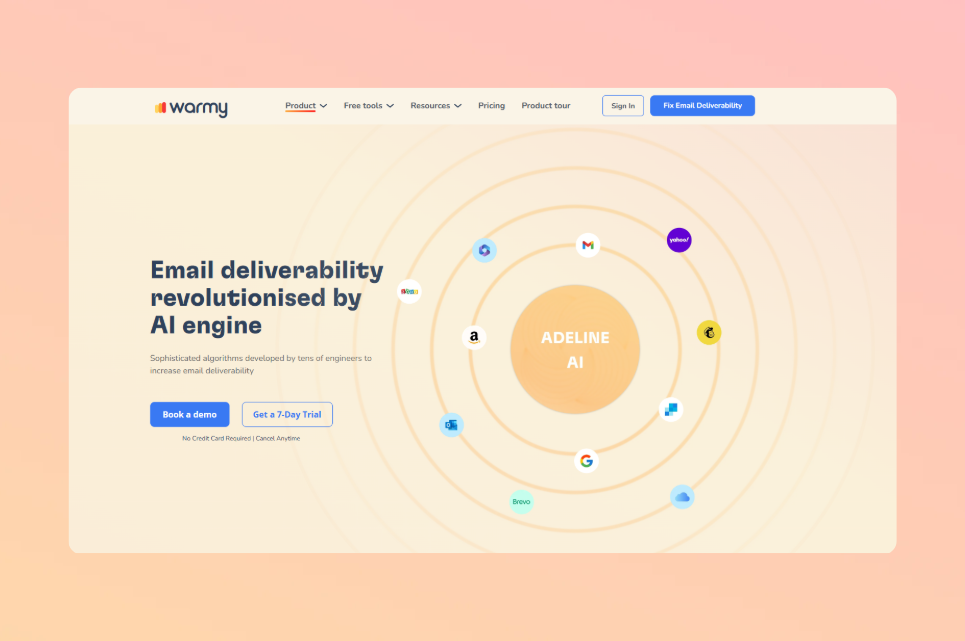
That’s the gap Warmy closes. Warmy’s AI-driven warmup engine, Adeline, gradually builds your sender reputation by generating authentic email interactions — opens, replies, clicks, and spam removals — across a network of 1M+ real mailboxes. As your domain reputation grows, receiving servers become more reliable partners, extending connection tolerance and reducing transient errors.
Learn how poor domain reputation and blacklist listings can amplify transient SMTP errors into recurring delivery failures.
Features of Warmy.io to Improve Email Deliverability
Key Warmy.io Features That Reduce SMTP Errors
Email Warmup powered by Adeline AI
When you need your domain to be trusted by Gmail, Outlook, and Yahoo before sending at scale, Warmy’s warmup builds that reputation automatically. Adeline creates a personalized ramp-up schedule for each mailbox, adjusting pace in real time based on live inbox placement data — across 30+ languages and up to 5,000 warmup emails per day.
Domain Health Hub
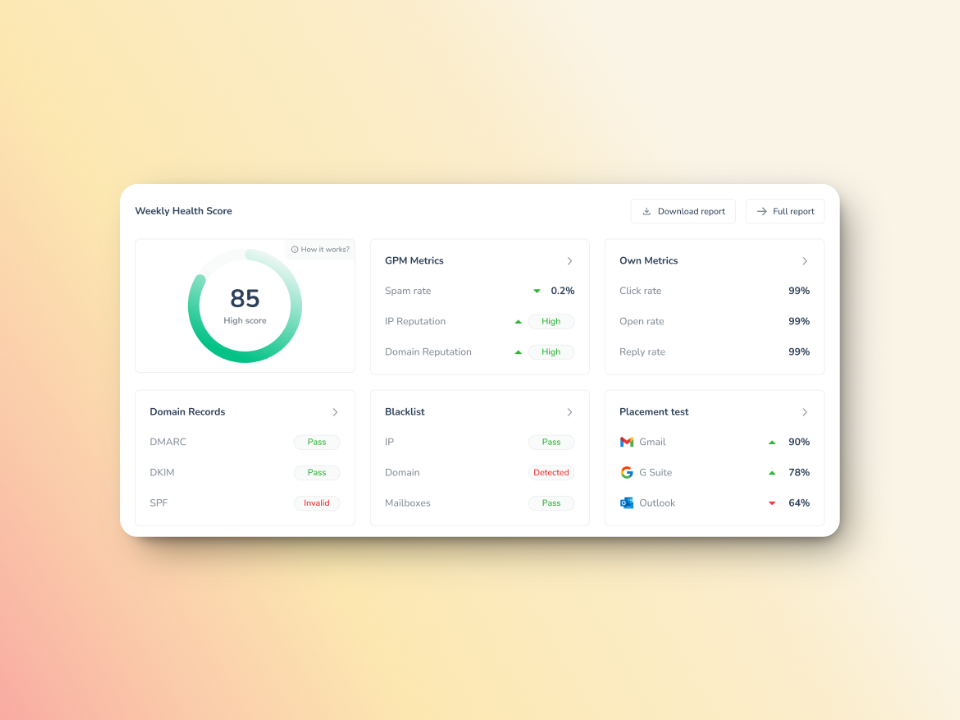
When you need a complete picture of your domain’s standing with email providers, Warmy’s Domain Health Hub gives you a numeric health score, spam rate trends, and DNS validation for SPF, DKIM, DMARC, rDNS, MX, and A records — all at the domain level. You can monitor multiple domains from one dashboard and immediately identify which ones need attention.
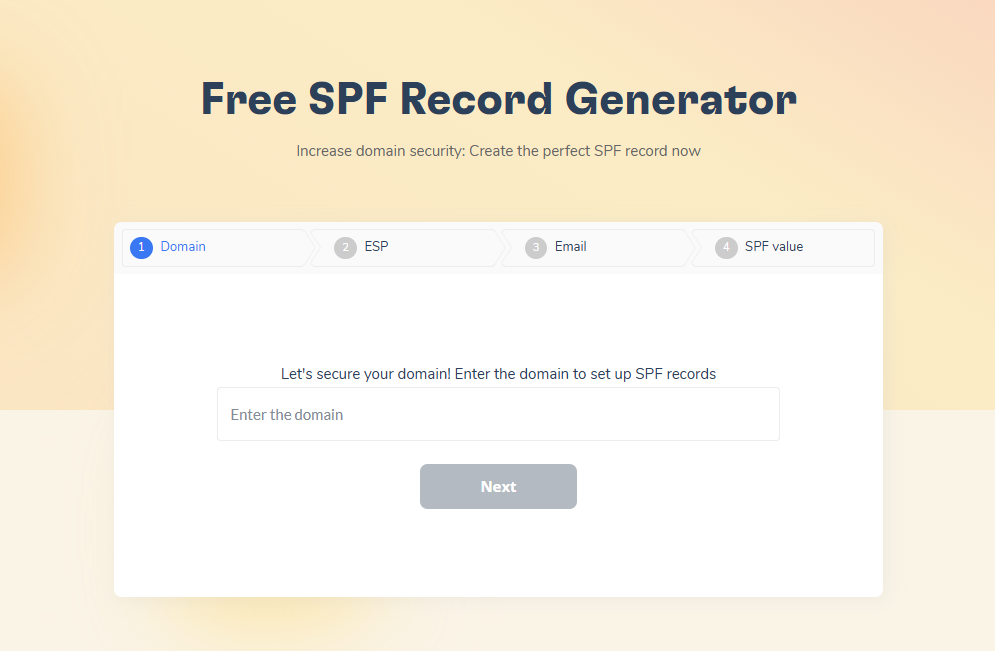
Free SPF and DMARC Record Generators
Since February 2024, Google and Yahoo require DMARC authentication for bulk senders sending 5,000+ emails per day, with Gmail intensifying enforcement from November 2025. Warmy’s free SPF Record Generator and DMARC Generator create correctly formatted DNS records that satisfy these requirements — for free, without an account.
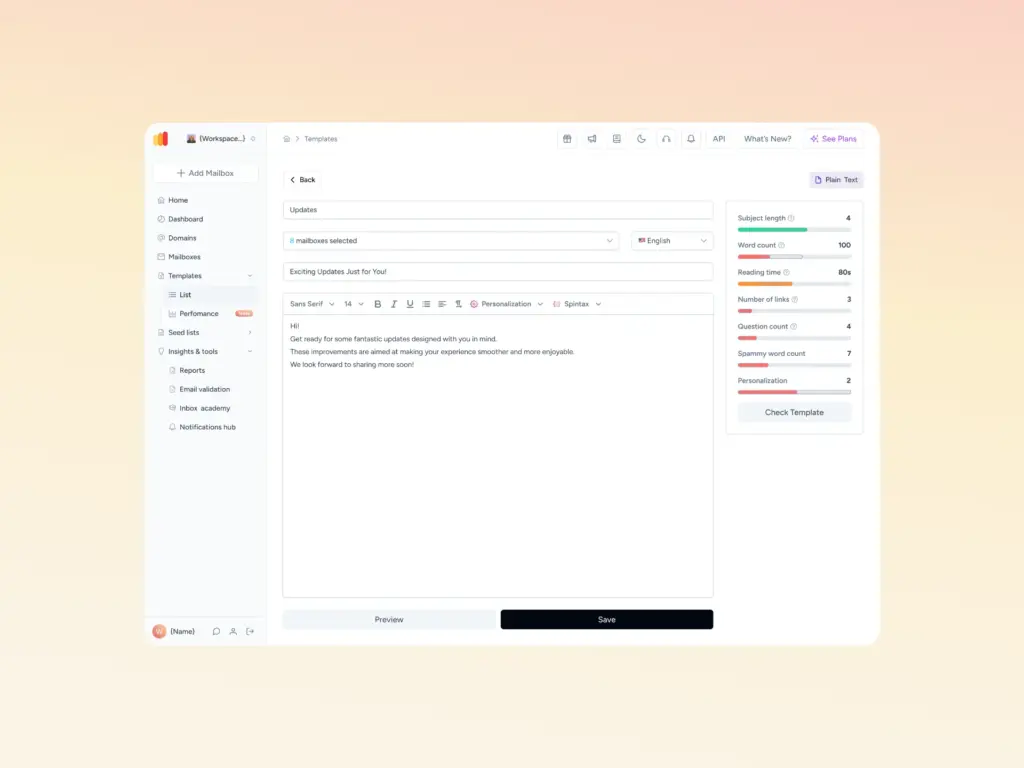
Email Template Checker
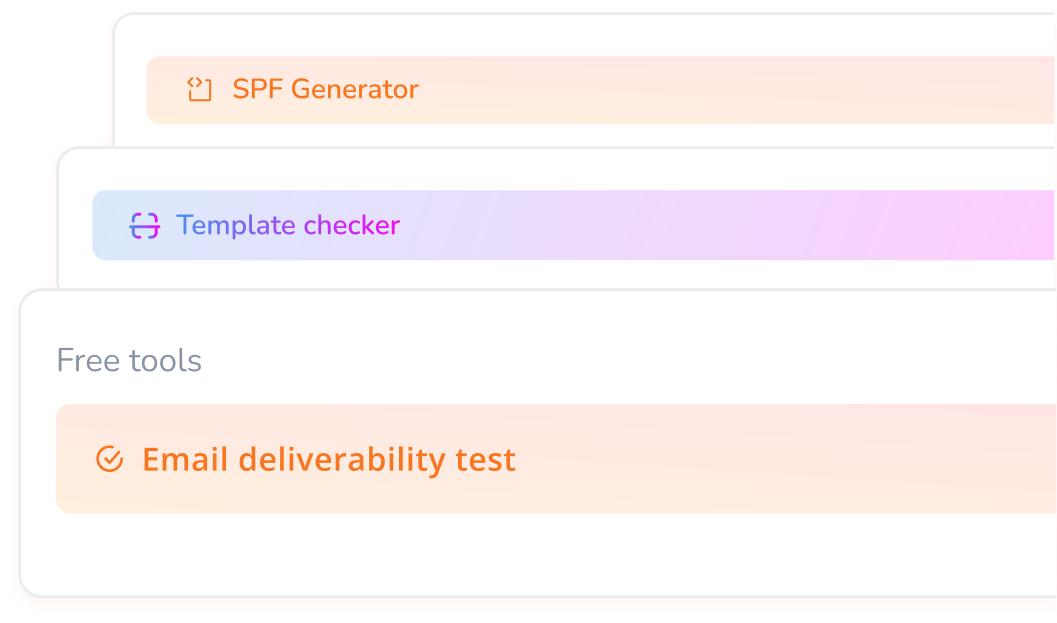
Before any send, Warmy’s Template Checker scans your content for spam trigger words and formatting issues that cause emails to be filtered. The Chrome Extension version runs the same check directly from your Gmail compose window, catching problems before you hit send.
For related issues around temporary server error 451 and other 4xx SMTP failures, Warmy’s blog covers step-by-step fixes for the full error code range.
Conclusion
SMTP Error 442 is a temporary, fixable problem. In most cases, retrying the send, correcting your SMTP settings, and increasing your client’s timeout value resolves it within minutes. When the error recurs, sender reputation is almost always the deeper cause. A domain that receiving servers trust will always experience fewer connection drops than one that has not been warmed up.
Start your free Warmy trial and let Adeline AI build your sender reputation automatically — no credit card required.