SMTP Code 354 means the mail server has accepted your connection and is now waiting for the message body – it is asking you to finish sending by transmitting a line containing only a period, preceded and followed by a carriage-return line feed (.). It is a normal, expected part of the SMTP protocol defined in RFC 5321, not an error in the everyday sense.
When people say they are “getting a 354 error,” they almost always mean the transaction stalled or failed right after this prompt – usually because of a network interruption, a misconfigured mail client, a blocked port, or a server that timed out before the terminator arrived.
This guide breaks down exactly what triggers those stalls, how to fix them in Gmail, Outlook, and Yahoo, and how to prevent them from recurring.
What is SMTP Error 354?
SMTP Error 354 typically appears with a brief message or explanation. For example: Error 354: Start mail input; end with <CRLF>.<CRLF>
This error message signifies that the server is ready to accept the email content but requires proper termination with “<CRLF>.<CRLF>” (carriage return, line feed, period, carriage return, line feed).
Depending on the email client, mail server software, or application being used, the exact wording may vary, but the meaning is standardized across every SMTP implementation because it comes directly from the protocol specification. For a fuller breakdown of what each SMTP response code means, see our complete guide to SMTP error codes and messages.
Common causes of SMTP email error 354
Network connectivity issues: Poor internet connection or network disturbances might impede communication between email client and SMTP server, resulting in Error 354.
Firewall or Antivirus blocking SMTP traffic: Overly restrictive firewall or antivirus settings can block outgoing SMTP traffic and prohibit successful email transmission.
Incorrect SMTP server settings: Misconfigured SMTP server settings mean incorrect server address, port number, or login credentials.
Oversized email attachments: Sending emails with large attachments that exceed size limits specified by the SMTP server or email providers can esult in SMTP Code 354.
Server overload or resource constraints: The error may occur due to server overload, resource constraints, or temporary issues with the SMTP server’s capacity to handle incoming emails especially during peak usage times.
Pro tip: If the connection drops right after the 354 prompt, check your client’s timeout setting first – most stalls at this exact stage are timing out mid-transmission rather than being rejected outright.
Step-by-step solutions to resolve SMTP email error 354
For Gmail
- Adjusting SMTP server settings:
- Access Gmail account settings and ensure SMTP server details (server address, port, encryption method) are correctly configured.
- Checking network connection:
- Verify that your device is connected to a stable internet connection to ensure uninterrupted communication with Gmail’s SMTP server.
- Verifying firewall or antivirus Settings:
- Temporarily disable firewall or antivirus software to check if they are blocking SMTP traffic. If so, adjust settings to allow outgoing email communication.
For Outlook
- Updating SMTP port settings:
- Navigate to Outlook account settings and ensure the correct SMTP port is configured – 587 with STARTTLS or 465 with implicit SSL/TLS – since these are the ports Microsoft currently supports for authenticated sending.
- Ensuring server authentication:
- Confirm that SMTP server authentication is enabled and the correct credentials are provided. Outlook.com and Microsoft 365 require modern authentication (OAuth) for new connections, since basic authentication was retired.
- Testing email sending on alternate networks:
- Try sending the email from a different network to determine if the issue is specific to your current network setup.
For Yahoo
- Clearing outbound email queue:
- Check for stuck emails in the Outbox and remove them – a pending message can hold up the connection and trigger a 354-stage timeout.
- Authenticating SMTP server credentials:
- Ensure that the SMTP server credentials (username and app password) configured in Yahoo Mail settings are accurate and current.
- Reviewing email attachment size limits:
- Confirm that the size of email attachments complies with Yahoo’s attachment size limits to avoid triggering SMTP errors.
Pro tip: Whichever provider you use, test with a plain-text email and no attachment first. If that goes through cleanly, the problem is almost always attachment size or content formatting – not your core SMTP configuration.
Variations of SMTP Error 354
Incomplete message error:
- This variation occurs when the email message is not properly terminated with “<CRLF>.<CRLF>”, as required by the SMTP protocol. It indicates that the email content was not successfully transmitted to the SMTP server.
Connection timeout error:
- Error 354 can occur if the connection between the email client and the SMTP server times out before the email transmission is completed. This could be due to a network issue or a server outage.
Authentication failure:
- If the SMTP server rejects the email transmission owing to invalid or illegal authentication credentials, Error 354 with an authentication failure message may appear.
Attachment size limit exceeded:
- Sending emails with attachments larger than the SMTP server’s permitted size limit can result in Error 354. This variation indicates that the email was rejected due to large attachments.
Server capacity reached:
- During periods of heavy server demand or resource limits, the SMTP server may fail to handle inbound emails, resulting in Error 354. This variation indicates that the server’s capacity has been reached, and email transmission is momentarily suspended.
Pro tip: Keep a log of when 354-stage failures happen relative to sending volume. A pattern tied to peak hours points to server capacity, while random, low-volume failures usually point to network or client-side issues.
Not sure whether your SMTP errors are a configuration issue or a deliverability issue? Run a free Email Deliverability Test to see inbox placement, blacklist status, and authentication health in one report.
Resolving SMTP Code 354 with Warmy.io

Warmy.io is an essential tool for optimizing email deliverability and resolution of errors like SMTP Code 354. Here’s how:
- Warmy.io helps evaluate your emails’ deliverability by checking on sender reputation, content of the email, and behavior of the recipient.
- The AI-powered email warmup solution gradually builds trust with ISPs, ensuring that senders are recognized as legitimate. It does this by mimicking natural email interactions to show ISPs that your emails are trusted and valuable
- It identifies potential deliverability issues that could cause SMTP errors.
- Warmy.io checks various email blacklists with our email deliverability test to see if your domain or IP address is listed, allowing you to take prompt action to de-list and improve email deliverability.
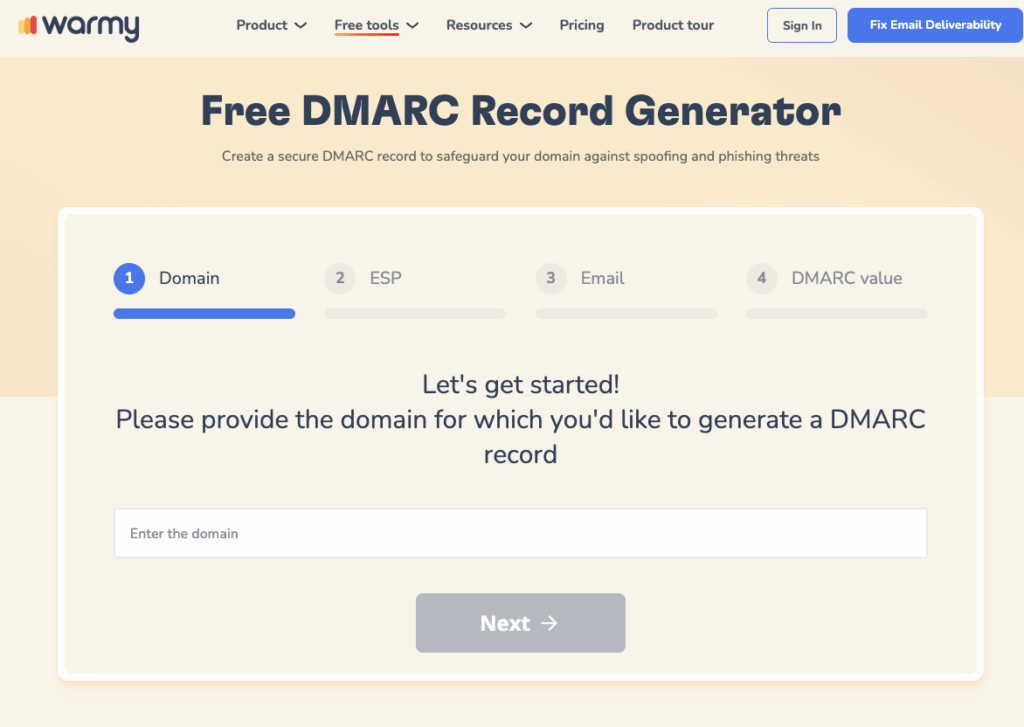
- Warmy also checks SPF, DKIM, and DMARC to verify proper configuration status. The SPF and DMARC record generators facilitate the creation and configuration of these two email authentication mechanisms to enhance email verification while preventing SMTP errors.
To summarize, addressing SMTP Error 354 requires a comprehensive approach that includes key solutions such as improving email deliverability, verifying authentication settings, and checking blacklist status. Confirming your configuration against Google’s current SMTP relay guidelines or your provider’s documentation, alongside a deliverability check, resolves the vast majority of cases.
Using services like Warmy.io can significantly improve email management by giving the tools and insights needed to optimize email practices and prevent future mishaps.