

An email header analyzer is a tool that decodes the technical metadata in email headers to reveal information about sender authentication, routing path, spam scores, and delivery issues.
To analyze headers:
- Extract them from your email client
- Paste into an analyzer tool
- Review SPF/DKIM/DMARC results
- Trace the routing path
- Identify any flags that may be causing deliverability failures.
When it comes to improving email deliverability, most sales and marketing teams focus on the obvious elements: subject lines, send times, list segmentation, content quality. But while these things matter, they’re rarely the root cause when emails suddenly stop reaching inboxes.
One of the most overlooked culprits is email headers. Yes, misconfigured or suspicious email headers are actually among the top technical reasons emails get filtered, quarantined, or rejected—and most senders never think to check them.
Your recipient may also never see your email headers, but email service providers (ESPs) like Gmail and Outlook use this information to decide if your email should be allowed to land in the inbox or go to spam.
So, when something in those headers doesn’t add up, your email can get flagged before anyone even opens it.
In this guide, you’ll learn what email headers actually contain, how to extract them from any email client, which analyzer tools are best for your use case, and how to read what you find. More importantly, you’ll see how to move from reactive troubleshooting to proactive deliverability management that prevents them altogether.
What are email headers and why analyze them?
Email headers are blocks of technical metadata that travel with every email you send or receive. They’re invisible in your inbox but they contain a detailed record of the message’s origin, journey, and authentication status. Basically, everything a mail server needs to decide whether to deliver your email or send it to spam.
What are the components of an email header?
Email headers follow the RFC 822 standard, the foundational specification governing internet email formatting. Here’s what you’ll typically find:
- From, To, and Subject fields: The visible sender address, recipient address, and subject line. These can be easily spoofed, which is why authentication records matter.
- Received headers and routing path: Every mail server that handles your email adds a “Received” line. These stack in reverse chronological order, giving you a complete trace of the journey from sending server to inbox. Excessive hops or unusual servers can signal a problem.
- Authentication results (SPF, DKIM, DMARC, BIMI): The most critical section for deliverability. These lines tell you whether the sending domain’s authentication records passed or failed verification. A single failure here can trigger spam filters.
- Timestamps and delay analysis: Each Received header includes a timestamp. Comparing them reveals where delays occurred and can often point to server issues, graylisting, or throttling.
- IP addresses and geolocation: Headers expose the actual IP addresses involved in sending. These can be cross-referenced against blacklists to identify reputation problems.
Why is email header analysis important?
Header analysis isn’t just for IT teams. Here’s when it matters most, especially for businesses who depend on email as a primary tool for communication and growth:
- To diagnose deliverability issues: When open rates drop suddenly or campaigns stop bringing results, headers can reveal whether the problem is authentication failures, blacklisting, or spam filter scoring.
- To detect phishing and spoofing attempts: Headers expose mismatches between the displayed sender name and the actual sending domain which is the most common sign of a phishing attempt.
- To verify email authentication: Authentication failures are the most direct cause of spam filtering and rejection. Before launching a cold outreach campaign, confirming your SPF, DKIM, and DMARC records are correctly configured prevents avoidable failures.
- To troubleshoot delivery delays: Timestamp analysis identifies where exactly in the chain your email is getting held up. For example, too many server hops (more than 5–6 is unusual) can indicate that your email is being passed through intermediary servers that don’t have a direct relationship with the destination. Significant time gaps between Received timestamps can mean your email was held in a queue, which can indicate graylisting or throttling.
- To solve specific SMTP errors: Some SMTP errors are caused by issues with email headers and authentication. For example, SMTP Error 451 4.7.26 is caused by poor domain reputation. SMTP Error, SMTP Error 451 4.7.23 specifically points to an SPF failure, and SMTP Error 451 4.7.24 is caused by a DMARC Policy failure.
- To monitor sender reputation signals: Headers provide early warnings that your domain or IP is developing a poor reputation before it causes major inbox placement problems. Many mail servers add X-headers that reveal their spam scoring. A high score doesn’t always result in rejection, but it does give a signal that there are elements in your email that are triggering spam filters.
How to extract email headers for analysis
Before you can analyze anything, you need to know how to access the raw header data. Here’s how to do it in the most common email clients.
Getting headers from Gmail
- Open the email you want to examine.
- Next to Reply, click the three vertical dots (⋮) in the upper-right corner of the message.
- Select “Show original” from the dropdown menu.
- A new tab opens displaying the full raw message. Click “Copy to clipboard” or manually select and copy the header block at the top.
- Paste the copied text into your chosen analyzer tool.
The step by step guide can be found here.
Getting headers from Outlook
Desktop version:
- Open the email in a separate window (double-click).
- Click File → Properties.
- The “Internet headers” field at the bottom contains the raw header data.
- Select all, copy, and paste into your analyzer.
Outlook on the web (OWA):
- Open the email.
- Click the three dots (···) → View → View message details.
- Copy the header section from the top of the source code.
Getting headers from other providers
Yahoo Mail: Open the email → click the three dots → select “View Raw Message” → copy the headers from the top section.
Apple Mail: Open the email → go to View → Message → All Headers from the menu bar.
Other providers: Most email clients have a “View source,” “View raw,” or “Show original” option under a message menu. If you’re unsure, search “[your email client] + view email headers.”
Top email header analyzer tools compared
Not all header analyzers are created equal. The right tool depends on your email provider, technical expertise, and whether you need one-time diagnostics or ongoing monitoring. Here’s a breakdown of the leading options in 2026.
Google Messageheader Tool
Google’s Messageheader tool is part of the Google Admin Toolbox and is the go-to option for Gmail users needing quick header analysis.
Key features:
- Decodes Gmail headers into a readable format
- Visualizes the email routing path with timing at each hop
- Highlights significant delays between servers.
Best for: Gmail users, Google Workspace administrators, and anyone who wants a fast, no-frills analysis of a specific email’s routing.
Pros: Free, no account required, clean interface, straightforward, and excellent for identifying routing delays.
Cons: Limited to header parsing. There are no blacklist checks, no spam scoring, no authentication remediation guidance.
Microsoft Message Header Analyzer
Microsoft’s Message Header Analyzer is designed for Exchange and Outlook environments, offering straightforward parsing of email headers with a focus on Microsoft-specific data.
Key features:
- Decodes headers into a structured table
- Identifies authentication results (SPF, DKIM, DMARC)
- Traces IP addresses
- Highlights potential spam indicators.
Best for: IT teams managing Exchange environments, Outlook users troubleshooting specific delivery failures, businesses running Microsoft 365.
Pros: Free, user-friendly, integrates naturally with Microsoft’s email ecosystem.
Cons: Less effective for non-Microsoft senders. Basic feature set compared to dedicated deliverability tools.
MXToolbox Email Header Analyzer
MXToolbox is one of the most comprehensive and widely used tools in the email deliverability industry. Beyond header analysis, it provides a full suite of DNS, SMTP, and blacklist diagnostics.
Key features:
- Full header parsing and routing visualization
- Authentication result analysis
- IP traceability with geolocation
- Blacklist lookups across 100+ lists
- Includes SMTP diagnostics and email server performance checks
Best for: IT administrators, deliverability specialists, agencies managing multiple domains, and anyone who needs comprehensive server diagnostics alongside header analysis.
Pros: Industry-standard tool with broad functionality. Free tier covers most common use cases. Results are detailed and actionable.
Cons: Interface can feel overwhelming for non-technical users. Some advanced features require a paid subscription.
Additional tools worth considering
- EasyDMARC Email Header Analyzer: Strong focus on DMARC analysis and reporting. Particularly useful for teams actively managing DMARC policies and monitoring alignment across multiple domains.
- Zoho Toolkit Header Analyzer: Part of Zoho’s broader email tools suite. Good for Zoho Mail users and provides clean, readable output for non-technical users.
- Trustifi Email Analyzer: Focuses on security analysis, making it a good choice for teams primarily concerned with detecting phishing and suspicious emails rather than deliverability optimization.
- IPTrackerOnline Header Analysis: Specializes in IP geolocation and tracing. Useful when you need to identify the geographic origin of a suspicious email or verify that your sending IP is routing through expected servers.
Beyond email header analysis: Warmy.io’s email deliverability suite
While the tools above diagnose problems after they occur (when the email has been sent already), Warmy takes a fundamentally different approach: preventing deliverability issues before they happen, while also providing the diagnostic tools you need when something goes wrong.
Warmy isn’t just a header analyzer. It’s a complete email deliverability platform designed for teams that depend on inbox placement to drive results. Since email headers are not the only factor that affects deliverability, Warmy covers all the bases:
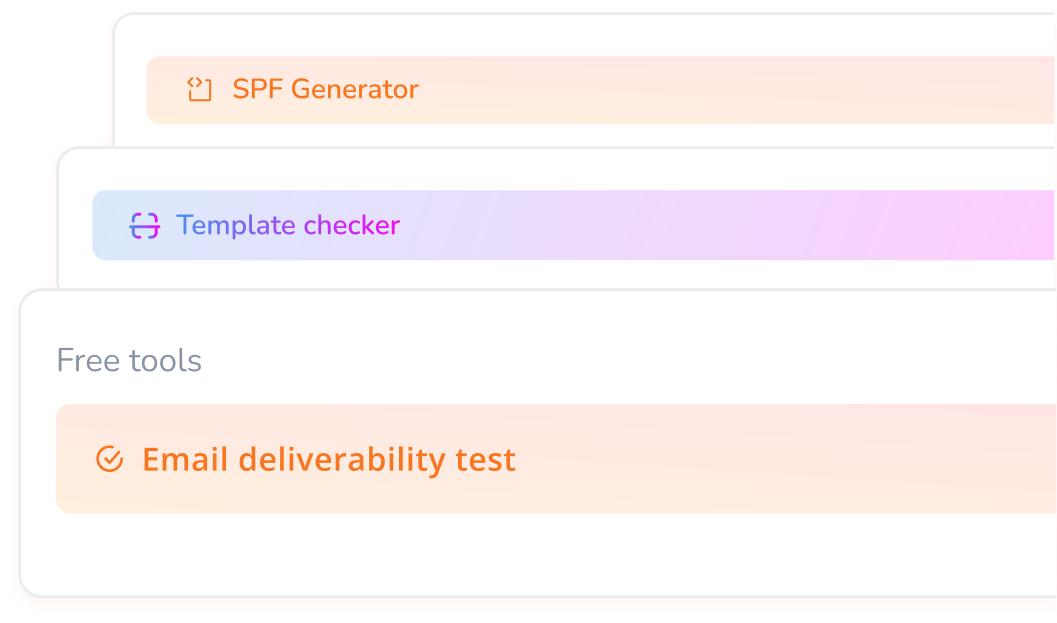
- Email Deliverability Test: Warmy’s free email deliverability test goes beyond header parsing. Instead, it gives you a full picture of your inbox placement rate across major providers so you can get the larger picture.
- DNS testing: Run DNS record tests to verify your SPF, DKIM, and DMARC configurations are correctly set up and propagating. Armed with this information, you can fix misconfigurations before they cause a campaign to fail.

- Email Template Checker: Even with perfect headers, spammy content can still hurt you. Warmy’s email template checker scans your content, subject lines, and formatting for spam triggers before you hit send.
- Automated email warmup: New domains lack the sending history that inbox providers use to assess trust. Warmy’s email warmup service sends up to 5,000 warmup emails per day, gradually building your sender reputation so your outreach campaigns land in inboxes from day one. This includes real engagement signals, so mailbox providers see you as trustworthy, legitimate, and relevant.
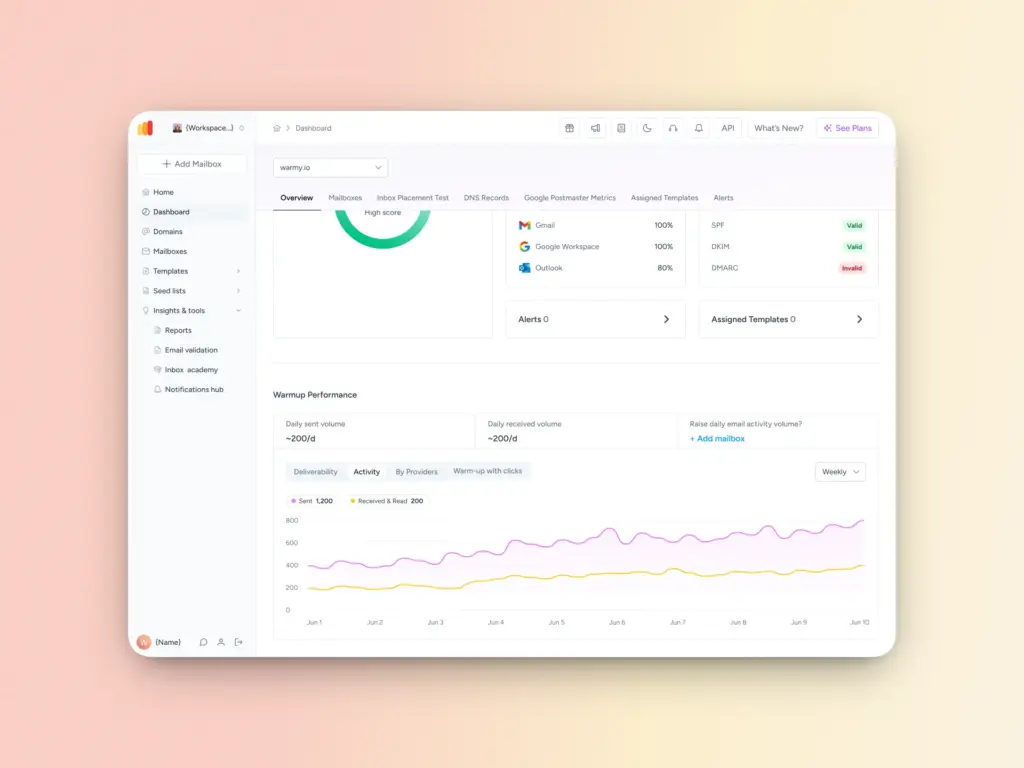
- Real-time monitoring vs. one-time analysis: Unlike header analyzers that only show you what happened after a send, Warmy’s continuous monitoring catches reputation dips, authentication changes, and placement shifts as they happen.
- Authentication record generators: Quickly set up SPF authentication and configure DMARC with Warmy’s free generators, reducing the risk of phishing, spoofing, and authentication failures.
Pros: Warmy is the only tool in this list that addresses both diagnosis and prevention. Warmy integrates warmup, testing, monitoring, and authentication configuration in one platform, providing an all-in-one email deliverability solution.
Test your email deliverability for free. Get insights into your inbox placement, authentication setup, and sender reputation.
Understanding email authentication results in headers
Authentication results are the most important section of any email header for deliverability purposes. Here’s what each protocol means and what to look for.
SPF (Sender Policy Framework) results
SPF verifies that the sending mail server is authorized to send email on behalf of your domain. Your SPF record, published in DNS, lists the IP addresses and servers permitted to send in your name.
What the results mean:
- pass: The sending IP is listed in your SPF record. Good.
- fail:The sending IP is not authorized. High spam risk.
- softfail: The IP isn’t authorized but the domain uses a lenient policy (~all). Risky.
- neutral:The domain hasn’t declared a policy. No positive or negative signal.
- permerror: Your SPF record has a syntax error or exceeds the 10-lookup limit.
Common SPF issues: Too many include statements (causing lookup limit failures), missing sending services (ESPs, CRMs, third-party tools), or outdated records that don’t reflect your current sending infrastructure.
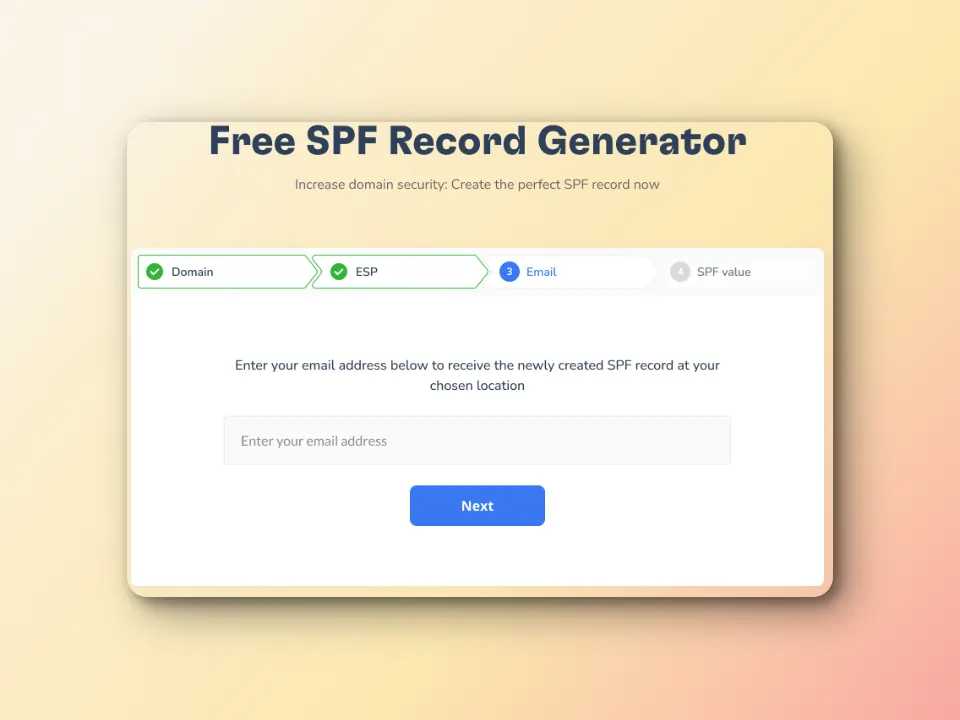
Set up or fix your SPF record in seconds with Warmy’s free SPF record generator.
DKIM (DomainKeys Identified Mail) Results
DKIM adds a cryptographic signature to your outgoing emails. The receiving server checks this signature against a public key published in your DNS to verify the message hasn’t been tampered with in transit.
What to look for in headers: The DKIM-Signature field contains the selector, domain, and hash algorithm used. Authentication results will show dkim=pass or dkim=fail.
Common DKIM failures: Key rotation issues, mismatched selectors, header canonicalization problems, or missing DKIM configuration for third-party sending services.
DMARC (Domain-based Message Authentication) Results
DMARC ties SPF and DKIM together and tells receiving servers what to do when authentication fails. It also enables reporting so you can see who’s sending email using your domain.
DMARC policy alignment: A DMARC pass requires either SPF or DKIM to pass and align with the domain in the From header. Alignment means the authenticated domain matches or is a subdomain of the From domain.
Policy options:
- p=none: Monitor only. Failed emails are delivered normally. Use this when setting up DMARC for the first time.
- p=quarantine: Failed emails are sent to spam. Appropriate for established senders with mostly clean authentication.
- p=reject: Failed emails are rejected outright. Maximum protection, but requires confident authentication setup.
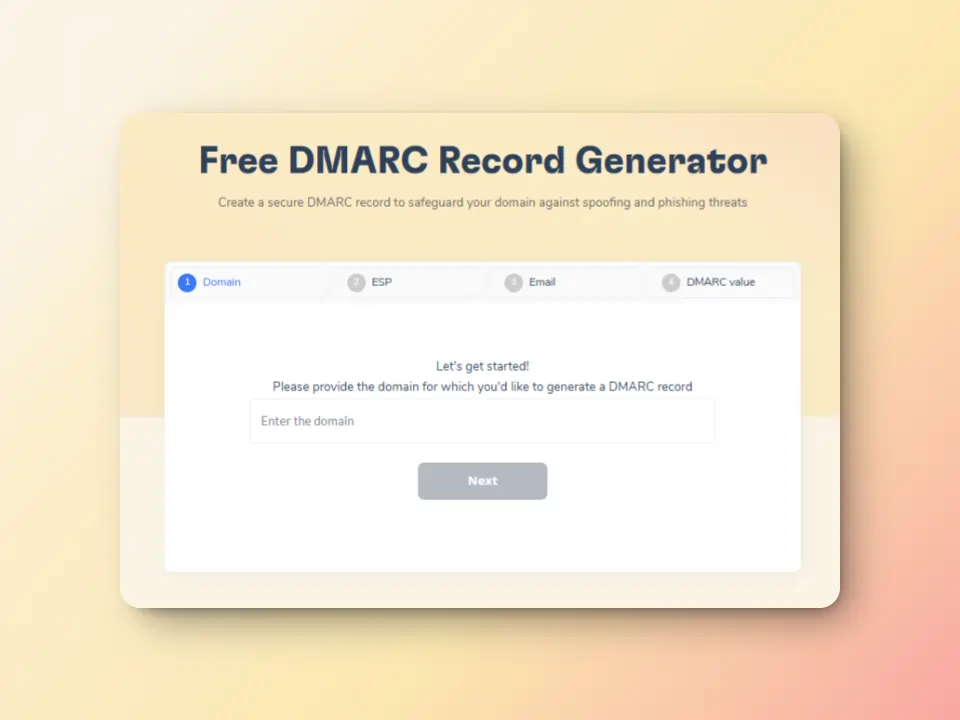
Configure your DMARC policy correctly using Warmy’s free DMARC generator.
Stop diagnosing and start preventing
Email header analysis is a foundational skill for anyone serious about email deliverability. It gives you a way to understand exactly what’s happening to your emails: which authentication checks passed or failed, which servers handled your message, and where filters are flagging problems.
But by the time you’re analyzing headers, something has already gone wrong. A campaign has underperformed. Emails have been filtered. The pipeline has been lost. That’s why you’re checking headers, to see what went wrong.
The teams with the best inbox placement rates in 2026 aren’t just better at diagnosing problems. They’re better at preventing them. Here’s what that looks like:
- They set up authentication correctly from day one
- They warm up new domains before launching campaigns
- They continuously monitor placement continuously rather than waiting for open rates to signal something is broken.
While email header analysis tells you what went wrong, Warmy sets you up for success in the first place.
Ready to take a proactive approach to email deliverability? Talk to a deliverability expert. Book a demo and get personalized guidance on improving your email performance.
FAQ
What is an email header analyzer?
An email header analyzer is a tool that decodes and examines the technical metadata in email headers to reveal information about the sender, authentication status, routing path, and potential deliverability issues. These tools help diagnose why emails land in spam, verify sender authenticity, and troubleshoot delivery problems.
How do I analyze email headers in Gmail?
To analyze email headers in Gmail: (1) Open the email, (2) Click the three vertical dots in the upper-right corner, (3) Select “Show original,” (4) Copy the header text, (5) Paste it into an analyzer tool like Google’s Messageheader tool, MXToolbox, or Warmy’s Email Deliverability Test for comprehensive analysis.
What should I look for when analyzing email headers?
Focus on authentication results (SPF, DKIM, and DMARC should all show “pass”), sender IP address and reputation,number of server hops and any significant delays, spam filter scores in X-headers, received timestamps to identify delivery bottlenecks, and any blacklist appearances or security flags.
Can email header analysis prevent my emails from going to spam?
Header analysis is diagnostic. It helps you understand why emails went to spam after the fact. To proactively prevent spam placement, correctly configure SPF, DKIM, and DMARC, build sender reputation through email warmup, monitor inbox placement regularly, and maintain clean lists and high engagement rates.
How often should I analyze email headers?
Analyze headers when setting up new domains or email accounts, after noticing decreased open rates or engagement, following major campaign sends to spot issues early, when testing new templates or content, and monthly as part of regular deliverability monitoring.
Do I need different header analyzer tools for Gmail vs. Outlook?
While Gmail and Outlook have their own tools optimized for their platforms, comprehensive tools like MXToolbox, EasyDMARC, and Warmy work across all email providers. Using a multi-platform tool gives you consistent analysis regardless of where emails are sent or received.
Can email header analysis detect phishing attempts?
Yes. Red flags include mismatch between the displayed sender name and actual sending domain, failed authentication checks, suspicious routing paths through unfamiliar servers, sending IP addresses from unusual locations, and recent domain registration combined with bulk sending patterns.