




Warmy released the “Template Performance Dashboard” which gives a comprehensive view of how every email template performs during the warmup process. The dashboard tracks the following data:
- Number of emails landed in the inbox per template
- Number of emails rescued from spam per template
- Total number of emails sent per template
- Template statistics across providers
This feature provides existing users easier access to detailed, template-specific data needed to truly optimize their email strategies. Additionally, the Template Performance Dashboard removes the bottlenecks that occur when users request deeper analytics manually. Now, users have direct and instant access to template-level data anytime they need it.
Why does email template-level data matter?
Without visibility into inbox placement rates and spam recovery across different email providers like Gmail, Outlook, and Yahoo, optimization becomes guesswork rather than data-driven decision-making.
Before, users working with Warmy’s email warmup service could only see general deliverability rates. This meant:
- Users couldn’t identify which specific templates were performing well and which needed adjustment.
- The lack of provider-specific breakdowns meant users couldn’t see that a template might be performing excellently on Gmail but struggling on Outlook. In modern email marketing, different providers use different spam filtering algorithms so this provider-level insight is crucial.
- Users who needed deeper analytics had to request manual reports from Customer Success Managers. This created bottlenecks and delayed optimization efforts.
For Warmy users, the Template Performance Dashboard provides yet another way to customize the warmup process and maximize inbox placement.
To illustrate further:
- For SaaS sales teams running outbound campaigns, this visibility is transformative. Consider a sales team using three different email templates for different stages of their outreach sequence. With the Template Performance Dashboard, they can immediately see that their initial outreach template has a 92% inbox placement rate on Gmail but only 67% on Outlook. They can then adjust their Outlook-specific messaging, test variations, and measure the impact in real-time.
- For eCommerce businesses running promotional campaigns, the stakes are equally high. Imagine launching a Black Friday campaign and discovering, through the dashboard, that your promotional template is being rescued from spam at unusually high rates on Yahoo Mail. This insight reveals an opportunity for you to refine your messaging for Yahoo users or modify content elements that might be triggering filters.
Key benefits and advantages of the Template Performance Dashboard
- Instant access to actionable data: There’s no more need to wait around for manual reports or just optimizing based on gut feel or guesswork. Users can check template statistics as many times as they want to. It’s a movement from reactive troubleshooting to proactive improvement.
- Provider-specific optimization: Since users are able to see the performance breakdown by provider, senders can prioritize targeted optimizations. For example, they can decide to focus on the providers their target audience actually uses.
- Reduced dependency on support teams: Self-service analytics not only empowers Warmy users, this also frees up Customer Success Managers and gives them more time to help users from a more strategic perspective.
- Data-driven testing and experimentation: Users can now run controlled experiments with confidence. Deploy two template variations, monitor their performance across providers and time periods, and make evidence-based decisions about which to scale. This scientific approach to email deliverability replaces guesswork with measurable results.
- Early problem detection: The dashboard’s time-series visualizations make it easy to spot downward trends in inbox placement before they become critical issues. Users can identify problems early, investigate root causes, and implement fixes while minimizing impact on their campaigns
A look at the Template Performance Dashboard and how it works
Step 1: Access the dashboard
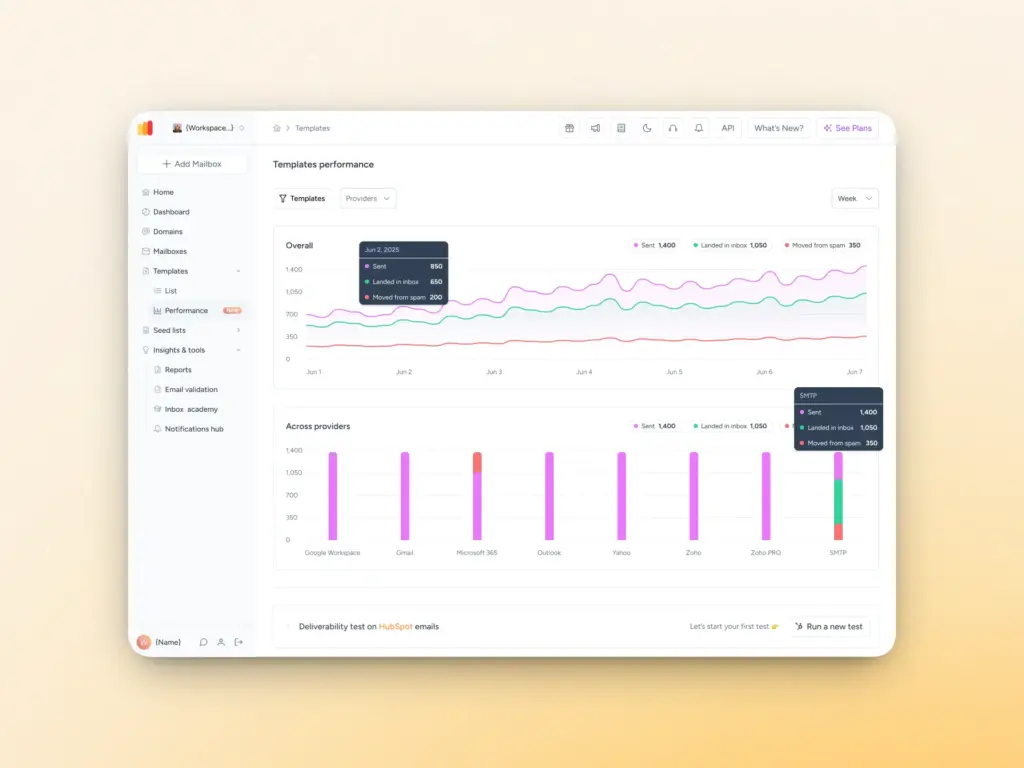
Navigate to your Templates page within your Warmy account. You’ll see the new Template Performance Dashboard section, which displays two charts with detailed template statistics:
Line chart | Shows overall performance of all templates, a subset of templates, or even a single template Metrics: sent emails, emails that landed in the inbox, emails saved from spam Period: The default shown is Weekly summary |
Bar chart | Shows the same metrics but grouped by provider |
HubSpot integration chart | Shows statistics from the HubSpot integration |
Start a 7-day free trial to see how the dashboard tracks template stats.
Step 2: Select your view and filters
- Choose your time period: today, yesterday, the past week, or the past month.
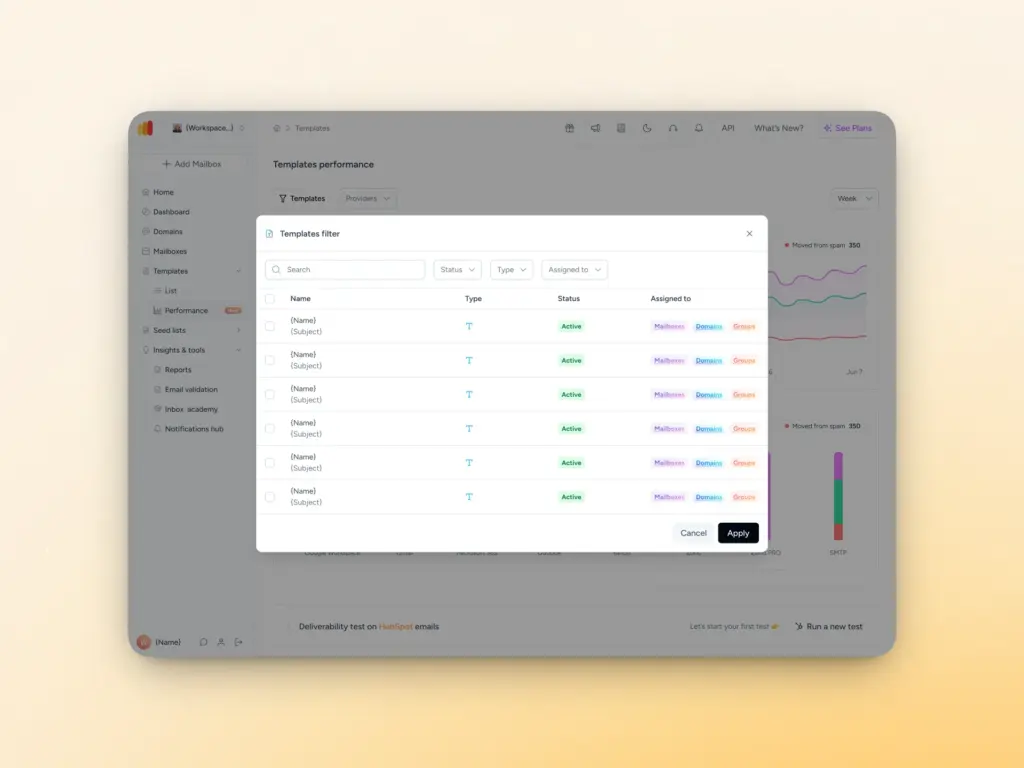
- Select specific templates to analyze, or view all templates at once
- If you want to focus on specific email providers, apply provider filters to see performance data for Gmail, Outlook, Yahoo, or any combination.
Step 3: Analyze total template statistics
The line chart tracks all events of all email templates over time: inbox placements, emails rescued from spam, and total sends. Use this view to spot trends, identify when deliverability improves or degrades, and correlate performance changes with your sending behavior.
Step 4: Dive into provider-specific performance
The template statistics across providers section breaks down your template performance by email provider, revealing at a glance how Gmail treats your templates differently from Outlook or Yahoo. You can also see if there is a specific template that works well among most providers.
Step 5: Compare and Optimize
With all this data at your fingertips, you can compare template performance side-by-side, identify your best-performing templates, and replicate their success. You can also spot underperforming templates easily and make targeted improvements based on actual data.
Note: Additional reporting capabilities, including exportable reports, are planned for future releases. Stay tuned for even more ways to leverage your template performance data.
Maximize your email template data to maximize inbox placements
The Template Performance Dashboard is now available to all Warmy users:
If you’re an existing user:
- Simply log in to your Warmy account
- Navigate to your Templates page to start exploring your template statistics.
- The feature is enabled by default and no additional configuration is required.
If you’re new to Warmy or evaluating email deliverability solutions, we invite you to see the Template Performance Dashboard in action. This feature represents our commitment to transparency and continuous innovation in email deliverability. Explore how to integrate your email templates in the warmup process.
Ready to see it in action? Book a demo to discover how Warmy’s Template Performance Dashboard can transform your email deliverability strategy.
FAQ
What information is displayed in the Template Performance Dashboard?
The dashboard shows overall performance of all templates, which users can further filter to view performance of a subset of templates, or even a single template. Metrics include sent emails, emails that landed in the inbox, and emails saved from spam.
What period does the dashboard cover?
The default shown is weekly, but users can choose to view data from today, yesterday, the past week, or the past month.
Do I need to set up any additional configuration?
No, all Warmy users automatically have this in their dashboard under the Templates section.