Agency owners and multi-brand businesses managing email deliverability for multiple clients face a critical challenge: how to keep client workspaces, billing, and team access completely separated and streamlined. Warmy’s new Workspace Management feature solves this by offering these new capabilities:
- Creation and management of separate email warmup workspaces
- Management of workspace-specific billing and subscriptions
- Clarity on owner and member roles
- Clear separation of workspace and account settings
- Switch between all workspaces you have access to
This Workspace Management feature improves the overall experience of users working with multiple workspaces. Clearly separating Workspace Settings and Account Settings streamlines the process of configurating respective settings.
What is Workspace Management and what are its key features?
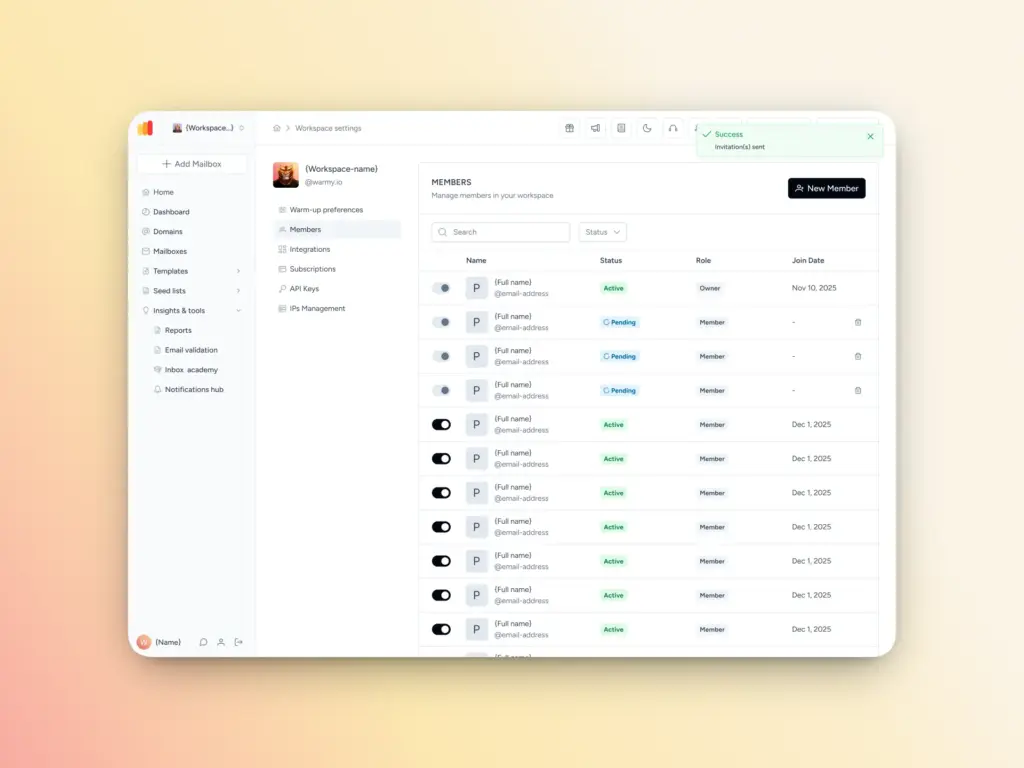
Warmy.io’s new Workspace Management feature gives users the power to create and manage multiple independent workspaces with their own billing, team access, and configuration settings.
If you’ve ever struggled with managing multiple client accounts, accidentally changed settings that affected your entire team, or couldn’t separate billing across different brands, this update solves those challenges.
Email warmup for agencies is now made more seamless.Teams managing client deliverability, multi-brand businesses, or enterprises with separate departments will all benefit from having complete control over how you organize and manage your email warmup operations.
Here’s what’s new:
Creation and management of multiple independent workspaces
You can now create up to 50 workspaces as an owner, each operating as a completely independent environment. Every workspace functions separately with its own:
- Team members and access permissions
- Warmup configurations and preferences
- Email deliverability settings
- Workspace integrations and connections
- Workspace API keys for automation
What does this mean for you?
- Whether you’re managing five different client accounts or running separate operations for multiple brands, each workspace maintains total independence.
- You can also be a member of unlimited workspaces created by others, which makes the platform the perfect team collaboration email warmup space
Workspace-specific billing and subscriptions
One of the most significant improvements is independent billing for each workspace:
- No more confusion about shared charges or expenses across different clients or brands.
- Each workspace now has its own subscription and billing.
- Workspaces don’t share subscription states or billing information. Everything is cleanly separated.
For multiple workspace admins, this eliminates the billing headaches that come with managing multiple accounts under a single subscription. Each client’s workspace bills independently, so cost allocation is straightforward and transparent.
Enhanced member access control
The new workspace system introduces granular control over who can access and manage each workspace. You can now:
- Invite team members to specific workspaces via email
- Assign appropriate role levels (Owner or Member)
- Suspend and restore access without deleting users
- View comprehensive member lists with status tracking
- Manage pending invitations and remove outdated ones
The invitation flow is streamlined and secure:
- When you invite someone to your workspace, they receive an email with a direct link.
- If they’re already registered with Warmy.io, they simply log in and gain access.
- If they’re new, they sign up and are automatically added to your workspace upon authentication.
You can invite multiple team members at once, and the system validates email addresses to prevent duplicates within the workspace. For users already in the Warmy.io system, you have the option to force-add them directly to your workspace without requiring email approval.
Start your free trial now to see how it works.
How to navigate the new Workspace Management system?
1. Inviting team members

- Admin sends an invite using the user’s email address
- The invited user follows the link. If they are already registered, they log in. If they are a new user, they will need to sign up first.
- After authentication, the user is redirected to the specific workspace where they will see a success/failure message.
2. Managing team members
Workspace member management means admins can view the following data:
- Members’ email addresses
- Status whether Active/Inactive/Suspended
- Join date
- Member’s Role
Additionally, admins have the ability to suspend access for active members and restore access for suspended members. Both activities do not have corresponding email notifications as of now.
3. Management of existing invitations
- Admins can review the pending invitations along with the users’ email addresses and invite creation date.
- Admins can also remove outdated invites. When a user opens an invite link which has been removed, the invite will appear as no longer valid
- Admins can send invites to multiple emails at once and validate email uniqueness inside the workspace
- There are two options for invites:
- Require email approval (standard invite flow).
- Force-add to workspace (only for users already existing in the system).
4. Application-level management
- This has the same logic as the Admin Panel, but the application does not show whether the user is already in the system.
- Admins can only manage their own workspace, not global data.
- Only the workspace owner can invite users and suspend/restore members
- Other members can only view the members list and statuses.
5. Workspace creation
- To create a new workspace, the user needs to provide only a name and the workspace is created immediately.
- If a user has no active workspaces (e.g., removed from all), the system automatically creates a new workspace with a default name. The user becomes the owner of that workspace. These users don’t see the “Create New Workspace” button by default.
- Admins can enable the ability to create workspaces via the Admin Panel (support request).
- Users can switch between multiple workspaces they have access to.
6. Migration for agencies
Agency users will be moved to separate workspaces. The list of users and mapping will first be aligned before the actual migration.
How to get started with Workspace Management today
Getting started with Workspace Management is straightforward whether you’re a new user or migrating from the previous system:
For new users:
- Sign up for Warmy.io
- During onboarding, you’ll create your first workspace
- Name your workspace (you can always create additional ones later)
- Configure your workspace settings and warmup preferences
- Invite team members as needed
For existing users:
Your account has been seamlessly migrated to the workspace structure. Everything continues working exactly as before but your existing configuration is now organized as a workspace. The difference is you now have the flexibility to:
- Create additional workspaces for new clients, brands, or departments
- Properly separate different operational contexts
- Manage team access more granularly
- View clearer billing and subscription information
To create additional workspaces:
- Click the workspace switcher in your navigation menu
- Select “Create New Workspace”
- Enter a workspace name (that’s all that’s required)
- Your workspace is created immediately and ready to configure
- Invite team members using the member management panel
- Set up workspace-specific integrations and settings
Start using Warmy’s Workspace Management feature today
Warmy.io’s Workspace Management gives you the organizational power and flexibility to manage email deliverability operations at any scale.
The workspace system eliminates common pain points like accidental configuration changes, billing confusion, and unclear access control while providing the foundation for professional, scalable email warm-up management.
Ready to get started? Create your workspace today and experience organized, efficient email deliverability management.
FAQ
How many workspaces can I create?
You can create up to 50 workspaces where you’re the owner. There’s no limit to how many workspaces you can be a member of. If other users invite you to their workspaces, you can join unlimited workspaces created by others.
Can I move my existing data to a new workspace?
Your existing configuration has been automatically migrated to a workspace during our system-wide update. If you need to move specific data between workspaces you’ve created, please contact our support team for assistance with workspace-to-workspace transfers.
What’s the difference between Owner and Member roles?
Owners have full control over the workspace: they can invite users, suspend/restore access, manage all workspace settings, and view billing information. Members can view the workspace, access resources based on permissions, and see the members list, but cannot invite users or modify workspace-level configurations.
How does billing work with multiple workspaces?
Each workspace has completely independent billing. You’ll receive separate invoices for each workspace’s subscription. This allows you to:
- Track costs per client, brand, or department separately
- Use different payment methods for different workspaces
- Scale each workspace’s subscription independently
- Maintain clean separation for accounting purposes
Can workspace members invite other users?
No, only workspace owners can invite new users to the workspace. This prevents unauthorized access and ensures the workspace owner maintains control over who can access the workspace and its configurations.
What happens if I’m removed from all my workspaces?
If you’re removed from all workspaces (an unlikely scenario), the system automatically creates a new workspace for you with a default name, and you become the owner. This ensures you’re never locked out of the system. Note that users in this situation don’t see the “Create New Workspace” button by default but admins can enable this capability via the Admin Panel if needed.
Can I switch between workspaces easily?
Yes, you can instantly switch between all workspaces you have access to using the workspace switcher in your navigation menu. The interface updates immediately to show the selected workspace’s configurations, members, and settings.
Do workspace members see billing information?
By default, only workspace owners can view subscription details and billing information. This ensures financial data remains private and is only accessible to those with appropriate authorization.