SMTP Error 535 means the mail server rejected your login credentials, so the email is never sent. To fix it, confirm your username and password, use an app password or OAuth where your provider requires it, match the SMTP server, port, and encryption to your provider’s settings, and make sure a firewall is not blocking the SMTP port.
Your email was fine last month. Then one morning your app, your printer, or your CRM starts throwing “SMTP Error 535” and nothing goes out. In most cases nothing changed on your side. The mail server rejected the login credentials your client sent, and that is what a 535 means. This guide shows you what the sub-codes mean, how to tell which one you have, and how to fix each provider.
What is SMTP error 535?
SMTP Error 535 is an SMTP error code that a mail server returns when a client tries to authenticate but the credentials it presents are not accepted. The 535 response is defined in RFC 4954, the standard for SMTP authentication. Because authentication happens before the message is handed over, a 535 is not a delayed email. The email is never submitted at all.
You will usually see it in one of these forms:
- 535 5.7.8 Username and Password not accepted.
- 535 Incorrect authentication data.
- 535 5.7.3 Authentication unsuccessful.
It shows up most often after a password change, a server migration, a security policy update, or when a provider retires an older login method, which is exactly what Google and Microsoft have been doing.
SMTP error 535 variants explained
The sub-code after the 535 tells you what specifically failed. The plain-English meanings below match how the major providers use these codes in practice; for the canonical registry, see the IANA enhanced status code registry.
| Code | Name | What it means | First fix |
|---|---|---|---|
| 535 5.7.0 | General authentication error | Broad failure with no specific cause given | Recheck credentials and any recent policy change |
| 535 5.7.3 | Authentication procedure failed | The auth mechanism failed, not just the password | Check the auth method and encryption settings |
| 535 5.7.8 | Username and password not accepted | Credentials were received but rejected as wrong or expired | Reset the password; on Gmail use an app password |
| 535 5.7.139 | SMTP AUTH disabled for the tenant (Microsoft 365) | Authenticated SMTP is off at the tenant level, or Basic auth is being retired | Enable authenticated SMTP for the mailbox, or move to OAuth |
Warmy has a dedicated fix for each sub-code: 535 5.7.0, 535 5.7.3, and 535 5.7.8.
How to tell which 535 you have
Before you change anything, read the exact error. The sub-code and the text after it point straight at the cause.
- Reproduce the send and copy the full response, including the three-part code and the message (for example, “535 5.7.8 Username and Password not accepted”).
- On a mail server, open the SMTP or protocol logs rather than relying on the client’s summarized message, which often hides the sub-code.
- For a raw check, connect to the server and attempt authentication directly: openssl s_client -starttls smtp -connect smtp.yourprovider.com:587. The server returns the exact 535 sub-code, which is the fastest way to separate a credential problem from a policy or server-side block.
Not sure whether your authentication issues are affecting your deliverability? Run a free email deliverability test to see exactly where your sending reputation stands.
What causes SMTP error 535?
Four causes account for nearly every 535. Work through them in order.
Incorrect login credentials
The most frequent cause. The client is sending the wrong username, the wrong password, or both. This is common after a password reset that was not pushed to every connected client, or a simple typo. Check that the password is current on every device, whether the server wants the full email address or just the local part, and whether an app password is required in place of your normal one.
Wrong SMTP server, port, or encryption
Sometimes the password is fine and the settings are not. A mismatch between the client’s encryption and port, such as SSL on a STARTTLS port, will trigger a 535. Confirm the SMTP server address, the port (587 for STARTTLS or 465 for SSL/TLS), and that the encryption type matches the port.
A firewall or security policy blocking authentication
An aggressive firewall, security suite, or corporate network policy can intercept SMTP traffic and block authentication before it reaches the server. From the server’s side, no valid credentials ever arrived, so it returns a 535. Confirm that outbound traffic on port 587 or 465 is allowed, that no email security gateway sits in between, and that no recent policy change affected SMTP access.
Your provider retired the login method you were using
This is the cause most people miss, and the one growing fastest. Google and Microsoft have both moved away from plain password logins over SMTP. If a setup that worked for years suddenly returns a 535 with no change on your end, a provider deadline is the likely reason. The two provider sections below cover exactly what changed and what to switch to.
How to fix SMTP error 535: step by step
Start with the quick-reference settings, then work down.
Current SMTP settings by provider:
| Provider | SMTP server | Port | Authentication |
|---|---|---|---|
| Gmail / Google Workspace | smtp.gmail.com | 587 (STARTTLS) or 465 (SSL/TLS) | App password (2-Step Verification on) or OAuth 2.0 |
| Microsoft 365 | smtp.office365.com | 587 (STARTTLS) | OAuth 2.0, with authenticated SMTP enabled for the mailbox |
| Outlook.com (consumer) | smtp-mail.outlook.com | 587 (STARTTLS) | Account password, or app password if 2FA is on |
Step 1: Verify and reset your credentials
This resolves most cases. Log into the account through the web interface to confirm the password works. If it does not, reset it in the provider’s account settings, then update the new password in every client and device that uses the account. If multi-factor authentication is on, generate an app password or switch to OAuth, as covered below.
Step 2: Match your SMTP settings to the table above
In your client, confirm the server address, the port, the encryption, and the authentication method all match your provider. The most common silent error here is pairing SSL settings with a STARTTLS port, or the reverse.
Step 3: Review firewall and security settings
Confirm that outbound connections on your SMTP port (587 or 465) are not blocked. Temporarily disable security software to test whether it is the source, and if it is, whitelist the SMTP server in your firewall rules. On a corporate network, ask IT to check email proxy settings.
For Gmail and Google Workspace
Google has retired “Less Secure Apps,” the old password-only access. Google removed the setting from the Admin console in 2024, and password-only access to SMTP, IMAP, and POP ended for all accounts through the transition to OAuth that completed in 2025. Your regular Gmail password will no longer work over SMTP. You now have two supported paths:
- An app password: a 16-digit code you generate under Google Account, Security, App passwords. It requires 2-Step Verification, is revoked automatically when you change your account password, and is unavailable under Advanced Protection.
- OAuth 2.0: Google’s recommended method, using “Sign in with Google” in clients that support it, which is more secure than an app password because the token is scoped and revocable.
For Microsoft 365 and Outlook
Microsoft is retiring Basic authentication for SMTP AUTH client submission. Basic auth for other protocols was already turned off in 2022, and SMTP AUTH is the last exception. According to Microsoft’s updated deprecation timeline, the permanent rollout begins gradually from April 30, 2026. For Microsoft 365, the fix is not an app password. It is to enable authenticated SMTP and move to OAuth:
- Confirm authenticated SMTP is enabled for the specific mailbox. It can be turned off at the tenant level, in which case you will see 535 5.7.139 (below).
- Move the app or device to OAuth 2.0 authentication, or use an alternative such as the Microsoft Graph API. Also confirm you are using smtp.office365.com on port 587 with STARTTLS.
If you are still on Basic auth when the rollout reaches your tenant, clients receive a different code, 550 5.7.30 “Basic authentication is not supported for Client Submission,” which is the signal to finish the move to OAuth.
If you see 535 5.7.139 (Microsoft 365 tenant)
This variant reads “Authentication unsuccessful, SmtpClientAuthentication is disabled for the Tenant.” It means authenticated SMTP is switched off at the tenant level, which is now a common default. Enable authenticated SMTP for the mailbox in the Microsoft 365 admin center, or move the connection to OAuth. Microsoft points to aka.ms/smtp_auth_disabled directly in the error text. If your setup relies on SMTP AUTH being on, see Warmy’s guide on how to turn on SMTP authentication.
How to prevent SMTP error 535 and protect your deliverability
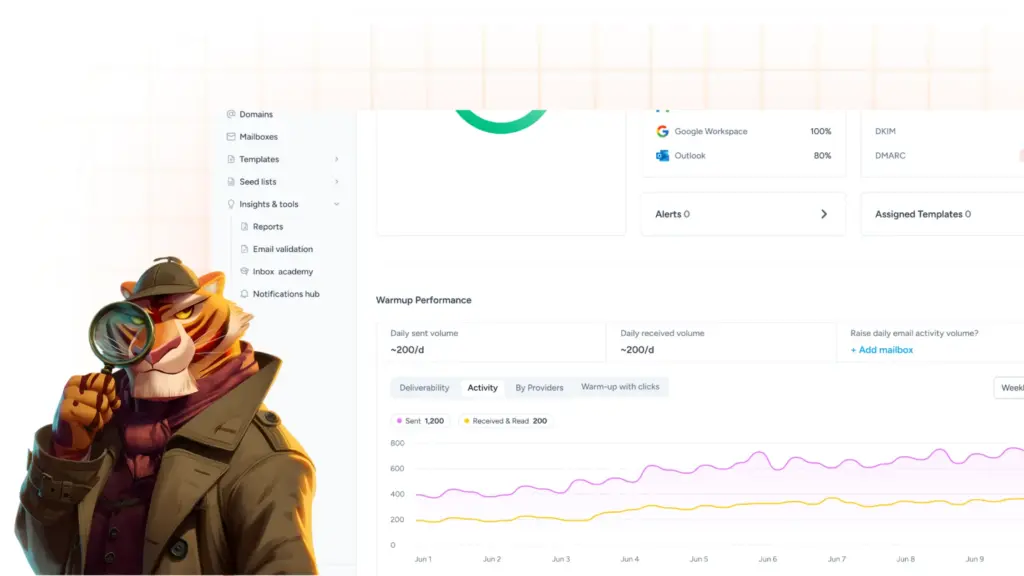
Fixing a 535 once is easy. Keeping it from recurring, and keeping repeated auth failures from signaling problems to mailbox providers, is the larger job. Repeated hard failures can chip away at your sender reputation over time.
- Use a dedicated sending account, not a personal login. When the person who owns a personal mailbox leaves, every printer, form, and integration tied to it stops sending at once.
- Prefer OAuth 2.0 where it is available. Token-based auth is scoped and revocable, and it does not break the way stored passwords do.
- Rotate and document credentials. Update passwords on a schedule, push changes to every client immediately, and keep a central record of each client’s settings.
- Get authentication right at the DNS level. Misconfigured records are behind many rejections; Warmy’s free SPF Record Generator and DMARC Record Generator produce valid records for your domain.
- Monitor continuously. Warmy’s Deliverability Insights flags SPF, DKIM, and DMARC problems and reputation anomalies early, and email warmup keeps your sending trusted so a stumble does not tank inbox placement. You can start a free trial to set it up.
When should you call in an expert?
If you have worked through every step and the 535 persists, the cause is usually a server-side misconfiguration that needs admin access, a deprecated auth protocol in older software, a complex multi-tenant environment with conflicting policies, or a third-party integration with hardcoded credentials. At that point a specialist can run a full diagnostic and identify the systemic issue, not just the immediate error.
Conclusion
A 535 is an authentication problem, which means the email never left. Read the exact sub-code first, match your server, port, and encryption to your provider, and check for a firewall in the path. Most important in 2026: if a working setup suddenly fails, check whether Google or Microsoft retired your login method, and move to an app password or OAuth. Fix the error, then build the monitoring that keeps it from coming back.
Want to keep authentication errors from ever reaching your sender reputation? Book a free deliverability consultation and see how Warmy protects senders across every provider.