SMTP error 454 4.7.5 is yet another dreaded SMTP error that falls under the 4xx category.
While every error under the 4xx classification is bound to be a temporary one, this authentication-related error can still be an obstacle to your email campaigns and disrupt your communication with clients.
Understanding what triggers this error and how you can resolve it quickly is more than essential for maintaining reliable email delivery.
What is SMTP Error 454 4.7.5?
There is a long list of SMTP errors and each code represents a challenge. Although unique in their own identification, some of them can be similar in nature.
One of these is the temporary failure code SMTP error 454, and its enhanced status code 4.7.5 indicates a temporary authentication problem.
It appears when a server refuses to accept a message for now. Usually it’s because something about the request doesn’t meet a security, authentication, or rate policy in real time.
Unlike permanent failures such as 5.x.x hard bounces, the 454 response signals:
“Try again—your email wasn’t allowed right now, but it might be later.”
Most senders encounter it during:
- Authentication attempts
- Warm-up sequences
- Sudden volume spikes
- Password or credential changes
- Misaligned security policies
While it looks cryptic, the root cause almost always traces back to how the sending identity is authenticated and trusted.
Other variations may appear as:
- 454 4.7.5 Server configuration problem
- 454 4.7.5 Cannot authenticate to the server
- 454 4.7.5 Authentication temporarily failed
- 454 4.7.5 Too many login attempts
Common causes of SMTP Error 454 4.7.5
Understanding the root cause will allow you to understand which resolution you should perform. Here are some of the most frequent triggers.
1. Authentication failure
When SMTP credentials don’t match what the receiving server expects, it suspends delivery.
Common reasons include:
- Incorrect username/password
- Outdated credentials stored in apps or automation tools.
- Switching between servers or email platforms without syncing auth keys
2. Temporary policy restrictions
Mailbox providers sometimes refuse messages if:
- Too many login attempts happened in rapid succession
- A sender hit a per-domain or per-user sending limit
- The domain recently changed DNS settings (SPF, DKIM, DMARC)
These short-term blocks are designed to prevent spam and abuse.
3. Encryption or security mismatch
Many modern MTAs (Mail Transfer Agents) require secure transport. If TLS fails or isn’t supported properly during connection, servers may respond with 454.
4. Reputation or volume concerns
Even with proper credentials, a sharp increase in outbound mail can trigger a 4.7.5 soft block—especially from free providers like Gmail, Outlook, and Yahoo.
This is common when:
- New domains start sending large volumes
- Warm-up stages are skipped or rushed
- New IPs aren’t trusted yet
How to fix SMTP Error 454 4.7.5
Since SMTP Error 454 4.7.5 mainly pertains to an authentication issue, it is best to check your credentials and move on from there. Here are some of the steps you can follow:
Step 1: Verify your credentials
Always start with the basics. Double-check if you are using the correct username and password for the SMTP authentication. Remember to always pay attention to:
- Uppercase and lowercase letter (passwords are case sensitive, a simple mistake can result to an error)
- Check if you’ve mistyped any special characters
- Whether you need to use your full email address or just the username portion
Step 2: Check for account lockouts
If you’ve attempted to log in multiple times and you are still unsuccessful, your account may be temporarily locked.
Try waiting for 15-30 minutes before you try again. You also have the option to contact your email provider to help you unlock your account manually.
Step 3: Update authentication settings
Ensure your email client or application has the correct configuration:
- SMTP Server Address: Verify you’re using the correct server hostname
- Port Number: Common SMTP ports include 587 (TLS), 465 (SSL), or 25 (unencrypted)
- Encryption Method: Match your server’s requirements (TLS/STARTTLS or SSL)
- Authentication Method: Most servers use “Password” or “Normal Password”
Step 4: Enable app-specific passwords
Multiple and renowned email providers, such as Gmail and Outlook, require app-specific passwords for third-party applications.
Employing regular account passwords would not work in this type of problem, which is why generating an app-specific password through your email provider’s security settings is critical.
Step 5: Review SSL/TLS certificate validity
You need to make sure that your SSL/TLS certificates are updated and have the proper configuration. Expired certificates are most likely to prevent secure connections. You may need to update your email client or contact your server administrator to renew certificates.
Step 6: Check server status and logs
Verify that the email server is operational. Your email service provider often has an update on their status page if there are any existing outages or maintenance.
If you can access it, try to review your server logs for specific error details that might point to configuration issues.
Step 7: Monitor your sending reputation
Use tools like Google Postmaster Tools, or Warmy with its Domain Health Hub and Blacklisting Monitoring to check if your IP address or domain has reputation issues.
Using these tools will help you with any blacklisting or spam complaints promptly.
Step 8: Implement rate limiting on your end
If you’re sending bulk emails, implement proper rate limiting to avoid triggering server-side protections or try to use a warm-up sequence such as Warmy. Space out your email sends and respect recipient server guidelines.
Provider-specific solutions to resolve SMTP Error 454 4.7.5
Different email providers may have unique requirements, and it is important to take each of them into consideration. Here are the following potential solutions that you can perform for each ESPs.
Gmail
- Enable “Less secure app access” or use app-specific passwords
- Ensure 2-factor authentication is properly configured
- Use port 587 with TLS encryption
Microsoft 365/Outlook
- Generate and use app passwords for SMTP authentication
- Verify that SMTP AUTH is enabled for your account
- Use smtp.office365.com with port 587
Yahoo Mail
- Generate an app password through account security settings
- Use smtp.mail.yahoo.com with port 587 or 465
Preventing future SMTP 454 4.7.5 errors with Warmy.io
Since SMTP errors are mainly about authentication issues, maintaining a strong email deliverability and putting them in practice is most likely to reduce your chances of getting any of these errors. Here is how Warmy can help.
Natural and gradual building of sender reputation

Warmy is renowned for its AI-powered email warmup system that can help email users establish their domain as reputable by gradually increasing its sending volume.
Establishing a reputable domain is a significant problem, especially for new domains since email service providers do not have a way to measure or confirm if an email is reputable. Many first-time senders overlook this step, which leads to common issues such as getting flagged, landing on blacklists, or triggering SMTP errors like 454 4.7.5.
Additionally, Warmy’s dedicated inbox placement test offers real-time visibility into message routing, giving you visibility over whether emails reach the inbox, get filtered to spam, or land in promotional folders. It will also help you understand further if the SMTP error you receive is an issue with your domain or your recipient.
You can access the free email deliverability test here to assess your current sending reputation.
Related Reading: Warm Up vs Warm Up With Clicks: What 2025 Data Reveals About Real Inbox Gains
Provide and monitor deliverability metrics
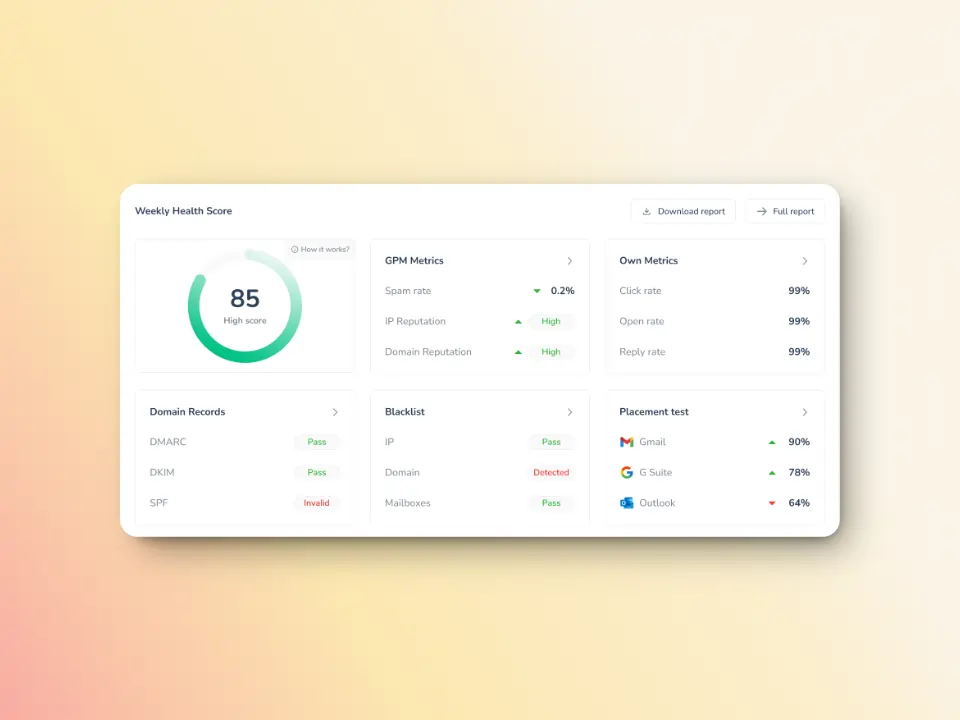
Warmy keeps an eye on your domain reputation through the Domain Health Hub, a domain-level dashboard with the following capabilities or features:
- A domain health score based on factors like authentication, blacklist status, and inbox placement.
- Data for monitoring spam rate trends and overall deliverability performance (weekly and monthly)
- DNS checks for validating SPF, DKIM, DMARC records for extra security
- Multi-domain monitoring for convenient tracking of all domains
- Reports on performance and other health metrics
This can help you ensure that you have the ideal email health and avoid receiving potential errors.
Secure proper email infrastructure
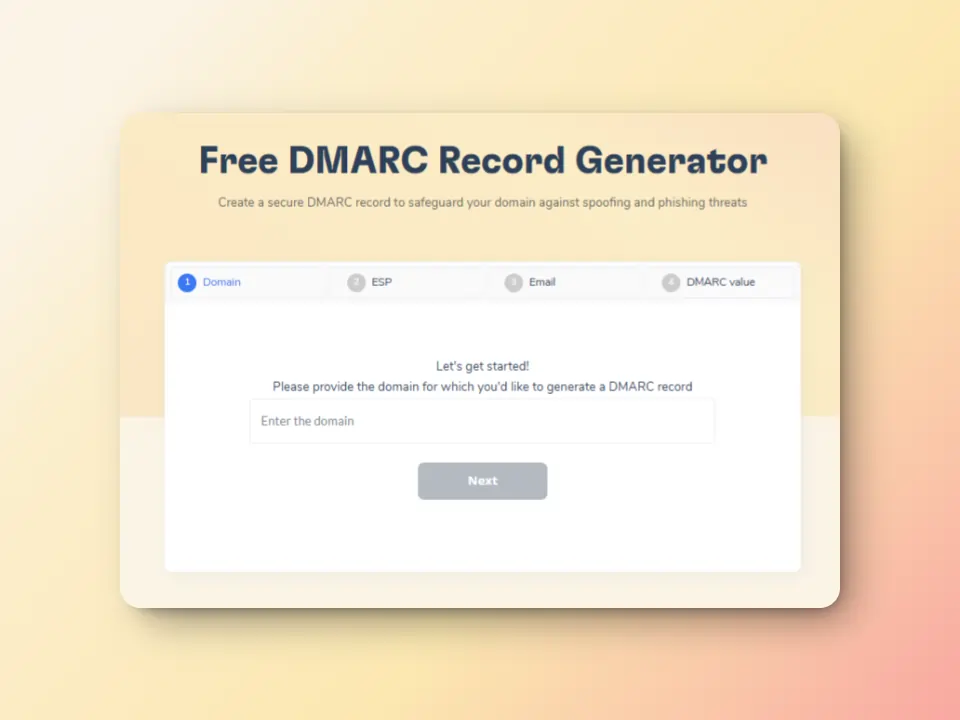
The free SPF Record Generator and free DMARC Record Generator provide ways to help you secure configuration over DNS records, and ensure that your domain is trustworthy.
So, can you avoid SMTP Error 454 4.75?
Prevention is better than cure may be a cliche, but it is an apt advice that will remain timeless for many years to come.
And SMTP Error 454 4.7.5 is a problem that can be prevented.
Of course, there is still a slight chance that you may encounter this error. It will be frustrating, but it is highly resolvable as long as you remain systematic and perform the most keen troubleshooting.
Remember that maintaining good email infrastructure and sender reputation through services like Warmy isn’t just about avoiding authentication errors—it’s about ensuring your emails reach their intended recipients consistently and reliably.
Experiencing persistent email deliverability issues? Try Warmy for free today! and maintain a strong sender reputation that keeps your emails out of spam folders and your authentication smooth.
FAQ
What does SMTP error 454 4.7.5 mean?
SMTP error 454 4.7.5 indicates a temporary authentication failure when attempting to send an email. This can be caused by issues like incorrect credentials, security mismatches, or too many login attempts in a short period.
How can I fix SMTP error 454 4.7.5?
To resolve this error, check your SMTP credentials, update your authentication settings, and ensure that your email server uses the correct encryption method. If the error persists, try using app-specific passwords or adjusting server settings like TLS.
Does SMTP error 454 4.7.5 affect my email deliverability?
Yes, this error can negatively impact your email deliverability by causing emails to be temporarily rejected. Ensuring that your email authentication, server settings, and reputation are properly configured can help prevent this issue.
Can Warmy help prevent SMTP error 454 4.7.5?
Yes, Warmy can help by gradually warming up your domain and email reputation, ensuring smoother email delivery. Warmy’s AI-powered email warmup can prevent sudden volume spikes and maintain a good sender reputation, which minimizes the likelihood of encountering such errors.