Most SMTP errors are head scratchers. But one that arguably takes the bag is SMTP Error 422: Unprocessable Entity.”
This error pertains to the contents of the email which can be subjective especially with varying email servers and providers in the digital landscape.
For this blog post, we will discuss what SMTP Error 422 is and the possible solutions to resolve and avoid it.
SMTP Error 422: The unprocessable entity
SMTP Error 422 usually comes with the error message “422 Unprocessable Entity.”
This error pertains to issues within the email content, which can be found in the email body, headers, or attachments.
In some cases, this error can also signify that there is an error in the email setting configuration or the email compatibility that disrupts SMTP functions.
What causes SMTP Error 422?
Here are the usual reasons why this error occurs.
Message formatting issues
- Encoding problems. If the email is encoded in a format that the server cannot interpret, the server might reject the message.
- HTML/CSS issues. Emails that use complex HTML or CSS may be problematic for servers that are configured to handle only plain text or simple HTML. In some cases, the SMTP Error 422 will not occur, but these emails may be sent to the spam folder instead.
Email header errors
- Incorrect headers. Headers that are malformed or contain erroneous information can lead to rejections by the email server.
- Incomplete headers. Missing critical header information can prevent the server from processing the email correctly.
Interested in details? Check out our article on How to Use an Email Header Analyzer for Better Email Security.
Content that the server fails to process
- Unsupported media types. Some attachments or embedded media aren’t supported by specific server.
- Security policies. Many servers have strict security policies regarding the types of content they will accept. For example, executable files or links to suspicious sources may be automatically rejected.
Configuration and policy restrictions
- Anti-spam filters. Servers often use sophisticated algorithms to filter out spam. Emails that accidentally trigger these filters due to certain keywords or patterns might be stopped.
- Size limits. Emails that exceed the maximum allowed size can also result in a 422 error if the server decides it cannot process such large messages.
How to fix SMTP Email Error 422: A step-by-step guide
For Gmail
Verify and Adjust SMTP Settings:
- Go to the Gmail settings page and select ‘See all settings’.
- Click on the ‘Accounts and Import’ tab and find the ‘Send mail as’ section.
- Click on ‘Edit info’ and then ‘Next Step’ to view SMTP settings.
- Ensure that the SMTP server is set to ‘smtp.gmail.com’, the port is either 587 (with TLS) or 465 (with SSL), and the correct username and password are entered.
Check the format of outgoing emails:
- When composing an email, avoid using overly complex HTML or unusual characters that might not be supported.
- Test sending plain text emails to see if the error persists, which can help isolate the issue to content formatting.
For Outlook
Correct header information and ensure configurations are up-to-date:
- Open Outlook and go to ‘File’ > ‘Info’ > ‘Account Settings’ > ‘Server Settings’.
- Check the ‘Outgoing mail’ settings to ensure the SMTP settings are correct: typically,
smtp-mail.outlook.comwith port 587. - Ensure that ‘My outgoing (SMTP) server requires authentication’ is checked.
Troubleshoot and use diagnostic tools:
- Use the Microsoft Support and Recovery Assistant tool to automatically diagnose and fix issues with your Outlook profile and SMTP settings.
- If manual configuration is needed, carefully review and adjust the headers by editing the account settings and ensuring all entries are correctly formatted.
For Yahoo
Reviewing and Modifying SMTP Configurations:
- Access the ‘Account Info’ page in your Yahoo account.
- Navigate to ‘Account Security’ and scroll down to ‘Manage app passwords’.
- Use this feature to generate a unique password if you’re using third-party email clients and ensure SMTP settings are aligned with Yahoo’s requirements:
smtp.mail.yahoo.com, port 465 or 587.
Sending Test Emails:
- Send a few simple test emails to different addresses to see if the issue resolves.
- If errors persist, reduce the complexity of the email content and try sending again.
- Document what changes were made when the email was successful to identify what triggered the error.

Warmy.io provides a suite of tools and services designed to enhance email deliverability and prevent issues like SMTP Error 422 from arising. Here’s how you can utilize Warmy.io to improve your email system’s reliability and effectiveness:
Template Checker

Warmy provides guidance on how to craft content that avoids common spam filters. The template checker analyzes your email to ensure that it complies with best practices for avoiding the spam folder, thus reducing the likelihood of getting the SMTP Errpr 422.
Additionally, Warmy offers a Chrome Extension version of the template checker. This extension helps you assess whether your email is likely to be flagged by spam filters, enabling you to make necessary adjustments before sending. With this extension, you will be able to better determine whether your email will be recognized as spam and make tweaks before sending it.
AI-powered email warmup

Warmy.io’s automated email warmup services are crucial for anyone starting with a new email account or domain.
By gradually increasing the sending volume and ensuring they engage positively with recipients, the warmup process helps build a positive sender reputation which reduces the likelihood of SMTP errors.
These services include automated interactions with emails to mimic genuine engagement, which is vital for maintaining good standing with email service providers and avoiding automatic filtering or temporary blocks.
Free email deliverability test and record generators
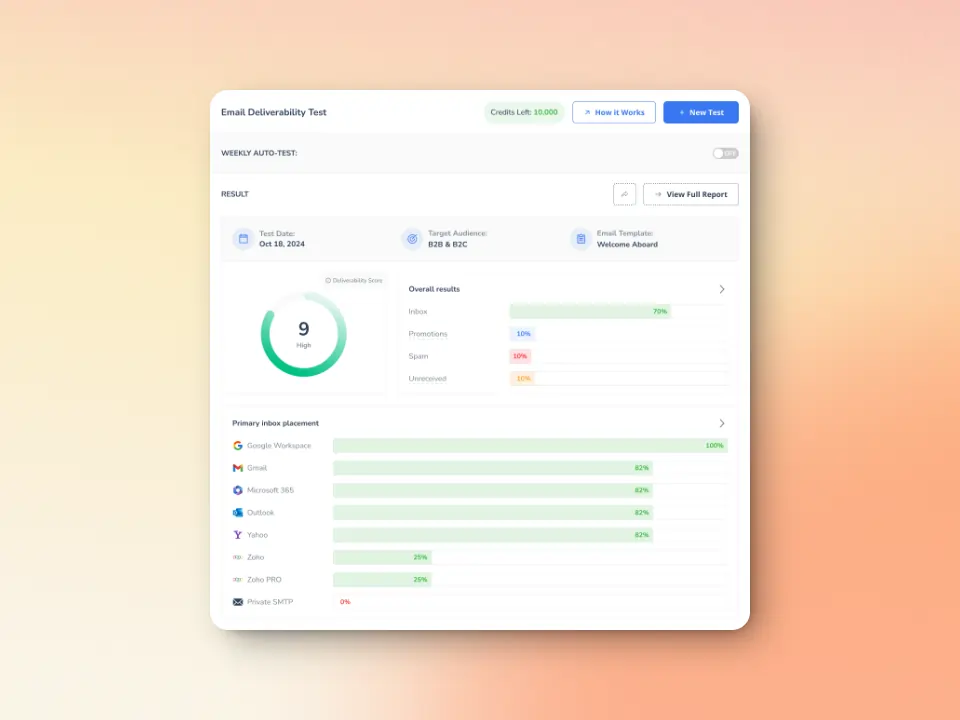
Warmy.io offers email deliverability tests that analyze your email setup to identify potential deliverability issues. These tests can check for common pitfalls that might lead to SMTP errors, such as incorrect configuration settings or problematic content.
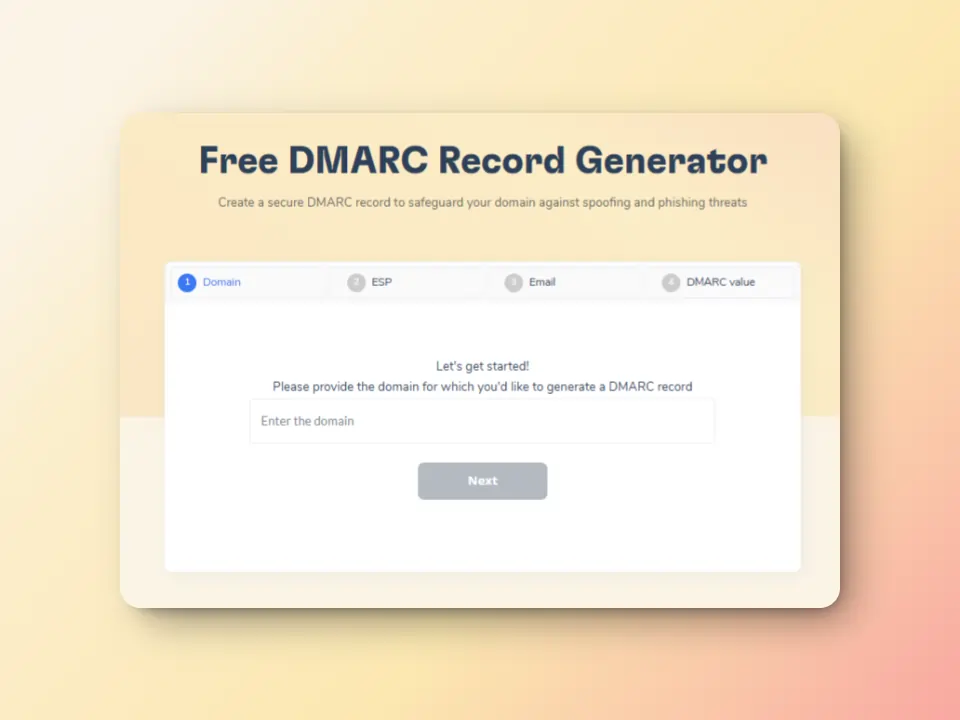
SPF and DMARC Record Generators. Proper setup of SPF (Sender Policy Framework) and DMARC (Domain-based Message Authentication, Reporting & Conformance) records is crucial for authenticating your email and ensuring it is trusted by receiving servers. Warmy.io provides free tools to generate these records accurately, further bolstering your defense against SMTP errors.
Make sure your message gets through
Ensuring proper email formats, identifying correct headers, and guaranteeing that your attachments are compatible with the email you are sending are some of the best solutions to avoid getting errors such as the SMTP 422.
Simple errors like these have significant weight that may disrupt your overall deliverability and business bottom line.
Taking advantage of tools such as Warmy.io ensures that you deliver the perfect email content, and review your SMTP settings. Sign up for your free trial today.


![Text graphic featuring the message: SMTP Error 553 5.1.2 How to Fix It [SOLVED] in bold black and blue text on a white background, accented by a light orange gradient on the right side. Perfect for illustrating smtp error 553 5.1.2 solutions.](https://warmy-blog-wordpress-bucket.s3.amazonaws.com/wp-content/uploads/2026/02/04111133/SMTP-553-5.1.2.webp)
![Text graphic featuring "SMTP Error 502 5.5.2 How to Fix It [SOLVED]" with smtp error 502 5.5.2 highlighted on a white background and a subtle orange gradient fading in from the right side.](https://warmy-blog-wordpress-bucket.s3.amazonaws.com/wp-content/uploads/2026/01/30150409/SMTP-502-5.5.2.webp)
![Text on a white background reads SMTP Error 510: How to Fix smtp error 510 [SOLVED] in bold black and red font.](https://warmy-blog-wordpress-bucket.s3.amazonaws.com/wp-content/uploads/2026/01/30053325/SMTP-510.webp)
![Text graphic displays "SMTP Error 500 5.5.1 How to Fix It [SOLVED]" on a white background, accented by a soft orange blur on the right, highlighting common solutions for SMTP Error 500 5.5.1 issues.](https://warmy-blog-wordpress-bucket.s3.amazonaws.com/wp-content/uploads/2026/01/27070922/SMTP-500-5.5.1.webp)