

When you see SMTP error 550 5.4.1, it means your email never reached its destination. The receiving server rejected it outright – not a temporary glitch, but a definitive block. Understanding what SMTP error codes mean puts you in control of your email deliverability, because each code tells you exactly where the breakdown happened and what to do about it.
The “550 5.4.1 – Recipient Address Rejected: Access Denied” code is one of the most common delivery failures in professional email. It shows up in Gmail, Outlook, Yahoo, and virtually every other email platform. This guide breaks down every cause of this error and gives you a practical fix for each one.
Understanding SMTP Error 550 5.4.1
The “550 5.4.1 – Recipient address rejected: Access denied” error response means your email didn’t get delivered.
It’s as if a mailman comes to you with a letter you sent but didn’t get delivered because the address was incorrect or did not exist.
The 550 status code is a permanent failure (not a temporary retry). The “5.4.1” subcode indicates a routing or access problem at the recipient’s server. Unlike transient 4xx errors, this will not resolve on its own – you need to identify and fix the underlying cause.
Common causes of SMTP error 550 5.4.1
Time to break down what trips up your emails and lands them in the no-man’s land of error 550 5.4.1:
1. Typo or Invalid Recipient Address
The most common cause – and the easiest to fix. Sending to “jane.doe@emial.com” instead of “jane.doe@email.com” is enough to trigger a permanent rejection. Always double-check the address format, domain spelling, and the use of periods, underscores, or special characters before sending.
2. Recipient Email Account No Longer Exists
Email addresses get deactivated. If someone left a company or closed their account, any message sent to that address will be rejected with a 550 error. High bounce rates from invalid addresses also damage your sender reputation over time.
3. Recipient’s Mail Server Misconfiguration or Downtime
Sometimes the issue is on the receiving end. Their email server may be temporarily misconfigured, undergo maintenance, or have filtering rules that block messages from certain senders or domains.
4. Your Sending Domain or IP Is Blacklisted
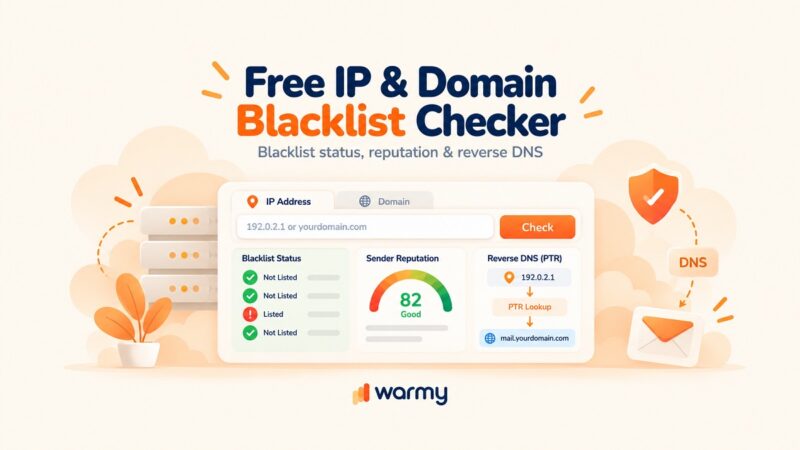
If the receiving server considers your domain or IP address a spam source, it will reject your emails at the gateway. Being blacklisted is a guaranteed way to destroy email deliverability – your messages get blocked before they can even land in spam.
5. DNS Routing Issues
DNS problems prevent email servers from routing your message correctly. A missing or misconfigured MX record, incorrect PTR record, or domain name spelling error can all cause routing to fail entirely – your email knows where it wants to go, but the infrastructure cannot get it there.
6. Violated Sending Policy or Anti-Spam Rules
Sending bulk unsolicited email, exceeding provider rate limits, or having a poor sender reputation can all trigger automatic rejection. Each provider enforces its own thresholds, and crossing them results in a 550-level block.
Pro Tip: Before troubleshooting anything else, run Warmy’s free Email Deliverability Test. It checks your blacklist status, SPF/DKIM/DMARC records, and inbox placement across Gmail, Outlook, and Yahoo in one pass – giving you a full picture of why your emails are being rejected.
Step-by-step solutions to resolve SMTP Error 550 5.4.1
Alright, let’s tackle that pesky “550 5.4.1” error head-on with a practical guide for different email platforms.
Whether you’re using Gmail, Outlook, Yahoo, or another provider, here’s how to smooth out those email wrinkles and get your messages sailing straight to their destinations.
For Gmail
1. Verify recipient address
Ensure the accuracy of the recipient’s email address. Discrepancies or errors in email addresses are frequently responsible for delivery issues. A simple typo can prevent your email from reaching its intended destination.
2. Adjust server settings
Verify and implement the SMTP and IMAP/POP settings for Gmail by using Gmail’s suggested ones as defaults. If you don’t have these, you’ll never send or receive mail successfully. It also features the Gmail SMTP server as smtp.gmail.com; the port should be assigned (usually 587 for SMTP with TLS), and username/password should be filled in or left blank based on access requirements. These settings should confirm or remedy any problems that say you were – or weren’t – authenticated on Gmail’s server.
3. Follow Gmail’s Anti-Spam Policies
Gmail enforces strict rules: avoid sending unsolicited bulk emails, do not misrepresent your email headers, and keep your complaint rate low. Violations can result in your domain being flagged or blacklisted. Once blacklisted, all outgoing email from your domain gets blocked automatically.
For Outlook
1. Accuracy of email address
Ensure the email address is accurately entered. A simple typo can lead to email delivery failures, as the message cannot reach an incorrectly typed or non-existent email address.
2. Understand sending limits
Outlook imposes specific limits to prevent spam and ensure the service is used as intended. These limits include:
- Daily send limit. The maximum number of emails you can send in a 24-hour period. For Outlook.com, this is typically around 300 emails per day if you’re using a verified account.
- Recipients per email. The maximum number of recipients you can include in a single email, which is often set at 100 recipients.
- Rate of sending. How quickly you can send emails one after the other, to prevent spam-like behavior.
Exceeding these limits can lead to a temporary inability to send emails or other deliverability issues. It’s essential to plan your email activities within these boundaries to ensure uninterrupted service.
3. Check for blacklisting
Being blacklisted is a guaranteed way to destroy your email deliverability since this status ensures that your emails are never delivered and sent straight to spam.
The faster you come to terms with it to fix your problems, the better – acknowledging the situation allows you to plead with blacklist authorities to take you off their list and simultaneously correct your future emailing behavior to avoid any more complications.
The easiest way to find out if you are, in fact, blacklisted is by taking Warmy’s Email Deliverability Test. It’s free, it checks almost every blacklist that exists, and it provides you with a full, detailed report of your deliverability status for your mailbox. It’s worth checking out.
🔖 Related Reading: Email Domain & IP Blacklist Removal: 5 Steps to Delist
Getting 550 errors because of a damaged sender reputation? Warmy’s email warmup rebuilds your sender reputation automatically — so Gmail, Outlook, and Yahoo start accepting your emails again instead of rejecting them at the gateway.
For Yahoo
1. Be a detail-detective
Meticulously review the recipient’s email details. The accuracy of these details is paramount – even minor discrepancies can derail your email’s journey to its intended inbox.
2. Adhere to delivery guidelines
Familiarize yourself with Yahoo’s specific guidelines for email delivery to maximize your chances of successful email delivery. These guidelines include:
- Avoiding sending unsolicited bulk emails to prevent your emails from being marked as spam.
- Ensuring that your emails include a clear and easy way for recipients to opt-out or unsubscribe, in compliance with anti-spam laws.
- Maintaining a good sender reputation by avoiding behaviors that lead to high bounce rates or complaints from recipients. This includes sending content that is engaging, relevant, and solicited by the recipients.
- Using authenticated email sending practices, such as SPF (Sender Policy Framework) and DKIM (DomainKeys Identified Mail), to verify that your emails are legitimately from you, reducing the likelihood of them being flagged as spam.
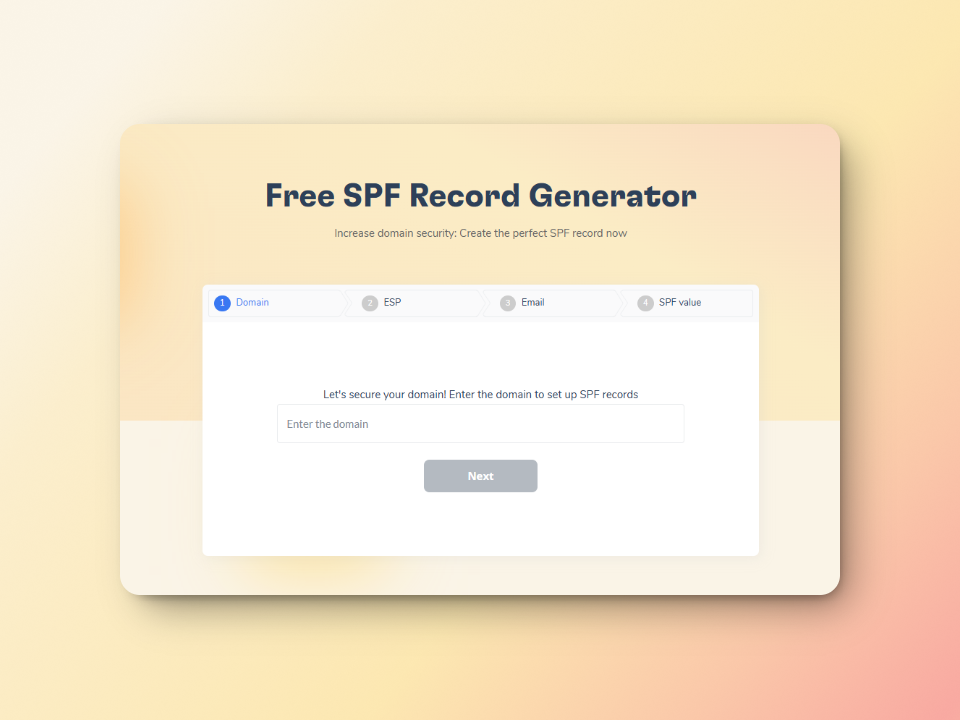
Tip: Safeguard your email deliverability now with Warmy’s Free SPF Record Generator! This simple tool creates SPF records to prevent your domain from being spoofed and allows for guaranteed email delivery.
3. Server check
See if there’s a problem on Yahoo’s end that could prevent you from sending email. For instance, if the servers are down or there’s a Yahoo issue that will ultimately prevent you from sending email – try to investigate and fix the problem. A few minutes of detection could save you hours of aggravation later.
For other email providers
- General verification. Regardless of the email service provider, it is crucial to verify the recipient’s email address and review server settings regularly.
- Seek support. Contact support for your specific email service provider for personalized assistance with unresolved delivery issues.
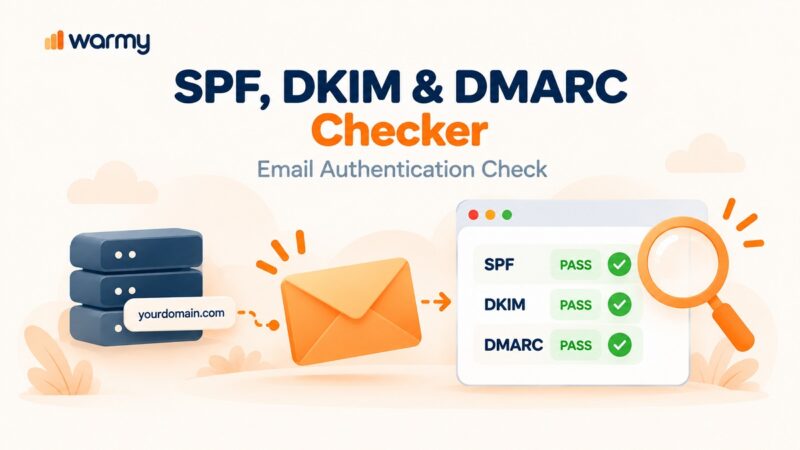
Pro Tip: Authentication failures are a leading cause of 550 rejections that look like blacklisting but are not. Check that your SPF, DKIM, and DMARC records are correctly configured for your sending domain. Warmy’s Email Deliverability Test validates all three in one report – use it as your first diagnostic step before contacting your hosting provider.
Utilize email warmup services to achieve success beyond fixing SMTP errors
Fixing a 550 5.4.1 error is reactive. The better strategy is preventing rejection in the first place by building a sender reputation that email servers trust. That is where email warmup comes in.
What are email warmup services?
Essentially, email warmup services function as an email personal trainer (at a gym, for example) – preparing your email for the filtering and stressors of email servers.
Email warmup services slowly increase the sending quota on a previously inactive or new email account to establish a good sender reputation. In other words, it lets the email world know that you are a legitimate, verified sender – albeit someone who wants to send emails – rather than a criminal out to spam unsuspecting victims. Thus, warmup services avoid sending reputations that place your email in the spam folder instead of the inbox.
How Warmy.io can elevate your email game
Warmy.io steps onto the scene as a powerhouse tool designed to enhance your email deliverability. It does this through a series of automated, intelligent actions that mimic human email activity. Features include:
- Automated email sending and interaction. Warmy.io sends emails on your behalf and then interacts with these emails (opens, replies, etc.) to mimic genuine email traffic.
- Reputation building. By gradually increasing the volume of sent and interacted emails, Warmy.io helps build your sender reputation steadily and organically.

Customized warmup process settings
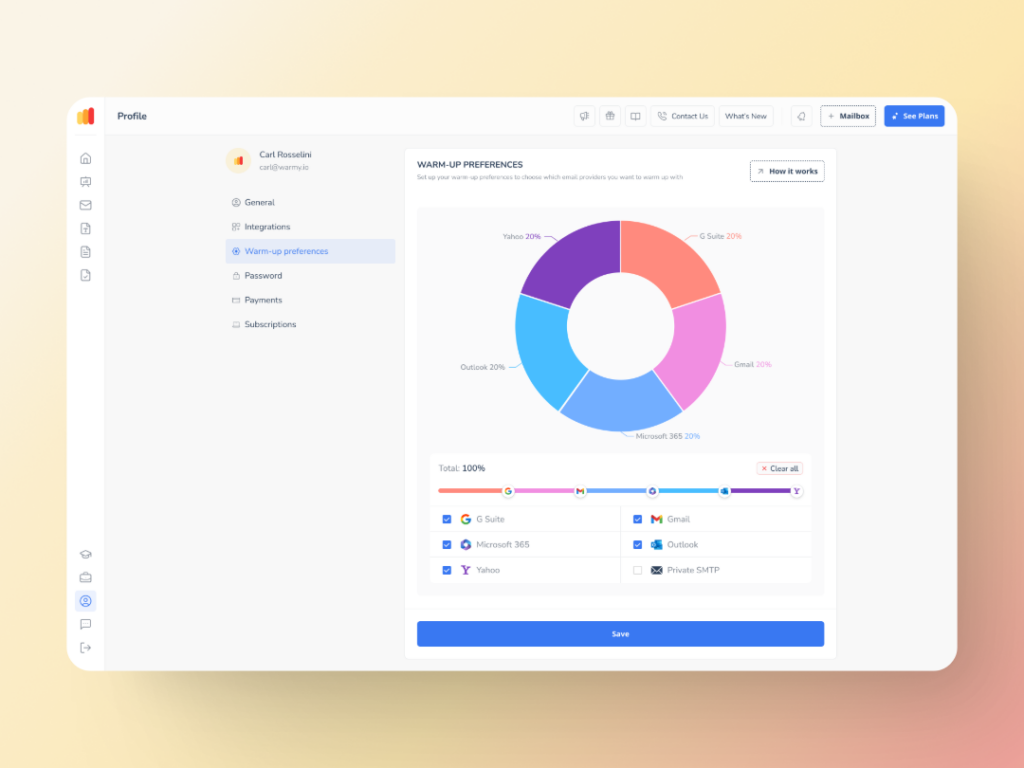
Warmup Preferences is a new feature from Warmy designed to help senders customize and fully control the warmup process from both sender and user levels.
With this feature, senders will be able to customize the warmup’s distribution across different providers. They can also choose if they want to use B2B or B2C customers for engagement patterns to tailor the behavior and insights to their business type. All of these settings can be changed right within the Warmy system for hassle-free customer experience.
Stronger inbox placement with advanced seed lists
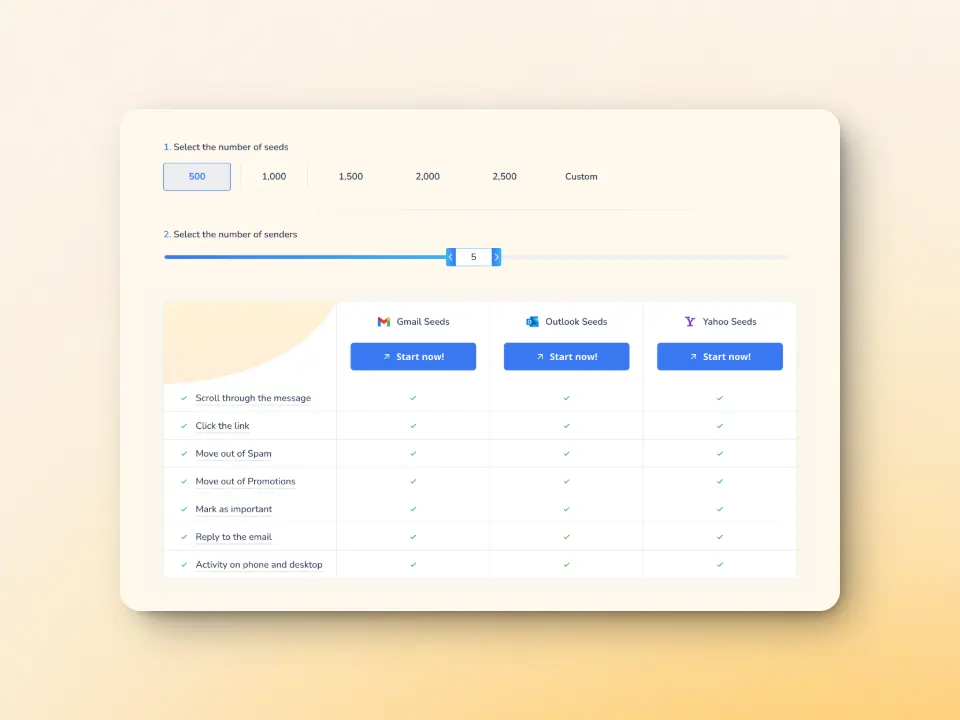
Warmy.io’s advanced seed lists are composed of genuine email addresses which institute a more human-like approach that sends strong positive engagement signals to different email providers.
These accounts are consistently updated and maintained to ensure authentic engagement. Unlike traditional static seed lists, Warmy’s system actively interacts with emails to simulate real recipient behavior, including email opens, scroll-throughs, link clicking, and even spam recovery.
Pro Tip: If you are warming up a domain for cold outreach or transactional email, start warmup at least 4–6 weeks before your first full-volume send. Rushing the process is one of the most common reasons new domains trigger 550 rejections. Use Warmy’s email warmup guide to build reputation incrementally and arrive at launch day with a trusted sender score.
Avoid SMTP errors and maximize deliverability
Remember, every email that doesn’t reach an inbox is a lost chance to make a connection.
Your SMTP errors need to be vanquished, and your general email deliverability needs to be enhanced. Warmy holds they key – you just need to grab the opportunity to use it.
Try Warmy for free today, and experience first-hand how success looks like.