

SMTP Error 530 5.7.1 (Authentication Required) means your mail server rejected the outgoing message because your email client did not provide valid login credentials before trying to send it. In most cases, the fix takes just a few minutes: turn on SMTP authentication in your email client, confirm the correct server address, port, and encryption settings, and generate a fresh app-specific password if two-factor authentication is enabled. Below, we cover every cause of this error and the exact steps to resolve it in Gmail, Outlook, and Yahoo Mail.
Simple Mail Transfer Protocol, or SMTP, is the underlying technology responsible for email communication on the Internet. It enables messages to be sent from clients to servers and between servers so that you may know your words have reached their intended destinations.
However, like any protocol, SMTP is prone to errors that can disrupt this vital communication channel. These fall into a wide range of SMTP error codes and messages, some temporary and easy to fix, while others recur and require deeper troubleshooting.
SMTP 530 Authentication Required is one type worth examining closely, because it blocks outgoing mail entirely between sender and recipient, disrupting both personal and business communication until it’s resolved.
Fixing it quickly protects your sending reputation and keeps day-to-day communication running smoothly. In this article, we cover what triggers SMTP Email Error 530, how to recognize it, and how to resolve it across the most common email platforms.
Analyzing SMTP email error 530
SMTP Email Error 530 is one of the common issues one might face while trying to send emails. This error is most commonly traced back to an authentication issue; thus, it indicates that the email server is requiring an authentication process that is not being met or, generally, has failed. The AUTH mechanism behind this exchange is defined in IETF RFC 4954, and a closely related failure mode is SMTP Error 535 5.7.8, which covers rejected credentials rather than a missing authentication attempt. For the most part, error 530 is presented in a message-like format:
530 5.7.1 Authentication required
The latter message would indicate that the user is trying to send an email without being authenticated or if user server settings, are designed in such a way to be unauthenticated while sending messages, seems like a server security measure.
The issue of the SMTP 530 Authentication Required should be solved to avoid a halt in email user activity; this error can create communication hurdles that especially trouble a business due to their prominent use of email. Being unable to send emails can halt the workflow, postpones transactions, and may mean missed opportunities and dissatisfied clients.
Read also – SMTP Email Error 530 5.7.1 – How to Resolve [SOLVED]
Common triggers for SMTP email error 530
Insufficient Authentication
The primary reason for this error is that the email client is not configured to send the server the authentication data it needs. This frequently occurs when a user’s email client settings are not configured to allow SMTP authentication.
Incorrect SMTP Settings
Authentication issues may arise if the email client’s SMTP server settings are off. Typing the incorrect port number, server address, or security protocol is a common error.
Outdated or Incorrect Password
Authentication issues may arise if an email client is utilizing an outdated password that has just changed. Likewise, mistakes made during account setup may also result in comparable problems.
Server Misconfigurations
Even properly authenticated requests may not be allowed due to misconfigurations such as incorrectly configured authentication procedures. This could happen following server upgrades or modifications made by the email provider.
Two-Factor Authentication Requirements
Special app-specific passwords may be needed for accounts that have two-factor authentication enabled, and conventional SMTP settings may not be sufficient. If your server returns a distinct code instead, see our guide to SMTP Error 534: Authentication Required, which covers this app-password requirement in more detail.
Email Client Compatibility Issues
Some servers demand contemporary authentication protocols, which older email clients may not support. If this happens, the server may reject attempts to log in using outdated or less secure methods, which could result in errors.
Pro Tip: Before working through client-specific steps below, start a free Warmy.io trial if you want Warmy.io’s Adeline AI to monitor your sender reputation and catch authentication issues automatically going forward, then fix the immediate settings with the guide below.
Comprehensive fixes for popular email clients
For Gmail Users
Enable SMTP Authentication:
- Go to the settings of your email application.
- Locate the ‘Accounts’ or ‘Email’ settings section.
- Find the outgoing mail settings (SMTP) and ensure the server is set to
smtp.gmail.com. - Set the port to 587 for TLS or 465 for SSL.
- Ensure ‘Require Authentication’ is enabled.
- Enter your full Gmail address and password. If you have two-factor authentication enabled, you may need to use an app-specific password.
Check Use an App Password Instead of “Less Secure Apps”:for Less Secure Apps:
- Google permanently discontinued the “Less secure app access” setting in 2022, so this option no longer appears in your Google Account. If your email client still can’t authenticate, generate a 16-character app password from your Google Account under Security → 2-Step Verification → App Passwords, and use it in place of your regular password.
Pro Tip: If you just changed your Gmail password or enabled two-factor authentication, the old password is still cached in your email client’s settings. Re-enter your credentials manually instead of relying on autofill — stale saved passwords are one of the most common causes of a repeat 530 error. Generate a fresh credential directly from Google’s official app password page rather than reusing an old one, and double-check your settings against our full Gmail SMTP settings guide if the error persists.
For Outlook Users
Verify SMTP Settings:
- Open Outlook and go to ‘File’ > ‘Account Settings’ > ‘Manage Profiles’.
- Click on ‘Email Accounts’, and then double-click on your account.
- Under ‘Outgoing mail server (SMTP)’, make sure it’s set to
smtp.office365.comfor newer accounts orsmtp.live.comfor older accounts. - Ensure the outgoing server (SMTP) requires authentication and is set to use the same settings as the incoming mail server.
- The port should be set to 587 with TLS encryption.
Update Your Password:
- Update your password in Outlook settings to reflect any recent changes you made online.
Pro Tip: If Outlook keeps re-prompting for a password after you’ve entered it correctly, check whether “Modern Authentication” is enabled for your account under Microsoft 365 admin settings. Per Microsoft’s own Basic Authentication deprecation timeline, accounts still relying on legacy basic authentication for SMTP are being phased out in favor of OAuth, so a 530 or 535 error here often means it’s time to migrate rather than just re-enter a password.
For Yahoo Mail Users
Configure SMTP Correctly:
- Access the account settings in your email client.
- Set the SMTP server to
smtp.mail.yahoo.com. - Use SSL with port 465, or TLS with port 587.
- Ensure the server requires authentication, and input your full Yahoo email and password.
App Passwords for Secured Accounts:
- Create an app-specific password to use in your email client if you use two-factor authentication. You can do this from the Yahoo Account Security page.
Solve problems with Warmy.io to make email great again
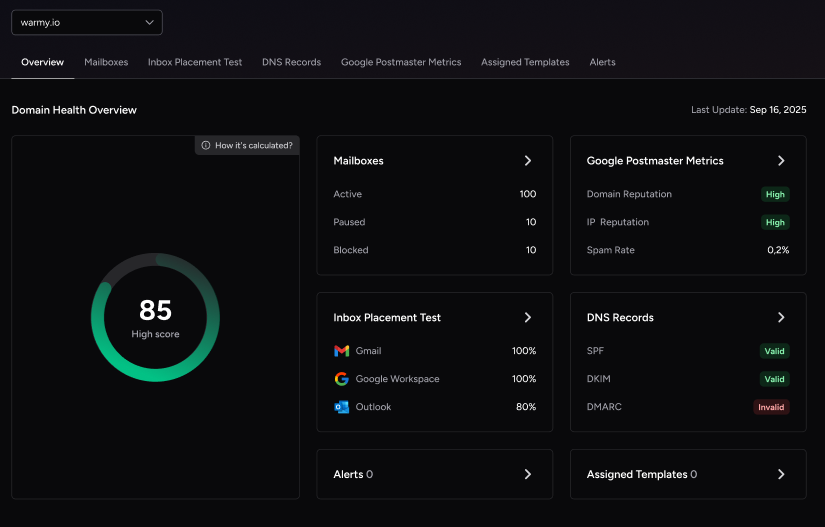
Warmy.io is an excellent service that offers increased email functionality that can help you solve the problems that occur with SMTP 530 Authentication Required. These include the following:
Email warm-up. Automated service from Warmy.io increases your email volume little by little from brand-new accounts or domains. It assists in creating a good reputation with the ISPs and reduces the chance of being flagged by spam filters — see our full breakdown of why emails go to spam or junk for the most common causes beyond authentication.
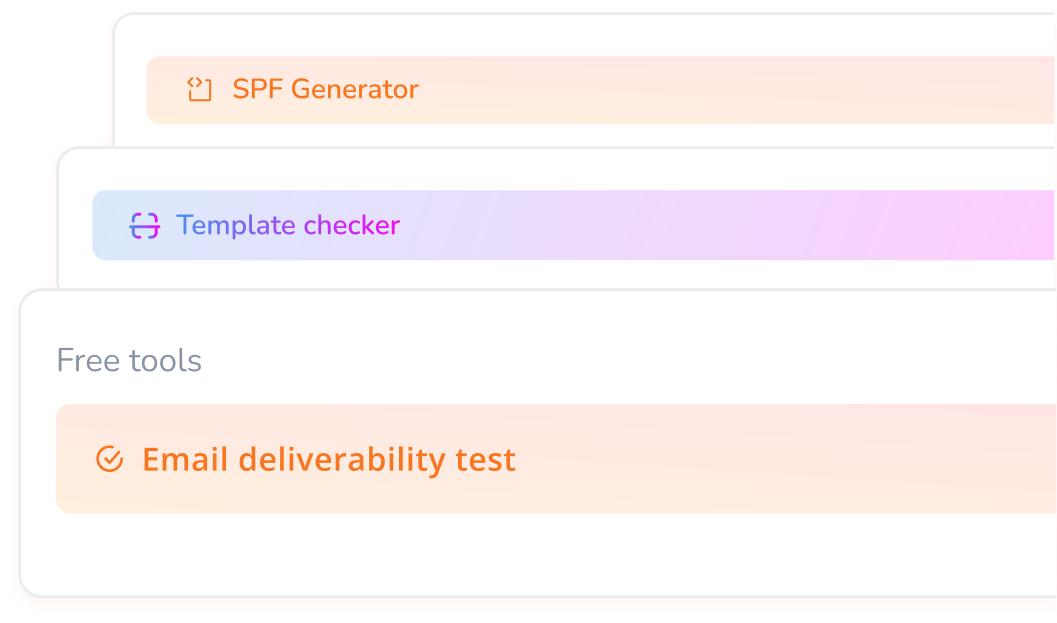
Warmy.io also offers a free email deliverability test and blacklist tool. Check how well your emails are being received and make the necessary tweaks. With our tool, you can also quickly check if your domain is blacklisted — see our guide on email blacklists and how to stay off them — and follow easy steps to get it removed.
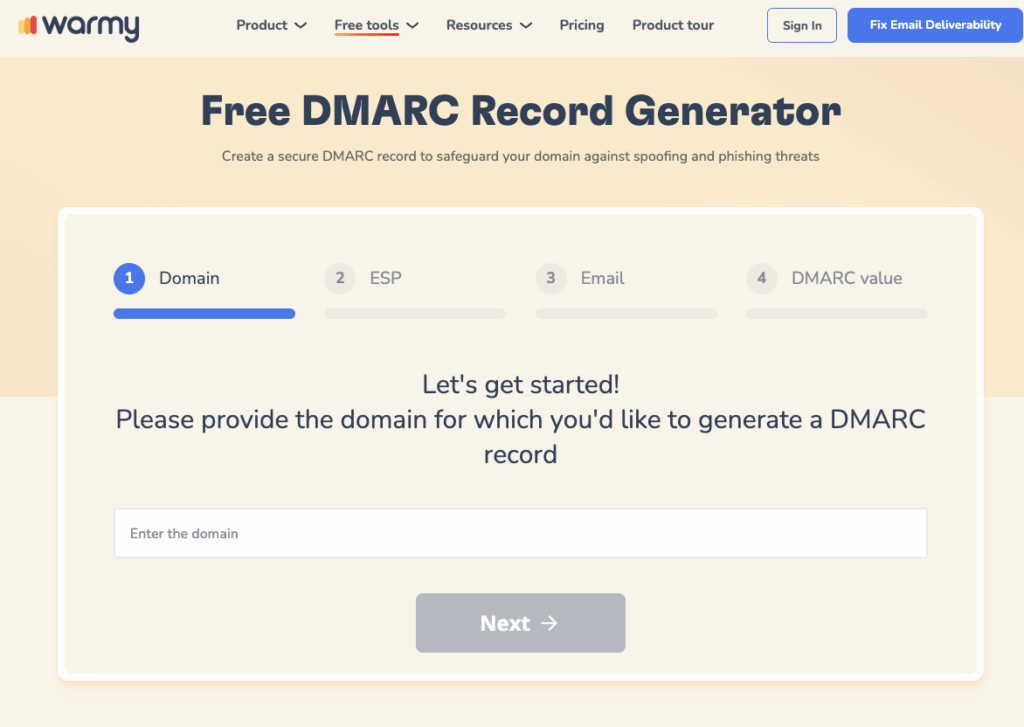
The service also offers simple SPF and DMARC record generators. Generate the SPF and DMARC records quickly and efficiently to improve the email’s authentication and cut down the chances of getting random SMTP errors due to your email’s source being unauthenticated. For the full picture of why these records matter beyond fixing a single error, see why you need to configure SPF, DKIM, and DMARC. These tools ensure excellence in email operations while, most importantly, resolving SMTP 530 Authentication Required.
Conclusion
Throughout this article, we have detailed the steps necessary to understand and resolve SMTP 530 Authentication Required, a common but significant issue that affects email deliverability and security.
Additionally, we discussed how tools like Warmy.io can further enhance email functionality. Warmy.io’s services, such as email warm-up, deliverability testing, blacklist inspections, and SPF and DMARC record generation, are invaluable for not only solving SMTP Error 530 but also for improving overall email security and reliability.
Ready to stop losing sends to authentication and deliverability issues? Book a free demo with Warmy.io and see how automated warm-up, monitoring, and authentication tools keep your emails landing in the inbox.