

Simple Mail Transfer Protocol (SMTP) is the foundation for all email communication. It dictates the framework for sending and receiving messages worldwide on various networks. Additionally, SMTP supports messaging for both personal and professional communications, basically handling the majority of daily information exchanges.
SMTP error 504 5.7.4 means the receiving mail server rejected your authentication request because the method your email client used is either unrecognized or not supported. In plain terms: your email wasn’t sent because the server and client couldn’t agree on how to verify your identity. The fix almost always involves updating your SMTP authentication settings to use TLS on port 587 or SSL on port 465 — and if you’re troubleshooting multiple delivery issues at once, Warmy’s SMTP error codes reference covers the full range of error types and how to resolve each one.
What is SMTP Email Error 504 5.7.4?
SMTP Email Error 504 5.7.4 denotes issues with the authentication process during email delivery. When you come across this error, it means authentication processes are either improperly configured or unsupported—which prevents the SMTP server from processing an email.
Unlike some generic SMTP errors that stem from server overload or routing issues, error 504 5.7.4 is specifically an authentication failure. That means the problem is almost always fixable on your end — once you know where to look. This guide gives you the exact steps.
Those who experience this error will see notifications that specifically mention issues with authentication. Typical error messages include the following:
- “504 5.7.4 Unrecognized authentication type” indicates that the email client’s attempted authentication mechanism is not supported or recognized by the SMTP server.
- “504 5.7.4 Authentication mechanism is too weak” may arise when the server demands a more secure authentication method than what is currently being used.
- “504 5.7.4 Command parameter not implemented” may sometimes be associated with authentication command parameters that the server is unable to process.
Quick Reference: Error Variants and What They Mean
| Error Message | Root Cause | First Fix |
|---|---|---|
| 504 5.7.4 Unrecognized authentication type | Client using unsupported auth method | Switch to STARTTLS or LOGIN auth |
| 504 5.7.4 Authentication mechanism is too weak | Server requires higher-security method | Enable TLS, disable PLAIN/CRAM-MD5 |
| 504 5.7.4 Command parameter not implemented | Auth command syntax not supported by server | Update client SMTP config or contact host |
So why does SMTP Email Error 504 5.7.4 occur?
There are many possible reasons and scenarios why this particular error occurs, and we’re going to discuss each one.
1. Authentication failures
Unsupported authentication method
The most common scenario is a mismatch between the authentication mechanism your client sends and what the server accepts. For example, your client may attempt to use CRAM-MD5 or PLAIN authentication while the server only accepts STARTTLS or OAuth2. Modern mail servers increasingly require encrypted authentication flows — if your client is configured for older methods, the connection will be rejected.
Incorrect authentication settings
If the authentication settings on the server or client’s side are misconfigured, this error might occur. This isn’t just about typing the wrong username and password. It may involve incorrect setup of security tokens, key files, or other authentication credentials.
💡 Pro Tip: Always use app-specific passwords (not your main account password) when configuring third-party SMTP clients with Gmail or Yahoo. Main passwords are increasingly blocked for programmatic access.
2. Configuration errors
Server configuration issues
Another possible reason behind the error is the email server might be misconfigured. This prevents it from recognizing or allowing the authentication method requested by the client. This can also include incorrect SMTP settings or authentication methods that should be enabled or disabled.
Client configuration
The client may be set to use an authentication method that the server doesn’t support or isn’t configured to handle. If the client’s security settings don’t match the server’s requirements, authentication failures can occur.
Protocol mismatches
A common real-world cause is using port 25 (which is often blocked or unencrypted) instead of port 587 with STARTTLS or port 465 with SSL/TLS. The wrong port selection forces a protocol mismatch that surfaces as a 504 5.7.4 error.
3. Server limitations
Outdated server software
When more advanced clients try to connect using settings that the server is unable to handle, they may see this error because the server software is out of date and does not support the more recent authentication methods.
Restrictive server policies
Using specific authentication techniques may also be prohibited by the stringent security standards of some servers. Certain servers, for instance, might only accept encrypted passwords and reject requests that try to use a less secure technique.
Step-by-step guide to handle SMTP Email Error 504 5.7.4
Gmail
- Log in to your Gmail account.
- Select “See all settings” from the gear icon.
- Go to Accounts and Import.
- From the ‘Accounts and Import’ menu, select the ‘Send mail as’ column. Then click ‘Add another email address.’
- Enter your name and the email address you want to send from in the popup box. If you would like to administer this account using your primary Gmail account, make sure that ‘Treat as an alias’ is ticked.
- Under SMTP settings, do the following:
- SMTP Server: Enter smtp.gmail.com.
- Username: Your full Gmail address (including @gmail.com).
- Password: Use an App Password — generate one here if 2-Step Verification is on
- Port: 587 (STARTTLS) or 465 (SSL) — avoid port 25
- Authentication: Select Secured connection using TLS (recommended)
- Verify that “Secured connection using TLS” or “Secured connection using SSL” is selected for authentication.
- Conserve modifications. Select ‘Add Account’ and adhere to the instructions to verify the email address via a verification email.
💡 Pro Tip: Gmail blocks ‘less secure app’ sign-ins for all accounts. If you’re connecting a third-party email client or ESP, you must use OAuth2 or generate a Google App Password — your regular Gmail password will be rejected.
Outlook
- Access the Account Settings. Navigate to File > Account Settings > Manage Profiles after opening Outlook.
- Select “Email Accounts” from the Mail Setup box.
- Change account. Click “Change” after selecting your email account. Check the Outgoing Mail Server (SMTP) under “Server Information.” It should be configured in accordance with your email provider (for example, smtp-mail.outlook.com for Outlook).
- Next, go to additional settings. Select the “Outgoing Server” tab by clicking on “More Settings.” Check the box next to “My outgoing server (SMTP) requires authentication.”
- Select the ‘Advanced’ tab. Use port 587 for SMTP then choose “TLS” for the kind of encrypted connection.
- After selecting “Next” to allow Outlook to test your settings, click “OK” to close the More Settings window.
- Click “Finish” and restart Outlook when the test has been successful.
Yahoo!
- Visit Yahoo! Mail, log in, and proceed to your account details.
- Click on “Account Security.”
- Create app password. If two-factor authentication is enabled, you might need to create an app-specific password to utilize it in your email client rather than your main password.
- Configure email client by doing the following:
- SMTP Server: smtp.mail.yahoo.com.
- Port: Use 465 with SSL or 587 with TLS.
- Username: Your full Yahoo email address.
- Password: The app password you generated, or your regular password if you don’t have two-factor authentication enabled.
- Save settings. Ensure your email client uses these settings and re-test sending an email.
For other clients
If you’re using a custom SMTP setup — such as a self-hosted server, SendGrid, Amazon SES, or Mailgun — the troubleshooting approach is the same but configuration options vary. Warmy.io supports SMTP warmup for custom SMTP, Amazon SES, SendGrid, Mailgun, Brevo, Zoho, and more — see the full list of supported providers.
- Verify SMTP settings. To determine the proper SMTP settings, including server address, port, and whether SSL/TLS is required, consult the documentation for your particular email platform.
- Verify authentication. Make sure the email client is set up for authentication and that the username and password you are using are accurate.
- Update or reinstall. Updating the email client to the most recent version or reinstalling it may help fix configuration issues if problems continue.
- Contact support. To make sure your settings are accurate and accepted by the server, contact the support staff of your email provider if the error persists.
📬 Not sure if your SMTP settings are hurting your deliverability? Run a free Email Deliverability Test to check inbox placement across Gmail, Outlook, and Yahoo — and verify your SPF, DKIM, and DMARC records are correctly configured.
Why Authentication Errors Like 504 5.7.4 Hurt More Than Just One Email
SMTP error 504 5.7.4 doesn’t just block a single message — it signals to receiving servers that something is wrong with your sending setup. When authentication failures happen repeatedly, mail servers may start flagging your domain, which can lower your sender reputation even after the technical issue is resolved.
This is especially important if you’re running outbound campaigns or using your domain for business email. A misconfigured SMTP setup can create deliverability problems that persist for weeks — even after the underlying error is fixed — because damaged sender reputation doesn’t recover instantly.
To understand how authentication processes relate to overall deliverability, and how to structure a long-term approach, Warmy’s email deliverability guide covers the full picture.
💡 Pro Tip: After fixing a 504 5.7.4 error, don’t immediately send high volumes. Ramp up gradually over 1–2 weeks to rebuild any reputation loss. An email warmup tool automates this ramp-up and helps you monitor inbox placement as you recover.
Tackling SMTP Email Errors and email warmup go hand-in-hand
To eliminate the SMTP 504 5.7.4, one should closely delve into the email authentication methods’ peculiarities and make sure that both the email server and client are configured correctly to get access to supported protocols. Whether you deal with your emails through Gmail, Outlook, or Yahoo!, or through various less-known platforms, you must still align SMTP settings with server capacities and security standards.
It’s easy to think that once you’ve completed the steps discussed above that you’re already in the clear. However, we challenge you to take the next step—one that is designed to change your email marketing game.
How Warmy can help get rid of SMTP Errors
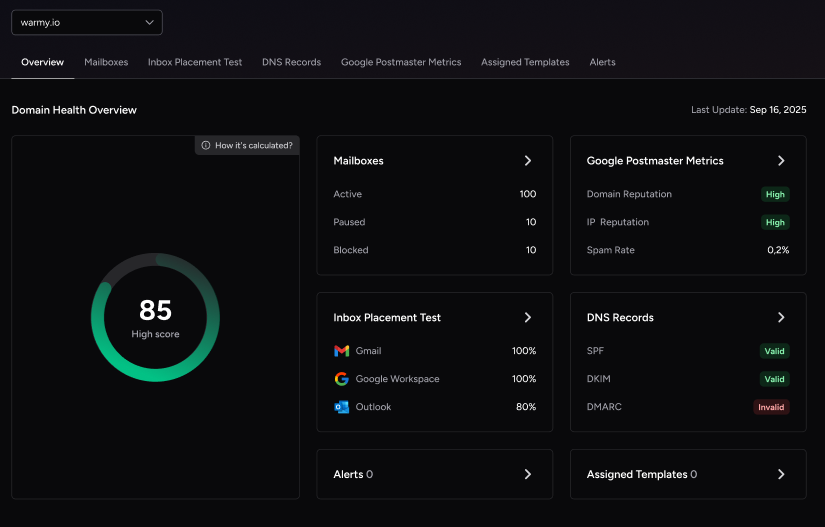
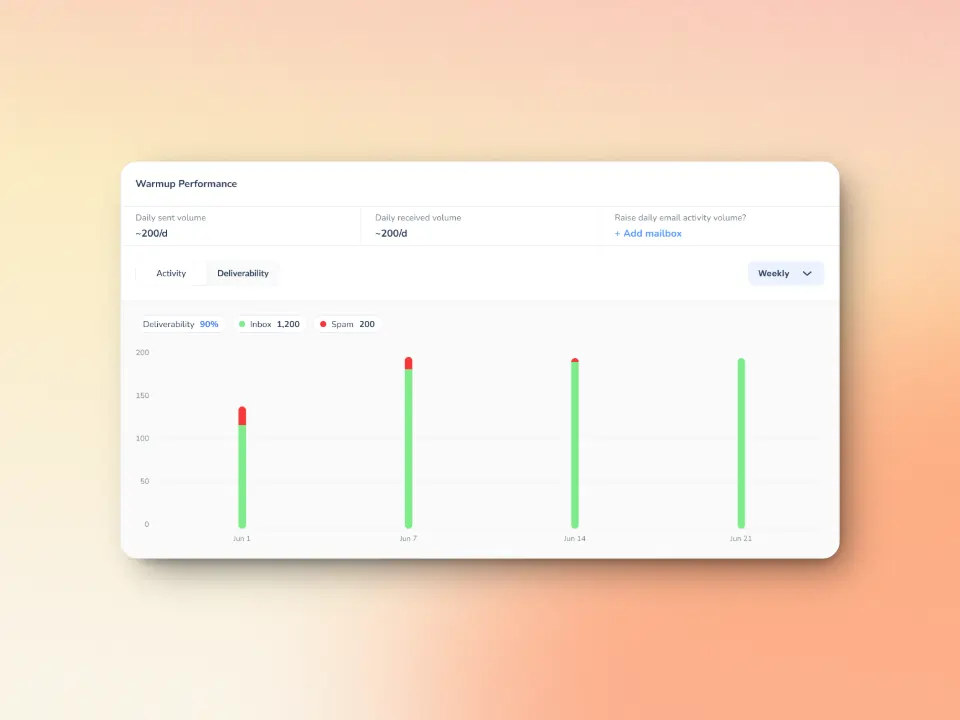
Warmy is an AI-driven email warmup and deliverability platform that automatically builds your sender reputation, improves inbox placement, and keeps your emails out of spam — no technical expertise required.
You see, avoiding or preventing SMTP errors is one thing. But enhancing your email deliverability as a whole will lead you to long-term success.
Properly warmed-up accounts are unlikely to be flagged by email service providers for suspicious activity, which can cause such SMTP errors.
Comprehensive email deliverability test
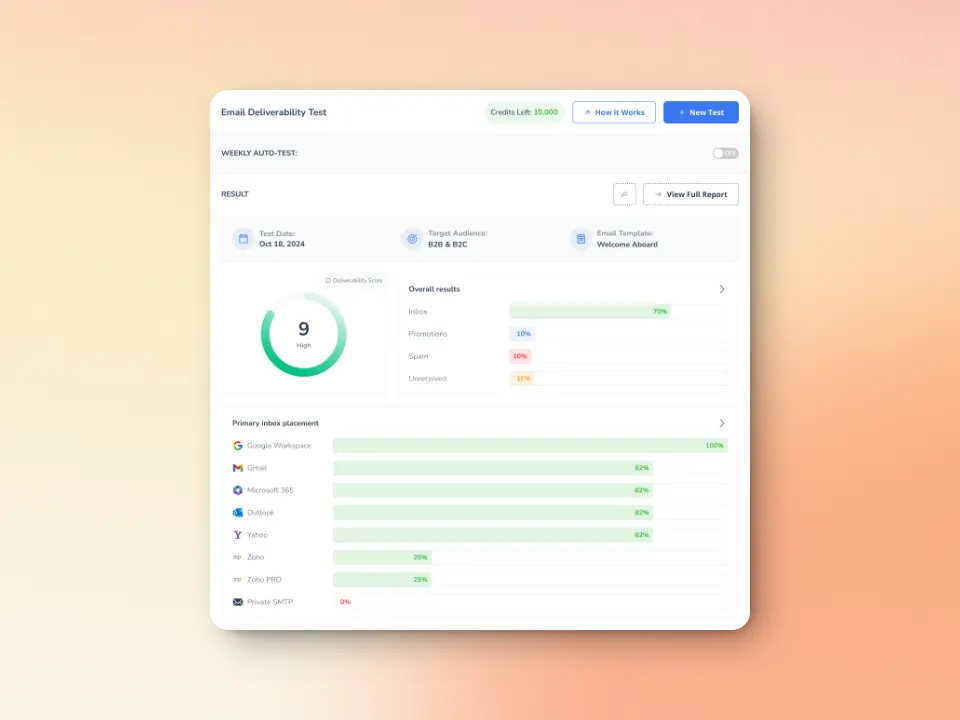
Warmy.io lets you not only do the warming process but also provides other tools that help with email deliverability. It offers free email deliverability tests that allow you to test your emails and see if everything is working fine before you start any campaign to avoid any related issues.
Free SPF and DMARC Record Generators
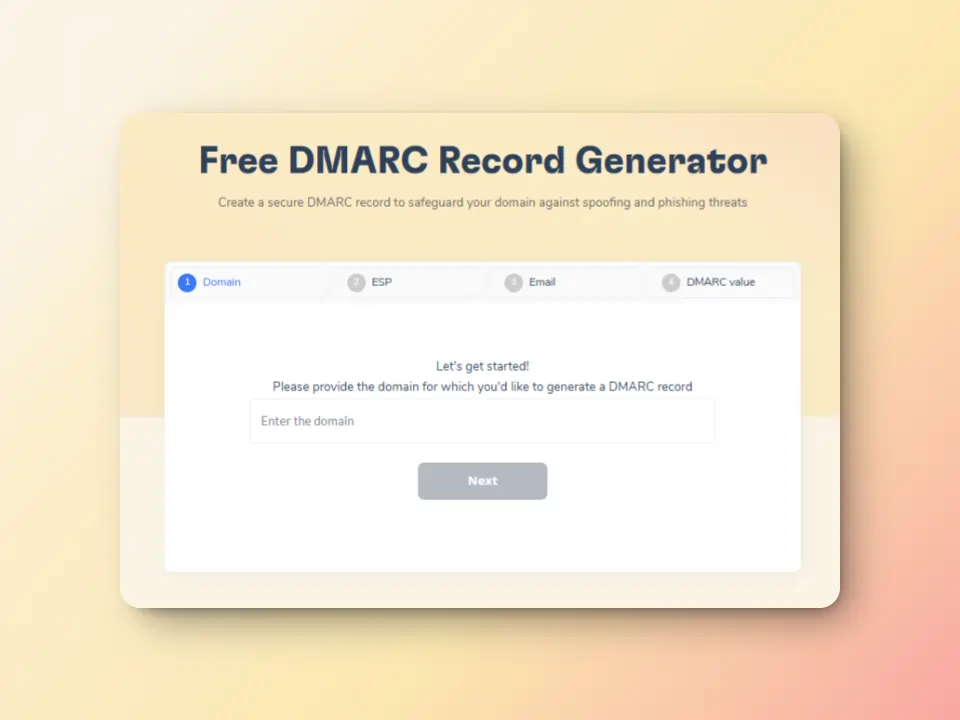
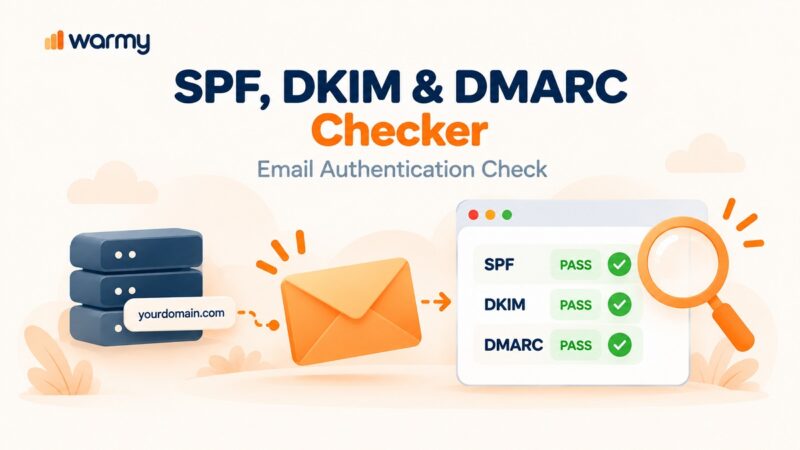
Last but not least, it provides a fancy tool to generate SPF and DMARC records. These records are needed for email authentication and email protection as they allow controlling the email that claims to be sent from your domain. \
AI-Driven Email Warmup
Warmy uses Adeline AI — a dedicated AI engine built specifically for email deliverability — to automate your warmup schedule, adjust sending patterns based on real inbox placement data, and monitor reputation across providers. Unlike basic warmup tools that just send emails back and forth, Warmy warms up with real clicks, across a network of over 1 million active mailboxes, producing verifiable engagement data.
All these features make Warmy.io an all-in tool for managing email and ensuring it reaches your recipient. There’s a free 7-day trial you can explore—and trust us, you’ll want to make the most of it once you see what’s inside.
📜 Related articles:
- SMTP Email Error 504 – How to Resolve [SOLVED]
- SMTP Email Error 504 5.7.4 – How to Resolve [SOLVED]
- SMTP Email Error 504 5.5.2 – How to Resolve [SOLVED]