

SMTP error 503 5.5.1 means your email client tried to send a command before properly identifying itself to the server with an EHLO or HELO greeting — and the server rejected it. In plain terms: your email client skipped the required “handshake” step, so the server refuses to process anything further. The fix is almost always a misconfigured SMTP client, wrong authentication order, or a faulty script. This guide explains every known cause and walks you through the exact steps to resolve it across Gmail, Outlook, Yahoo, and custom SMTP setups.
The SMTP 503 5.5.1 error is part of a broader family of 503 errors that all indicate the server received a command out of sequence — for a full breakdown of how these codes are structured, Warmy’s SMTP error codes reference is a useful companion guide. What makes 5.5.1 specific is the “EHLO/HELO required” message — it tells you the session was never properly initialized. Unlike authentication errors caused solely by wrong passwords, this error is also frequently triggered by poorly written email scripts, email clients that fall back to legacy protocols, or server-side policy changes that now require EHLO (the extended version of HELO). Left unresolved, it blocks all outbound email from that session entirely.
Below you’ll find every documented cause of this error and step-by-step resolution instructions for the most common email clients and SMTP configurations.
Reason for Receiving SMTP Email 503 5.5.1
SMTP email error 503 5.5.1 occurs when there is a misconfiguration in the authentication setup of the email domain.
The email server usually demands authentication to secure the email domain, and to guarantee its continuous functions. If the authentication setup is not present, or does not meet the server’s security requirements it often results in the following error:
- “503 5.5.1 Authentication Required”. This message indicates that the email client failed the authentication process with the SMTP server. This means that the email server made a determination that the sending attempt was made without the credentials or the username, or password were incorrect.
- “503 5.5.1 Error: authenticate first”. This also points to a lack of authentication but is often seen in scenarios where the sequence of commands was incorrect—for instance, attempting to send an email before issuing the authentication command.
Other Factors Resulting in SMTP Error 503 5.5.1
Lack of Authentication
No Authentication Provided Error 503 5.5.1.
This is the most common error email senders receive if they fail to provide authentication information, which is critical for email servers.
Incorrect Authentication Credentials
Error 503 5.5.1 often occurs due to an incorrect username or password.
It is usually recognized more as a human error, which is often the result of password changes, typographical errors, or incorrect SMTP configuration.
Improper Configuration of Authentication Settings
When the configurations are not correctly set up, the server fails to recognize the authentication.
This is common for some cases, although most users input the proper credentials, they lack the appropriate configuration in the email client, based on the email server’s requirements.
For instance, some servers only accept authentications while the encryption method such as SSL/TLS is in use, whereas others have security-enabled ports used for logging in securely.
Changes in Server Authentication Policies
Another instance in which an email client might stop working or receive the 503 5.5.1 error code is when the servers update their authentication policies.
It is an initiative to implement added security measures, in which email users are enforced to update their configurations to align with the system requirements.
Failure to initiate an update can result in 503 5.5.1 error.
Faulty Email Client Updates or Scripts
Automatic updates often result in bugs or completely alter the email configuration, which hinders email authentication.
Resolving SMTP Error 503 5.5.1 for Different Email Clients
Gmail
- Open Gmail Settings. Click on the gear icon in the upper right corner of Gmail, then select ‘See all settings’.
- Access Accounts and Import. Go to the ‘Accounts and Import’ tab and find the section labeled ‘Send mail as’.
- Configure SMTP Settings. Click on ‘edit info’ next to the email address you want to configure, then choose ‘Edit’.
- Enter SMTP Details. Make sure you enter the following SMTP settings:
- SMTP Server: smtp.gmail.com
- Username: Your full Gmail address
- Password: Your Gmail password
- Port: 587 (TLS) or 465 (SSL)
- Save Changes. Click ‘Save changes’ at the bottom of the settings page.
- Test Email. Send a test email to ensure the error is resolved.
Outlook
- File Menu. Open Outlook and go to the ‘File’ tab, then select ‘Account Settings’ > ‘Account Settings…’.
- Change Settings. Select your email account and click ‘Change…’.
- More Settings. After ensuring your user name and password are correctly entered, click ‘More Settings…’ and go to the ‘Outgoing Server’ tab.
- Verify My Outgoing Server (SMTP) Requires Authentication. Check this box and ensure ‘Use same settings as my incoming mail server’ is selected.
- Advanced Tab. Confirm the SMTP port is set to 587 for TLS or 465 for SSL.
- OK and Restart Outlook. Save the settings and restart Outlook to apply changes.
Yahoo
- Mail Settings. Log into your Yahoo Mail, click on the gear icon, then ‘More Settings’.
- Accounts Section. Click on your Yahoo account under the ‘Email addresses’ section.
- SMTP Server Settings. Update the SMTP settings to:
- SMTP Server: smtp.mail.yahoo.com
- Port: 465 (SSL required) or 587 (TLS)
- Ensure SSL/TLS is enabled.
- Authentication. Check the box that says ‘Require authentication to send emails’ and verify your credentials.
- Save and Exit. Save your settings and exit the setup.
Other Email Clients
- Access SMTP Settings. Open the account settings in your email client.
- Authentication Required. Ensure there’s a check or setting enabled for ‘My outgoing server (SMTP) requires authentication’.
- Correct SMTP Server and Port. Verify the SMTP server address and port number are correct as per your email service provider’s instructions.
- Secure Connection. Set up a secure connection using SSL/TLS if supported.
💡 Pro Tips for Preventing SMTP Error 503 5.5.1
- Always use EHLO, not HELO, when configuring custom SMTP scripts. HELO is a legacy command and many modern servers — especially those running Exchange Online or Gmail SMTP — now require the extended EHLO handshake. If your script or tool is hardcoded to send HELO, update it to EHLO before attempting AUTH LOGIN or AUTH PLAIN. This single change resolves the majority of 503 5.5.1 errors in automated sending environments.
- Test your SMTP connection manually before deploying any new sending setup. Use Telnet or OpenSSL to manually connect to your SMTP server and confirm the command sequence: EHLO → AUTH LOGIN → MAIL FROM → RCPT TO → DATA. If any step is rejected, you’ll see the exact error code, making it far easier to pinpoint whether the issue is in the handshake, authentication, or another phase. This is especially useful when configuring custom SMTP setups with providers like SendGrid, Amazon SES, or Mailgun.
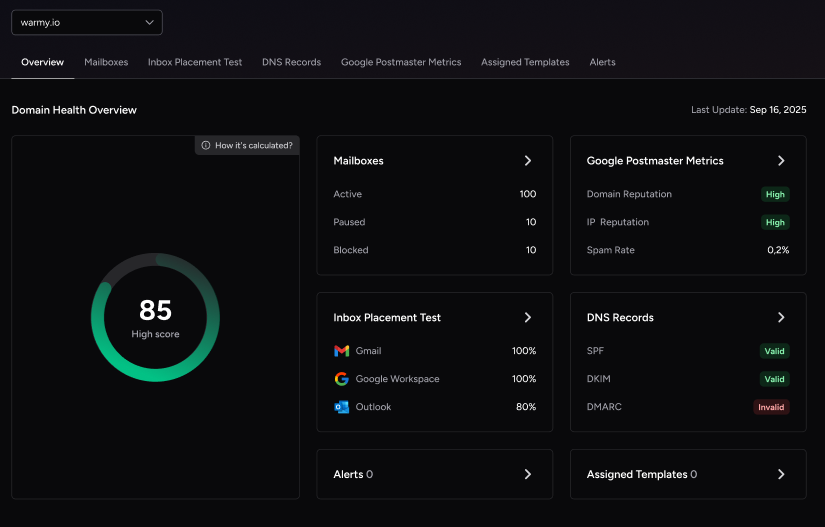
- Check your domain health score regularly — not just when problems arise. SMTP errors like 503 5.5.1 often surface after a domain has already been flagged or blacklisted. By monitoring your domain’s authentication status, blacklist standing, and inbox placement weekly, you catch deterioration early — before it causes bounces. Warmy.io’s Domain Health Hub provides this continuously, including SPF, DKIM, and DMARC record validation, so you’re never caught off guard.
Avoiding SMTP Errors with Email Warm-up Services
The primary function of email warm-up services is to control the volume of emails sent from a new email address, thereby preserving the sender’s reputation with every Internet Service Provider (ISP) and email service.
Email warm-up services, such as Warmy.io, can help mitigate authentication issues, such as SMTP Error 503 5.5.1, as well as other common SMTP errors.
By gradually increasing email volume, these services reduce the risk of emails being marked as spam, helping make your emails appear more authoritative and credible. While SMTP Error 503 5.5.1 is related to authentication issues, it can also be triggered when an email server doesn’t recognize the sender’s domain as reputable or trustworthy.
Here are some of Warmy.io’s features that can help you against various SMTP errors.
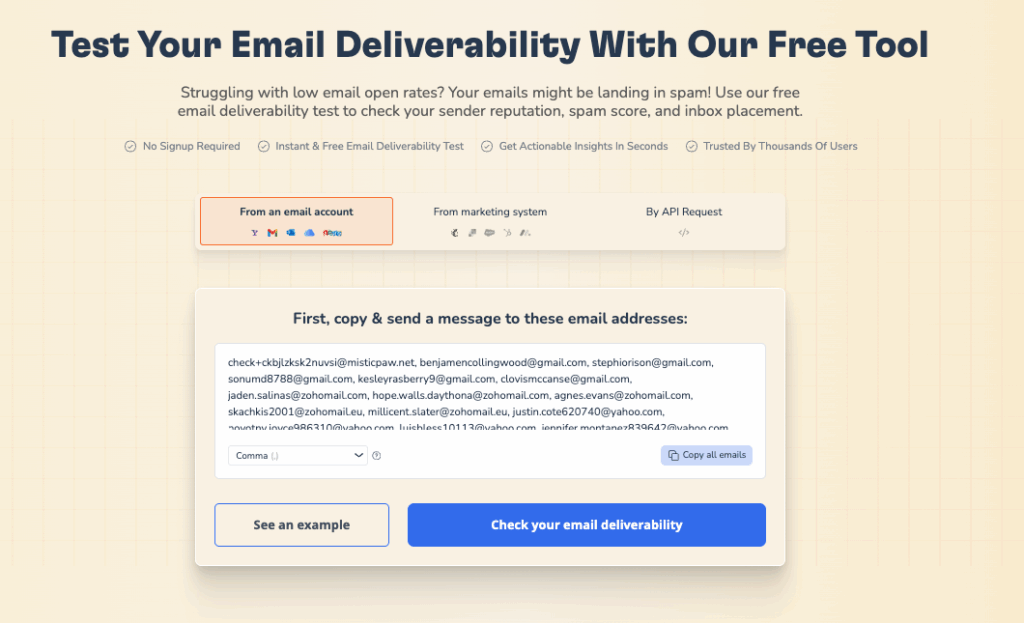
- Free Email Deliverability Tests: Warmy.io also has an exclusive email deliverability test that allows users to check whether their emails are landing in inboxes. These tests help verify the status of your email with various email servers and offer additional features to enhance your email reputation.
- Blacklist Checks: Warmy.io’s Blacklist Checks can help you confirm if your email is potentially blacklisted. Being blacklisted is one of the primary cause for various SMTP errors, identifying if your email has this issue before using your email domain allows you to resolve this before any massive problem occurs.
- Email Authentication Setting Adjustments – By providing the option to add or change SPF and DMARC records, the Email Authentication Setting Adjustments aids various email users to adjust their email authentication settings, avoiding SMTP Error 503 5.5.1.
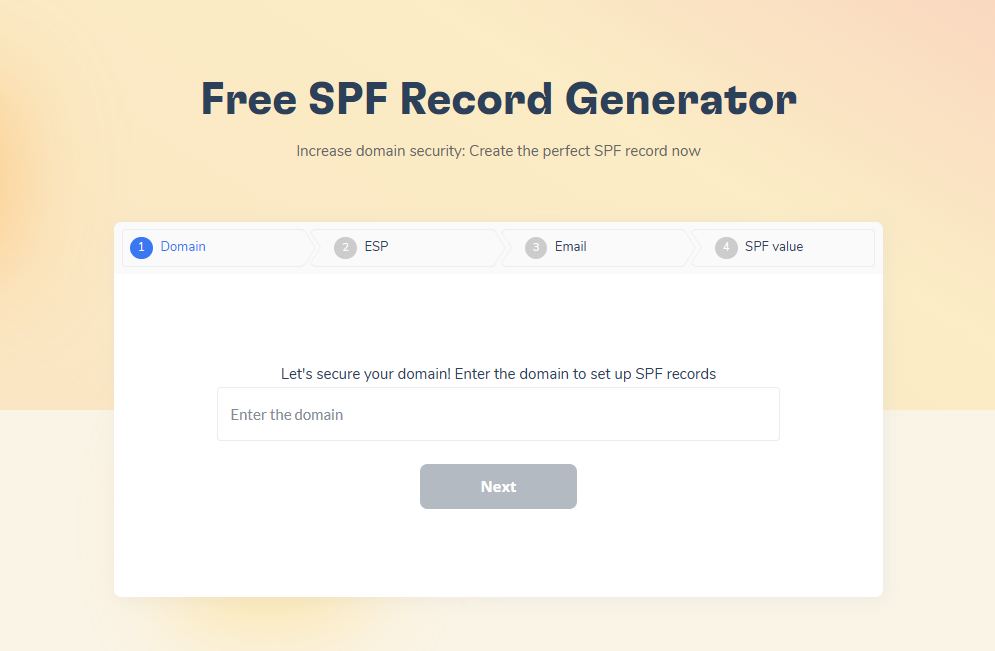
- SPF and DMARC Record Generators – Another exclusive feature of Warmy.io that generates essential email authentication measures. SPF records define which email servers are authorized to send emails on behalf of your domain, while DMARC policies specify actions to take for emails that fail these checks.
Ensure an Authenticated and Reputable Email
Test Your Deliverability Before You Hit Send
Before launching a major email campaign, it’s essential to know where your emails are landing. Are they reaching the inbox, getting filtered into the promotions tab, or worse—ending up in spam? With Warmy.io’s Free Email Deliverability Test, you can check inbox placement across multiple providers and address any issues early—whether it’s related to your SPF, DKIM, DMARC setup, timing, or content.
Complementing this is the Domain Health Hub—a comprehensive dashboard that provides deep insights into your domain’s performance, including:
A domain health score based on authentication, blacklist status, and inbox placement
Weekly and monthly reports to help you track spam rates and deliverability trends
DNS checks to verify SPF, DKIM, and DMARC records
Multi-domain monitoring for businesses managing multiple email domains
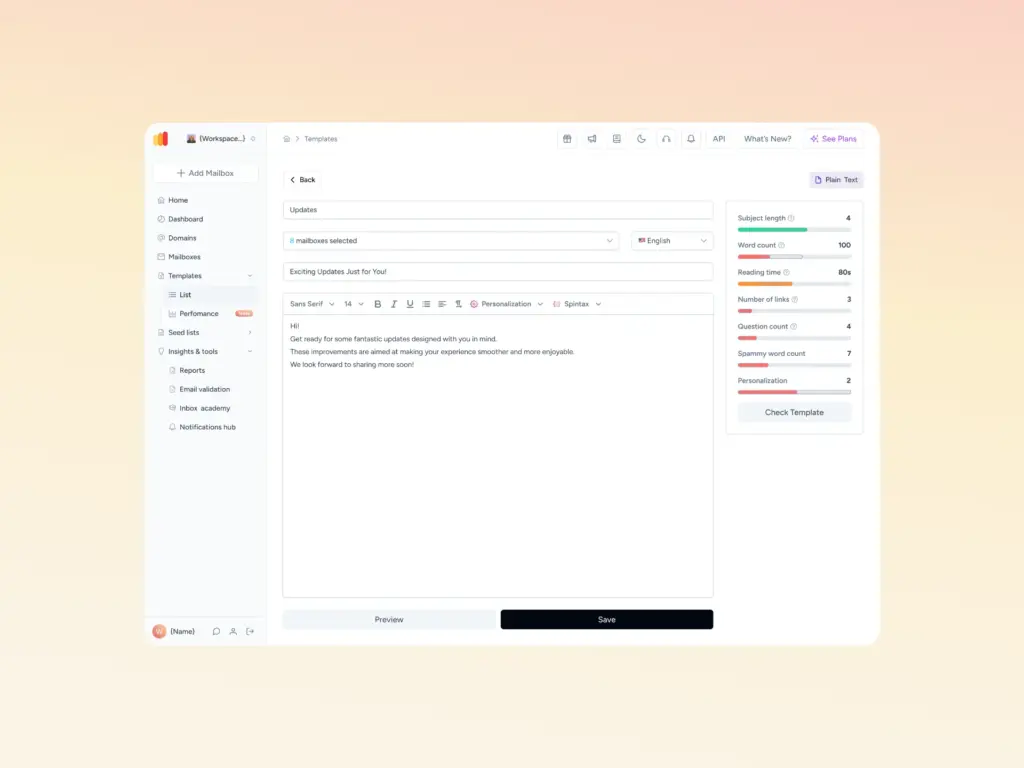
A built-in Template Checker to help ensure your content complies with deliverability best practices
The Template Checker goes a step further by scanning your subject lines, email body, formatting, and links to identify any elements that might trigger spam filters—especially within UK-based ISPs. You’ll receive practical, actionable suggestions to refine your tone, remove problematic language, and improve overall structure. Now available as a convenient Chrome Extension for quick content checks.
Boost Deliverability with Real Engagement
One of Warmy.io’s most powerful differentiators is its use of authentic engagement via real, active seed lists. These aren’t dummy or inactive addresses—they are real mailboxes that simulate natural user behavior by opening, replying, clicking, and archiving your emails. This type of genuine engagement sends strong trust signals to ISPs, accelerating your sender reputation and significantly improving inbox placement over time.
SMTP Email Error 503 5.5.1 creates massive communication delays, which can interfere with how you work, and live your life.
Exercising proactive email management, including the use of services like Warmy.io, not only helps avoid such errors but also enhances overall email deliverability.
Warmy.io’s deliverability experts and Adeline AI work together to warm up your mailbox, monitor your domain health, and prevent SMTP errors before they happen — book a free demo today and see how Warmy.io can protect your sending reputation from day one.
📜 Related article: