

| TL;DR: SMTP Error 502 means your mail server understood the command your email client sent but couldn’t execute it, most often shown as “502 Command not implemented.” The fastest fix: check your SMTP server address, port (587 for TLS or 465 for SSL), and login credentials in your client, save the changes, and send a test email. If the error persists, the cause is usually outdated server software, a blocked command, or commands sent in the wrong order, covered in detail below. |
|---|
Email remains the most common form of official communication, with billions of messages sent every day. Simple Mail Transfer Protocol (SMTP) is the foundational protocol behind that traffic, moving mail between servers so it reaches the right inbox.
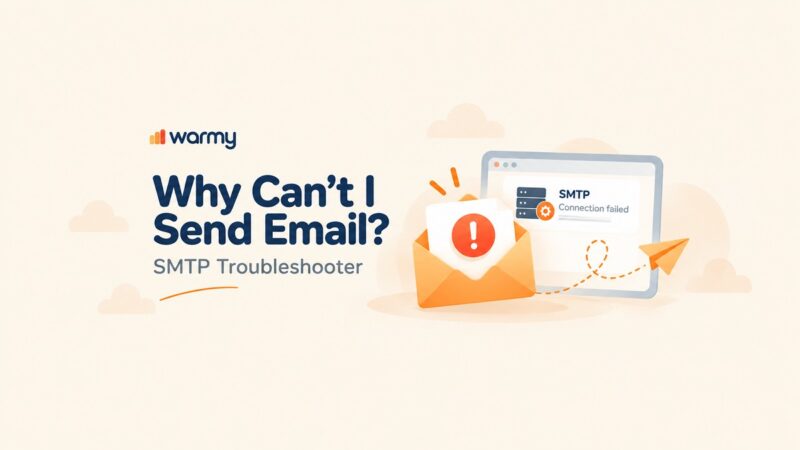
SMTP is dependable, but not immune to failure, and one of the most common failures is a numbered error code returned straight from the server. For a full breakdown of what each code means, see Warmy’s guide to SMTP error codes and messages. When one of these errors occurs, it blocks mail from being sent or received until the underlying issue is fixed.
One such issue is SMTP Error 502. It signals a breakdown in communication between your email client and the SMTP server, usually because the server understands the command but cannot carry it out. The impact is bigger than the wording suggests: mail stops sending entirely, which delays personal messages and can stall business communication until it’s fixed. Resolving it quickly is essential to keeping email flowing without interruption.
Understanding SMTP email error 502
SMTP Email Error 502 is a typical error users encounter when an email client sends a command that the server either doesn’t recognize or can’t implement. This code belongs to the SMTP server’s response code system, which tells the sender the status of what happened to the message.
Typically, SMTP Email Error 502 manifests as:
- “502 Command not implemented” This message indicates that the SMTP server understands the command sent by the email client but cannot perform it. This might be due to the server’s limitations or configuration settings that do not support the specific command.
- “502 Bad command sequence”. Sometimes, the error may appear if the commands are sent in an incorrect sequence, which the server cannot process logically.
- “502 Command not supported”. This variation points to the server’s incapacity to handle certain commands, possibly due to outdated software or restricted capabilities.
Common causes of SMTP email error 502
Incompatible Commands
Another cause of Error 502 with a high probability of failure is the use of SMTP commands that the server does not know or support. This can happen when the email client sends commands based on newer standards or extensions to the protocol, which the server did not implement . As a result, the server tries to execute an incomprehensible operation, which leads to an error.
Server Limitations
Email servers can also be restricted to allow for better security or resource management. These restrictions might involve disallowing specific commands or blocking activity the server flags as spam or abuse. When a client sends a command the server disallows, it returns Error 502, a pattern that shows up in related codes too, such as SMTP Error 421 4.4.1, where the server temporarily refuses a connection instead of a single command.
Outdated Server Software
If a server is running on an outdated major version, it may not support newer SMTP commands/protocols that are used in modern email clients. This is because a lack of updates creates a mismatch between what the server can handle and what the client expects to handle, resulting in command execution failure.
Incorrect Command Sequences
The SMTP protocols stipulate that commands must be sent in an approved sequence to enable an email message’s processing. Therefore, if the commands are transmitted out of the set order, the server may return an Error 502, meaning the bad command sequence. This commonly happens when one is using automated email sending systems or custom scripts because the commands have not been structured as per the required sequence.
Configuration Errors
Error 502 can also be caused by improper configuration of the SMTP server itself. For example, the server settings may not clearly specify which commands are allowed, or security settings may be strict enough to block even legitimate commands. This overlaps with what causes SMTP Error 554 5.4.6, another configuration-driven rejection worth ruling out at the same time. For background on how mail servers classify and report these failures, Microsoft’s documentation on non-delivery reports is a useful reference.
Pro Tip: Before changing any settings, send yourself a test email and check the exact bounce message in the headers. The bounce almost always names the specific command that failed, which tells you whether you’re dealing with a sequence problem, a blocked command, or outdated server software before you start troubleshooting.
Want to stop guessing and start monitoring your sender reputation directly? Start your free Warmy trial and get real-time alerts before an error like this costs you deliveries.

Step-by-step solutions for resolving SMTP email error 502 in popular email clients
Gmail
- Access Settings. Open Gmail, click the gear icon, and select ‘See all settings’.
- Accounts and Import. Navigate to the ‘Accounts and Import’ tab and find the section labeled ‘Send mail as’.
- Check SMTP Settings. Click ‘edit info’ next to the email address you want to configure, then click ‘Edit’.
- Ensure the SMTP Server is set to
smtp.gmail.com. - Confirm the Username (your full Gmail address) and Password are correct.
- Verify the Port is set to 587 for TLS or 465 for SSL.
- Ensure the SMTP Server is set to
- Save Changes. After verifying or changing settings, click ‘Save changes’.
- Test Email. Send a test email to confirm the error is resolved.
Outlook
- Open Account Settings. In Outlook, go to the ‘File’ tab, then ‘Account Settings’ > ‘Manage Profiles’.
- Email Accounts. Choose your email account and click ‘Change’.
- More Settings. Click on ‘More Settings’ and go to the ‘Outgoing Server’ tab.
- Check ‘My outgoing server (SMTP) requires authentication’.
- Ensure ‘Use same settings as my incoming mail server’ is selected.
- Advanced Settings. Go to the ‘Advanced’ tab and set the Outgoing server (SMTP) to use port 587 for TLS or 465 for SSL.
- Confirm Changes and Restart. Click ‘OK’, then ‘Next’, and ‘Finish’. Restart Outlook to apply the settings.
Yahoo
- SMTP Configuration. Log into Yahoo Mail, navigate to ‘Settings’ > ‘More Settings’ > ‘Mailboxes’.
- Select Your Account. Choose your account and scroll to ‘Outgoing mail server (SMTP)’.
- SMTP Server should be set to
smtp.mail.yahoo.com. - Ensure the port is set to 465 with SSL or 587 with TLS.
- Check the box for ‘Requires authentication’.
- SMTP Server should be set to
- Save and Exit. After making any necessary changes, save your settings and exit the menu.
- Send Test Email. Try sending a test email to ensure that the SMTP Error 502 is resolved.
Other Email Clients
- Review SMTP Settings. Open your email client’s settings and locate SMTP server settings under account properties.
- Verify Server Address. Ensure the SMTP server address is correctly entered.
- Check Port and Encryption. Confirm the SMTP port and encryption settings (typically 587 for TLS or 465 for SSL).
- Authentication. Make sure ‘SMTP authentication’ is enabled, and credentials are correctly entered.
- Test and Adjust. After saving changes, send a test email. If the issue persists, check for any specific settings or additional security features that might be impacting SMTP functionality.
Pro Tip: Port 587 with TLS is the modern standard most providers expect. If your client still defaults to port 25 or an old SSL-only setup, switching to 587/TLS often resolves 502 errors that pure command-sequence fixes don’t touch.
Understanding SMTP error 502.5.5.2
SMTP Error 502.5.5.2 is an extended variant of SMTP Error 502 that points to a syntax mistake in the commands your email client sends to the server. It’s closely related to SMTP Error 501 5.7.1, which flags a similar syntax problem at a different stage of the exchange. This variant of Error 502 means something is wrong with the command sequence or format, so the server cannot process it.
How to Solve SMTP Error 502.5.5.2
Review Command Syntax
Check the syntax of the command you are sending using your email client. It should be error-free, including proper spelling, correct format, and the correct parameters. Command syntax and the required sequence are formally defined in RFC 5321, the official SMTP standard, if you need to check the exact rules.
Check Command Sequence
The command should be sent in the appropriate order according to the SMTP protocol. For instance, the “HELO” or “EHLO” command should be sent first before the “MAIL FROM” or “RCPT TO” command.
Consult Documentation
To see which command or command sequence you are sending incorrectly, refer to error logs or SMTP server documentation. This, therefore, allows you to specifically identify what needs to be changed.
Update Email Client Settings
If the error is still not resolved, may need to update your email client or script to make it compliant with the current SMTP standards and SMTP server requirements.
Test Changes
Check if the error has already been fixed by sending some test emails after making your adjustments.
Pro Tip: If Error 502 or unexpected bounces started right after you moved to a new domain or IP, the real cause may be low sender reputation rather than a command mismatch. A properly warmed-up domain reduces false triggers from spam-prevention command blocks.
Utilizing email warm up tools to prevent future errors
Many SMTP errors, Error 502 included, become more frequent once a domain’s sender reputation is already damaged, since servers apply stricter command filtering to senders they don’t trust. Warmy.io addresses that root cause: it warms up email accounts before bulk sending and keeps sender reputation in a state that servers are less likely to flag.
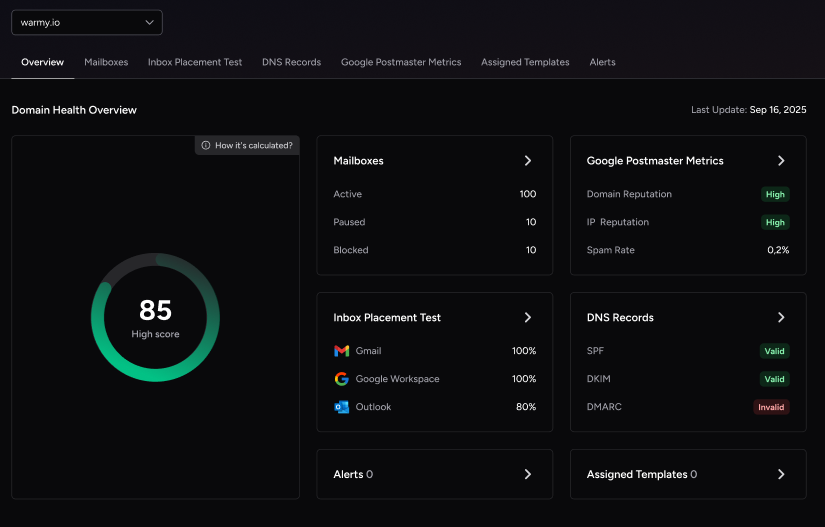
Warmy’s free email deliverability test gives you a quick overview of where a message is likely to land, including whether it’s at risk of being marked as spam, and checks whether your domain is already on a major blacklist.
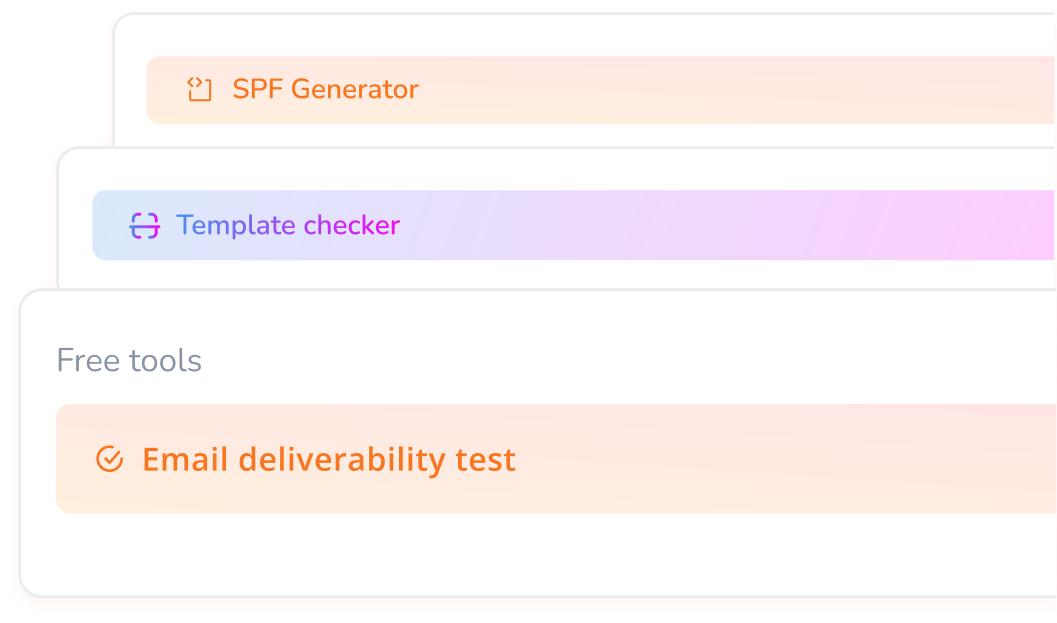
For authentication, Warmy’s free SPF and DMARC generator tools build correctly formatted records so servers can verify your emails are legitimate, a common trigger for command-level rejections when misconfigured. The Template Checker scans your email content and formatting for issues before you send, and Seed List warmup adds real inbox interactions that build reputation faster than volume alone.
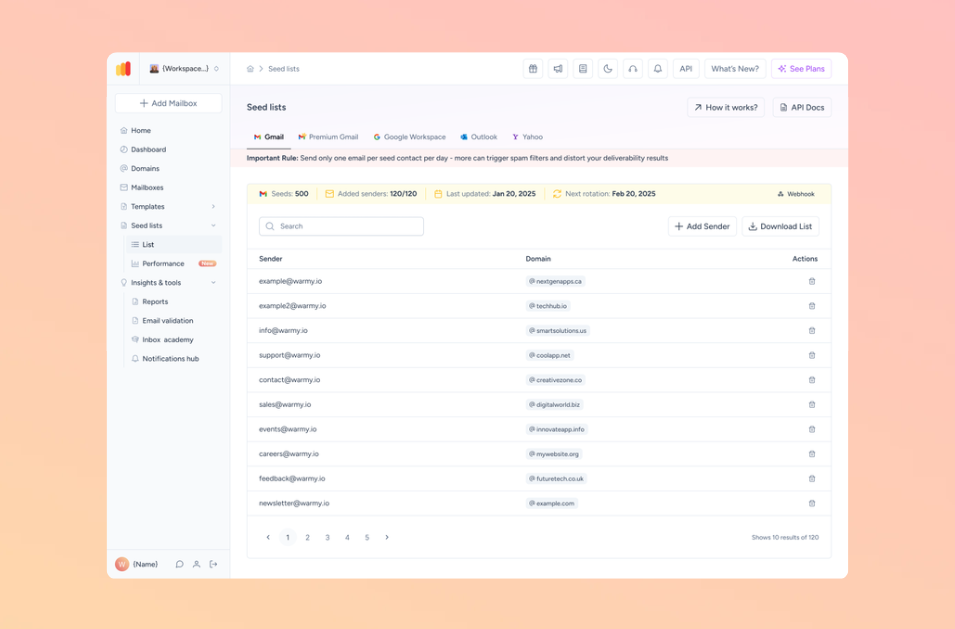
Together, these tools cover sending reputation, authentication, and content, the three areas most SMTP errors trace back to.
Conclusion
Swiftly addressing SMTP Email Error 502 is crucial for maintaining uninterrupted email services. This error, which typically indicates that a command cannot be executed due to server limitations or incompatibilities, can significantly disrupt communication if not resolved quickly.
Proactive email management, including the use of tools like Warmy.io, offers substantial benefits by preventing future issues. Regularly monitoring and adjusting email settings can preempt potential errors, while tools that check for server compatibility and authentication ensure that email systems are always aligned with best practices.
Ready to stop firefighting SMTP errors one code at a time? Book a demo and see how Warmy keeps your sender reputation, authentication, and deliverability aligned automatically.