

SMTP error 500 5.7.1 means your email was permanently rejected because the receiving server determined you are not authorized to send it. The most common causes are missing or broken SPF, DKIM, or DMARC authentication records, a sending IP listed on a spam blacklist, or misconfigured SMTP relay settings. Fix authentication records, verify your IP reputation, and correct your SMTP configuration to resolve the error.
SMTP (Simple Mail Transfer Protocol) stands as the backbone of email communication, a standard set in the digital world to facilitate the sending of emails across the internet. This protocol oversees the smooth transition of your emails from your outbox to the intended recipient’s inbox, ensuring that messages are correctly routed and delivered.
One of the most disruptive SMTP errors you can encounter is 500 5.7.1 – a permanent rejection that means the receiving server has refused your message, usually due to a policy, authentication, or authorization failure. Unlike temporary deferrals, this error will not resolve on its own. You need to fix the underlying cause before your emails will get through.
What is SMTP Email Error 500 5.7.1
SMTP error 500 5.7.1 is a permanent rejection code meaning “delivery not authorized, message refused.” When you see this code in a bounce notification, the receiving mail server accepted enough of your SMTP conversation to identify the message, then refused delivery based on a policy, security, or authorization decision.
The 5 prefix confirms the failure is permanent, meaning the server will not accept this message without a change on your side. The 7.1 sub-code narrows the cause to delivery not authorized – which in practice means failed sender authentication, a blacklisted IP, a relay restriction, or a recipient-side access rule.
The exact wording after the code varies by server. You may see:
- 550 5.7.1 Relaying denied
- 550 5.7.1 Message rejected due to content restrictions
- 550 5.7.1 Email blocked by policy
- 571 Delivery not authorized, message refused
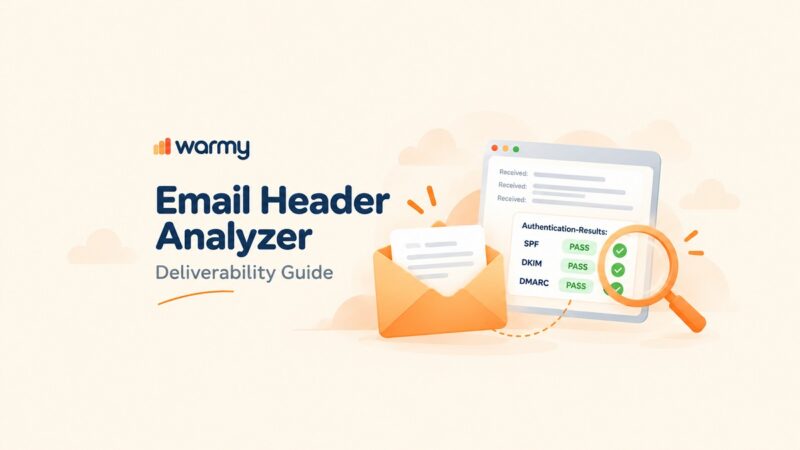
Read the full diagnostic string in the bounce notification – the words after the code are your fastest clue to the specific fix needed.
Root Causes of SMTP Email Error 500 5.7.1
This error fires for several distinct reasons. Identifying the exact cause before making changes saves significant time – a fix for a broken SPF record does nothing if the real issue is a blacklisted IP.
Failed Email Authentication (SPF, DKIM, DMARC)
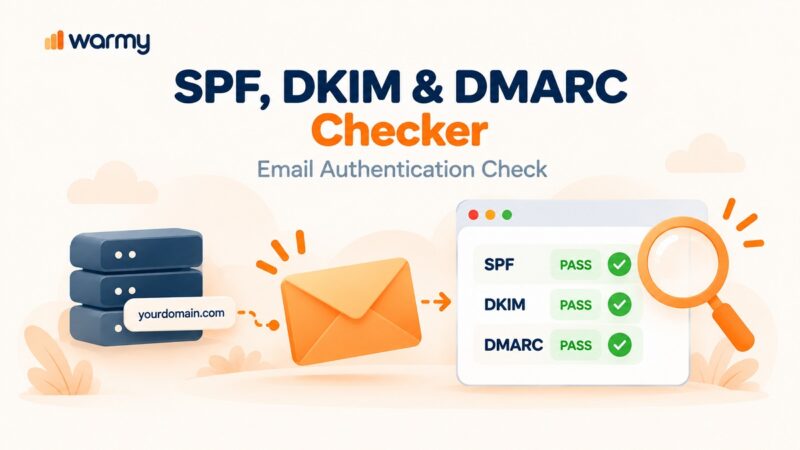
Authentication confirms to the receiving server that you are authorized to send from your domain. When your SPF record does not include your sending IP, your DKIM signature is missing or broken, or your DMARC policy fails alignment, the receiving server has no way to verify your identity – and many servers will reject the message outright with a 5.7.1 code.
Since February 2024, Gmail and Yahoo have enforced mandatory SPF, DKIM, and DMARC requirements for bulk senders. Gmail escalated enforcement to outright SMTP-level rejection in November 2025. If your authentication records are not fully configured and passing, expect this error regularly.
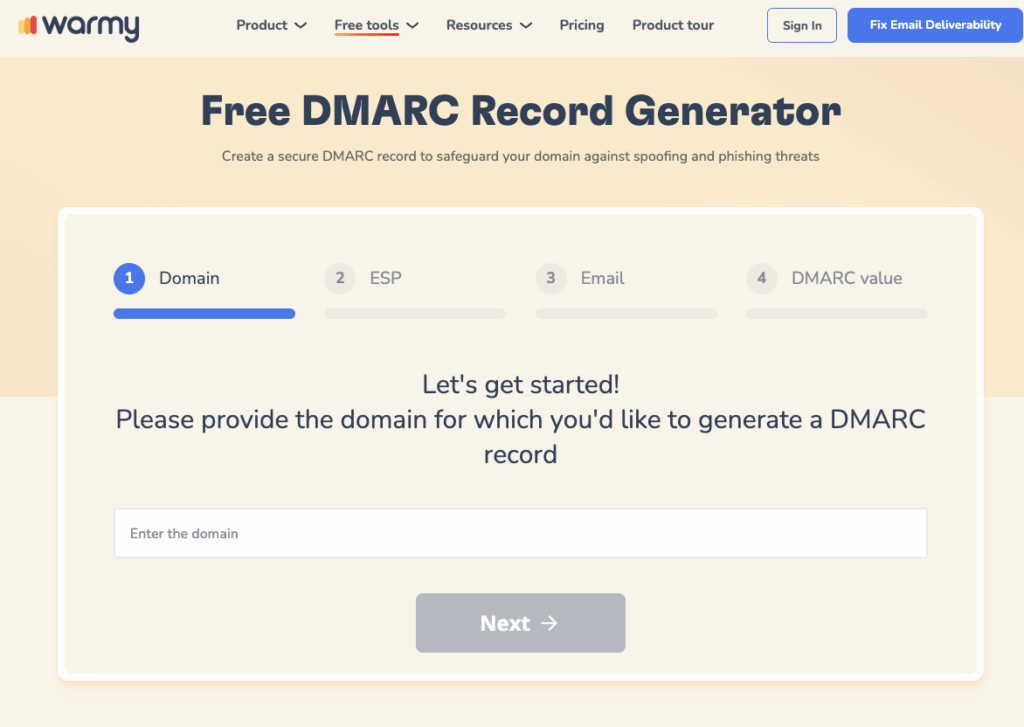
Warmy’s free SPF Record Generator and DMARC Generator create correctly formatted records in minutes – use them to validate and update your DNS configuration before anything else.
Blacklisted Sending IP or Domain
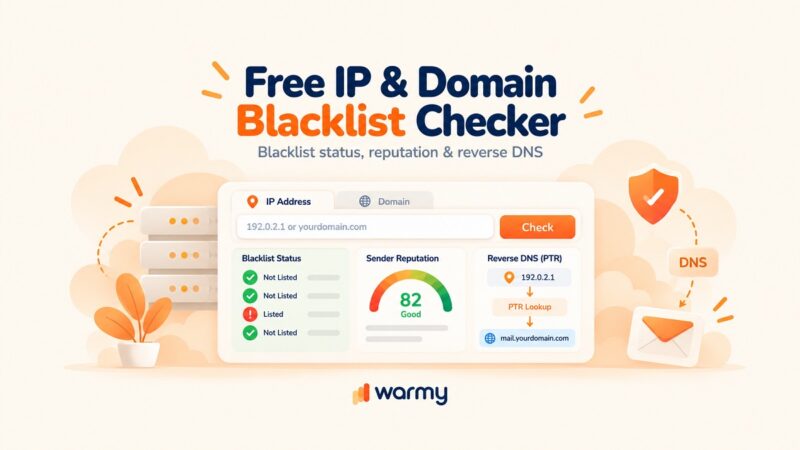
If your sending IP or domain appears on a spam blacklist – maintained by services like Spamhaus or Barracuda – receiving servers that consult these lists will reject your messages at the policy level. Blacklisting can happen from a previous spam complaint spike, shared hosting infrastructure, or a domain that was previously used for spam.
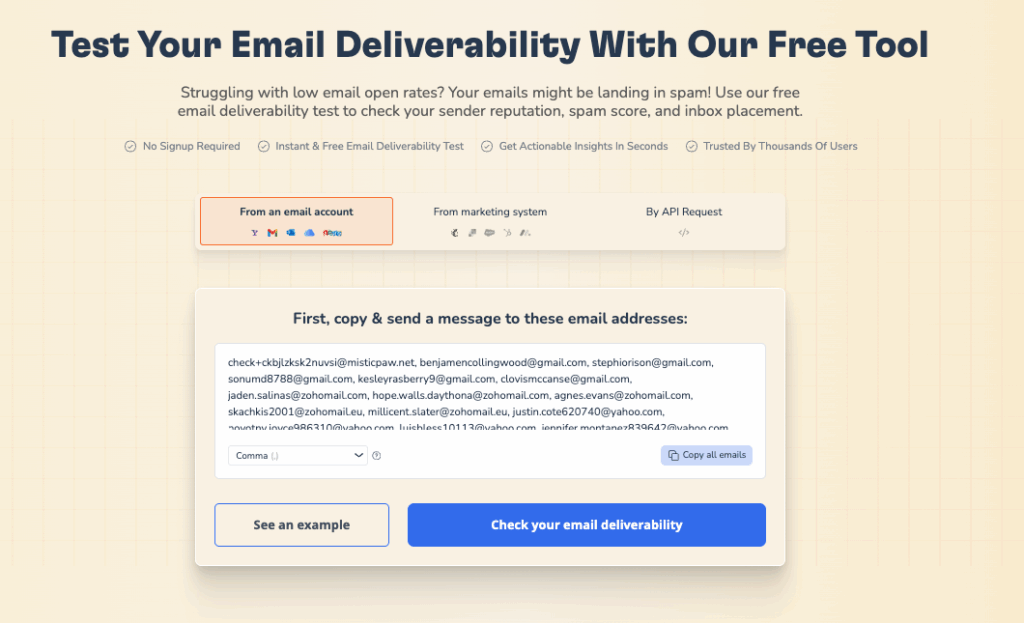
Check your domain and IP reputation using Warmy’s free Email Deliverability Test. It scans your domain and IP against major blacklists, verifies SPF/DKIM/DMARC, and shows your inbox placement rate across Gmail, Outlook, and Yahoo.
SMTP Relay Misconfiguration or Relay Denial
“Relaying” means routing your email through a mail server that is not the origin server for your domain. Most servers restrict relay access to authenticated, authorized senders. If your SMTP client settings point to the wrong server, use the wrong port, or lack proper authentication credentials, the server will reject the connection with a relay-denied 5.7.1 error.
This is also the cause when sending to distribution lists in Microsoft Exchange – if external senders are not explicitly permitted, Exchange returns 5.7.1 with “RESOLVER.RST.AuthRequired.”
Policy Restrictions and Sending Limits
Understanding and complying with your email server’s policies, such as sending limits and rules for valid recipients, is essential to prevent your emails from being blocked. Familiarize yourself with these guidelines to maintain good email practices.
Gmail requires bulk senders to maintain a spam complaint rate below 0.3%, with a strong recommendation to stay under 0.1%. Exceeding these thresholds triggers automatic blocks. Outlook enforces daily sending volume limits, and Yahoo applies strict policy rules around authentication and recipient verification.
💡 Pro Tip: Before making any DNS or SMTP changes, save the full bounce notification text – including the remote server response and any diagnostic code. Different bounce messages (“relaying denied,” “auth failed,” “user unknown”) require completely different fixes. Starting from the exact error text cuts troubleshooting time significantly.
Comprehensive Guide to Fixing SMTP Email Error 500 5.7.1
Tackling SMTP Email Error 500 5.7.1 requires a focused approach to adjust settings, verify credentials, and ensure compliance with email platform policies. Here’s how to efficiently resolve this issue across Gmail, Outlook, and Yahoo:
For Gmail Users
Adjust SMTP Settings
Confirm SMTP is set to smtp.gmail.com, using port 465 (SSL) or 587 (TLS).
Use OAuth 2.0 or an App-Specific Password (Not Legacy Passwords)
Google permanently removed the “Less Secure Apps” toggle from the Admin Console in June 2024, with full enforcement completed by May 2025. You can no longer use a plain Gmail password with third-party SMTP clients. Instead, use one of two options:
- OAuth 2.0 (recommended): Configure your email client or sending application to authenticate via XOAUTH2. Modern clients like Thunderbird and Outlook handle this automatically.
- App Password: If your application does not support OAuth, enable 2-Step Verification on your Google Account, then generate an App Password at Security → 2-Step Verification → App Passwords. Use this 16-character password in place of your Gmail password in SMTP settings.
Update SPF and DMARC Records
Use Warmy.io to generate correct records, enhancing email authentication and delivery.
For Outlook Users
Check SMTP Configuration
Ensure the SMTP server is smtp-mail.outlook.com with port 587 and STARTTLS encryption.
Activate SMTP Authentication
Verify My outgoing server requires authentication is selected.
Check Microsoft Exchange Relay Permissions
If you are hitting “571 Delivery Not Authorized” via Microsoft Exchange, the issue is likely a Receive Connector configuration. External senders are blocked from reaching protected distribution lists and public folders by default. Your Exchange administrator needs to add your sending domain or IP to the allowed senders list in the Receive Connector settings, or enable anonymous relay permissions for trusted IP ranges.
Manage Sending Limits
Spread out your email sending to fit within Outlook’s limits and avoid being flagged as spam.
For Yahoo Users
Confirm SMTP Details
Set the SMTP server to smtp.mail.yahoo.com with SSL encryption on port 465.
Ensure Proper Authentication
Enable Use Authentication with your full email address and password.
Adhere to Yahoo’s Policies
Keep your sending practices within Yahoo’s guidelines to prevent errors.
💡 Pro Tip: After updating your SPF, DKIM, or DMARC records, DNS propagation can take up to 48 hours. Do not test deliverability immediately after making changes – wait at least an hour, then run a fresh check using Warmy’s Email Deliverability Test to confirm the records are resolving correctly before resuming sends.
Not sure whether your authentication records are correctly set up? Run a free Email Deliverability Test to check your inbox placement across Gmail, Outlook, and Yahoo, verify your SPF/DKIM/DMARC, and scan your domain against major blacklists – in under 60 seconds.
Leveraging Email Warm-Up Services
Email warm-up is a strategic process to boost your email’s deliverability by gradually increasing the number of emails sent from a new account. This practice helps establish your email’s reputation, ensuring it’s recognized as legitimate by ISPs and ESPs, which is key to avoiding spam filters and SMTP Email Error 500 5.7.1.
Why Authentication Alone Isn’t Enough
The connection between this error and sender reputation is direct: Validity’s 2025 Email Deliverability Benchmark Report found that global spam placement rates nearly doubled from Q1 to Q4 2024, driven largely by stricter authentication enforcement. Senders with low reputation and poor authentication history are the first to be blocked.
This matters for 500 5.7.1 specifically: a clean authentication record gets your email through the identity check, but it does not protect against policy blocks triggered by a damaged sending reputation, excessive complaint rates, or sudden volume spikes from a cold domain. Warm-up addresses all three simultaneously.
For broader context, Unspam’s 2025 Email Deliverability Report found that even emails with full SPF, DKIM, and DMARC in place experienced spam placement rates exceeding 30% – underscoring that authentication is a baseline, not a complete solution. Sender reputation, engagement signals, and warm-up all contribute to reaching the primary inbox.
How Warmy Rebuilds Your Sender Reputation
Warmy is an AI-driven email warmup and deliverability platform that automatically builds your sender reputation, improves inbox placement, and keeps your emails out of spam – no technical expertise required. Powered by Adeline AI, which makes 20 million decisions per day, Warmy creates a personalized warmup schedule for each mailbox and gradually increases send volume while generating real engagement signals – opens, replies, clicks, and spam removals – across 30+ languages and a network of 1M+ real mailboxes.
Warmy’s Advanced Seed Lists cover Gmail, Outlook, and Yahoo, interacting with your emails exactly as real recipients would. The Warmup With Clicks feature adds real link-click signals that push emails out of the Promotions tab and into the primary inbox.
When to Use Email Warm-Up: New Domains vs. Reputation Recovery
Warm-up is essential in two distinct scenarios:
- New domain or mailbox: ISPs have no sending history for a new domain, so any volume beyond a trickle looks suspicious. Warm-up builds that trust incrementally, starting at 20–30 emails per day and scaling over 4–6 weeks until you can send at full campaign volume without triggering policy blocks.
- Post-blacklisting recovery: If your domain or IP was blacklisted and you’ve resolved the underlying cause, resuming full-volume sends immediately will likely re-trigger the block. Warm-up re-establishes positive engagement signals gradually, giving ISPs the evidence they need to restore your reputation.
What to Monitor During and After Warm-Up
Running warm-up without monitoring is like driving without a dashboard. Track these signals to know whether your reputation is improving or stalling:
- Inbox placement rate: use Warmy’s free Email Deliverability Test to track what percentage of emails reach the primary inbox vs. spam across Gmail, Outlook, and Yahoo.
- Spam complaint rate: keep this below 0.1% at all times. Spikes above 0.3% trigger automatic Gmail and Yahoo policy blocks.
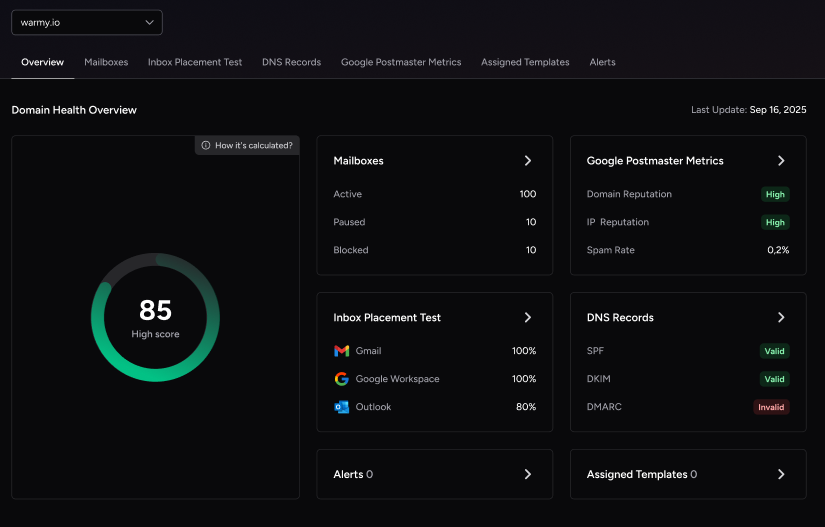
- Domain health score: Warmy’s Domain Health Hub gives you a numeric score based on inbox placement, DNS authentication, and Google Postmaster data, along with spam rate trends and multi-domain monitoring in one dashboard.
- Blacklist status: check regularly that your IP and domain have not been added to Spamhaus or other major blocklists, especially in the first weeks of a warm-up ramp.
For a broader overview of SMTP error codes and what each one means, the Warmy SMTP Error Codes and Messages guide covers the full range of errors you may encounter alongside 500 5.7.1.
💡 Pro Tip: If you are launching a new sending domain or recovering from a blacklisting event, start with no more than 20–30 emails per day and ramp up slowly over 4–6 weeks. Jumping to high send volumes immediately – even with perfect authentication – is one of the most common triggers for policy-based 5.7.1 rejections from Gmail and Outlook, because ISPs interpret sudden volume spikes as suspicious behavior.
Conclusion
SMTP error 500 5.7.1 is a permanent rejection, but it is fully fixable once you identify the root cause. Start by reading the exact bounce message to determine whether you are dealing with an authentication failure, a blacklisted IP, a relay restriction, or a policy block. Fix the specific issue – update your SPF, DKIM, or DMARC records, configure OAuth 2.0 for Gmail, resolve relay permissions in Exchange, or remove your IP from relevant blacklists.
Once the immediate error is cleared, invest in your sender reputation through email warm-up. Authentication passes the server’s identity check, but reputation determines long-term inbox placement. Warmy’s AI-driven warm-up platform builds that reputation automatically, so future sends reach the inbox rather than triggering policy blocks.
Ready to protect your sender reputation and stop deliverability errors for good? Start a free 7-day Warmy trial – no credit card required. Or book a demo to see Warmy’s AI warmup in action.